Free OnlineAI Image Generator
How to Create an Image with AI
Define the Image Job and Canvas
Describe the Scene or Add a Reference
Generate and Compare Visual Directions
Refine in Chat and Export

A More Useful Way to Generate and Refine AI Images
Match the Model to the Image Job
One model rarely excels at every visual task. Mew Design can work with capable image models such as GPT Image 2.5 or Nano Banana Pro when their strengths fit your request.
Create From Text or Visual References
Begin with a sentence, upload a reference image, or combine both. The AI picture generator can use a photo for subject, composition, palette, or style guidance while your written instructions explain what should change.
Direct Composition, Not Just Style
Specify viewpoint, lens feel, subject placement, crop, depth, lighting, and open space for copy or interface elements. This makes generated visuals more practical for listings, presentations, social media, articles, and creative pitches.
Fix Details Without Restarting the Brief
A first result is a draft. Use Chat Edit to preserve the parts that work while adjusting an expression, object, color, shadow, background, or framing. Small targeted requests make changes easier to review.
Explore Formats and Connected Variations
Turn one direction into square, portrait, landscape, or transparent-background options. You can also explore related versions for a campaign or story while repeating the subject, palette, and visual rules that should remain consistent.
Start Free and Export Without a Watermark
New users can try the free AI image generator online with signup credits, compare a few directions, and export an approved PNG or JPG without a watermark. Check the current plan, source rights, and usage rules before publishing commercially.
How to Write an AI Image Prompt That Produces Usable Results
- Name the Subject and Action: State what appears, how many subjects there are, what they are doing, and which details must stay recognizable. Use concrete nouns instead of broad ideas alone.
- Build the Setting and Look: Describe the environment, time of day, style or medium, palette, materials, lighting, and mood. For realism, include camera viewpoint and believable surface texture.
- Plan Composition for the Destination: Give an aspect ratio, crop, focal-point position, depth, and safe area. Explain whether you need room for a headline, product details, icons, or a later layout.
- Add Constraints and Review Notes: List unwanted objects, text, logos, artifacts, or identity changes. Use only references you have permission to provide, and inspect faces, hands, labels, edges, reflections, and implied claims before publishing.
AI Image Prompts for Real Creative Projects
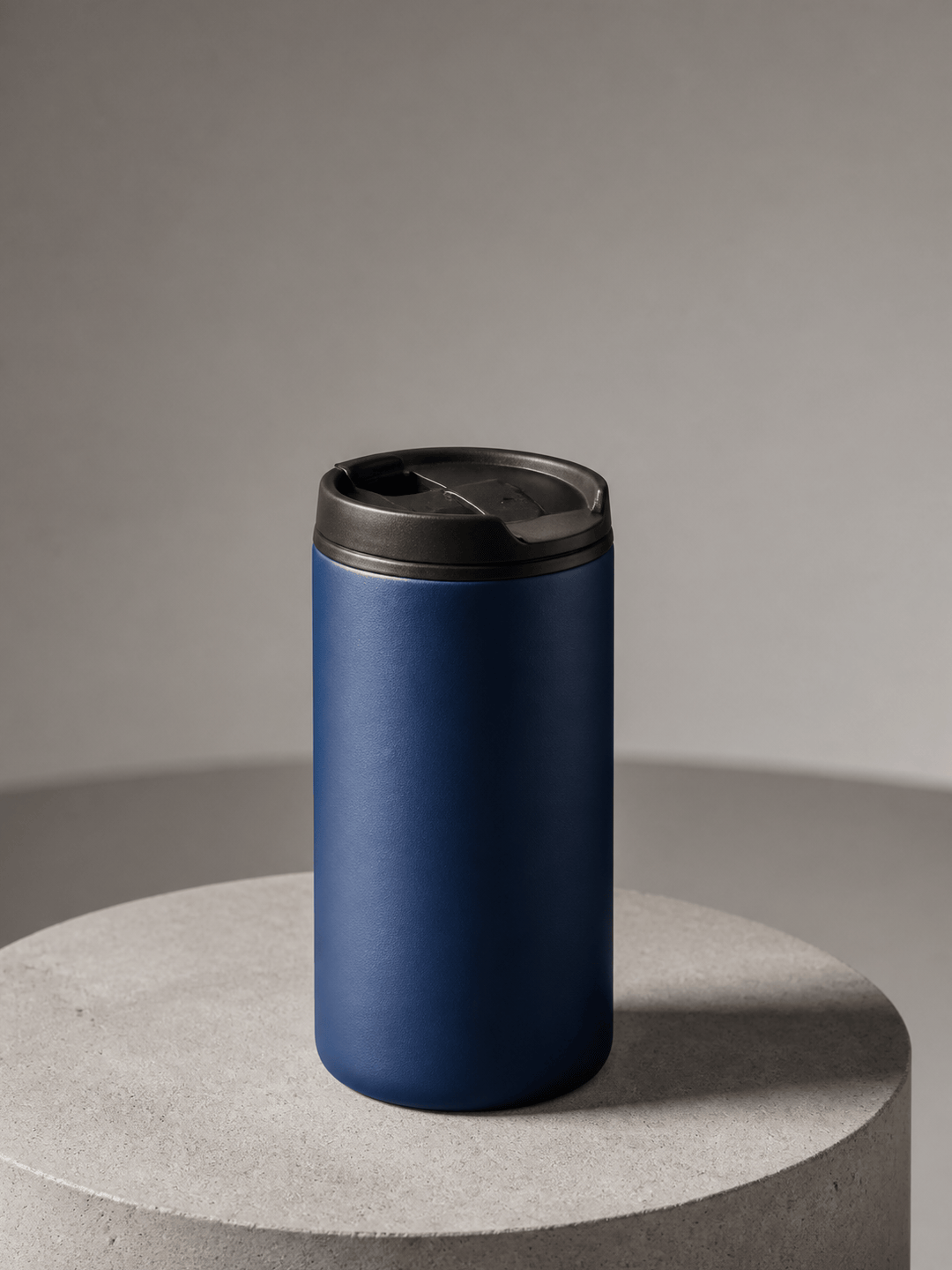
E-Commerce Product Photo: Create a photorealistic 4:5 hero image of a matte cobalt travel mug on a light concrete pedestal. Use soft side lighting, a clean warm-gray studio background, realistic powder-coated metal texture, a subtle grounded shadow, and open space above for later copy. Keep the mug shape practical and the surface blank. No logo, text, extra lid, floating object, or watermark.
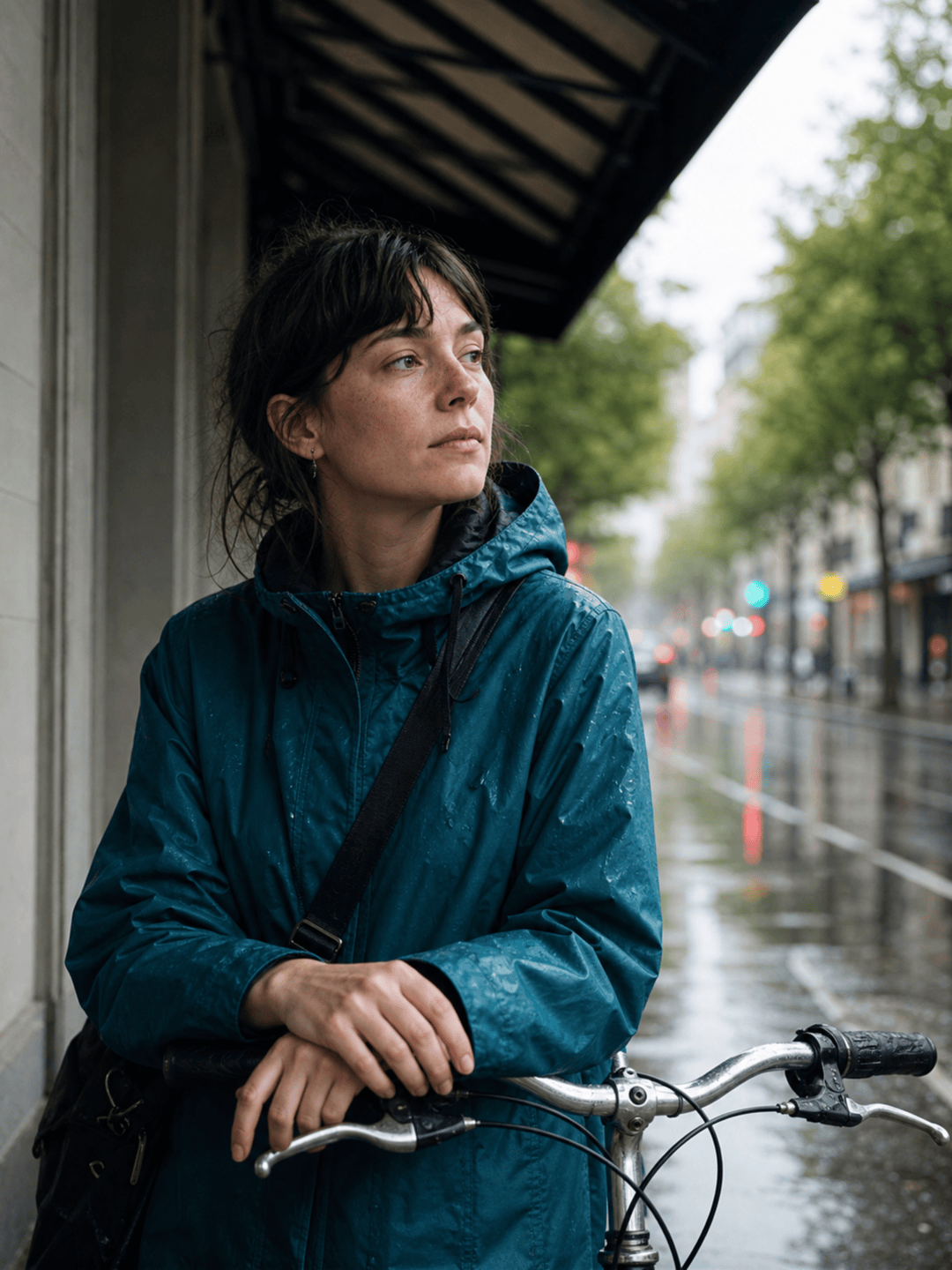
Editorial Social Portrait: Create a candid 4:5 editorial photograph of an adult city cyclist waiting under an awning after summer rain. Natural face and skin texture, reflective pavement, teal rain jacket, bicycle partly visible, soft overcast light, 50 mm lens feel, shallow depth of field, and quiet documentary mood. Do not imitate a real person, over-retouch the skin, distort the hands, or add brand marks.
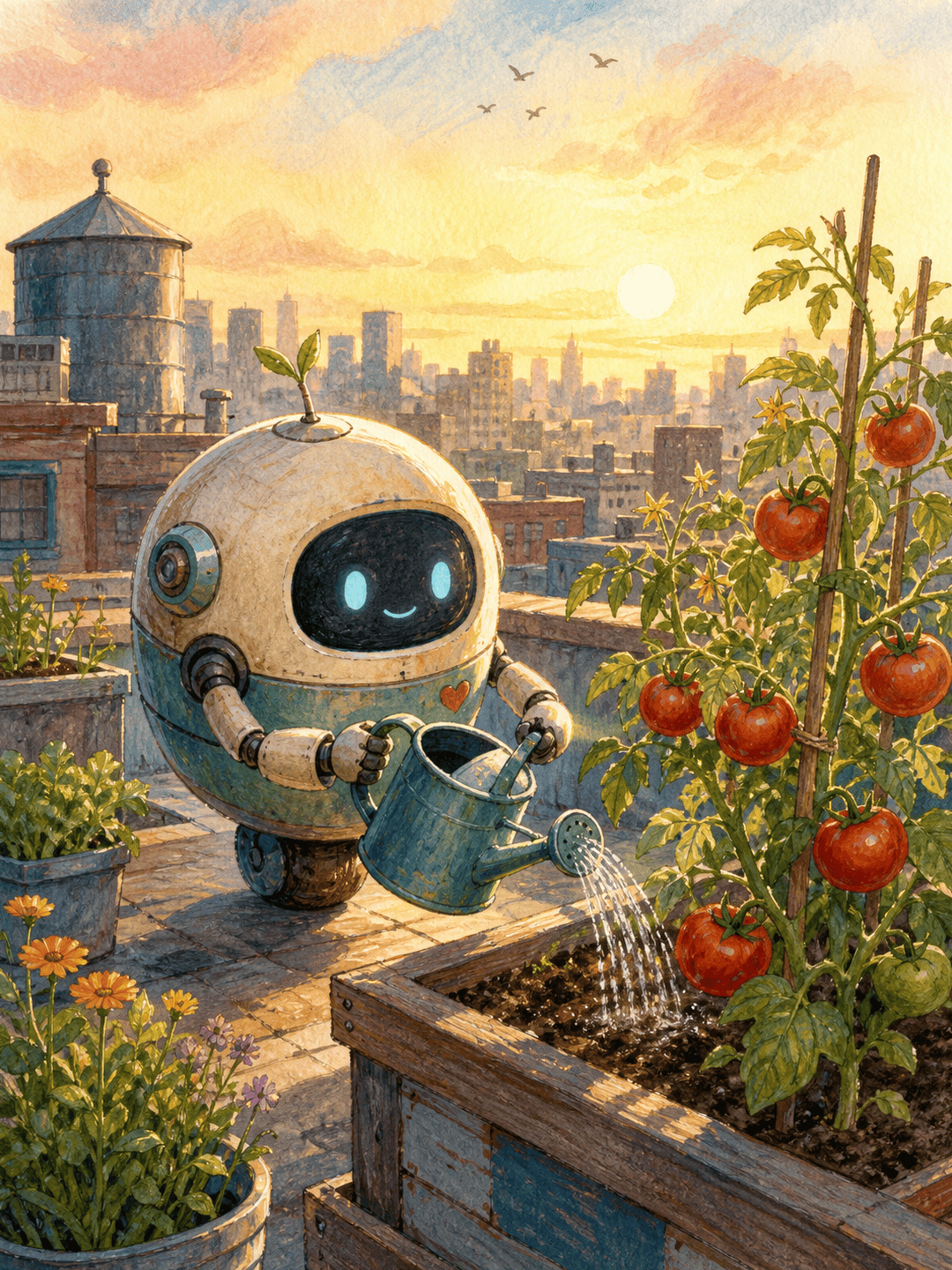
Children's Book Illustration: Illustrate a small original round robot tending tomatoes in a rooftop garden at sunrise. Warm gouache and colored-pencil texture, simple readable shapes, expressive but nonhuman face, watering can held clearly, birds in the distance, and a 3:2 storybook spread with calm space on the left for later narration. No existing character, text, logo, or watermark.
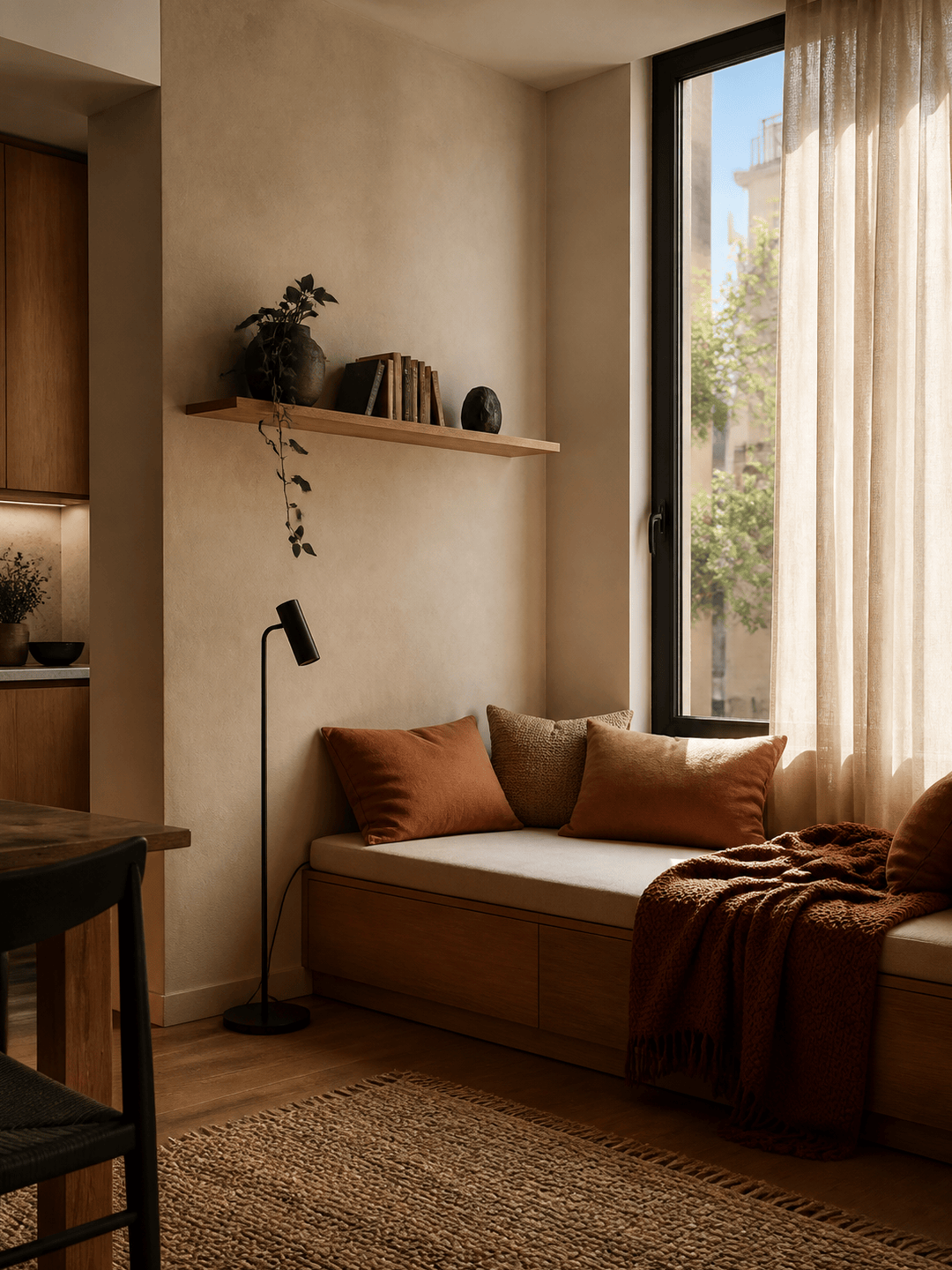
Interior Visualization: Generate a realistic 16:9 reading nook in a compact apartment. Include a built-in oak bench below a tall window, rust-colored cushions, linen curtains, one wall shelf, warm plaster, and a small floor lamp. Use natural late-afternoon light, accurate perspective, lived-in materials, and a wide eye-level view. No people, impossible geometry, duplicate furniture, text, or watermark.
Blog Header: Create a 16:9 editorial image about calm remote work: a sunlit desk near a window, closed laptop, notebook, ceramic cup, one leafy plant, and soft residential background blur. Place the objects on the right third and leave low-detail negative space on the left for a headline. Natural morning light, restrained cream and sage palette, no visible brand, readable screen text, or watermark.
Transparent Sticker Asset: Create an original red panda astronaut sticker with a compact silhouette, orange-and-charcoal fur, a simple white space suit, friendly pose, clean die-cut edge, crisp vector-like shading, and genuinely transparent background. Center the full character with generous padding. No text, flag, existing franchise design, scene background, shadow rectangle, or watermark.