Meet Your Dark Alter Ego with anAI Vampire Generator
How to Create a Vampire Portrait with AI
Choose Your Starting Point
Build the Vampire Look
Check the Face and Fangs
Export for Your Next Project

Give Your Vampire a Distinct Identity
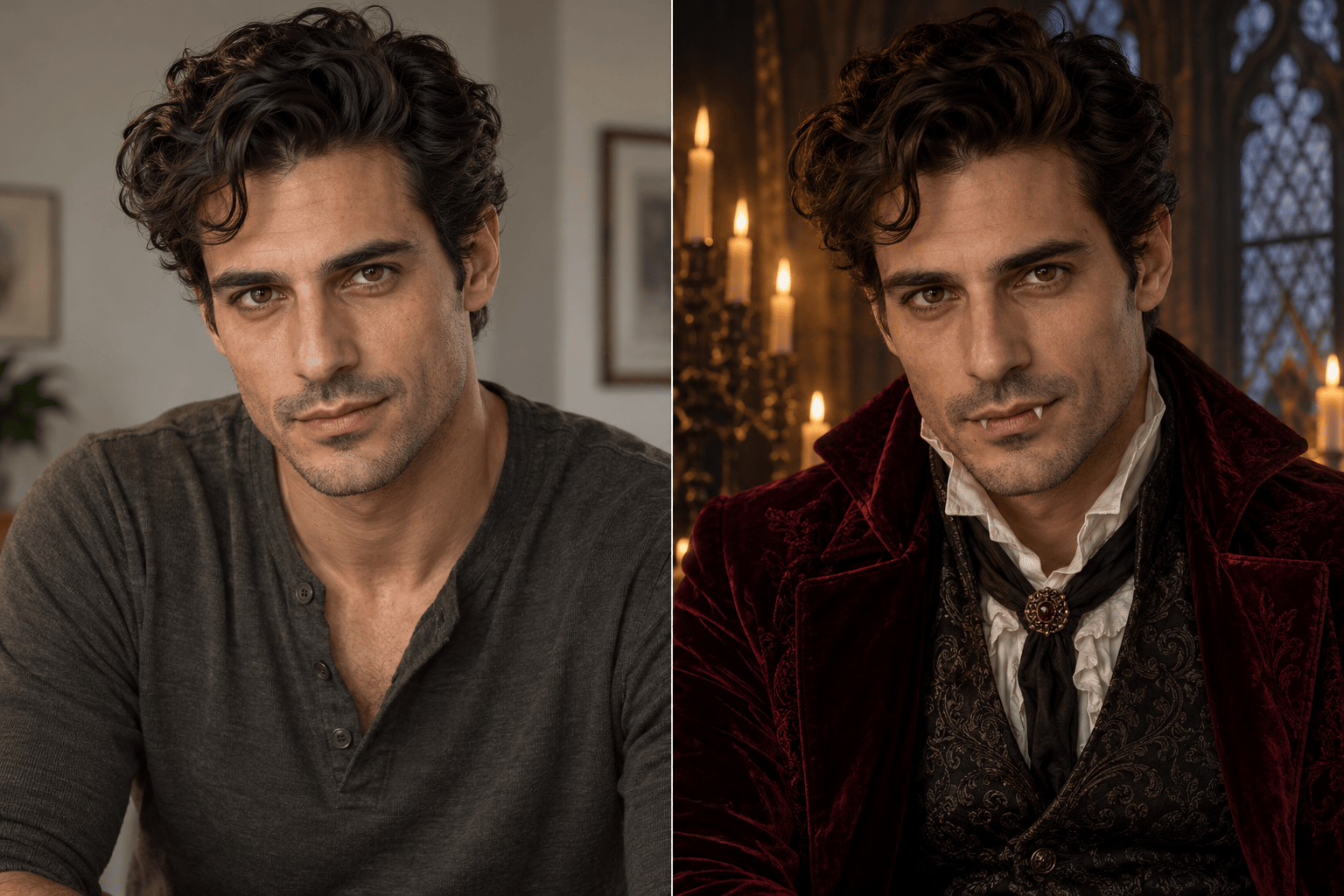
Transform a Familiar Face
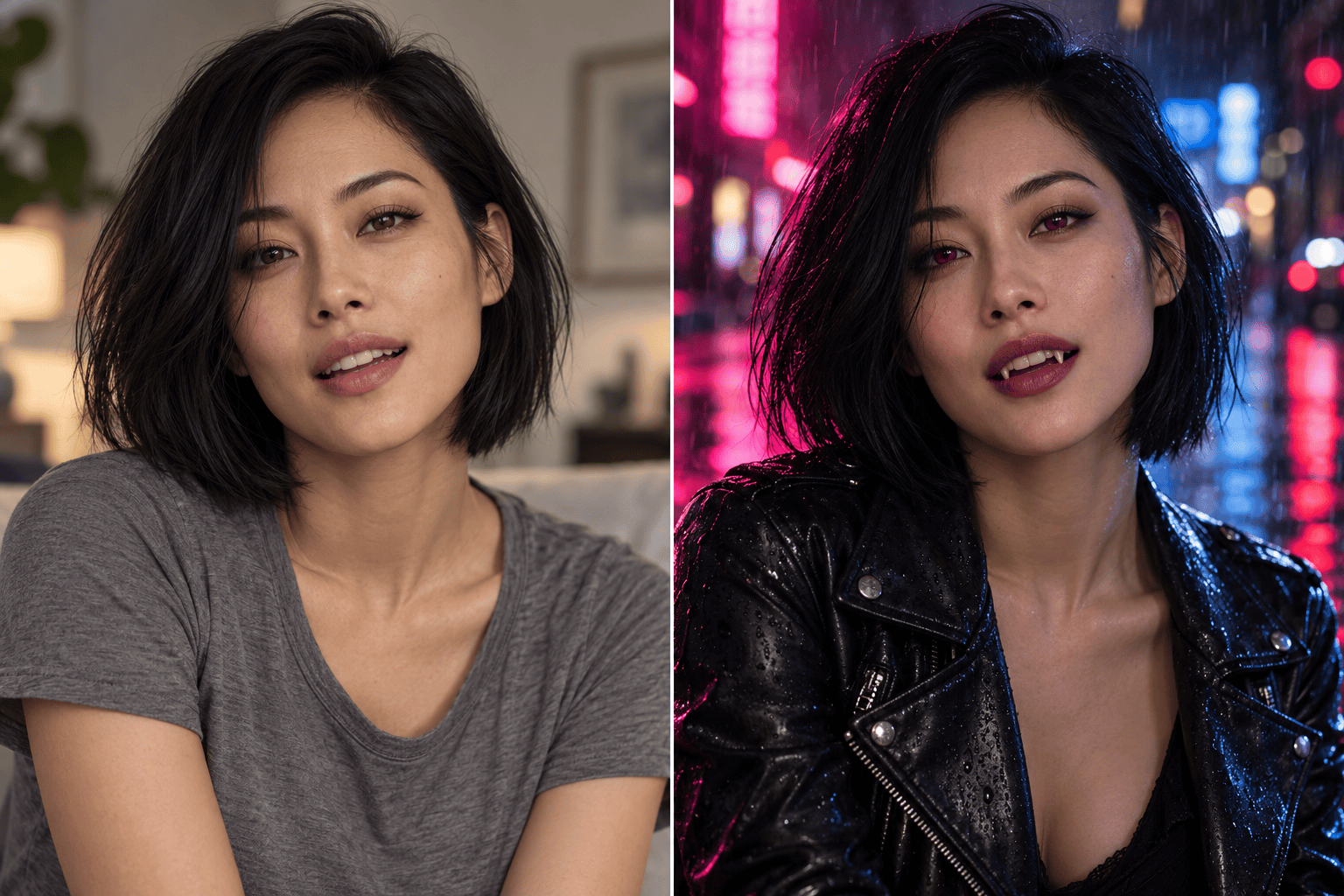
Start from your own photo and request recognizable features. A vampire photo effect can change the wardrobe and atmosphere too; specify what should stay and review the likeness.
Invent a Character from Text
Use the vampire character creator to visualize an original adult character for a story, roleplaying game, or concept board. Describe personality through posture, expression, and costume.
Choose More Than a Cape
Explore Victorian tailoring, modern leather, gothic jewelry, or anime styling. A reference image can guide the outfit or visual style without defining every detail.
Control the Supernatural Details
Request small fangs, crimson eyes, or a subtle nocturnal mood. You can create a convincing vampire portrait without adding blood or making every feature exaggerated.
Revise the Scene in Chat
Change candlelight to moonlight, simplify a busy castle background, or adjust the crop with Chat Edit. Name the face and costume details you want to preserve.
Start with Free Credits
Sign up for free AI credits to try the workflow online. Further generations and edits use credits, and you can download finished images without a watermark.
Make the Character Read as a Vampire
- Pick a Visual Style: Choose realistic photography, anime, or painted fantasy art. Name one main style so the face, clothing, and setting belong in the same image.
- Describe the Mouth: For visible fangs, request slightly parted lips and two small upper canines. Inspect the result for extra teeth or an unnatural jaw.
- Set the Light and Skin Tone: Specify candlelight, moonlight, or neon. If you want to keep your complexion, say so; a vampire look does not require whitening every face.
- Separate Face and Style References: When uploading two images, explain which supplies the person’s features and which guides the outfit or mood. Compare the result with your reference.
Explore Different Vampire Stories
Turn my photo into a Victorian vampire portrait. Keep my face and natural skin tone, add two subtle fangs and a burgundy velvet coat, and place me beside a candlelit window. No blood.
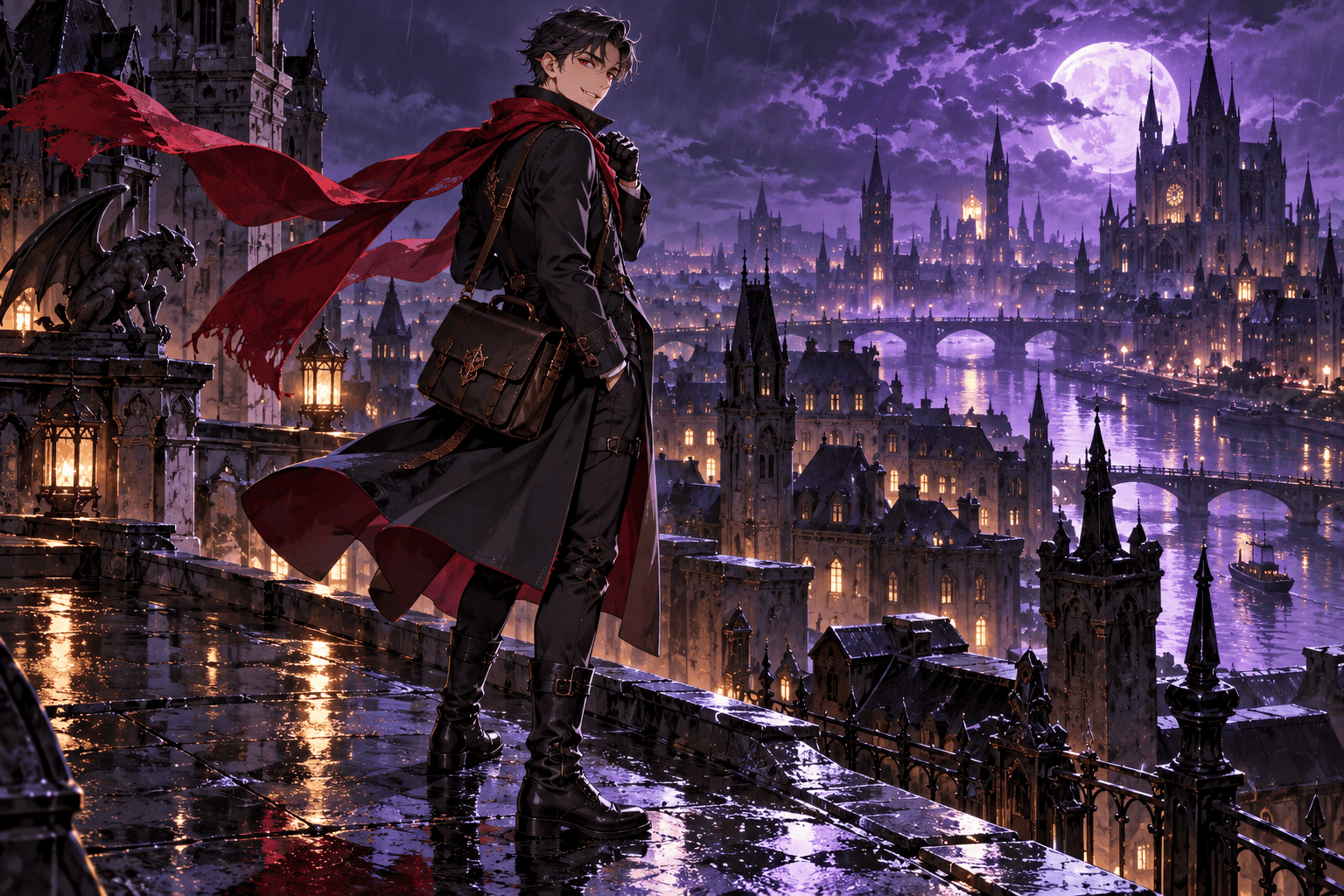
Create an original adult anime vampire courier on a rainy rooftop. Use short dark hair, a red scarf, small fangs, and crisp cel shading. Show the whole character with the city behind them, without text.
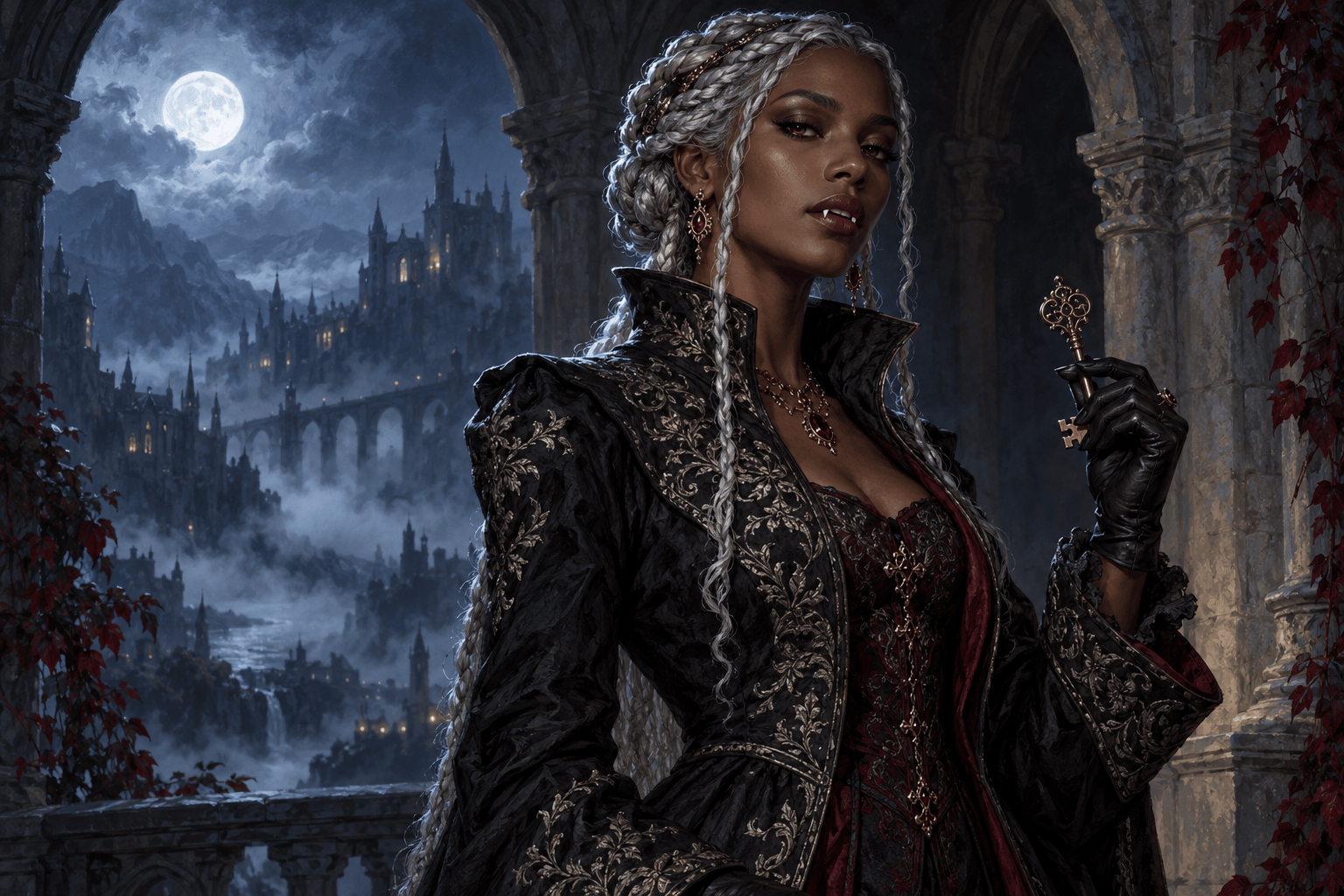
Design a vampire noblewoman for a tabletop roleplaying character portrait. Give her dark skin, silver braids, an embroidered black coat, and a reserved expression. Use painterly fantasy art and a simple background.
Make a modern vampire profile picture from my selfie. Preserve my face and complexion, add subtle fangs and a leather jacket, and use soft neon lighting. Keep the face centered with room for a circular crop.
Revise this vampire portrait so the mouth looks natural. Keep two small upper fangs, remove extra teeth, reduce the glowing eyes, and preserve the face, outfit, and background.
Recompose this vampire character image as dark fantasy cover artwork. Keep the character on the right and leave an uncluttered area on the left for a title I will add later. Add no text.





