Turn Any Photo into Art withPhoto to Watercolor AI
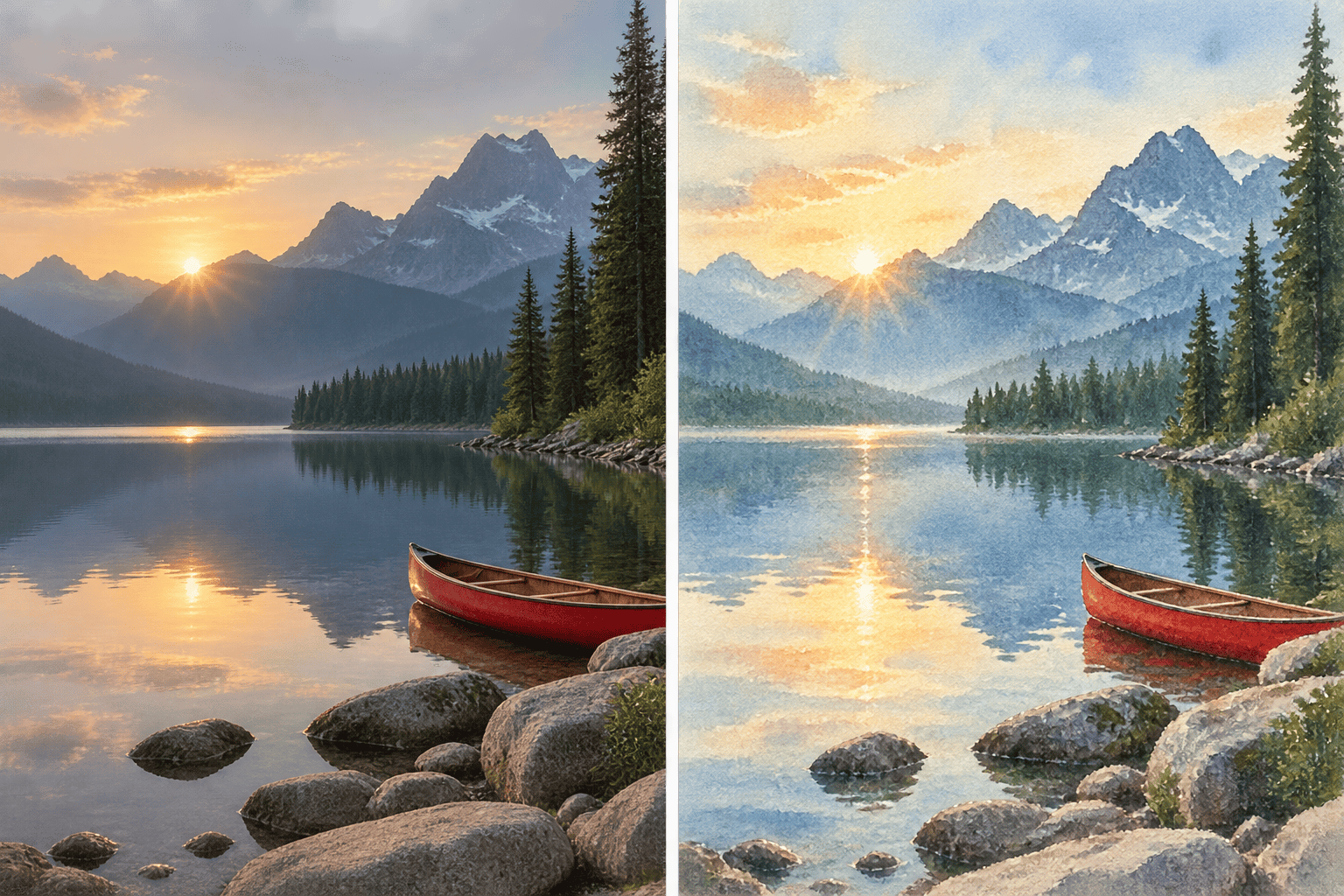
How to Turn a Photo into Watercolor with AI
Upload a Clear Photo
Direct the Watercolor Repaint
Generate the Watercolor Painting
Refine and Download

A Photo to Watercolor Converter Built for Creative Control
Repaint Your Own Photo
Start with the image that matters to you. This AI watercolor generator uses the uploaded portrait, pet, building, or landscape as the visual foundation for the result.
Protect Recognizable Details
Name the features that should stay consistent, from facial expression and pet markings to architectural lines and the original crop. Clear preservation instructions help the watercolor artwork stay faithful.
Choose a Real Watercolor Direction
Ask for loose wet-on-wet blooms, controlled botanical layers, ink-and-wash linework, cold-press paper grain, or another specific finish. Mew Design can route the edit through models such as Nano Banana Pro and GPT Image 2.5.
Correct the Painting Through Chat
If a face becomes too loose or a background feels busy, use Chat Edit and request one focused change. You can refine color, texture, edges, or composition without rewriting the whole brief.
Use a Style Reference
Upload a watercolor reference alongside your source photo to guide the palette, brush rhythm, paper texture, or balance between crisp and soft areas while keeping your own subject at the center.
Try It Online for Free
Test the free AI photo to watercolor workflow with AI credits after signup. Explore different painting directions and export finished images without a watermark when you are ready.
How to Keep Your Watercolor Photo Recognizable
- Start with a Clear Source: Use a sharp, well-lit photo with a distinct focal point. Crop distracting objects when they compete with the person, pet, house, or landscape.
- Lock the Visual Anchors: Name the face, expression, pose, markings, building silhouette, horizon, or key colors that must stay recognizable in the repaint.
- Describe the Paint Behavior: Specify transparent washes, pigment blooms, dry-brush accents, paper grain, ink outlines, or controlled edges instead of asking only for a generic watercolor filter.
- Choose Where Detail Belongs: Keep eyes, pet features, signs, or architectural lines crisp and let backgrounds dissolve into softer color. This gives the image a convincing focal hierarchy.
Watercolor Prompts for Portraits, Pets, Homes, and More
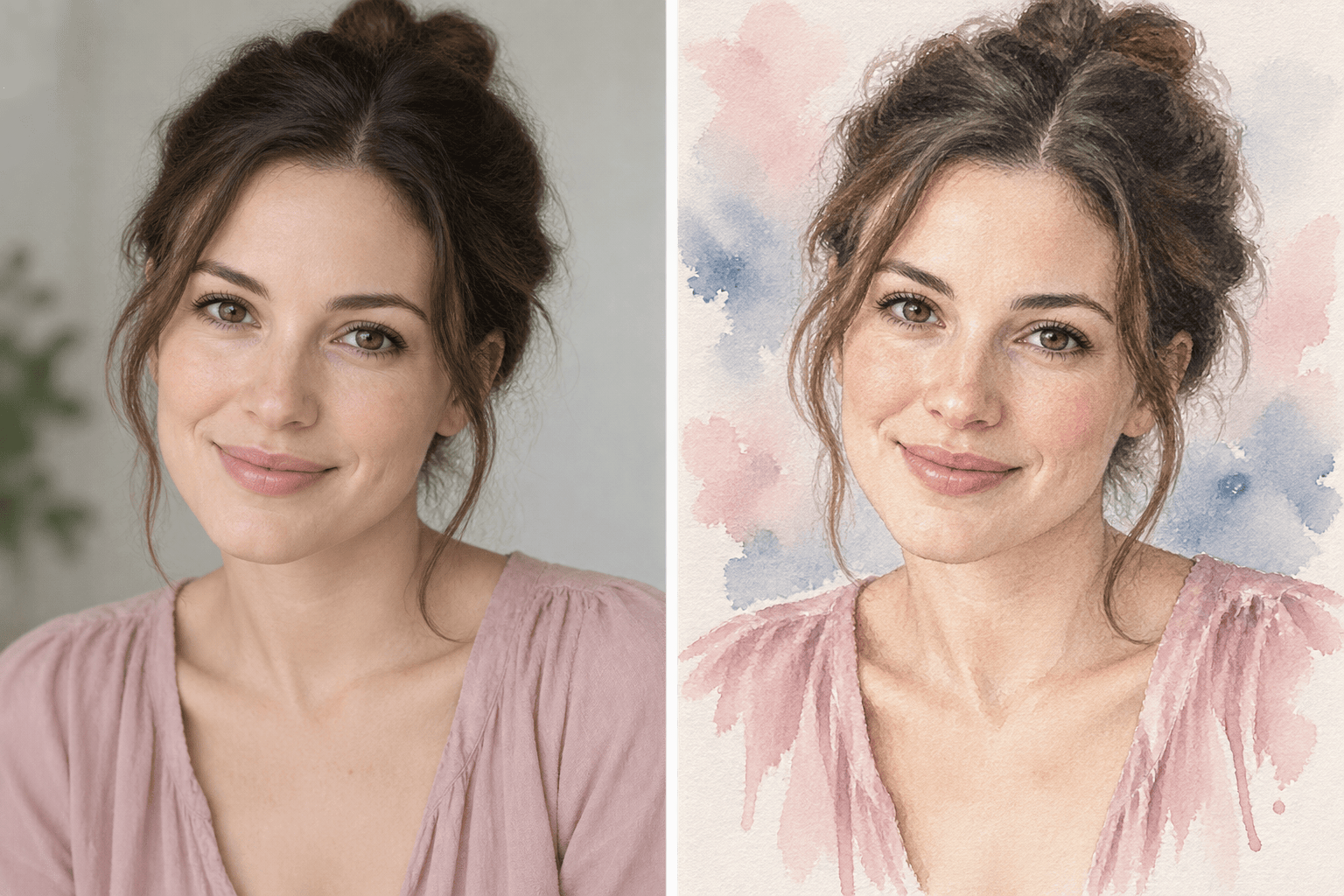
Watercolor Portrait: Transform @[portrait] into an elegant watercolor portrait on textured cotton paper. Preserve the person's facial features, expression, hairstyle, pose, and skin tone. Use transparent blush, indigo, and warm ochre washes, crisp eyes, loose edges around the clothing, and a minimal white background.
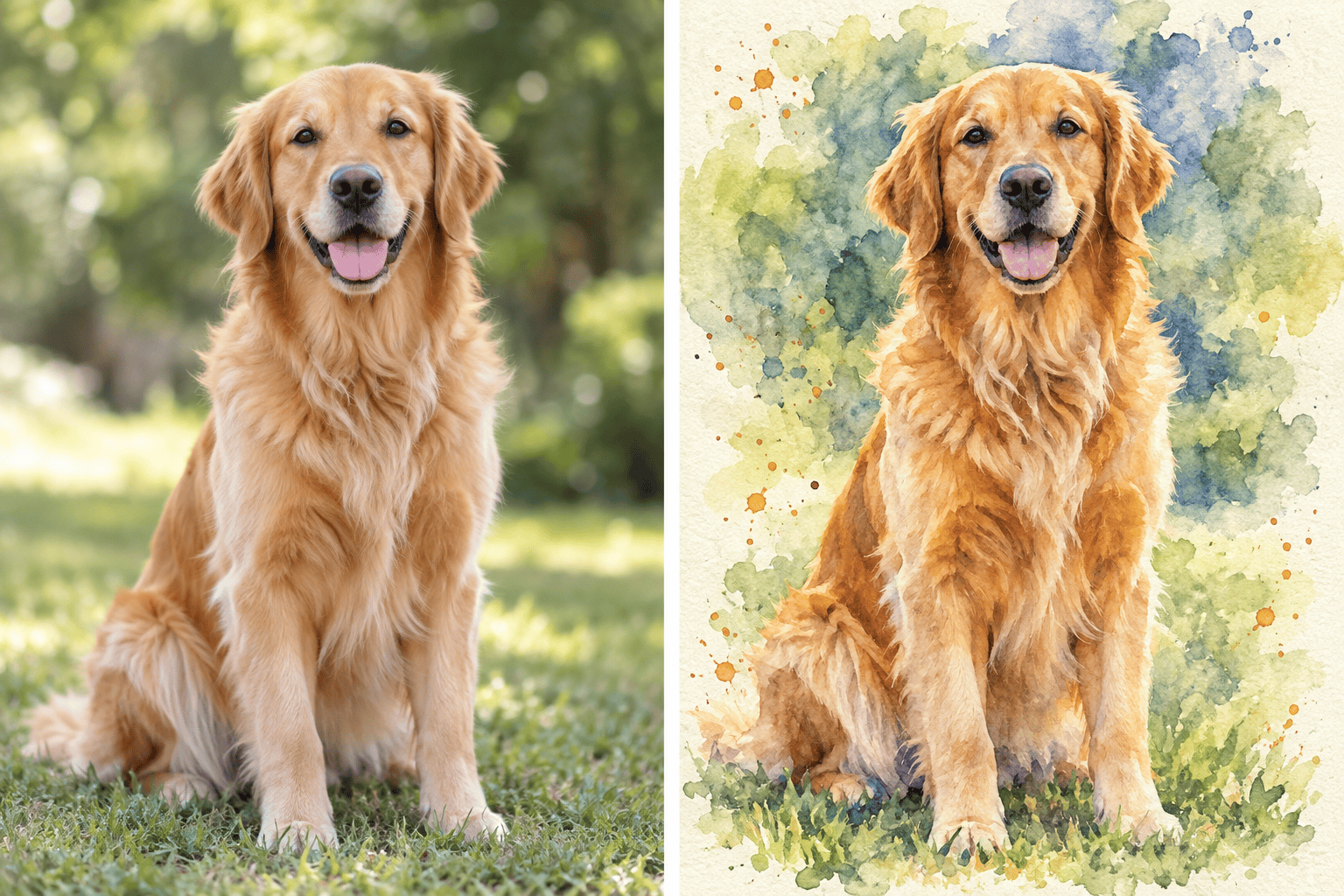
Pet Watercolor: Repaint @[pet photo] as a lively watercolor pet portrait. Keep the eyes, ear shape, coat pattern, and expression recognizable. Use layered transparent color, a few playful splashes around the silhouette, soft paper grain, and no collar or accessories that are not in the source.
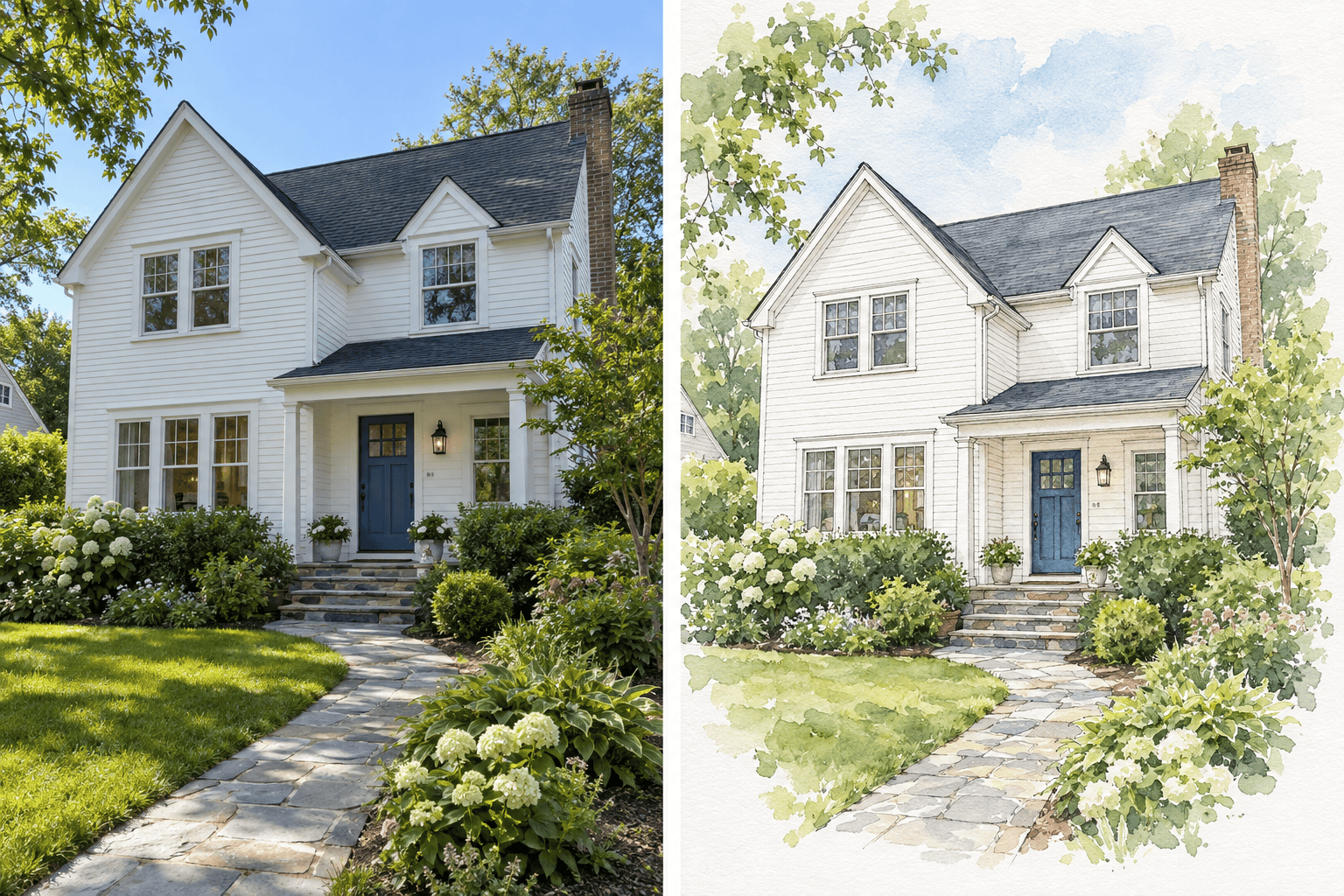
House Portrait: Turn @[house photo] into an architectural watercolor painting. Preserve the roofline, windows, door, perspective, and distinctive materials. Use fine ink outlines for the building, loose green washes for the garden, a pale sky, visible cold-press paper texture, and generous white margins for a framed print.
Wedding Keepsake: Convert @[wedding photo] into a romantic watercolor illustration. Keep both people recognizable, preserve their clothing, bouquet, pose, and venue silhouette, and use soft peach, sage, and blue washes with luminous highlights and a lightly painted background.
Travel Landscape: Repaint @[landscape photo] as a luminous watercolor travel artwork. Preserve the horizon, mountain shapes, shoreline, and main color relationships. Use layered transparent washes, atmospheric depth, granulated blues and greens, and a few sharper brush marks at the focal point.
Botanical Still Life: Transform @[flower photo] into a refined botanical watercolor. Keep the flower species, petal arrangement, stem direction, and vase shape accurate. Use controlled glazing on the petals, delicate dry-brush detail, soft cast shadows, natural paper grain, and a clean off-white background.