Free OnlineAI Vintage Filter
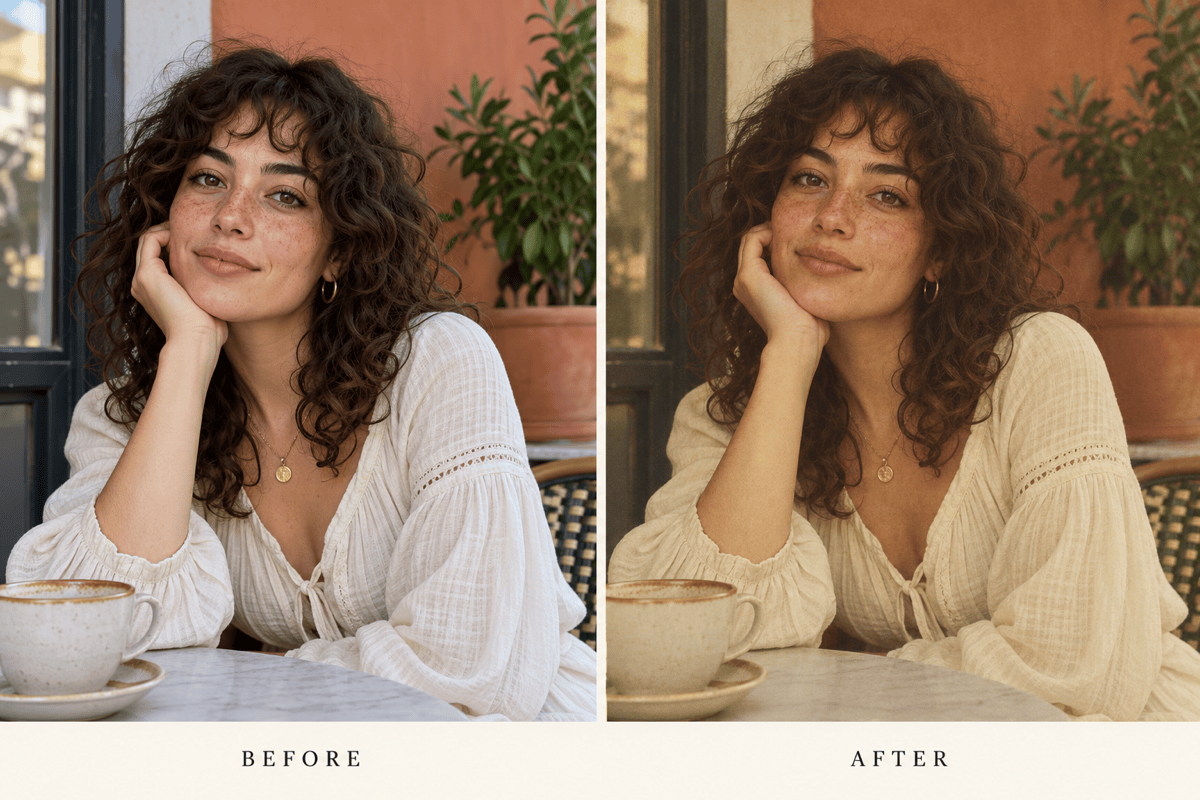
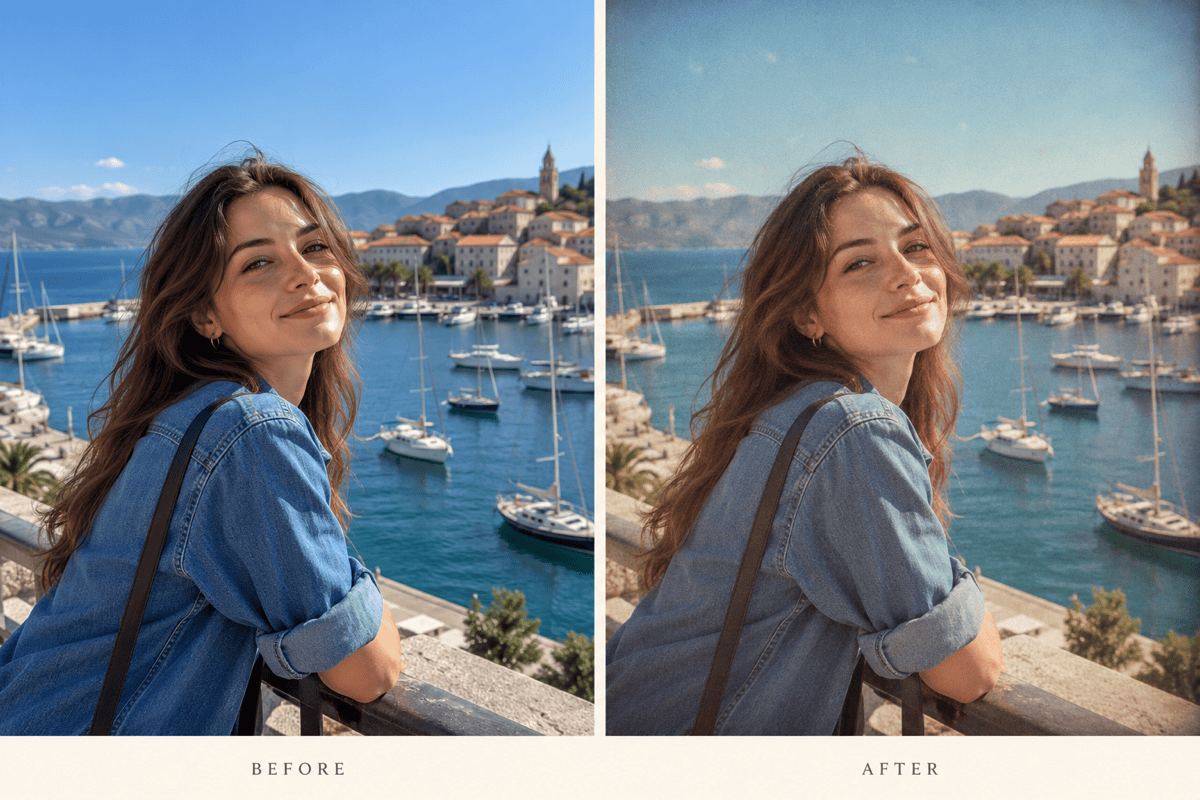
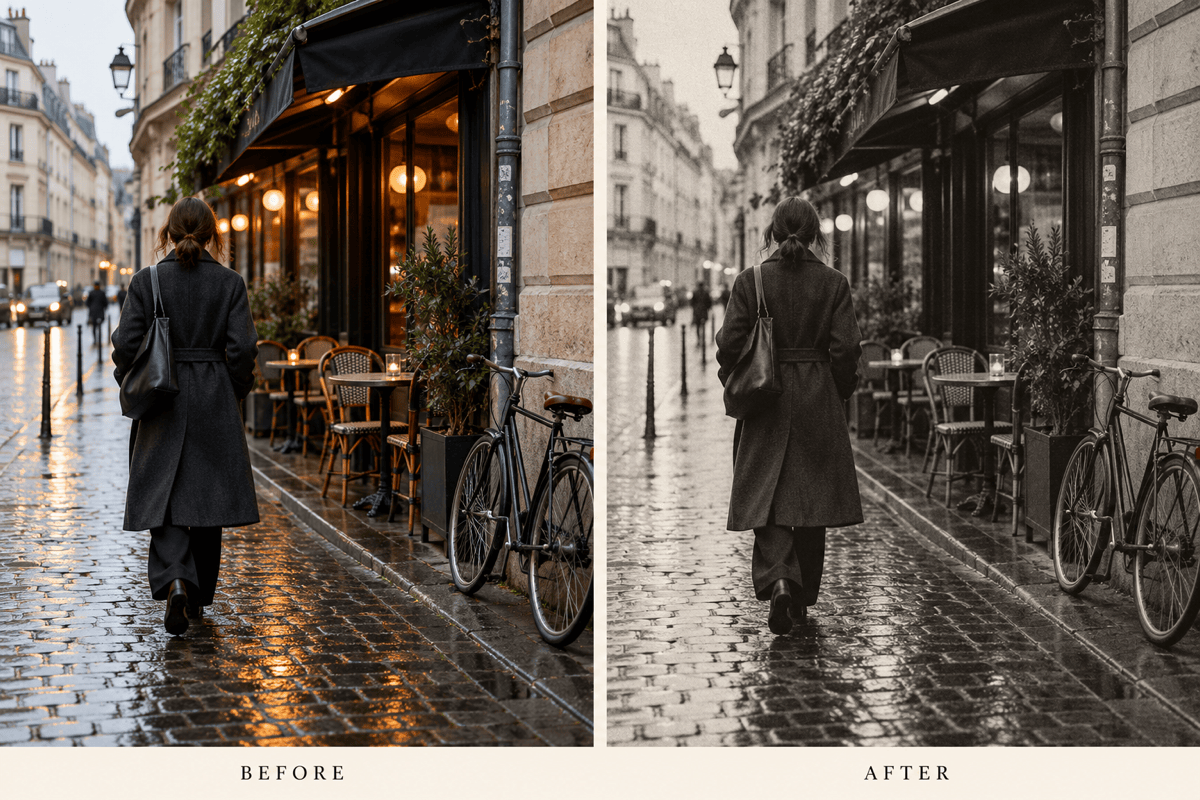
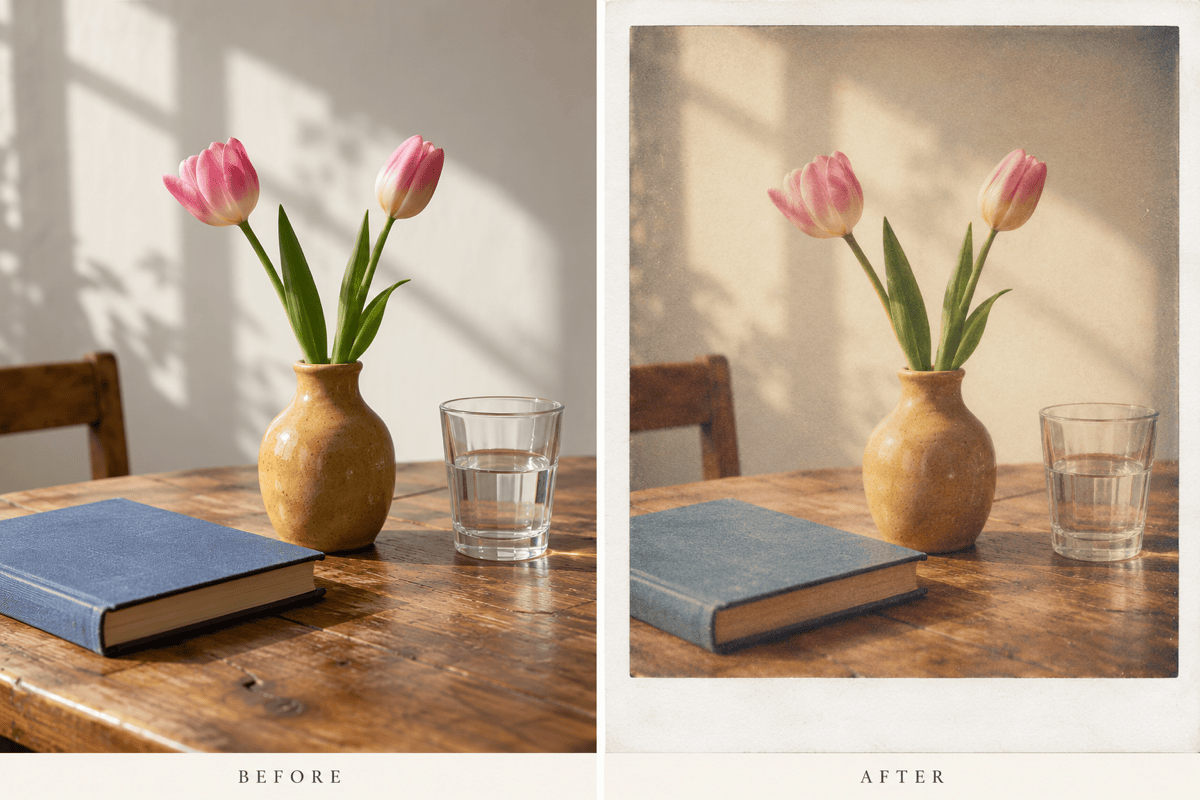
How to Make Photos Look Vintage with AI
Upload a Clear Original
Create the First Film Look
Compare and Refine
Save Your Favorite Version

A Retro Look You Can Shape in Conversation
Start with Your Own Photo
Our online AI vintage filter works with uploaded images. Restyle a portrait or holiday shot and specify the details you want to preserve.
Go Beyond a Single Preset
Use the AI retro filter to explore warm film tones, faded prints, or monochrome. Describe the mood instead of learning color curves.
Show the Look You Mean
Upload a style reference alongside your source photo. Identify which image to edit and which one should guide color and texture.
Compare Different Treatments
Request subtle and stronger versions of the same photo. Adjust warmth, grain, and fading through Chat Edit before choosing a favorite.
Reuse a Favorite Photo Style
Turn your preferred treatment and review steps into a reusable Mew Skill for future photos. Carry a similar visual direction across a series with less repeated briefing.
Take Your Photos into a Design
Export watermark-free PNG or JPG images, or use your finished photo in a custom poster. Check image detail at the intended display size.
Choose a Vintage Look That Fits Your Photo
- Pick a Photographic Mood: Warm faded color suits a sunlit portrait; a 90s snapshot look can suit travel photos. Black and white emphasizes light and shape, while sepia adds a brown tint.
- Keep Texture in Balance: Start with fine grain and gentle fading. Add scratches or light leaks only if they help the mood, and keep them away from faces and important details.
- Protect the Original Details: Use the clearest source you have and name what must stay. AI edits can alter small details, so compare faces, hands, signs, and objects before exporting.
- Treat the Frame Separately: An instant-photo look may include a white border; a film look does not need one. For a decorative finish, explore photo borders and leave room around the subject.
Fix Common Vintage Photo Effect Problems
Reduce the grain in my edited photo, especially over the face and sky. Keep a light film texture without blurring eyes, hair, or fabric.
Reduce the yellow cast on the skin in my vintage portrait. Keep the warm highlights and muted background, with natural-looking skin tones.
Use my original photo as the reference and restore the person’s facial features and expression. Keep only the vintage color treatment and subtle grain.
Remove the light leak covering the subject. If any glow remains, place it at the outer edge and keep faces, signs, and important objects clear.
Bring back detail in the dark areas of my black-and-white photo. Keep the vintage contrast and fine grain without making the whole image look gray.
Keep the full subject visible inside the instant-photo frame. Add white space outside the image instead of cropping the head, hands, or objects.





