Free OnlineAI Snow Background
How to Add a Snow Background with AI
Choose What Winter Must Not Change
Build the Weather Behind the Subject
Let Snow Cross the Frame
Inspect the Seam and Export

Snow That Belongs in the Shot
Background Replacement, Not a Flat Overlay
Use the AI snow background generator to rebuild the setting behind an uploaded subject, add snowfall to the existing location, or combine both. The result can carry depth beyond a repeated layer of white dots.
Edges That Respect the Subject
Tell Mew Design to preserve a face, hairstyle, fur outline, product shape, label, or accessory. Clear preservation rules help the winter background wrap around the subject instead of swallowing important details.
Winter Light with a Direction
Snow changes a scene's exposure and color. Specify overcast daylight, cold blue hour, warm storefront spill, or low winter sun so background brightness, rim light, reflections, and shadows tell the same story.
Snowfall from Dusting to Blizzard
A subtle AI snow effect can suit a family portrait, while wind-driven snow may fit an editorial scene. Control flake size, density, motion, bokeh, ground coverage, mist, frost, and visibility through normal language.
One Scene, Several Useful Crops
Explore coordinated square, portrait, and landscape versions for social posts, product campaigns, cards, or website graphics. Ask for calm negative space wherever a logo or greeting will be added later.
Fix the Nearly Right Version
Do not abandon a strong composition because one edge or weather detail is wrong. With Chat Edit, you can ask for fewer flakes across a face, cleaner label contrast, deeper footprints, or a softer background while keeping the chosen direction.
Describe Snow in Layers, Not as a Filter
- Lock the Subject: List the face, pose, hair, hands, clothing, product geometry, label, or pet markings that must survive the edit. Do not rely on a vague request to keep everything.
- Place the Winter: Name the setting, horizon height, background distance, time of day, and key objects. A frosted window studio, snowy forest, alpine overlook, and city sidewalk create very different photographs.
- Layer the Snow: Separate distant haze, midground snowfall, foreground flakes, and snow on surfaces. Vary flake size and sharpness so the weather has depth rather than a stamped pattern.
- Match the Exposure: State the light direction and color temperature. Ask bright snow to retain texture, shadows to contact the ground, and skin or packaging colors to remain believable.
Snow Background Prompts for Real Photos and Campaigns
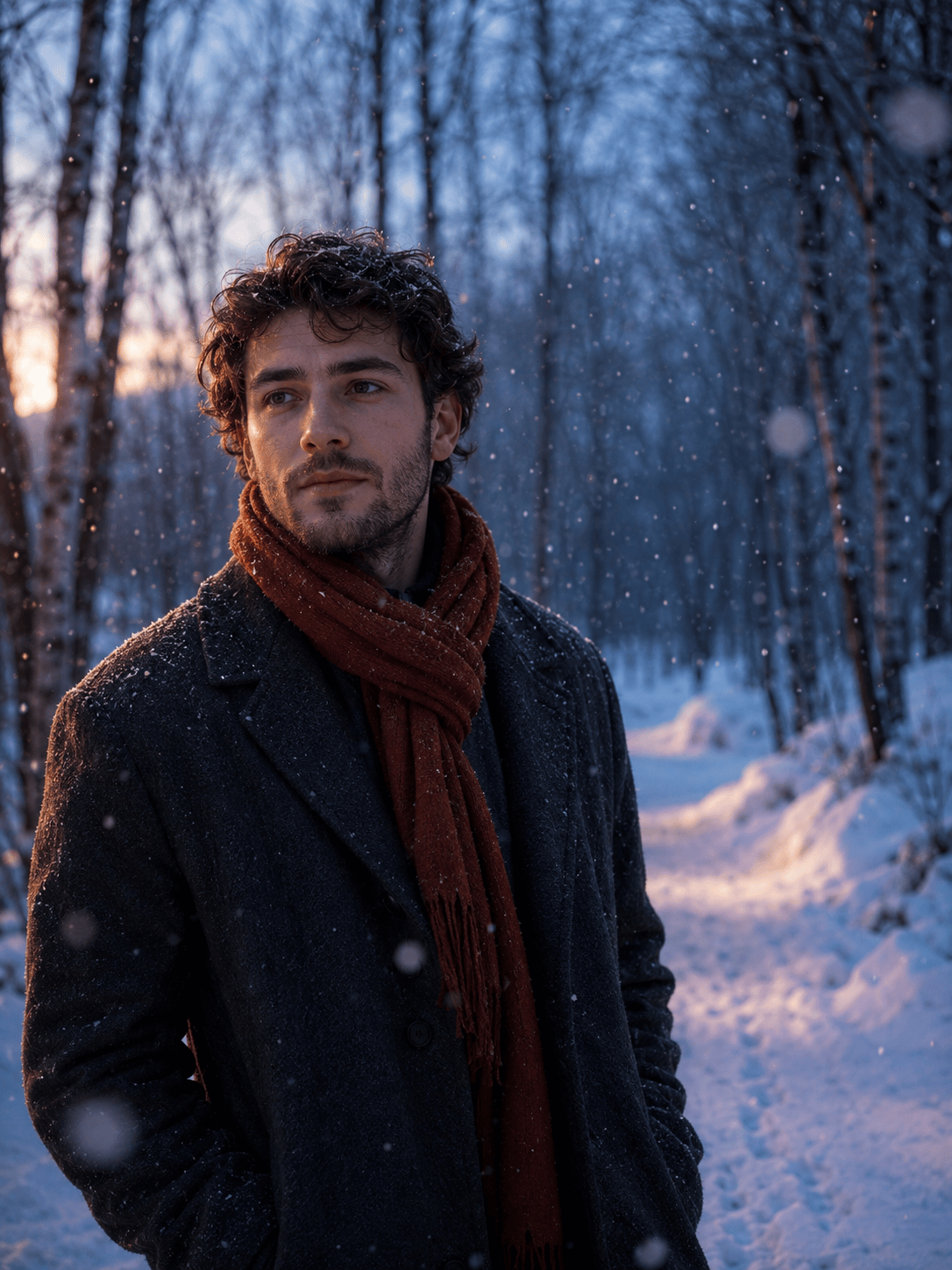
Quiet Winter Portrait: Replace the background of my uploaded head-and-shoulders portrait with a snow-covered birch grove just after sunset. Preserve the exact face, expression, hair, coat, and framing. Add sparse falling snow behind the face, two soft foreground bokeh flakes near the corners, cool blue ambient light, and a faint warm rim from the left. Keep snow away from the eyes. Photorealistic, no text or logo.
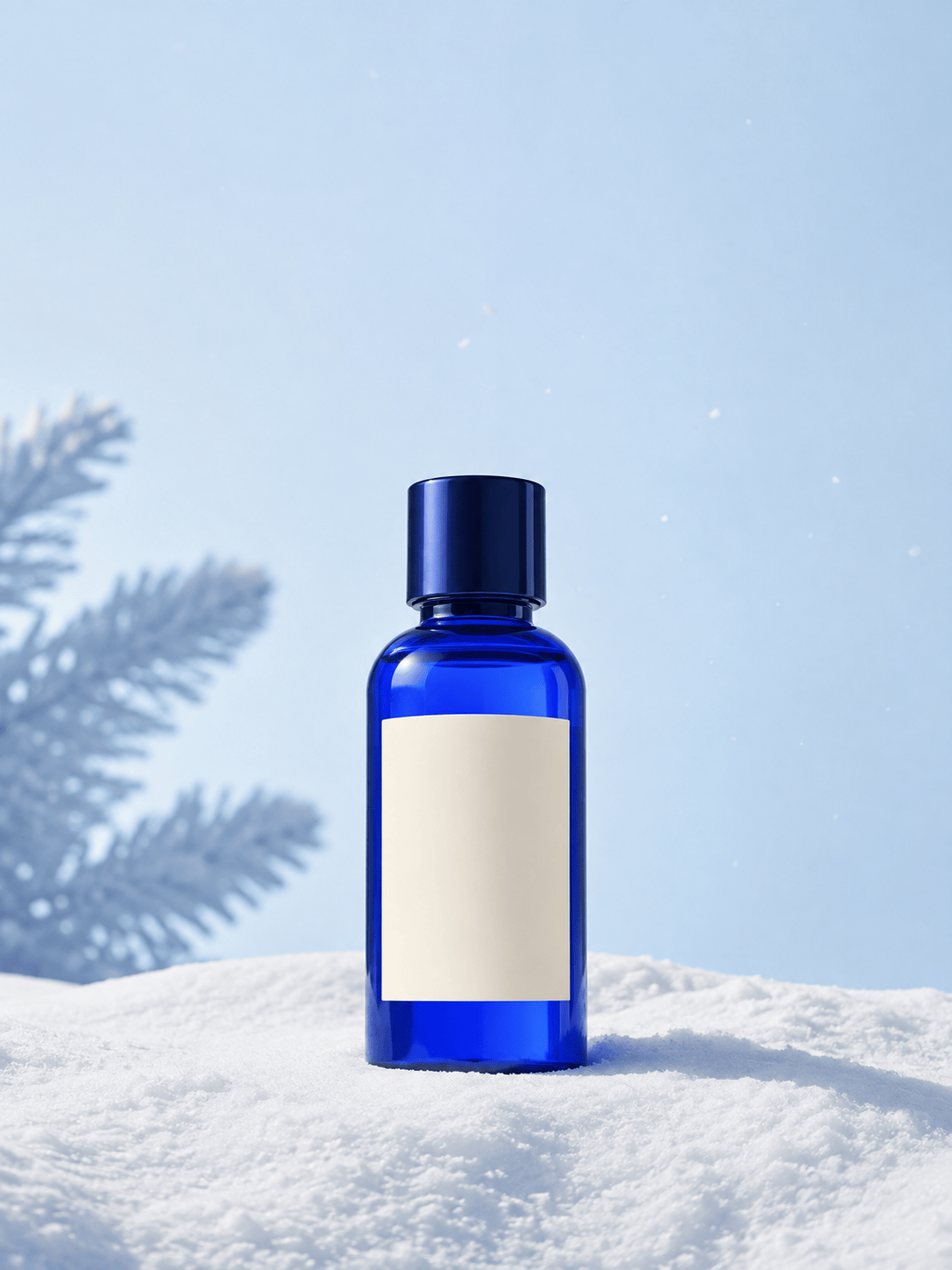
Seasonal Product Photo: Keep my uploaded skincare bottle, cap, printed label, proportions, and front-facing angle unchanged. Place it on a clean bank of sculpted snow with a pale icy-blue studio background, one frosted pine shadow, crisp contact shadow, subtle cold reflections, and a few tiny flakes behind the bottle. Leave open space above for campaign copy. No extra products, invented text, or snow over the label.
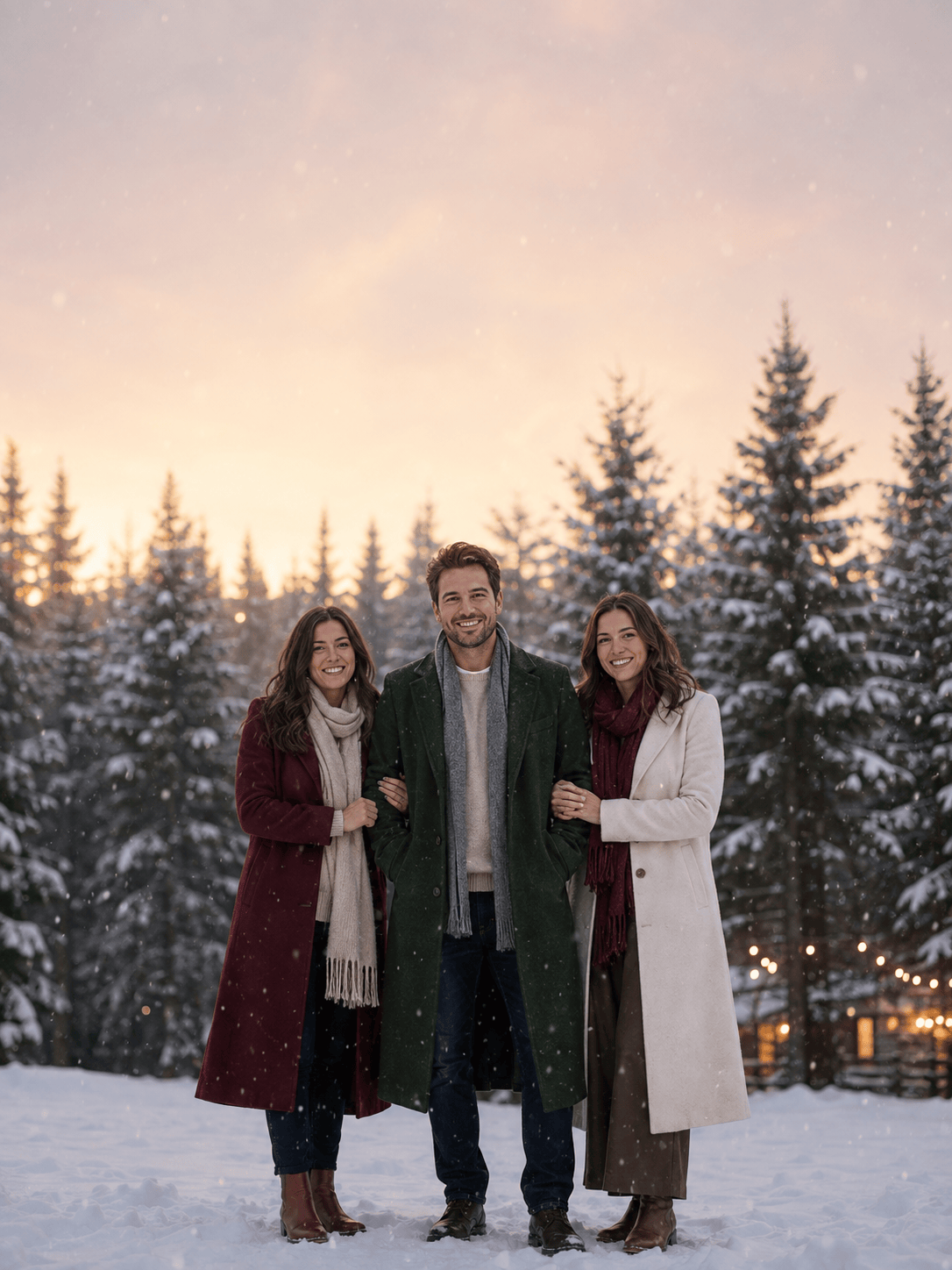
Family Christmas Card Background: Turn our permitted family photo into a warm outdoor winter portrait. Preserve every face, hairstyle, hand, outfit, and relative height. Add a snow-covered evergreen background, gentle flakes at several depths, soft golden lights far behind us, and untouched snow at the lower edge. Create a 4:5 crop with quiet space at the top for a greeting; do not generate any words.
Pet in Fresh Snow: Replace the grass behind my dog with a softly rolling snowfield and distant fir trees on a bright overcast morning. Keep the dog's face, ear shape, coat markings, collar, paws, and pose unchanged. Add shallow paw prints that meet the feet, a light dusting on the ground, and only sparse flakes behind the head. Natural fur edges, realistic shadow, no accessories or text.
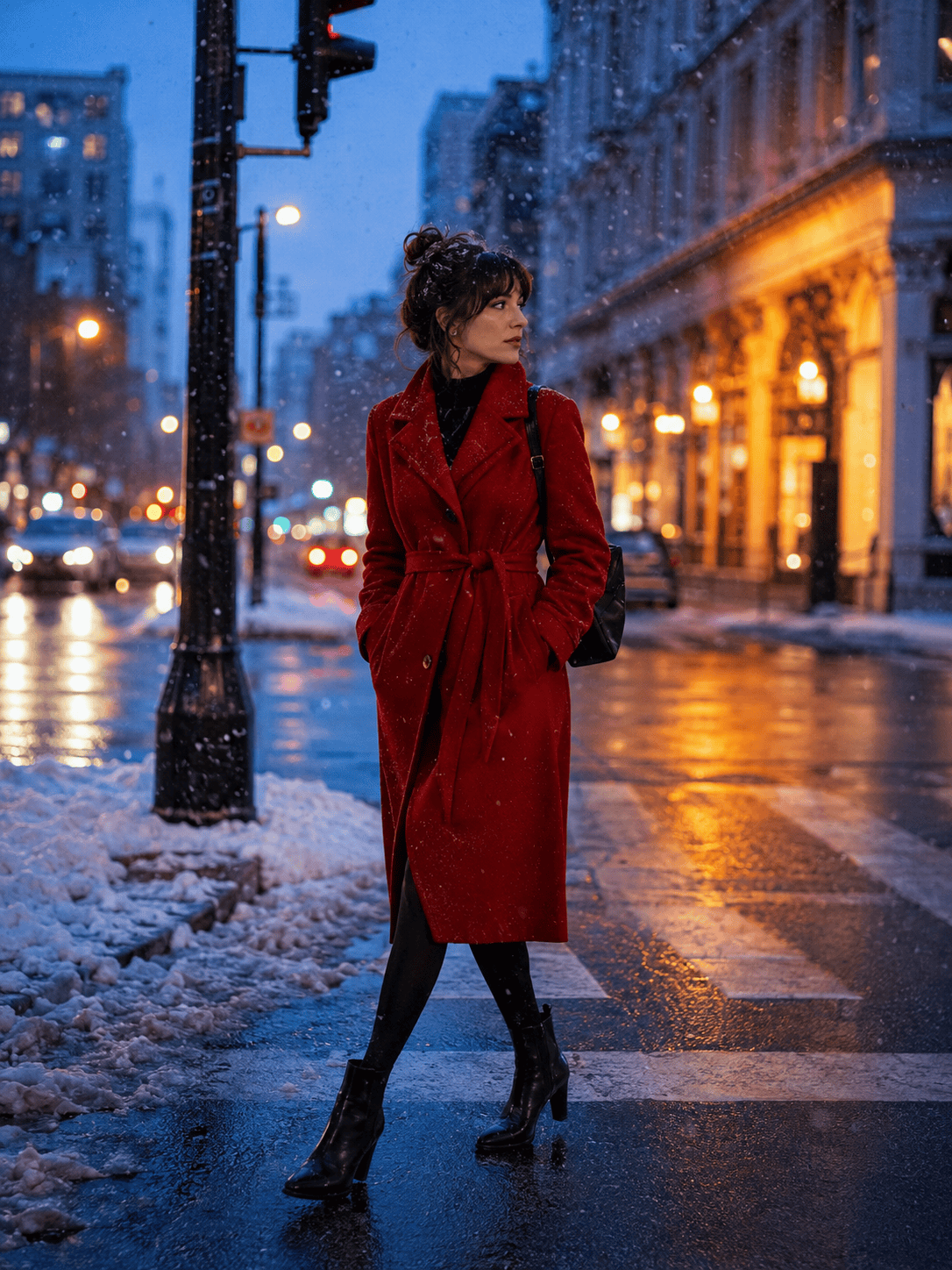
Blue-Hour City Fashion: Move the background of my full-body street-style photo to a snowy city crosswalk at blue hour. Preserve identity, pose, black boots, red coat, bag, and vertical crop. Add wet pavement reflecting amber shop lights, wind-driven fine snow, shallow slush near the curb, and distant traffic bokeh. Keep legs and shoe edges clean; no visible brands, signs, or extra people in front.
Background-Only Winter Landscape: Create a 16:9 snowy background with a frozen lake, low pine-covered hills, light morning mist, and a pale peach sunrise under a cool gray sky. Keep the center foreground simple and the left third calm for later typography. Show fine snow texture and long soft shadows without people, buildings, text, logos, or watermark.





