Remove Text from Imageswith AI
How to Remove Text from an Image with AI
Upload the Original Image
Specify What to Erase
Check the Repaired Area
Download the Cleaned Image

Text Removal You Can Direct Through Chat
Describe the Words You Want Gone
Our AI image text remover accepts a plain-language request alongside your uploaded image. Specify the text and its position without learning a complex retouching workflow.
Say What to Keep and Remove
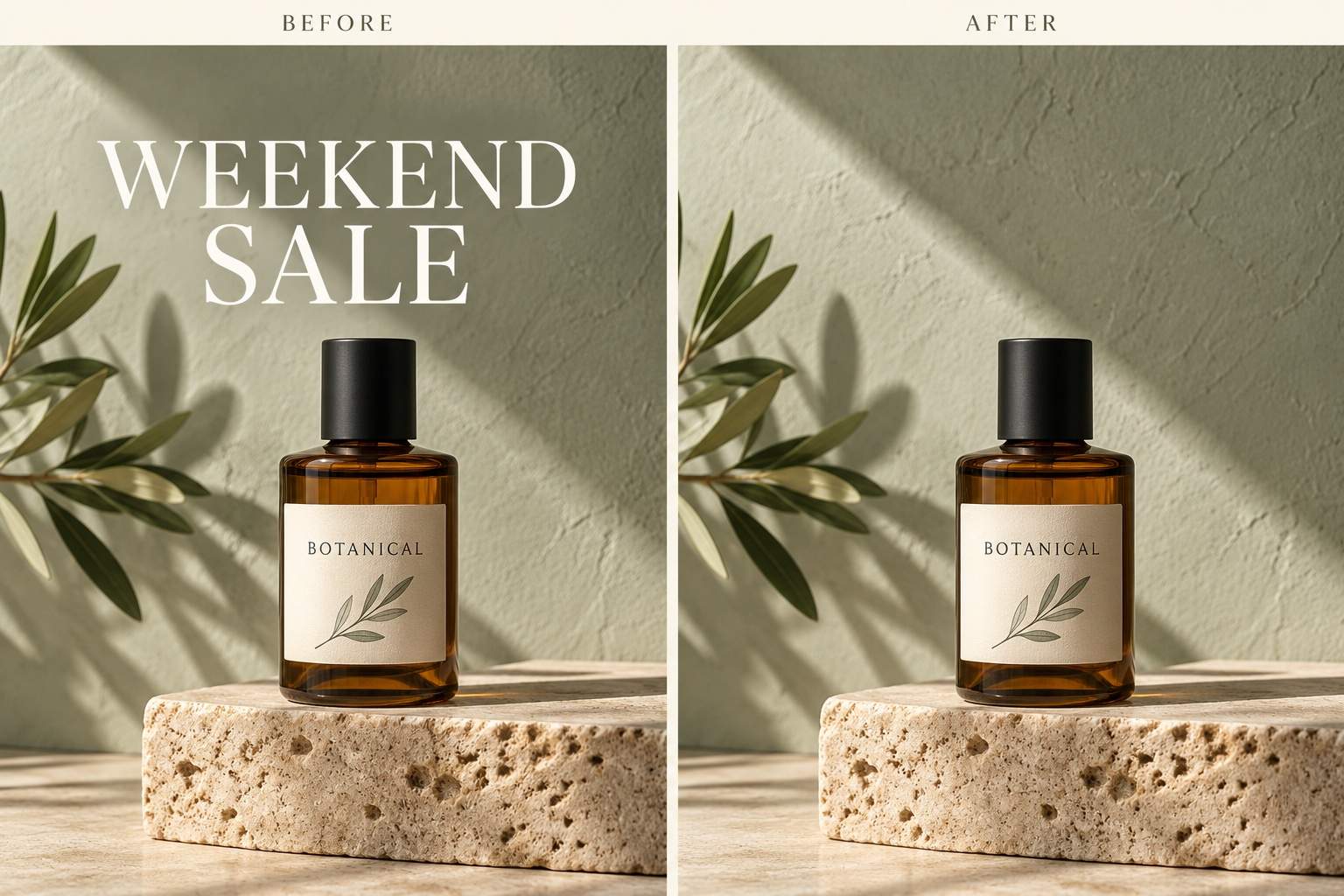
Ask to erase a sale caption while keeping the product name, logo, and packaging. Explicit preservation instructions guide the edit; check those details in the result.
Guide the Background Repair
To remove text without removing the background, describe the surface beneath it: sky, paper, fabric, or wood. Ask for a matching fill, then inspect patterns and edges.
Fix Leftover Letter Fragments
Use Chat Edit to address a faint outline, shadow, or uneven patch. Point to the specific problem so your follow-up request stays focused.
Reuse the Cleaned Artwork
Once the words are removed, use the image in a new poster or flyer. Continue in chat to add your updated wording.
Try Online with Free Credits
Test AI text removal with free credits after signup. Generation and edits use credits; check your balance before continuing. Exports are watermark-free.
Keep the Background Looking Natural
- Use a Clear Source: Choose the original image when possible. Compression and blur can hide the edges the AI needs to interpret.
- Define the Boundary: Identify the unwanted text by wording and location. Mention shadows or outlines if they belong to the lettering.
- Protect Nearby Details: List the labels, faces, objects, and other words to preserve. For several text areas, tackle the most important one first.
- Inspect at Full Size: Look for broken lines, repeated textures, and altered lettering. AI fills the covered area; it cannot verify the exact original pixels hidden underneath.
Targeted Fixes for Common Text Removal Tasks
Product Sale Text: Remove the promotional caption from my uploaded product photo. Rebuild the background behind it, preserving the product label, shape, lighting, and shadow.
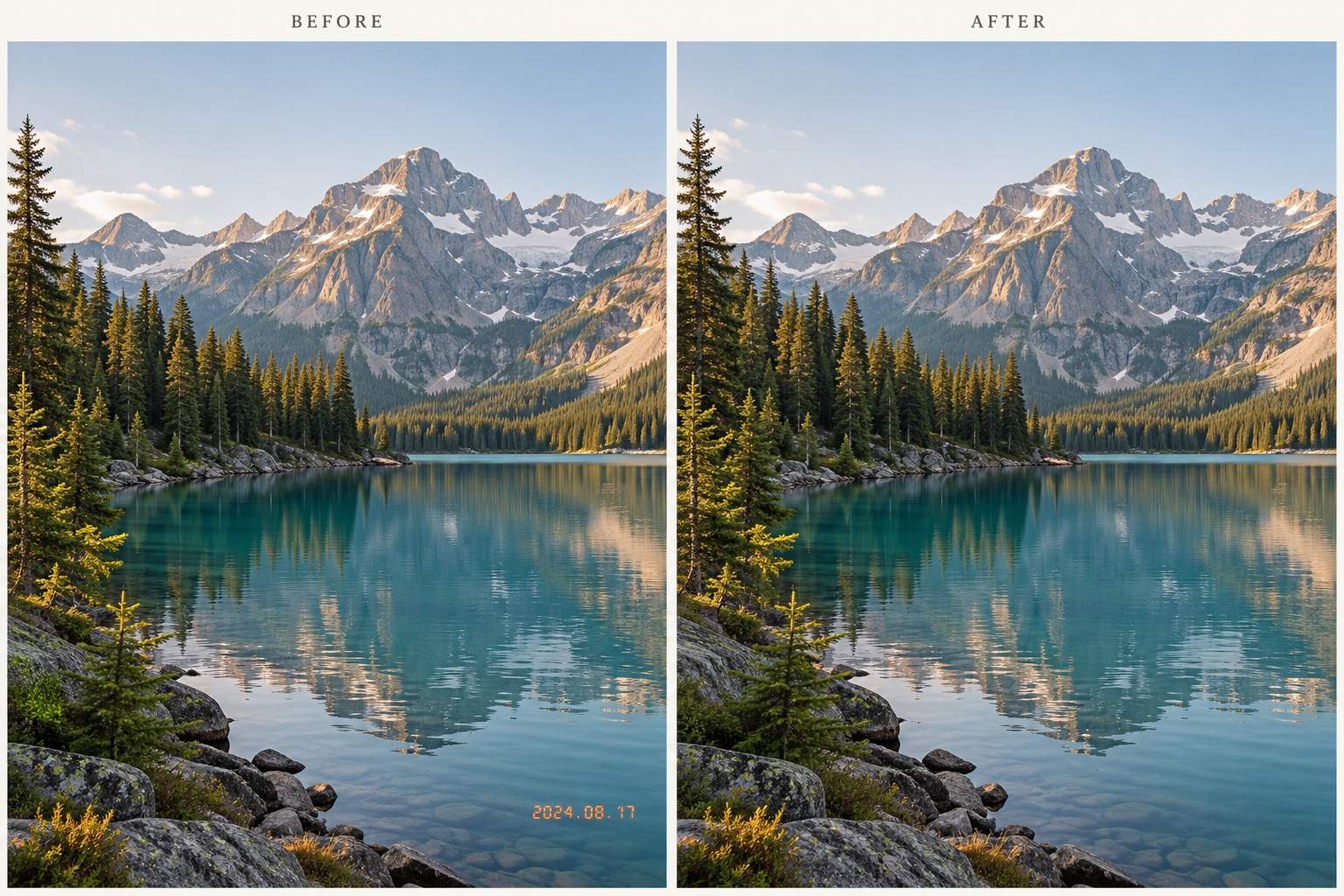
Photo Date Stamp: Erase the date stamp in the lower-right corner of my uploaded photo. Continue the surrounding colors and texture without changing the crop or main subject.
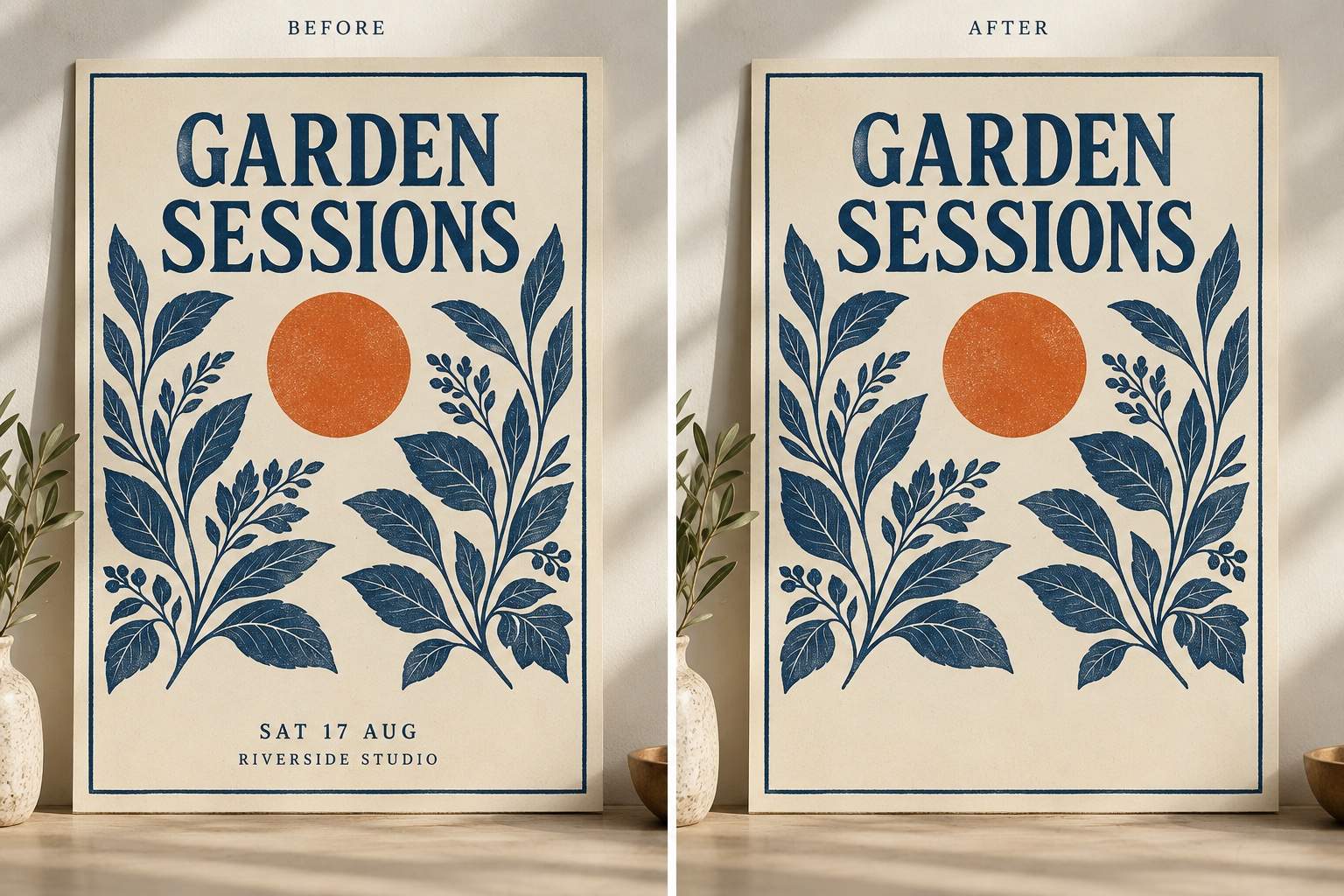
Old Poster Details: Remove the old date and venue line from my uploaded event poster. Keep the headline, illustration, and decorative border. Leave the cleared area ready for new details.
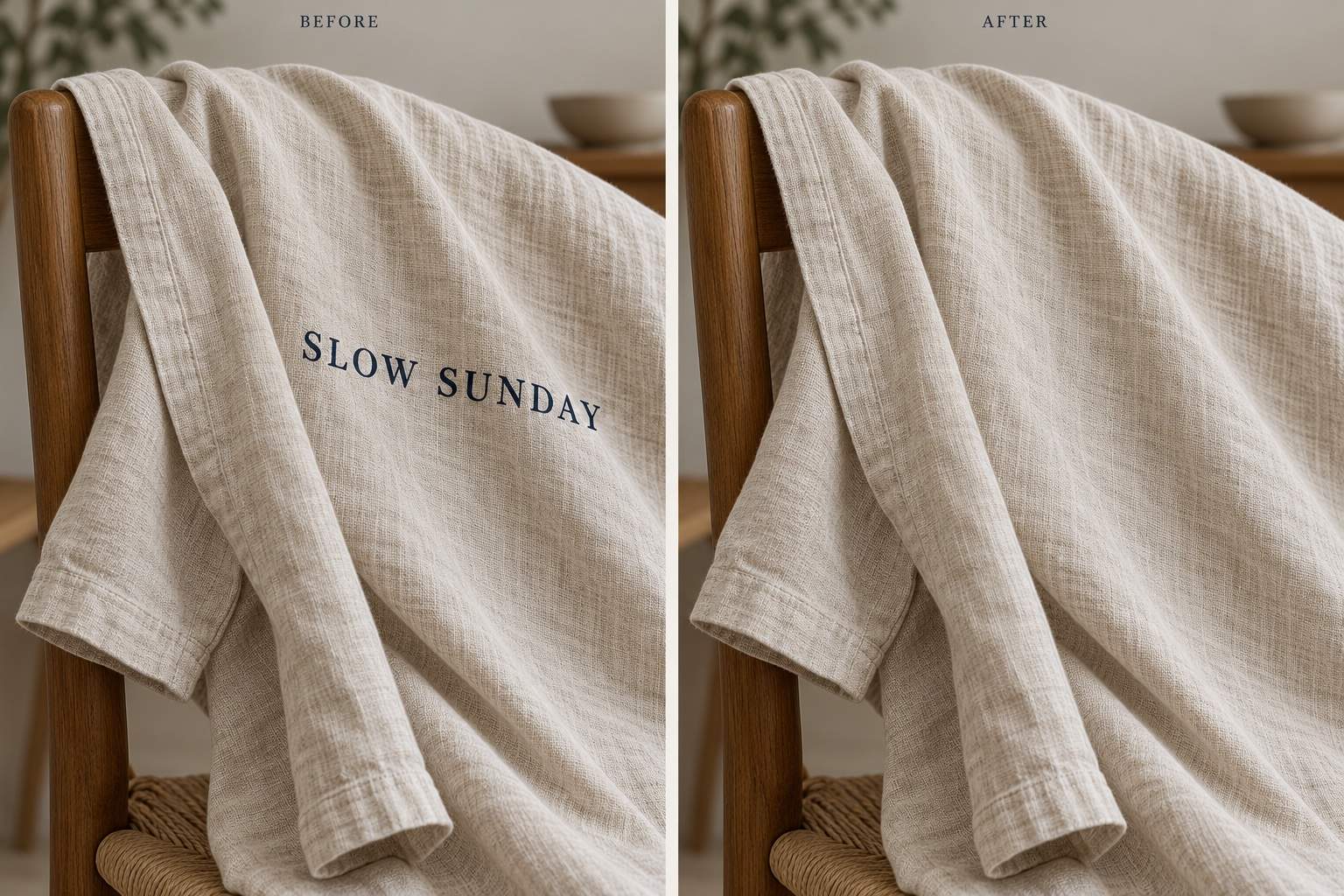
Caption over a Pattern: Remove the caption crossing the fabric in my uploaded image. Follow the visible weave and folds in the repaired area. Keep the garment shape and lighting.
One Text Area Only: Remove the top caption from my uploaded image. Keep the bottom caption and all other visible wording. Preserve the current composition.
Faint Text Residue: Clean up the leftover letter outline in the last edited image. Match the nearby texture and shading. Limit this correction to the affected area.





