Free OnlineAI Plastic Surgery Simulator
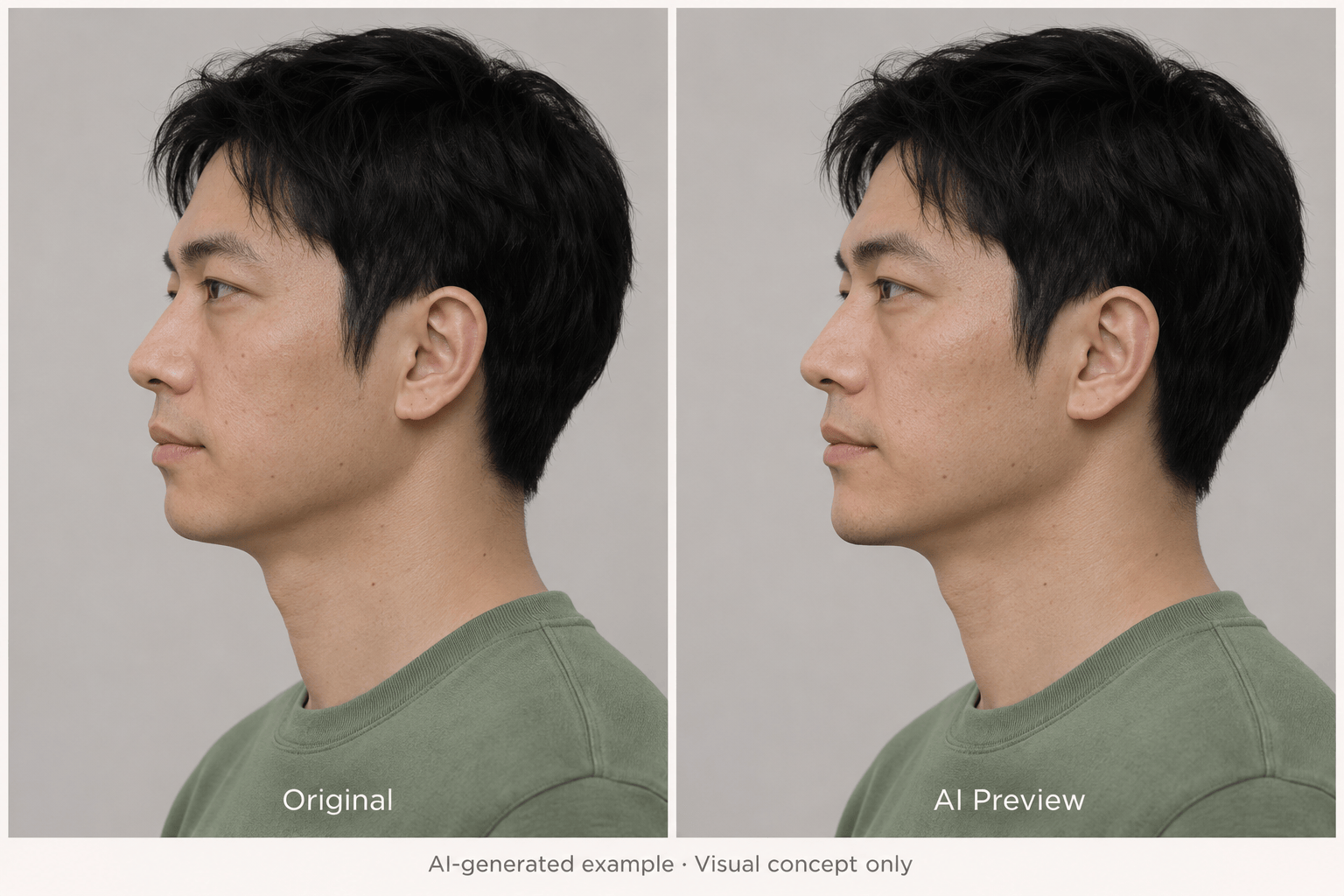
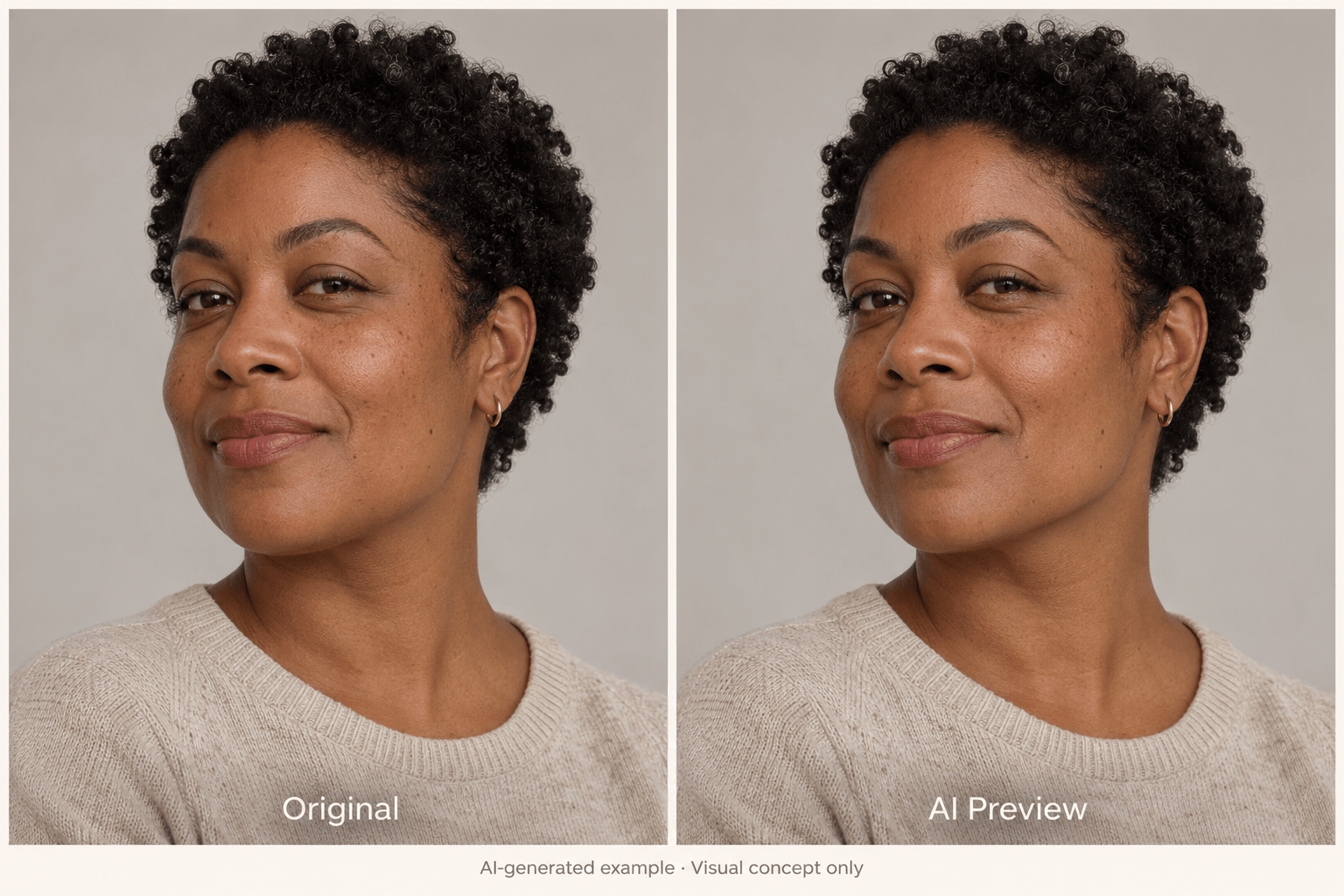
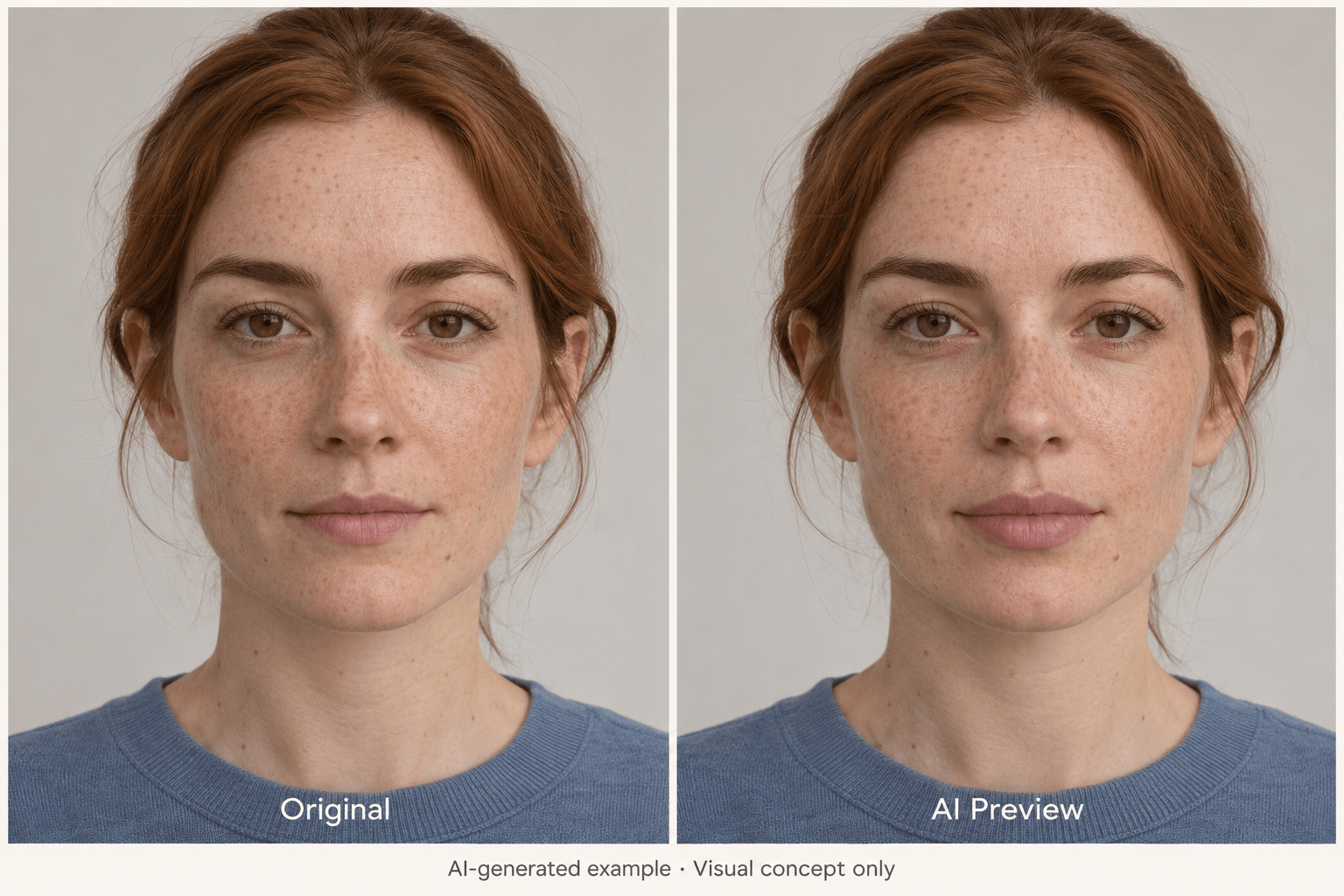
How to Preview Cosmetic Changes with AI
Start with a Clear Photo
Describe One Facial Change
Compare and Refine the Preview
Save Your Visual Reference
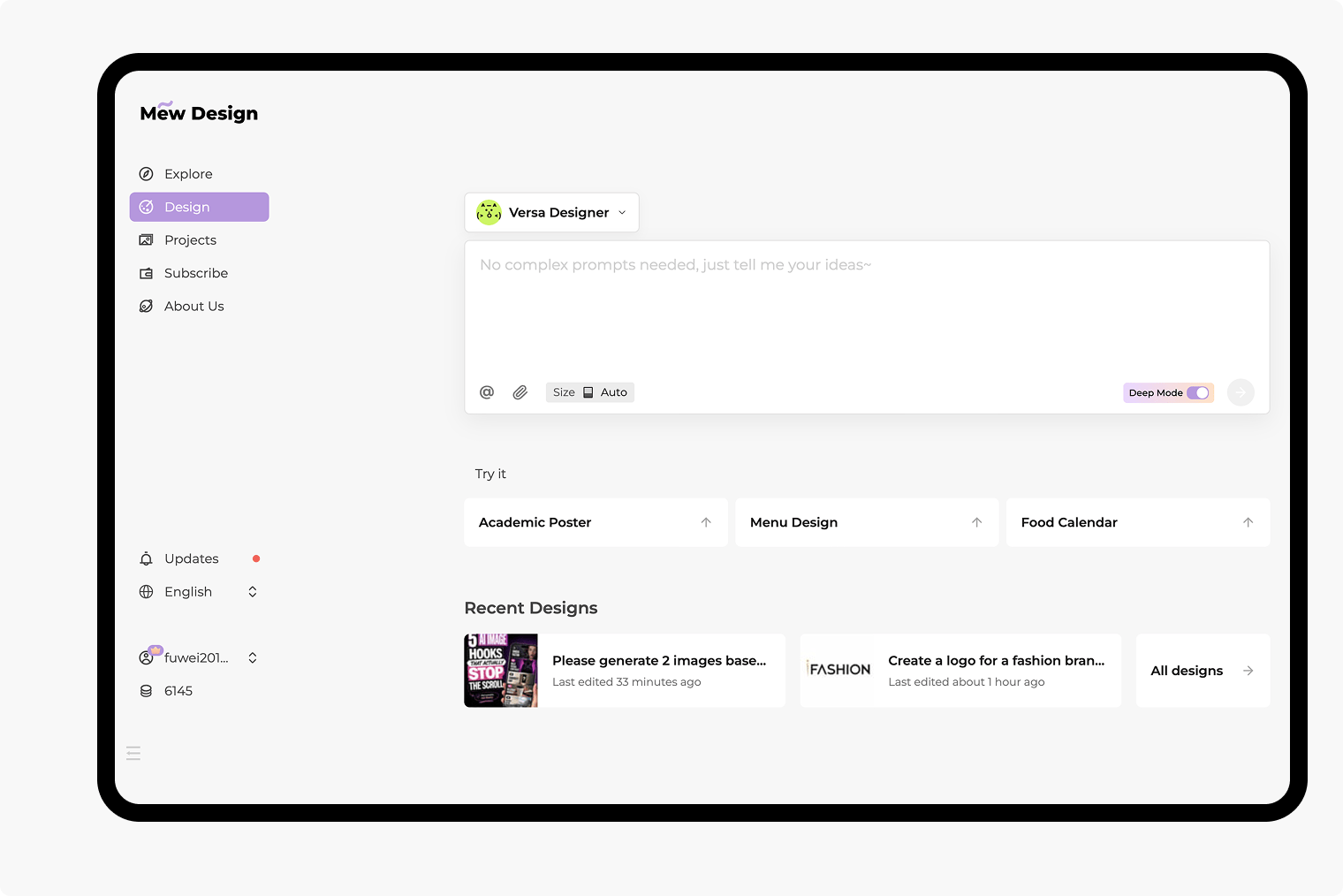
An AI Cosmetic Surgery Simulator for Your Own Photos
Preview Nose, Chin, Jawline, and Lip Changes
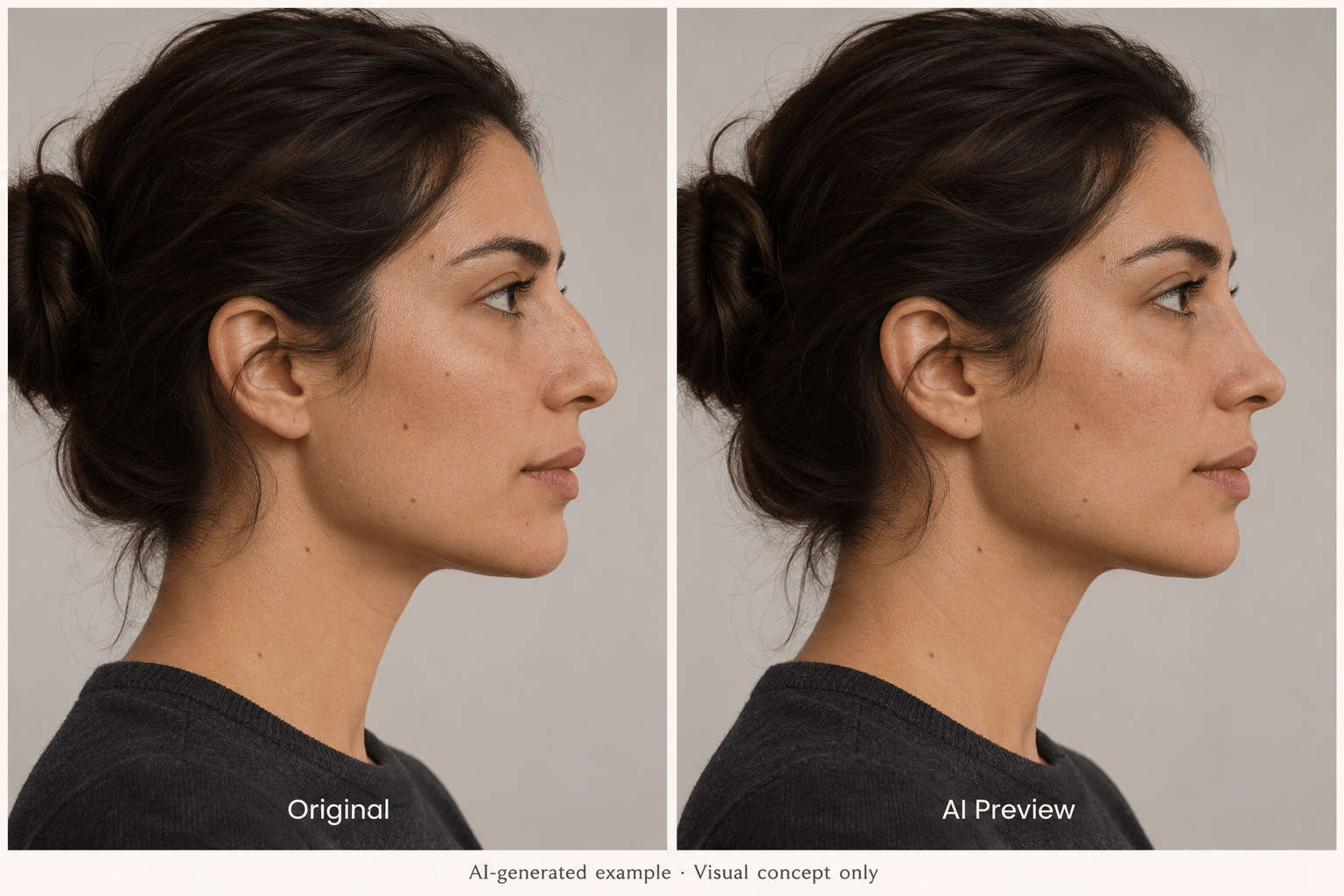
Explore a softer nose profile, a different chin contour, a more defined jawline, or fuller lips from your uploaded portrait. Describe the visible change you want, then compare it with your original photo.
Ask for a Local Adjustment
Request a change to one area while specifying what should stay unchanged. Review nearby features after generation; preservation is a goal, not a guarantee.
Compare Before-and-After Previews
Create separate nose, chin, or lip previews from the same original. Comparing one change at a time makes it easier to identify the visual direction you prefer.
Dial Back an Overdone Edit
Use Chat Edit to ask for less lip volume or a smaller profile change. Refine the photo in everyday language without learning manual reshaping tools.
Choose How the Image Is Made
Select a preferred image model or use Mew Auto to choose one for your photo and request. Mew Design brings leading image models into one workflow and adds new releases promptly.
Try a Preview with Free Credits
Sign up for free AI credits to explore virtual plastic surgery concepts. Generation and chat edits use credits; download the result as a watermark-free PNG or JPG.
How to Get a Natural-Looking Plastic Surgery Preview
- Match the View: Compare the same angle, expression, crop, and lighting. A brighter photo or tilted head can make a change look larger than it is.
- Keep Natural Detail: Ask to preserve pores, lines, and normal asymmetry. Check that eyes, skin tone, hair, and other unrequested areas have not changed.
- Separate Ideas from Outcomes: A photorealistic image cannot tell you what surgery can achieve. Use it to describe a preference to a qualified clinician, not to choose a procedure or dose.
- Keep Your Original: Return to the unedited photo for a new direction. Repeated edits can gradually change your face beyond the intended feature.
Nose, Chin, Jawline, and Lip Simulation Ideas
Create a rhinoplasty-style preview from my side-profile photo. Slightly soften the bridge contour while preserving the tip, nostrils, chin, and all other features. Keep the same lighting and skin texture.
Create a chin augmentation-style visual concept from my profile photo. Move the chin contour slightly forward while keeping the nose, lips, neck, expression, and photo angle unchanged.
Preview a gently more defined jawline in my uploaded portrait. Keep the existing face width and chin shape, preserve skin texture, and avoid changing my neck posture or lighting.
Create a subtle lip filler-style preview from my front-facing photo. Add a little lip fullness while preserving the cupid’s bow, mouth width, expression, and surrounding skin. Do not change my nose.
Make a separate, more conservative version of the facial edit using my original photo. Reduce only the requested change; do not smooth skin, enlarge eyes, or reshape other features.
Arrange my original photo and chosen edited image side by side at the same scale. Label them Original and AI Preview. Add “Visual concept only.” Do not retouch either image further.