Free OnlineAI Photo Fixer
How to Fix a Photo with AI
Upload the Strongest Original
Name the Problem and the Goal
Generate and Inspect the Fix
Fine-Tune and Export

A Photo Fixer That Listens to the Problem
Correct More Than One Flaw
A single photo can be soft, dim, noisy, and poorly balanced at once. Describe the combination in plain language so the AI image fixer can address the defects as one coherent edit.
Keep Faces and Texture Natural
Ask the AI to preserve facial structure, skin texture, expressions, fabric, and small product details. For severe blur or missing information, review the result carefully because any tool must estimate what the source no longer shows.
Repair a Specific Area in Chat
If the whole photo looks good except for one shadow, reflection, object, or soft face, use Chat Edit to request a local correction without applying a heavy effect everywhere.
Use Advanced Image Editing Models
Mew Design can route image edits through capable models such as GPT Image 2.5, giving your instructions visual context instead of relying only on manual sliders.
Prepare Versions for Real Destinations
Turn one repaired photo into a clean marketplace square, portrait crop, story image, or feed-ready landscape version. The online photo repair workflow keeps the subject and use case in the same conversation.
Start Free and Export Clean Files
Try the AI photo fixer online with free AI credits after signup. Export finished edits without a watermark in PNG or JPG format for profiles, listings, albums, presentations, and social posts.
Describe the Flaw, Keep the Moment
- Lead with the main defect: Name blur, noise, low light, compression, color cast, glare, haze, or an unwanted object before adding secondary requests.
- Mark the affected area: Use directions such as “brighten the face in the center” or “remove the reflection in the upper-right window” for a more focused edit.
- Protect important details: List faces, expressions, product labels, clothing, text, logos, proportions, and background objects that should stay faithful to the upload.
- State the destination: Mention a profile photo, online store, print, family album, presentation, or social format so the crop and finish support the final use.
Photo-Fixing Prompts for Everyday Problems
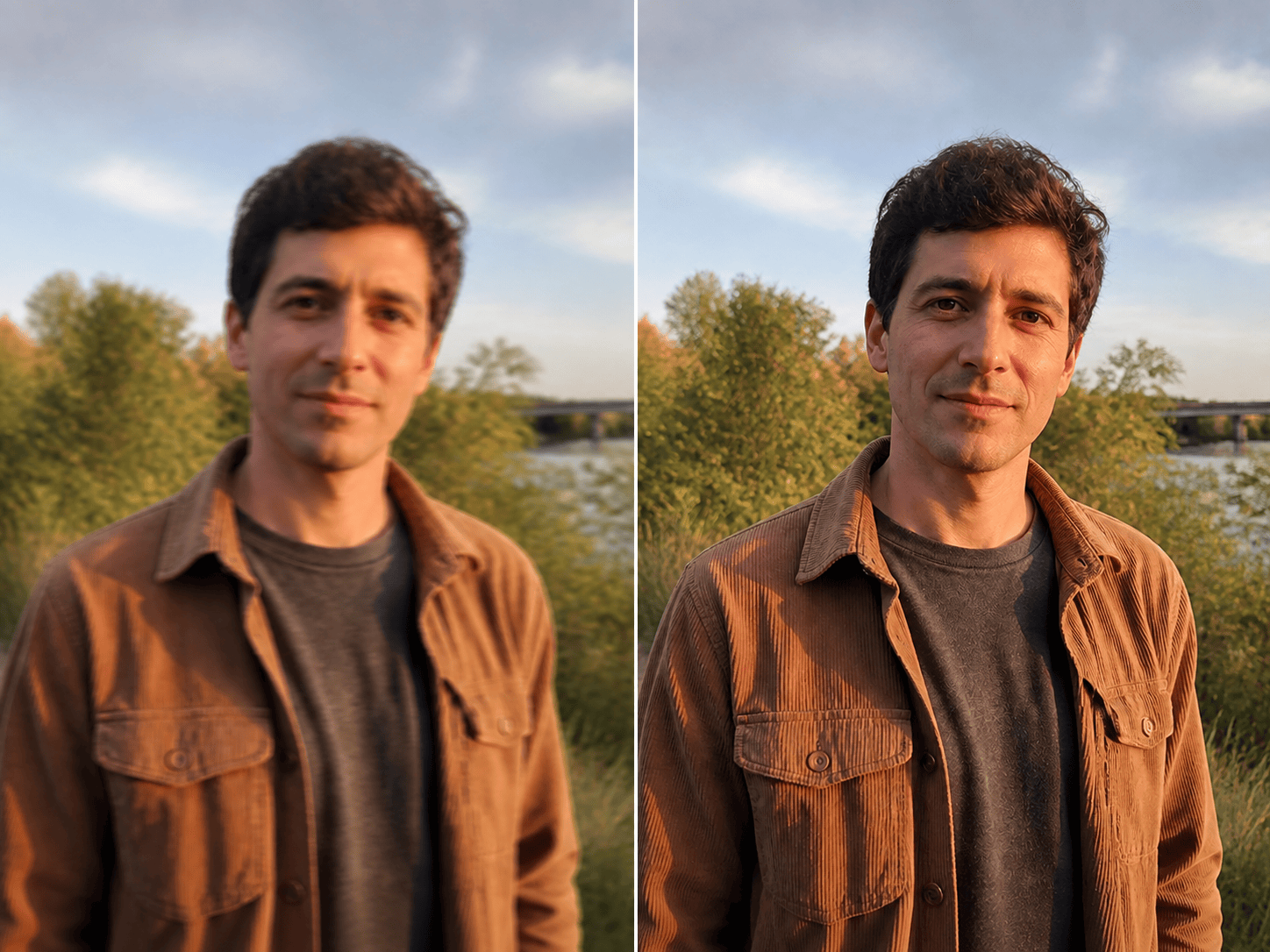
Blurry Phone Portrait: Fix the mild motion blur in this candid phone portrait and sharpen the eyes, hair, and clothing naturally. Keep the person's identity, facial proportions, expression, skin texture, pose, background, and lighting unchanged. Avoid halos, waxy skin, or invented features.
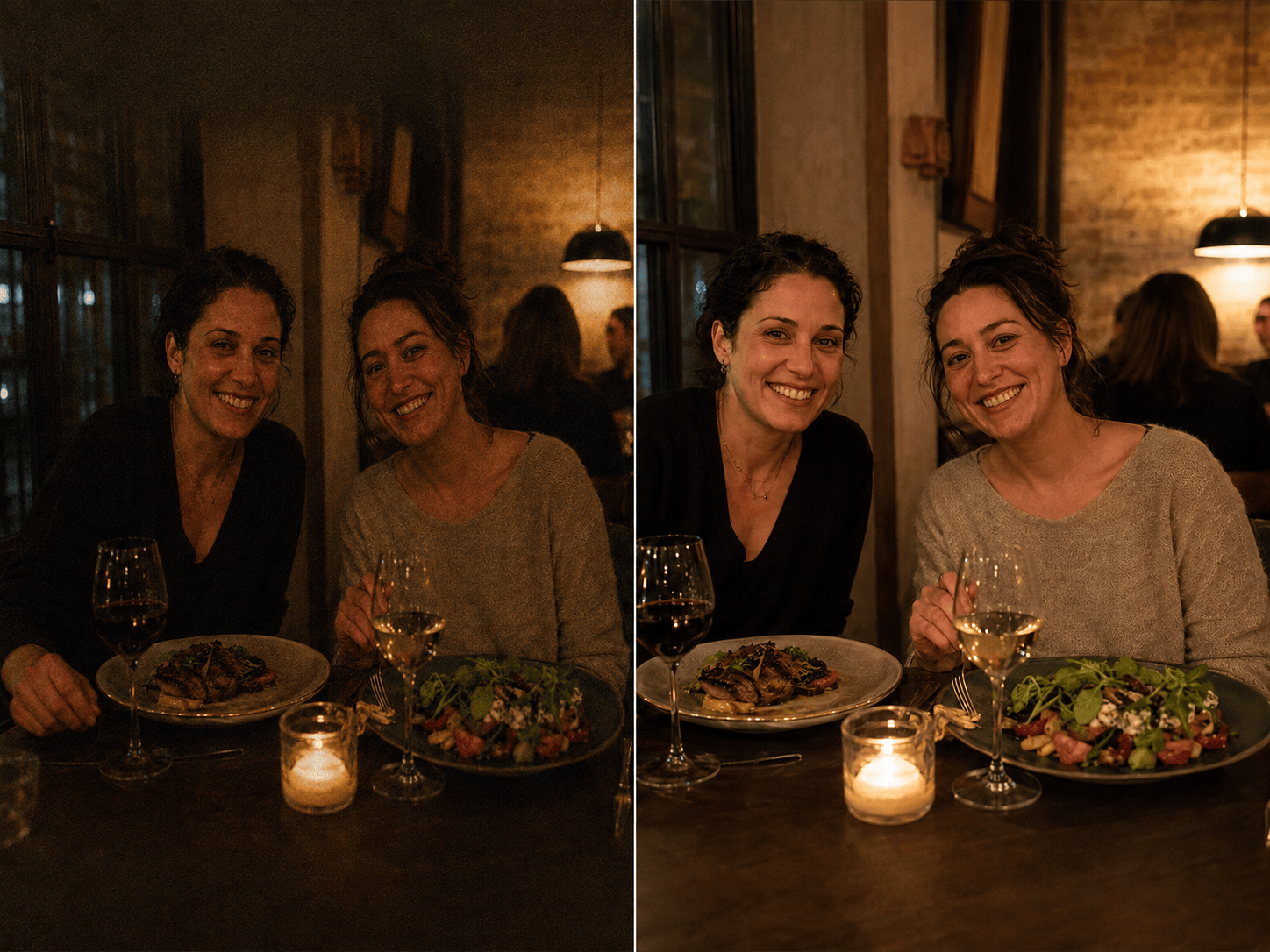
Dark Restaurant Photo: Brighten this underexposed restaurant photo, recover shadow detail on the people and food, reduce high-ISO noise, and neutralize the strong yellow cast. Keep the warm evening mood, real skin tones, table setting, and original composition.
Noisy Indoor Pet Photo: Reduce grain and compression artifacts in this indoor pet photo, clarify the eyes and fur without making them crunchy, and balance the window light. Keep the animal's markings, pose, toys, furniture, and shallow depth of field unchanged.
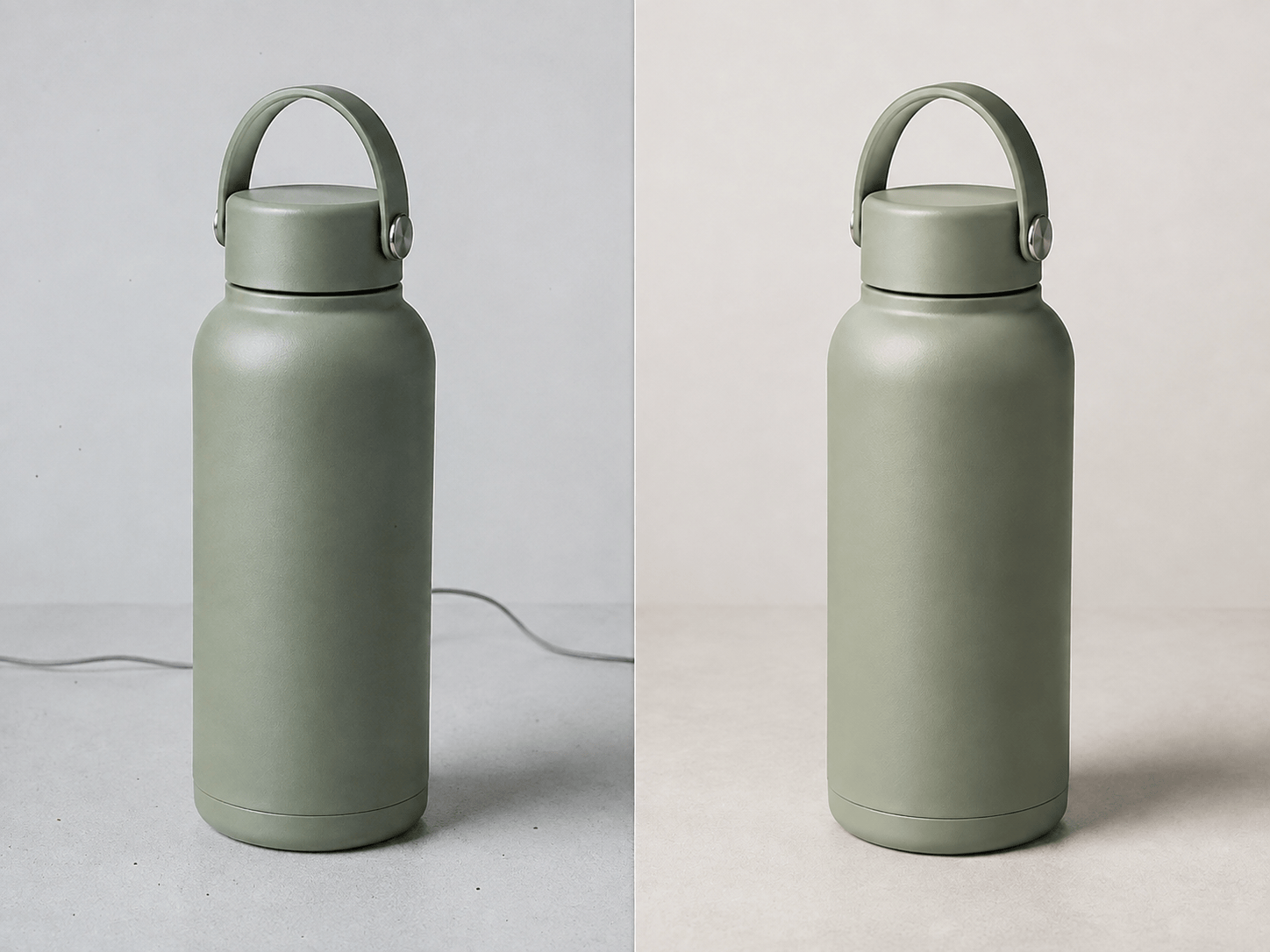
Marketplace Product Image: Clean up this compressed product photo for an online listing. Improve edge clarity, correct white balance, remove dust and the small cable behind the product, and create a centered square crop. Preserve the product's exact shape, color, label, texture, and proportions.
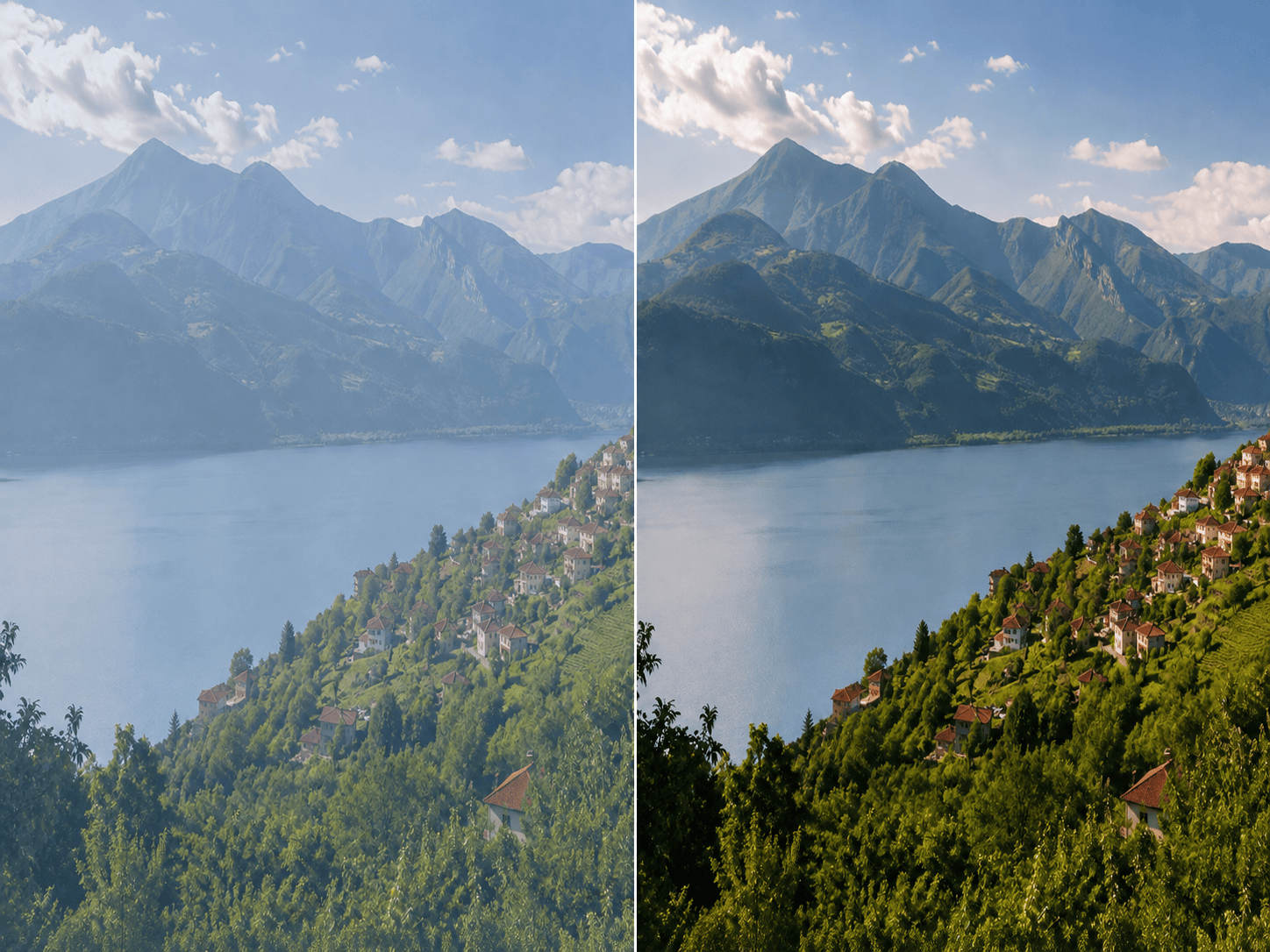
Hazy Travel Landscape: Reduce atmospheric haze in this mountain travel photo, recover moderate sky and foreground detail, straighten the horizon, and restore natural color. Keep the real terrain, buildings, clouds, time of day, and photographic look; do not add scenery.
Social Photo Background Cleanup: Remove the litter bin and two distant passersby from the background of this outdoor portrait, soften the harsh face shadow, and prepare a vertical social crop. Keep the subject's identity, body shape, clothing, pose, location, and natural skin texture unchanged.





