Free OnlineAI Image Sharpener
How to Sharpen an Image with AI
Bring the Best Source You Have
Point to the Soft Detail
Set a Natural Sharpness Target
Inspect, Dial Back, and Export

Clarity Without the Crunchy, Overprocessed Look
Tell the AI Where Sharpness Belongs
Global filters treat every pixel alike. With Mew Design, you can ask to sharpen a face, product edge, roofline, or foreground subject while preserving a deliberately soft background.
Protect Texture Instead of Polishing It Away
Use the online image sharpener with instructions to keep skin, fur, fabric, foliage, grain, and reflective surfaces believable. A restraint clause helps prevent a plastic or painted finish.
Separate Sharpness From Resolution
Sharpening improves perceived edge definition; it does not automatically create a larger file. If the source is also too small, request a carefully upscaled version and review fine details independently.
Correct Halos in the Same Conversation
An edit can look crisp at first glance but fail around hair, branches, lettering, or high-contrast borders. Ask Chat Edit to reduce only those halos instead of restarting with a different tool.
Prepare the Right Finish for the Destination
A product thumbnail, profile image, real-estate listing, presentation graphic, and print do not need identical sharpness. State the destination so the result is judged for its final display size.
Try It Free, Keep the Export Clean
New accounts receive free AI credits, so you can test a restrained pass before committing. Finished image edits can be downloaded without a watermark as PNG or JPG files.
Prompt the Detail, Set the Limits
- Locate the problem: Replace “make it clear” with a target such as the eyes, engraved edge, foreground leaves, roof tiles, or readable lettering.
- Define restraint: Ask for moderate micro-contrast and natural texture, then explicitly reject halos, ringing, double edges, waxy skin, crunchy noise, and fake detail.
- Lock the source: List identity, object shape, colors, composition, depth of field, logo, and existing text as invariants when they must match the upload.
- Name the output: A small marketplace thumbnail can tolerate a different sharpening balance from a large print, close portrait, website hero, or presentation slide.
Sharpening Prompts for Details That Matter
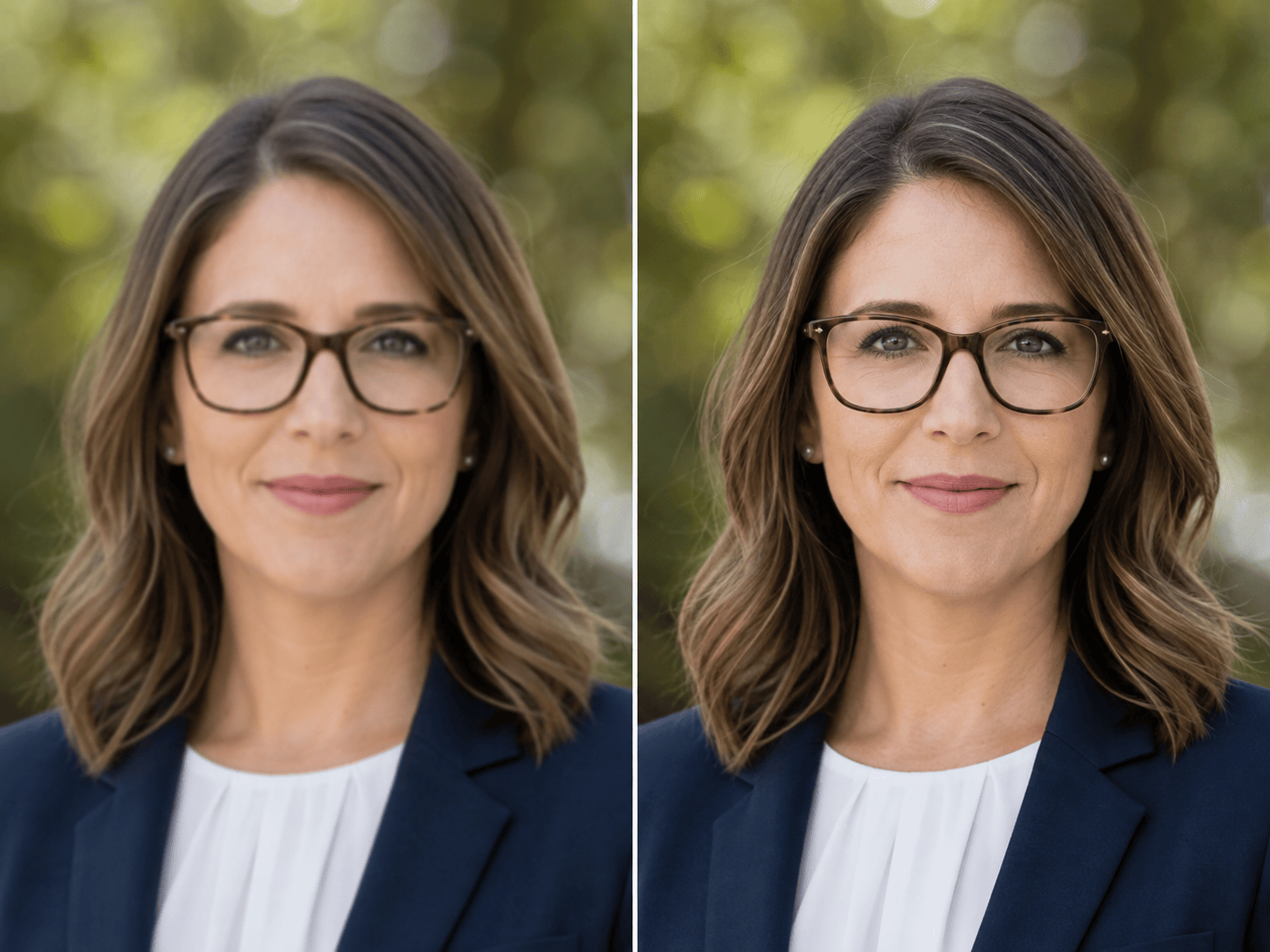
Soft Portrait Focus: Sharpen this mildly out-of-focus portrait around the eyes, brows, hairline, glasses, and clothing seams. Preserve identity, natural skin texture, expression, color, crop, and background bokeh. Avoid halos, extra eyelashes, plastic skin, and aggressive contrast.
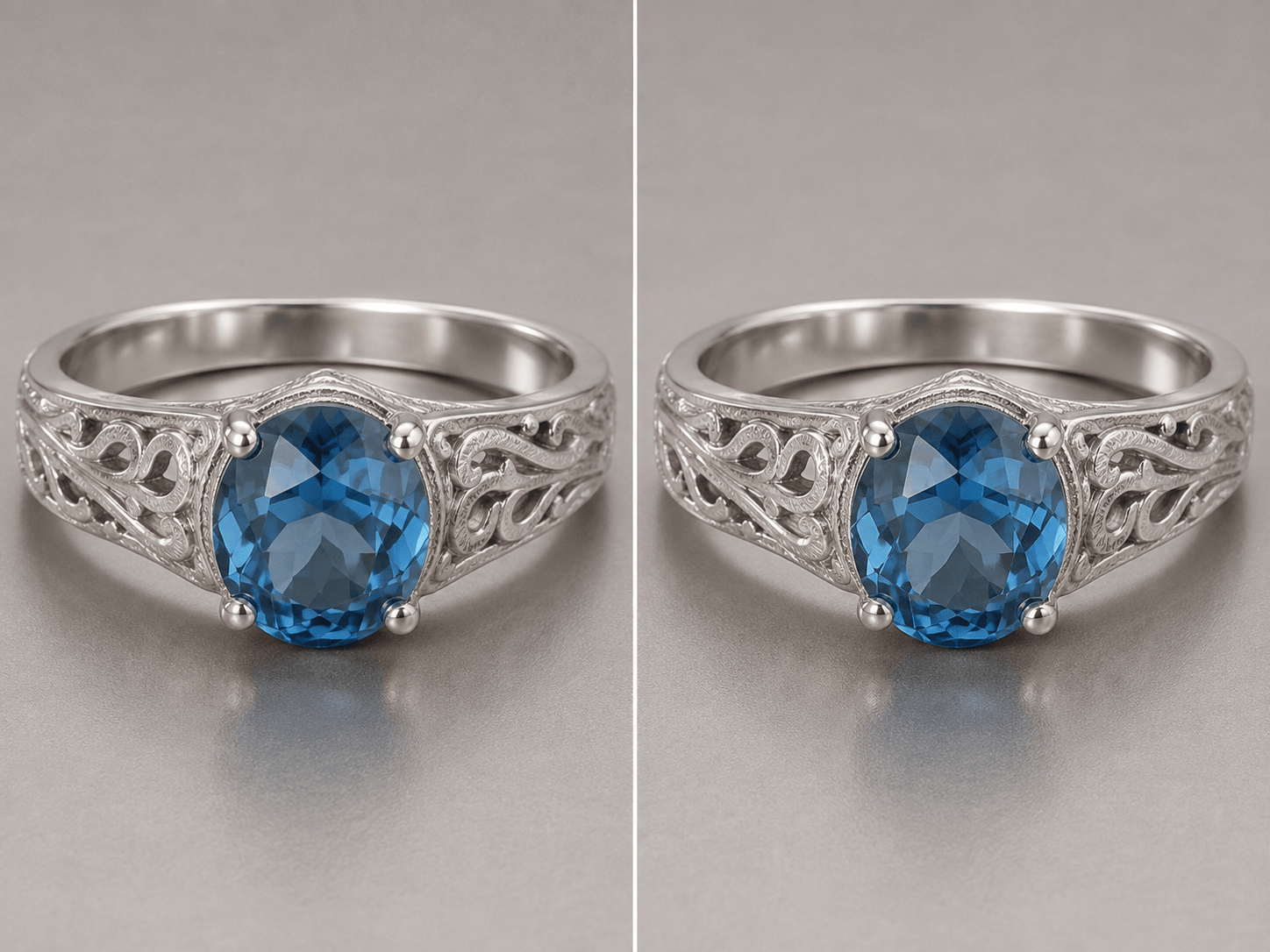
Jewelry Listing Close-Up: Improve edge clarity on this compressed jewelry product photo. Clarify the gemstone facets, prongs, chain links, and real metal texture without changing the design, reflections, color, proportions, or white background. Keep highlights smooth and avoid crunchy micro-contrast.
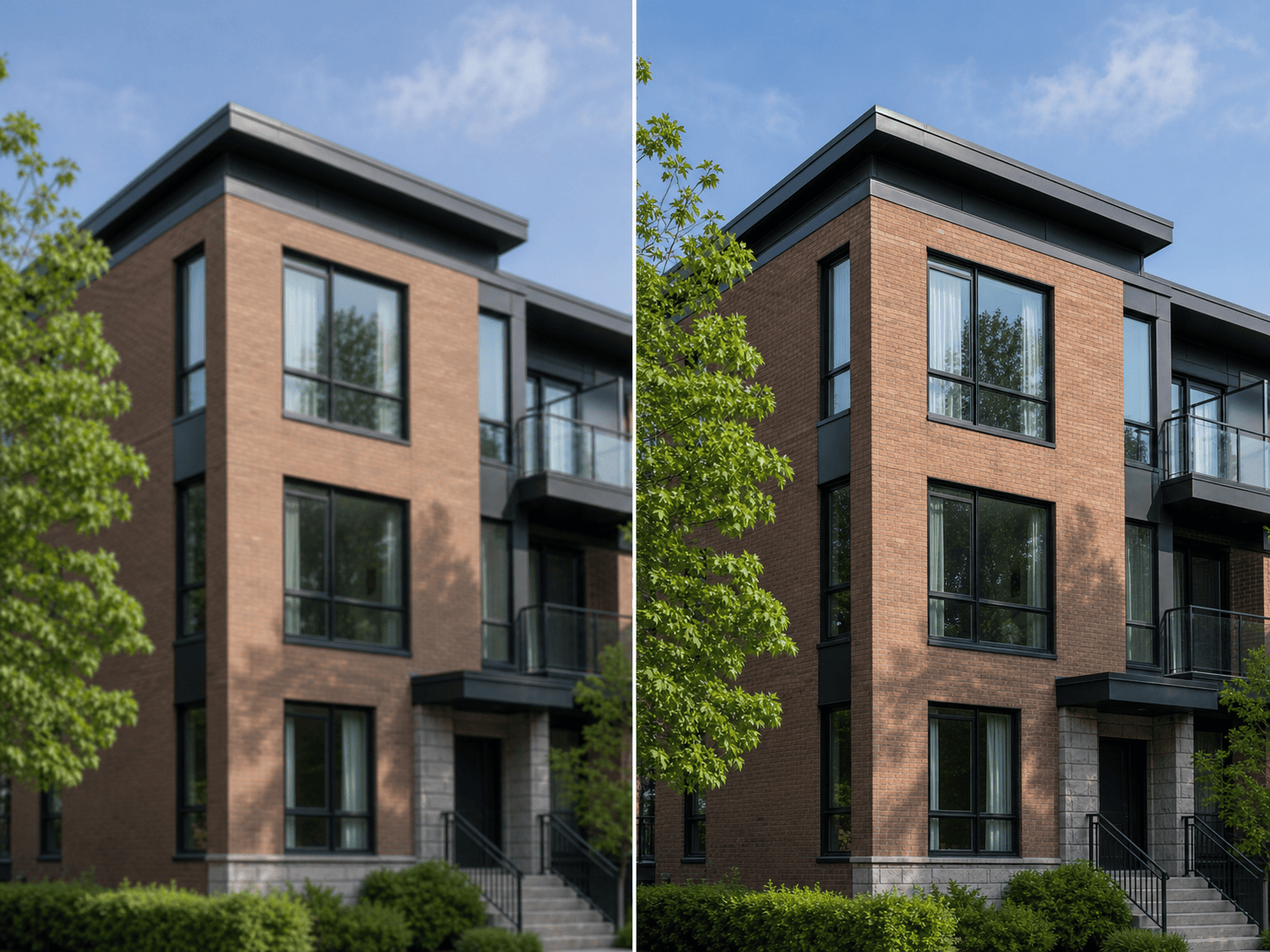
Architecture and Real Estate: Sharpen the visible window frames, brickwork, roof edges, and balcony rails in this slightly soft exterior photo. Keep the building geometry, sky, foliage, perspective, time of day, and composition unchanged. Do not add windows, bricks, or HDR halos.
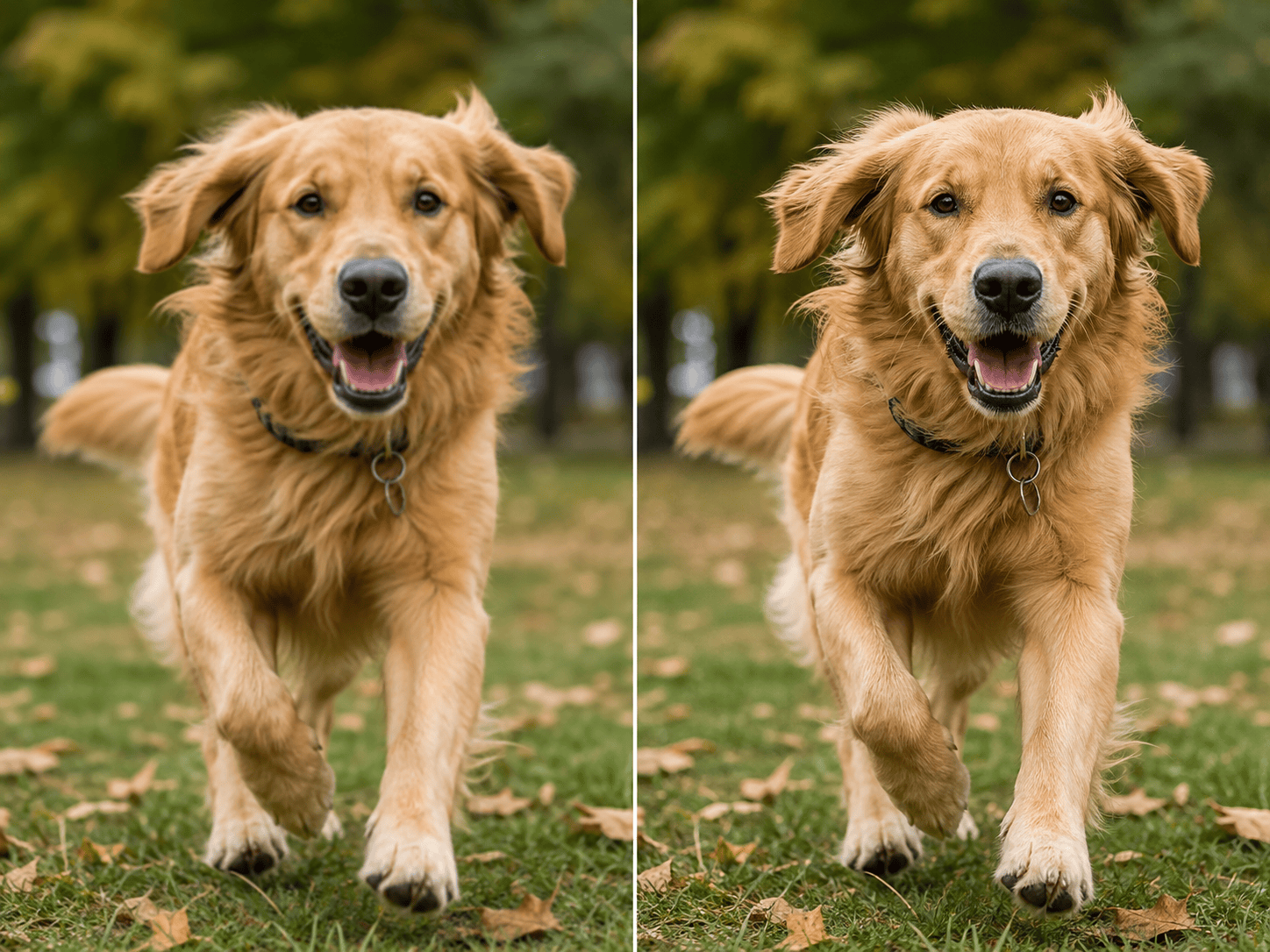
Moving Pet Photo: Reduce mild motion softness on the dog's eyes, nose, whiskers, and front-facing fur. Preserve the animal's markings, pose, body shape, collar, running motion, ground, and background blur. Keep fur natural rather than individually painted.
Resized Web Illustration: Restore clean line definition and color boundaries in this resized digital illustration. Preserve every character, shape, palette, layer relationship, and canvas dimension. Remove only resize softness and compression ringing; do not redraw or add details.
Text in a Phone Photo: Clarify the existing letter edges in this mildly soft photo of a printed sign. Preserve the exact wording, line breaks, type style, paper texture, perspective, and lighting. Do not guess unreadable characters or replace the text; flag any area that remains uncertain.





