Free OnlineAI Image Extender
How to Extend a Photo with AI
Upload Your Original Photo
Generate the Expanded View
Check the Join and Refine
Export for Your Layout

More Room for the Photo You Already Have
Start from Your Own Image
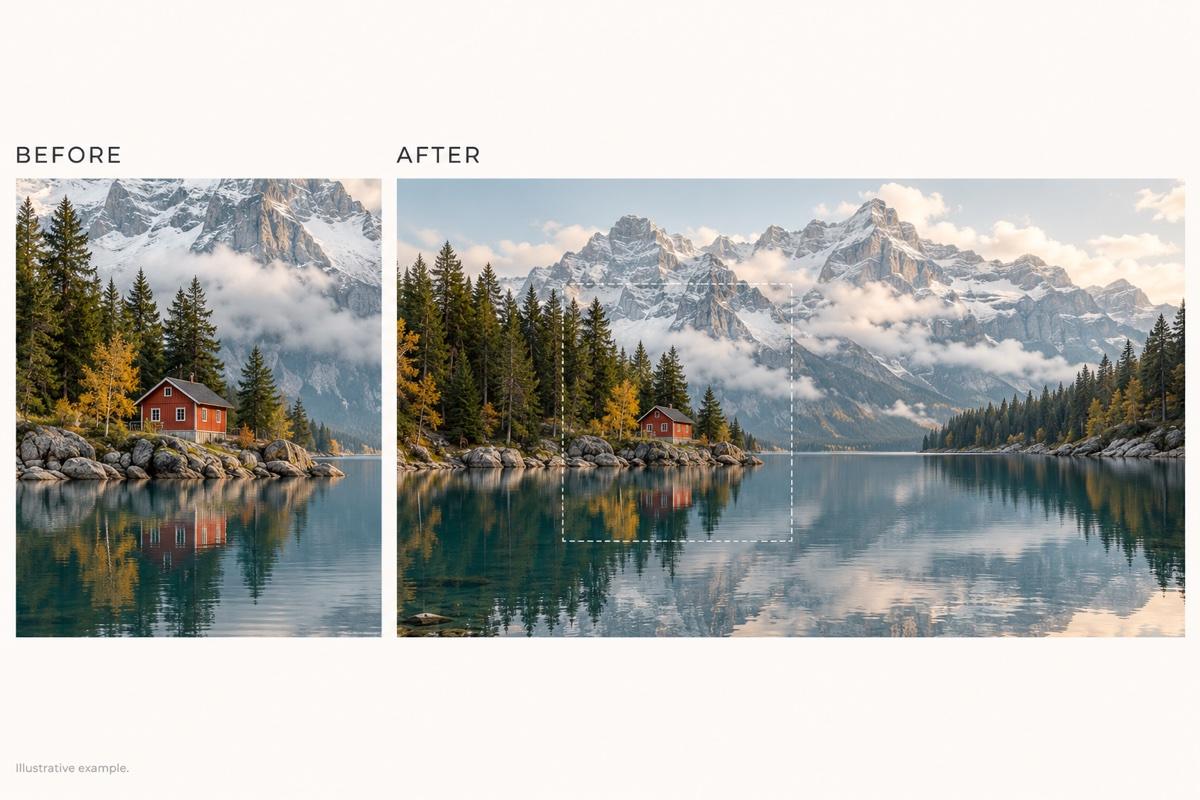
Our AI image expander uses your uploaded photo as the starting point. Request more background around the subject instead of describing a new scene from scratch.
Describe Exactly Where to Expand
Ask for space on the left, right, above, or below. Explain the intended framing in everyday language, without learning a complex editing workflow.
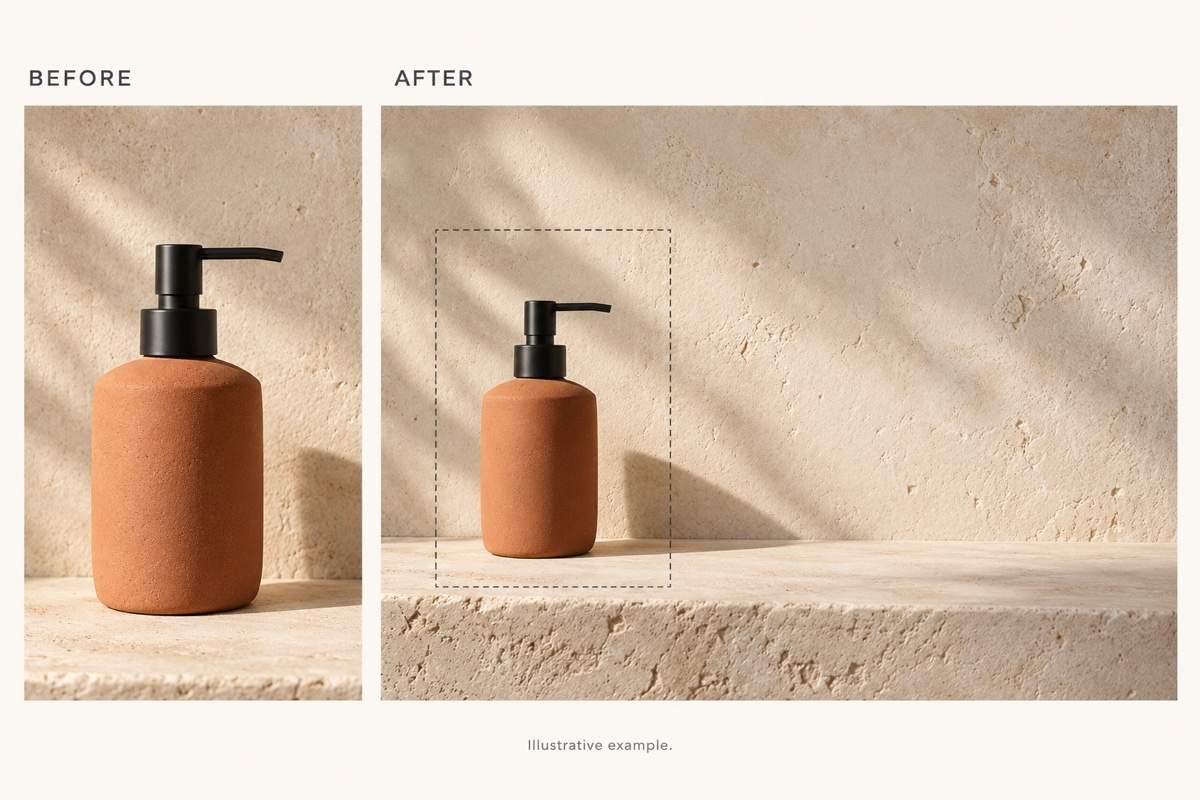
Make Space for Your Message
Extend a photo background for a headline or offer. Then turn the composition into a campaign layout with our AI poster generator.
Explore Wider and Taller Versions
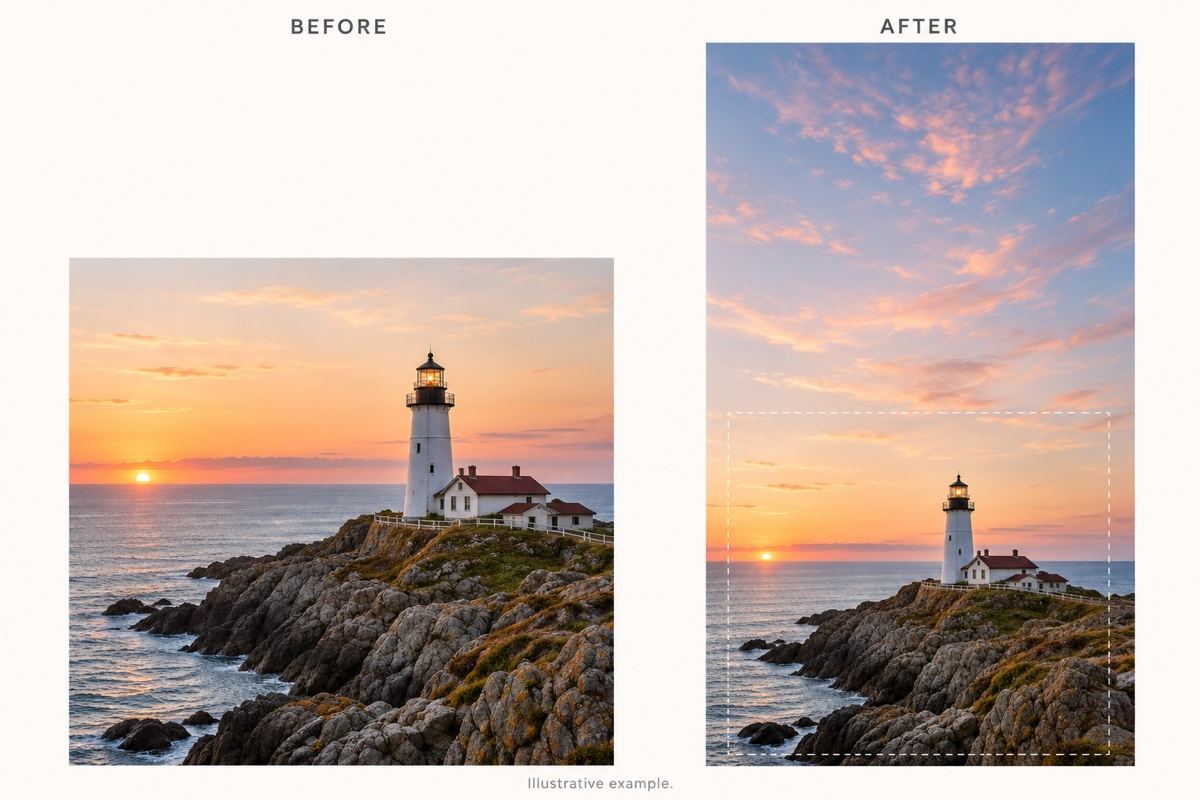
Request different compositions for a landscape banner, square post, or vertical wallpaper. Review each version to choose the framing that suits its destination.
Refine Awkward Edges in Chat
Use Chat Edit to ask for a smoother transition, simpler scenery, or a corrected shadow. Keep each revision focused on the area that needs attention.
Try It with Free Credits
New users receive free AI credits after signup. Test an extension and export without a watermark; available generations depend on your credit balance.
What to Check Before and After Uncropping
- Choose a Clear Source: Start with the original file if available. Blurry edges and heavy compression give the AI less detail to work from.
- Set the Framing: Specify the target ratio and the edges to extend. Ask for a modest extension first if the background is complex.
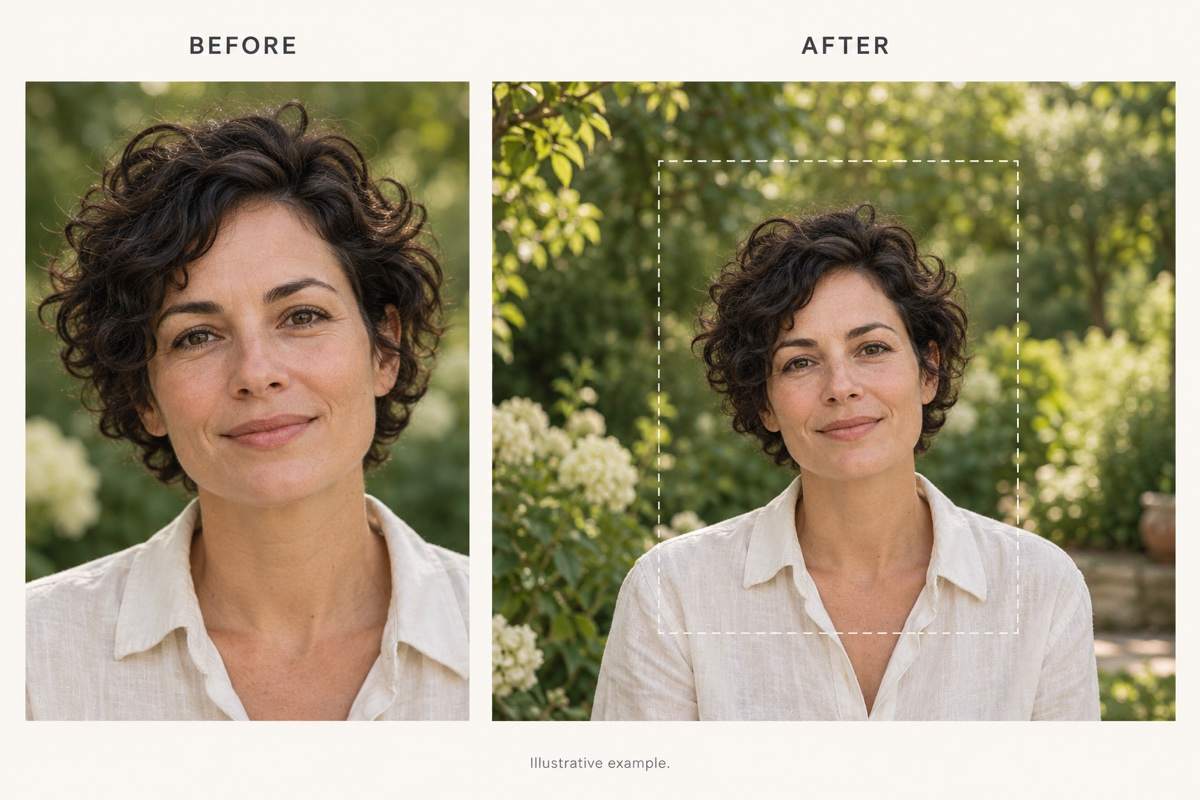
- Compare the Subject: Check faces, hands, product shapes, and logos against the upload. An instruction to preserve them does not guarantee pixel-perfect results.
- Inspect the New Area: Look for broken lines, duplicated objects, and inconsistent shadows. Request a focused correction before downloading.
Six Ways to Reframe or Fix Your Photo
Wide landscape: Extend my uploaded photo to 16:9 by continuing the scenery on both sides. Keep the horizon level and match the existing light. Do not add buildings or people.
Product ad space: Expand the background to the right of my uploaded product photo. Leave a quiet area for promotional copy and preserve the product shape, label, and shadow. Do not add text yet.
Phone wallpaper: Extend my uploaded image vertically to 9:16. Add simple background above the subject for the lock-screen clock, with matching color and light.
Portrait breathing room: Uncrop my uploaded portrait by adding a little background around the head and shoulders. Preserve the face, hairstyle, clothing, and pose; avoid inventing extra limbs.
Visible seam: Refine the transition between the original photo and the added background. Match the texture and brightness, and keep the subject and overall framing unchanged.
Repeated objects: Remove the duplicated objects from the expanded area and continue the surrounding background naturally. Keep the original subjects and the current aspect ratio.





