Free OnlineAI Face Editor
Upload a portrait and tell Mew Design - AI Design Agent what to change and what to keep. Our AI face editor helps you retouch skin naturally, adjust expressions, preview hairstyles, or polish a profile photo with simple text instructions. Refine each result in chat until the face photo looks right for social posts, portfolios, or professional profiles.

How to Edit a Face in a Photo with AI

Use a clear portrait, define one focused change, and compare the edited face with the original before you export it.
1

Upload a Clear Portrait

Choose a well-lit photo where the face, hairline, and details you want to edit are visible. A front-facing or three-quarter portrait gives the online face editor more useful visual context.
2

Describe the Edit and the Invariants

Say what should change and what must remain the same. You do not need a complex Prompt; try, “Reduce under-eye shadows, but keep the same face shape, skin tone, hair, clothing, and background.”
3

Generate and Compare the Result

The AI face photo editor analyzes your instruction and creates an edited portrait. Compare it with the upload at full size, checking identity, expression, skin texture, hair edges, and nearby details.
4

Refine One Detail and Download

If something feels off, click Chat Edit and request one smaller correction while preserving the parts that already work. Download the finished portrait as a PNG or JPG for your profile, portfolio, or social content.
how to edit a face with ai

More Control for Natural, Recognizable Face Edits

Edit by Describing the Result

Skip unfamiliar retouching panels. Tell Mew Design what you notice and the result you want, from a softer shadow to a different smile, hair color, or portrait mood.

Start from Your Own Photo

Image-to-image editing uses your uploaded portrait as the visual starting point. You can also add a reference image when a hairstyle, makeup direction, or lighting style is easier to show than describe.

Protect the Details That Matter

Our AI face editor works best when you name the invariants: identity, face shape, skin tone, expression, hairstyle, clothing, framing, or background. Clear limits make subtle edits easier to review.

Correct Drift Through Chat Edit

An AI edit can change more than intended. Keep the good parts and ask for one focused revision, such as restoring the original jawline or bringing back natural skin texture, instead of starting over.

Explore Looks with Leading Image Models

Try appearance and portrait directions powered by models such as Nano Banana Pro and GPT Image 2, then refine the selected result in the same conversation.

Try Face Editing Online for Free

Sign up to receive free AI credits, test this online face editor on your own portrait, and export finished images without a watermark. PNG and JPG files are ready for common profile and social uses.

Prepare Your Photo for a More Natural Face Edit

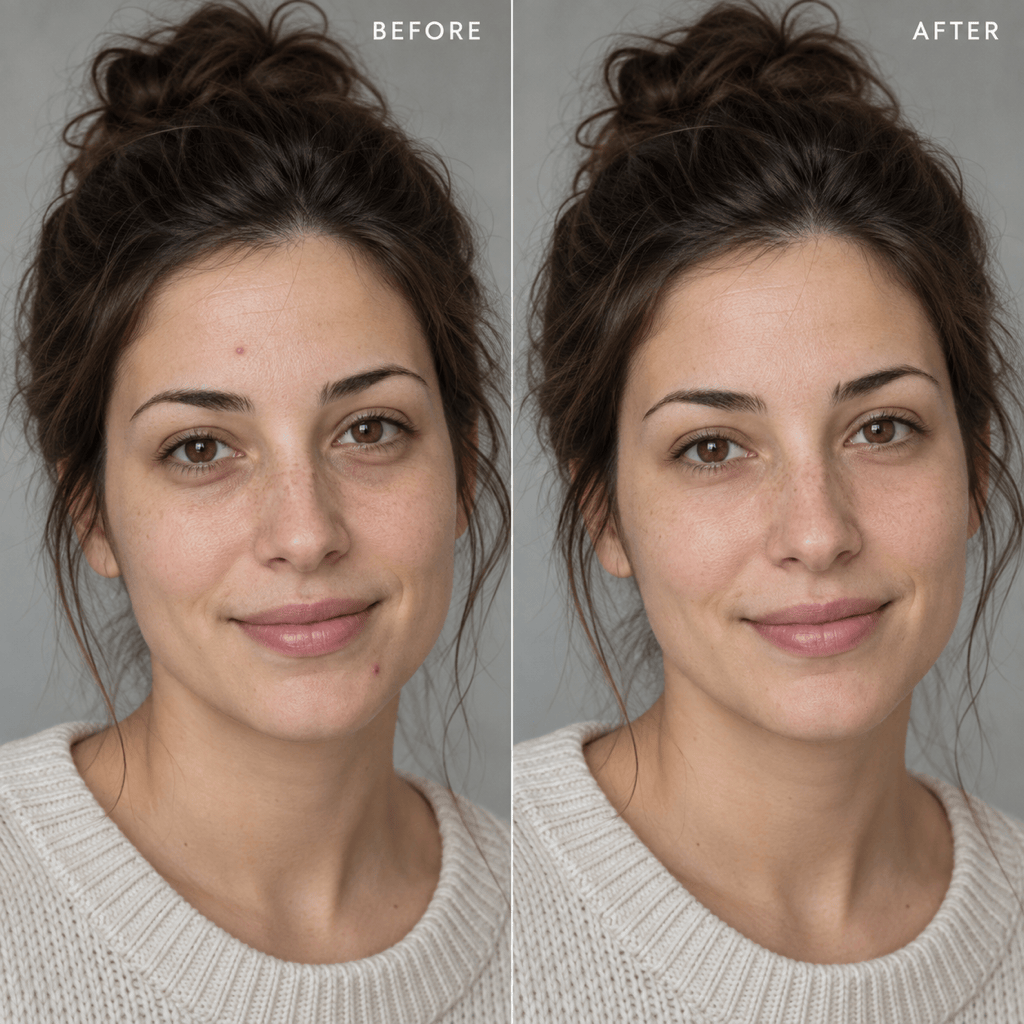
Edit @[portrait] only: reduce the under-eye shadows and two small blemishes while keeping the same person, face shape, skin tone, pores, age, expression, hair, clothing, lighting, crop, and background. Keep the retouch subtle and photorealistic.
Natural AI face retouching starts with a photo that is easy to inspect and an instruction that separates the requested change from everything you want to preserve. Make one meaningful change per round, then compare the output with the original.
  • Use a Clear Source Photo: Choose sharp facial detail, even light, and minimal obstruction from sunglasses, hands, heavy filters, or motion blur.
  • Change One Attribute at a Time: Handle skin, expression, hairstyle, makeup, or lighting in separate rounds so you can spot unintended changes.
  • Name What Must Stay the Same: List identity, facial structure, skin tone, hairline, pose, clothing, crop, and background when those details must be protected.
  • Review at Full Size: Check eyes, teeth, ears, hair edges, pores, accessories, and symmetry. If identity drifts, reduce the scope and request a smaller edit.

Popular Face Edits to Try

Natural skin retouch: Edit @[portrait] to reduce temporary blemishes and mild under-eye shadows. Keep natural pores, freckles, skin tone, age, facial structure, expression, hair, clothing, and background unchanged. Avoid plastic or airbrushed skin.

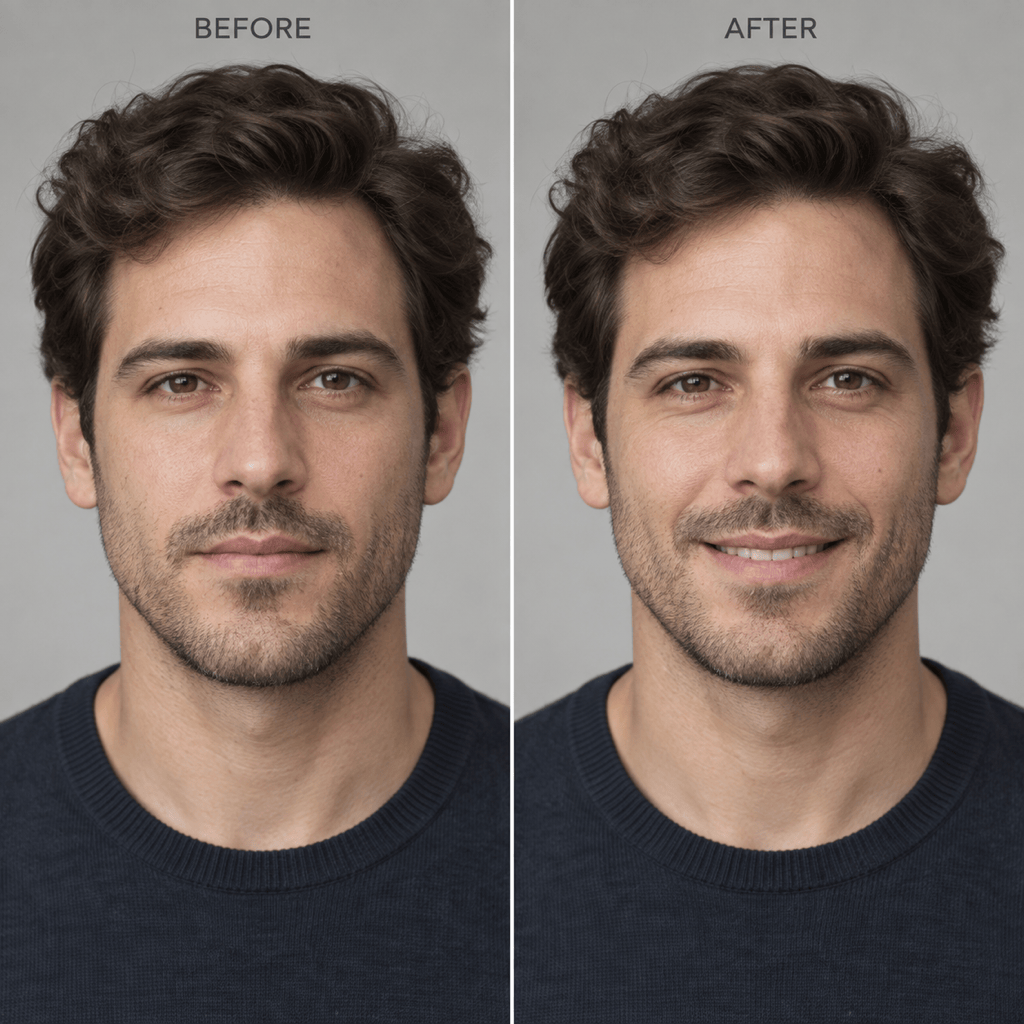
Expression adjustment: Change the neutral expression in @[portrait] to a relaxed, natural smile. Keep the same person, face shape, eyes, hairstyle, head angle, lighting, clothing, crop, and background unchanged. Avoid exaggerated teeth or cheek changes.

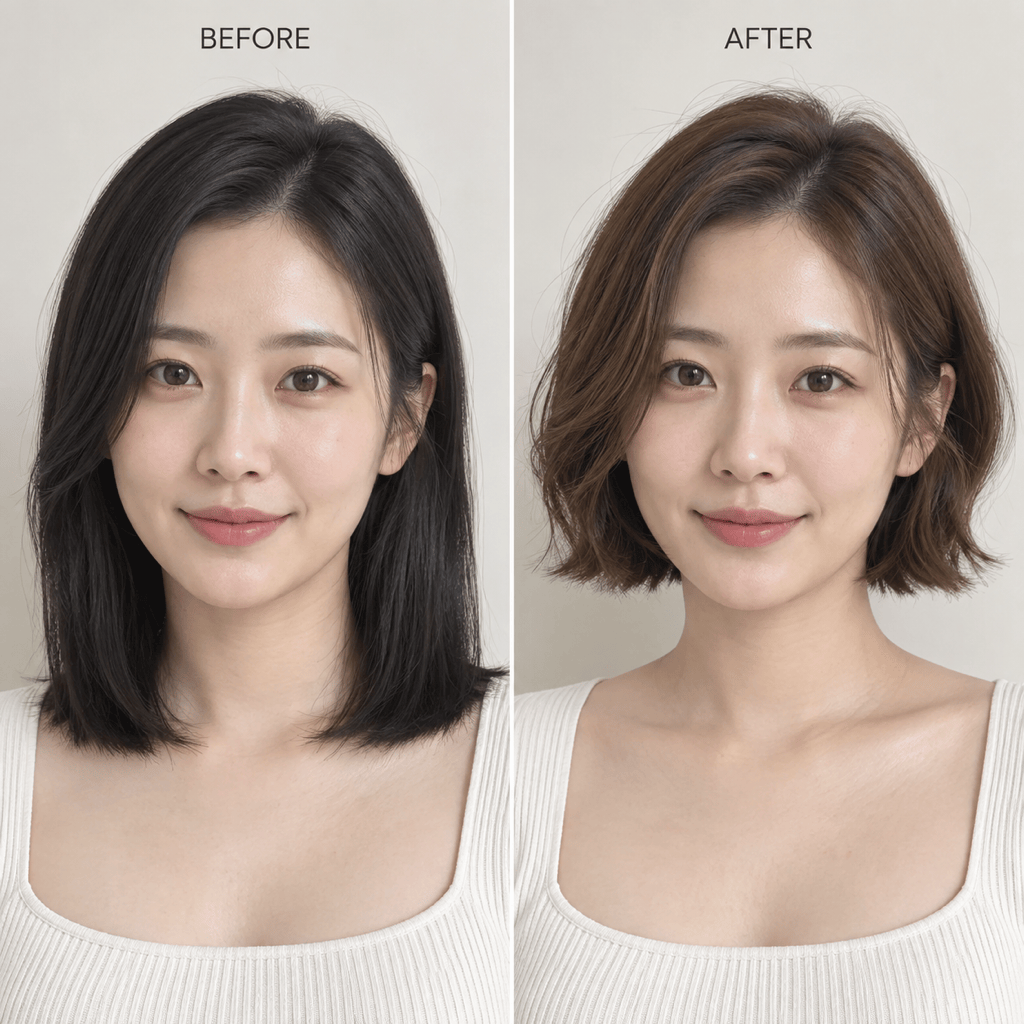
Hairstyle preview: In @[portrait], replace only the current hairstyle with a chin-length warm-brown bob with soft waves. Keep the face, skin tone, expression, body, clothing, lighting, camera angle, and background unchanged. Make the hairline and edges realistic.

Makeup preview: Apply subtle everyday makeup to @[portrait]: light concealer, soft brown eyeliner, muted rose blush, and natural lip color. Preserve identity, skin texture, face shape, eyebrows, hairstyle, clothing, and background.

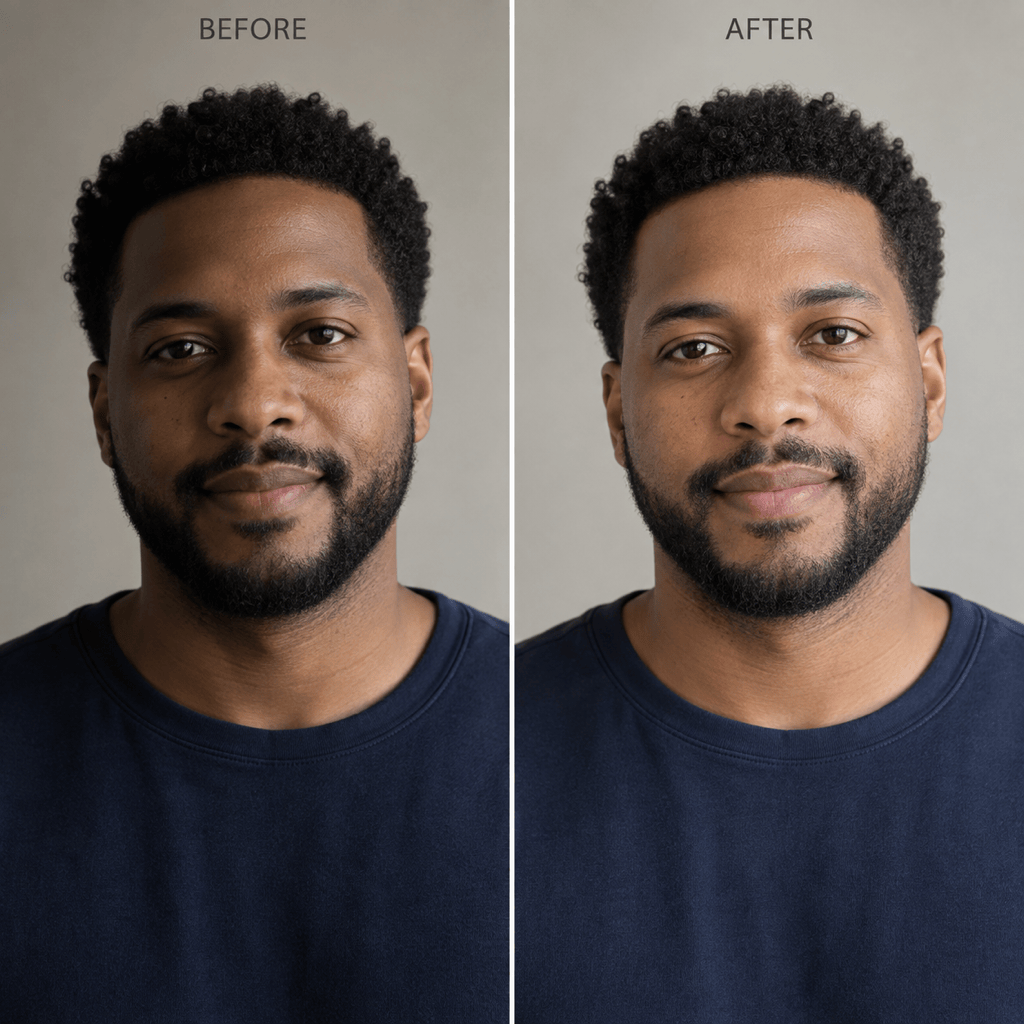
Professional profile photo: Improve the facial lighting in @[portrait] with soft, even window light and reduce harsh shadows. Keep the same identity, expression, skin texture, hairstyle, outfit, pose, crop, and neutral background.

Eyewear preview: Add thin, dark tortoiseshell glasses to @[portrait] with realistic reflections and correct perspective. Keep the eyes visible and preserve the same face, expression, hair, lighting, clothing, and background.


FAQs About the AI Face Editor

An AI face editor changes visible facial or portrait details from an uploaded photo. Instead of adjusting every area with brushes and sliders, you can describe a retouch, expression, hairstyle, makeup look, accessory, or lighting change in plain language and review the generated result.
Yes. Mew Design gives new users free AI credits after signup, so you can test face edits before choosing a paid plan. Finished image exports are watermark-free. Credit use depends on the model and edit.
Use a sharp, well-lit portrait with the face and the area you want to change clearly visible. Heavy filters, deep shadows, motion blur, very small faces, or blocked facial features can make edits harder to control and review.
It can use your uploaded portrait as the starting point, but no generative edit should be treated as a perfect identity lock. State what must stay unchanged, make one focused change at a time, and compare facial structure and distinctive features with the original before using the result.
Ask for subtle retouching and explicitly preserve pores, freckles, age-appropriate detail, and natural skin tone. Avoid broad requests such as “make the face flawless.” Review at full size and use Chat Edit to restore texture if the first result looks over-smoothed.
Yes. Upload a clear portrait and describe the specific change. For better control, handle expression, hair, and makeup in separate edits, and repeat which facial and background details must remain unchanged.
Yes. A narrow instruction such as “reduce the shadow under the left eye only” is easier to verify than a full makeover. If the result changes unrelated details, use Chat Edit to restore them and reduce the requested scope.
Only edit photos you own or have permission to use. Avoid deceptive impersonation, harassment, or misleading changes, and disclose material AI edits when the context requires it. Always review the final image before sharing or publishing.
You can export the finished portrait as PNG or JPG. Choose the dimensions that fit the destination, then inspect the face at the final display size before posting it to a profile, portfolio, or social channel.

Ready to Generate Designs With AI?

Get Started - 50 Free Credits
No credit card required
© 2025 - 2026 Mew Design, MAGOAI LTD.All rights reserved.