Free OnlineAI 70s Filter
How to Create a 70s Photo with AI
Upload a Clear Photo
Choose Your 1970s Look
Compare and Fine-Tune
Download Your Retro Photo

A 70s Makeover You Can Shape
Start with Your Own Face
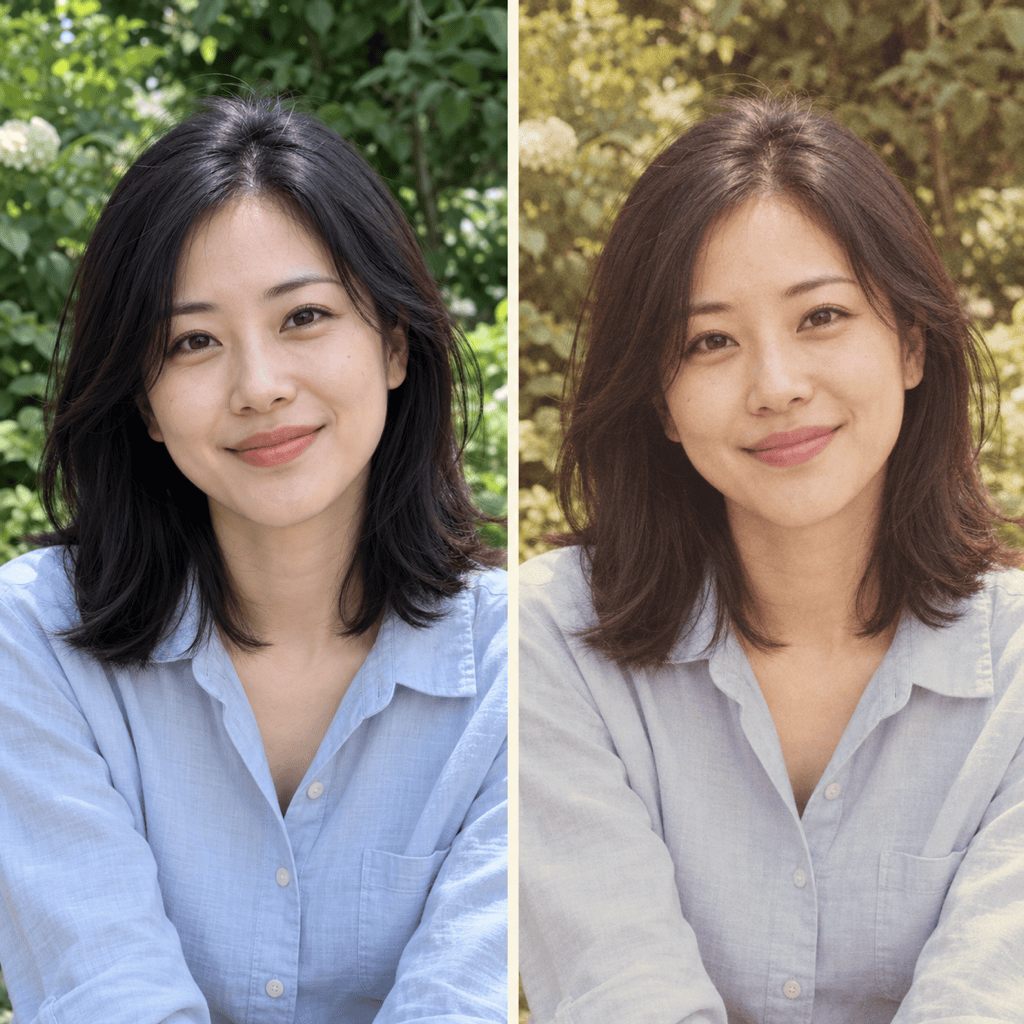
Upload your portrait as the starting point for a 70s selfie filter. Specify the facial features, expression and skin tone to preserve, then review the generated likeness.
Choose How Much Changes
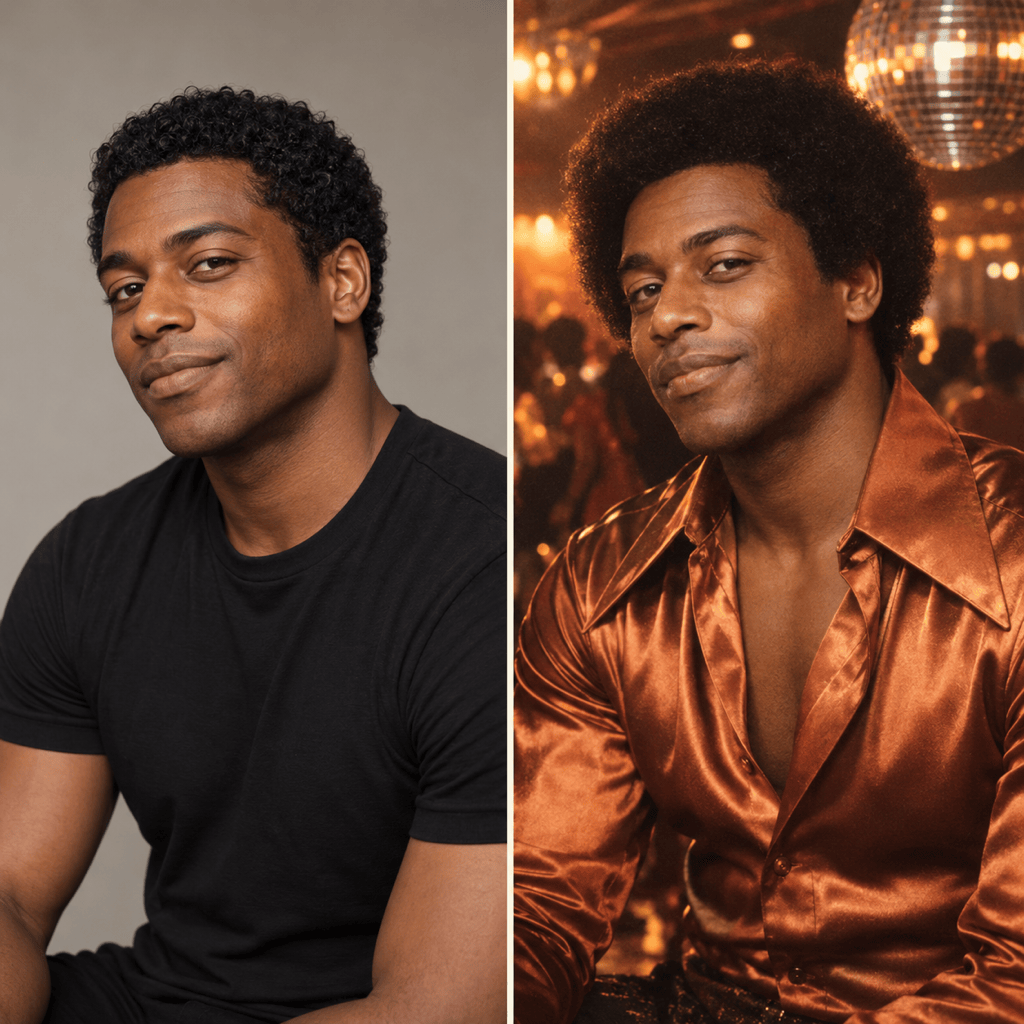
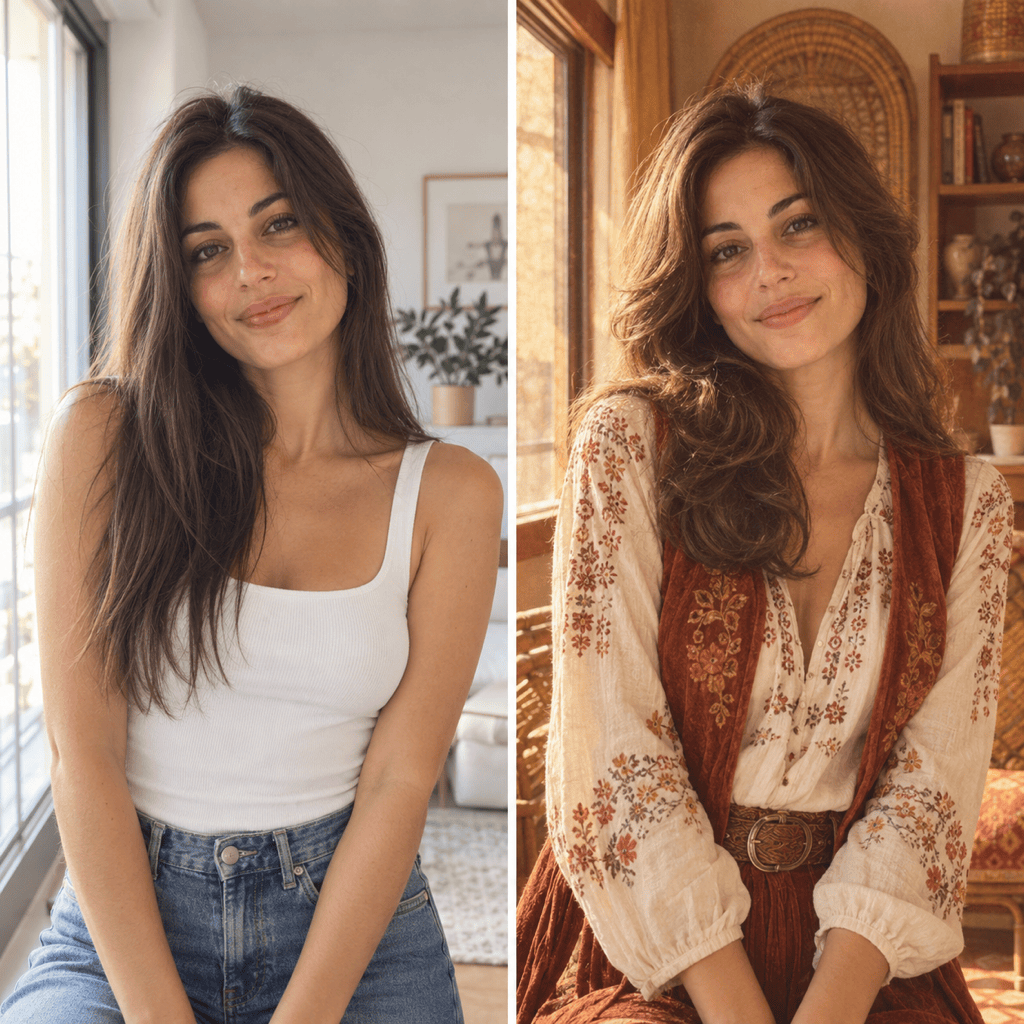
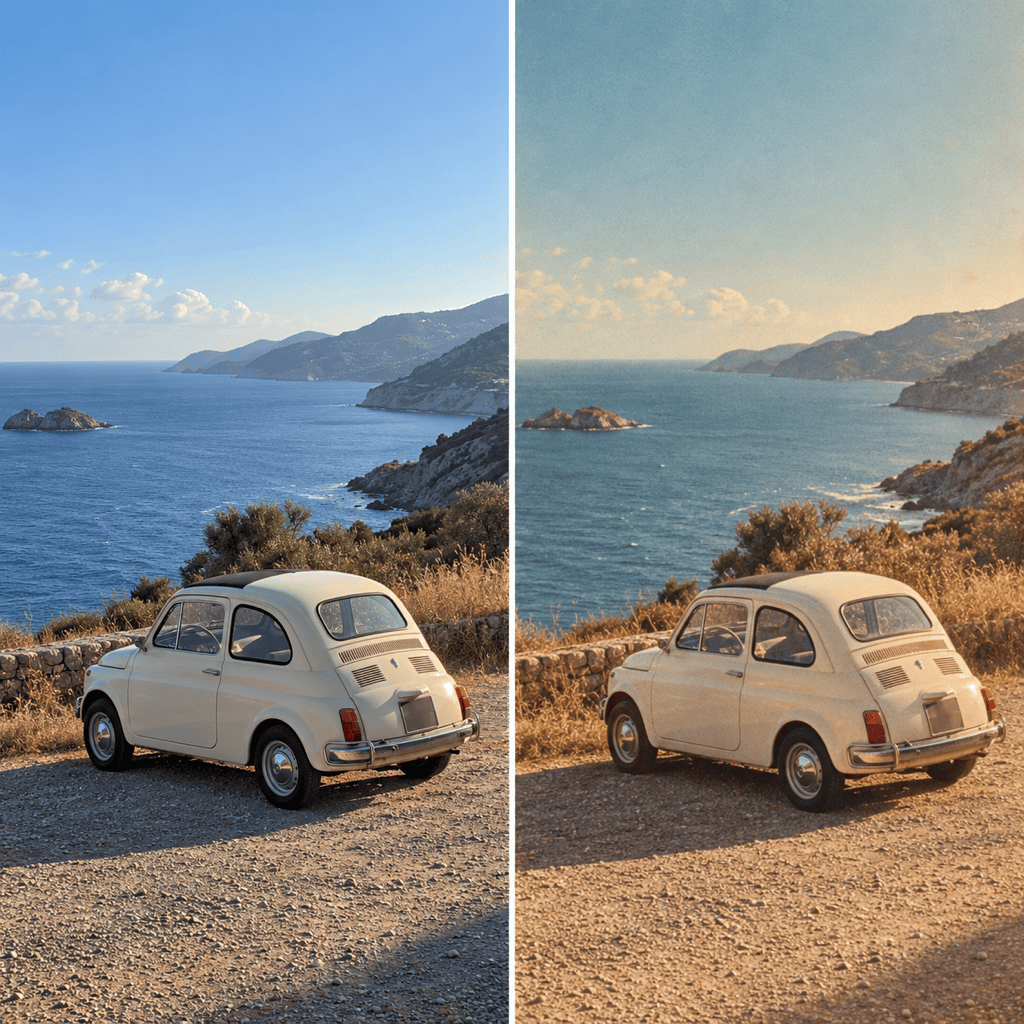
Use this online 70s photo filter for color and texture alone, or ask for period clothing, hair and surroundings. Make the transformation as restrained or theatrical as you want.
Bring a Specific Reference
Upload a style reference for the lighting, palette or wardrobe you have in mind. Explain that your photo supplies the subject and the reference supplies the visual direction.
Control Warmth and Grain in Chat
Ask for softer shadows, less yellow in the skin or finer grain. Chat Edit lets you describe targeted changes without learning photo-editing sliders.
Compare Different 70s Moods
Try sunlit everyday film, a disco portrait and an understated studio look from the same source. Compare versions before choosing one for your profile or post.
Take the Portrait into a Design
Use your finished image in a themed poster or add a vintage photo border. Keep the portrait as the focal point.
Choose What Changes and What Stays
- Use a Clear Source:Avoid heavy beauty filters, deep facial shadows and screenshots with tiny faces. A clear portrait makes likeness easier to judge.
- Pick One Direction:Choose a faded family snapshot, disco scene or boho portrait. A 1970s look does not need every vintage effect at once.
- Name the Changes:For a film finish, ask to retain clothes and surroundings. For a makeover, describe the hairstyle, outfit and setting you want changed.
- Keep the Person Recognizable:Ask to preserve age, facial proportions and skin tone. AI can still change details, so compare eyes, mouth and expression before downloading.
Fix Common 70s Photo Filter Problems
Reduce the orange cast in this retro photo. Restore a natural skin tone while keeping gentle warmth in the highlights and slightly faded shadows.
Make the grain finer and less visible on my face. Keep the 1970s film texture in the background, with clear eyes and natural skin detail.
Compare this version with my original uploaded portrait. Bring the face, age and expression closer to the original while keeping the 70s clothing and lighting.
Keep the person and pose, but replace the visible smartphone and modern background with a simple 1970s living room. Use wood furniture and subdued patterned wallpaper.
Make this disco portrait feel like the 1970s. Replace the neon grid and futuristic lighting with warm dance-floor lights, a mirror ball and a wide-collar shirt.
Adapt this finished retro portrait to a square profile photo. Keep the face centered with space around the hair so a circular crop will not cut it off.





