Free OnlineScream AI Filter
How to Create a Scream Photo with AI
Upload a Clear Selfie
Set the Scene
Refine the Reveal
Download Your Horror Portrait

Your Photo, Your Version of the Scream Trend
Start with Your Own Face
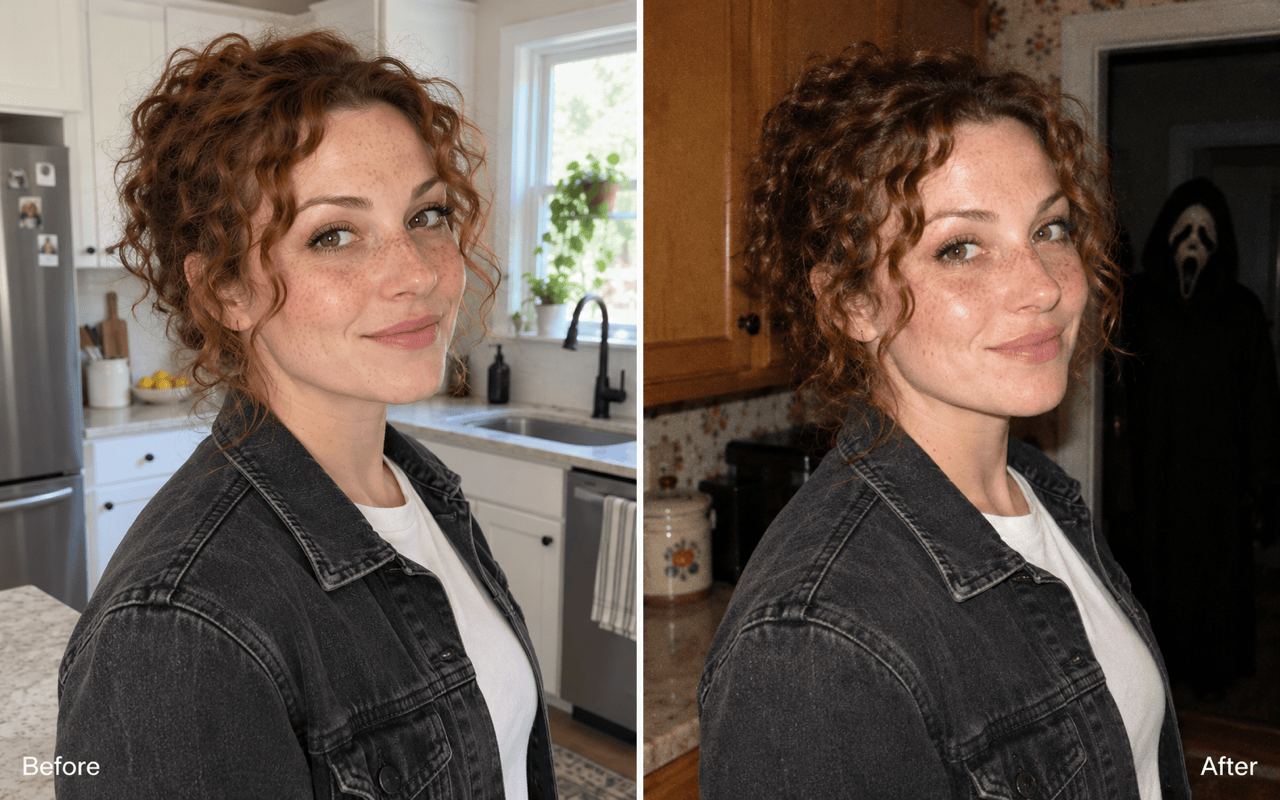
Upload your selfie as the reference for a personalized horror portrait. Specify which facial features, hairstyle, and outfit to retain, then review the result for likeness.
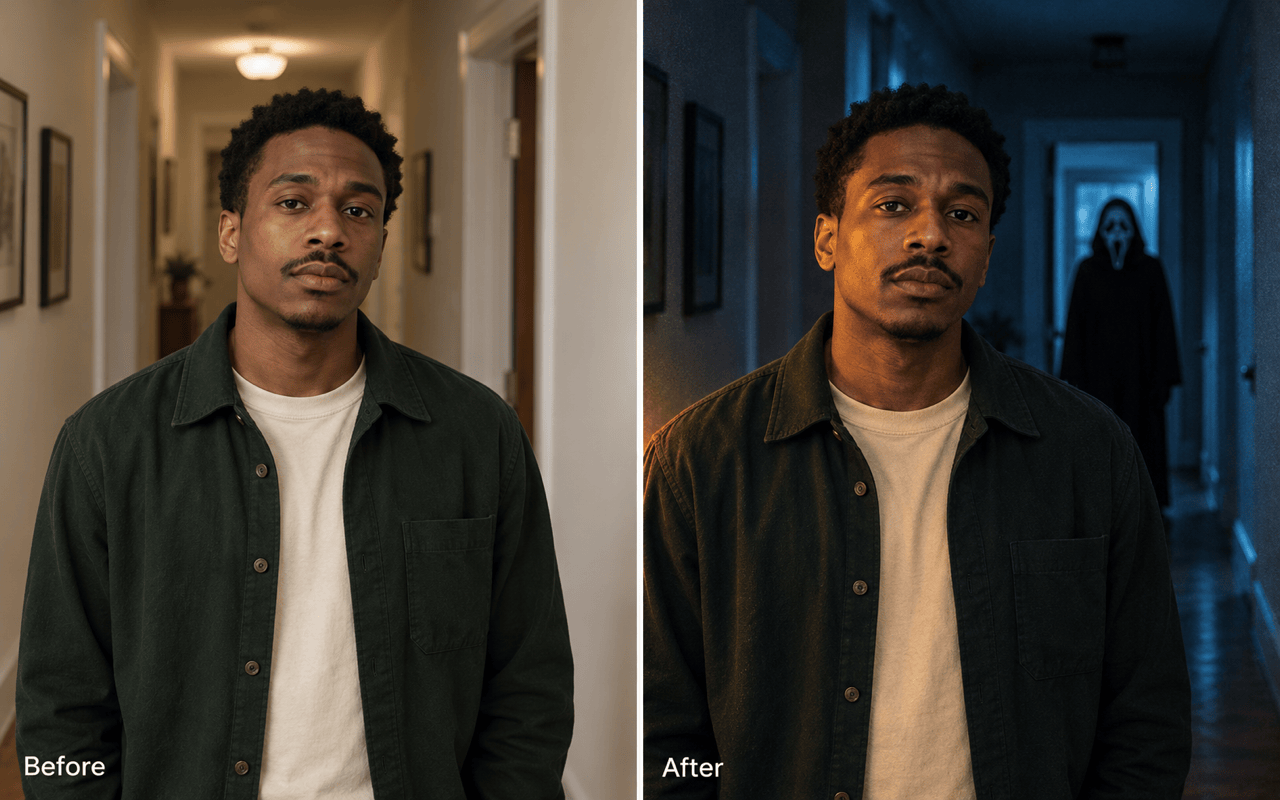
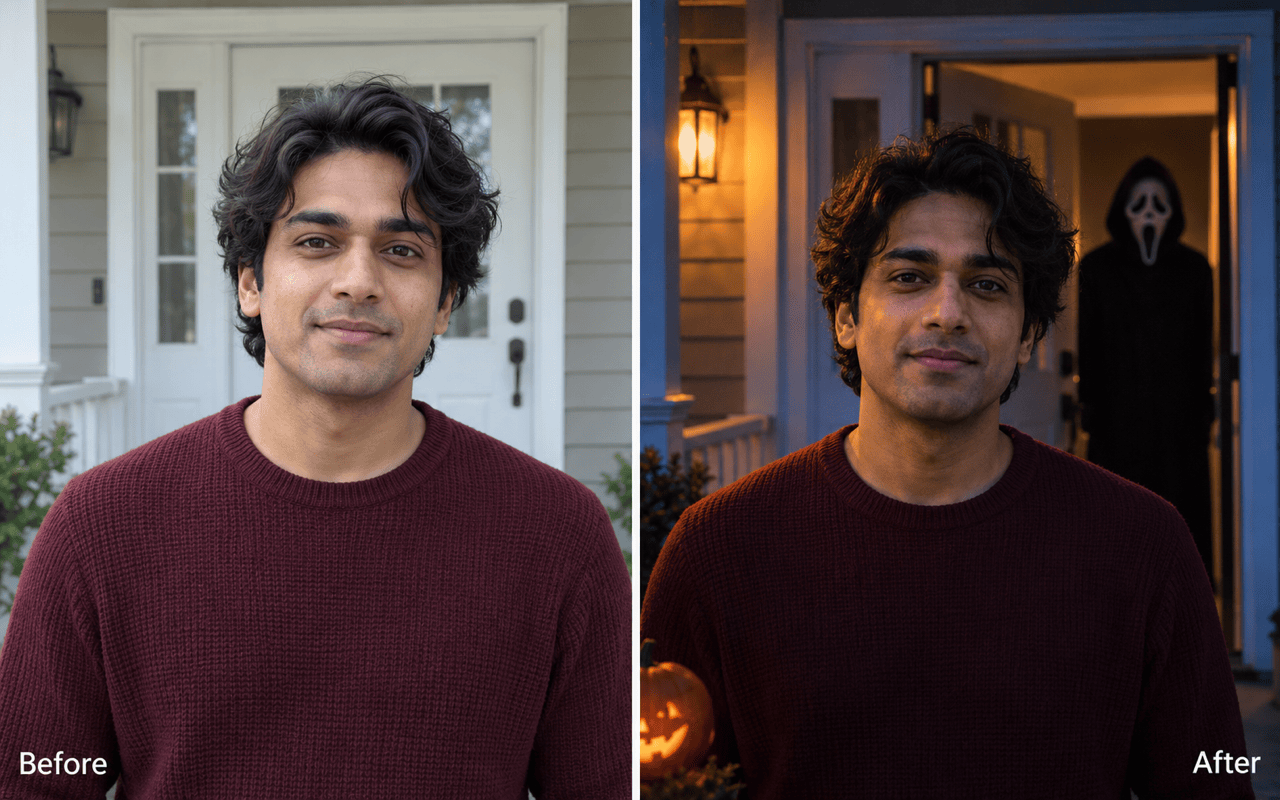
Choose Where Ghostface Appears
Use the Ghostface AI filter to place the figure in a doorway, down a hallway, or behind your shoulder. Describe the distance so the background adds suspense without hiding you.
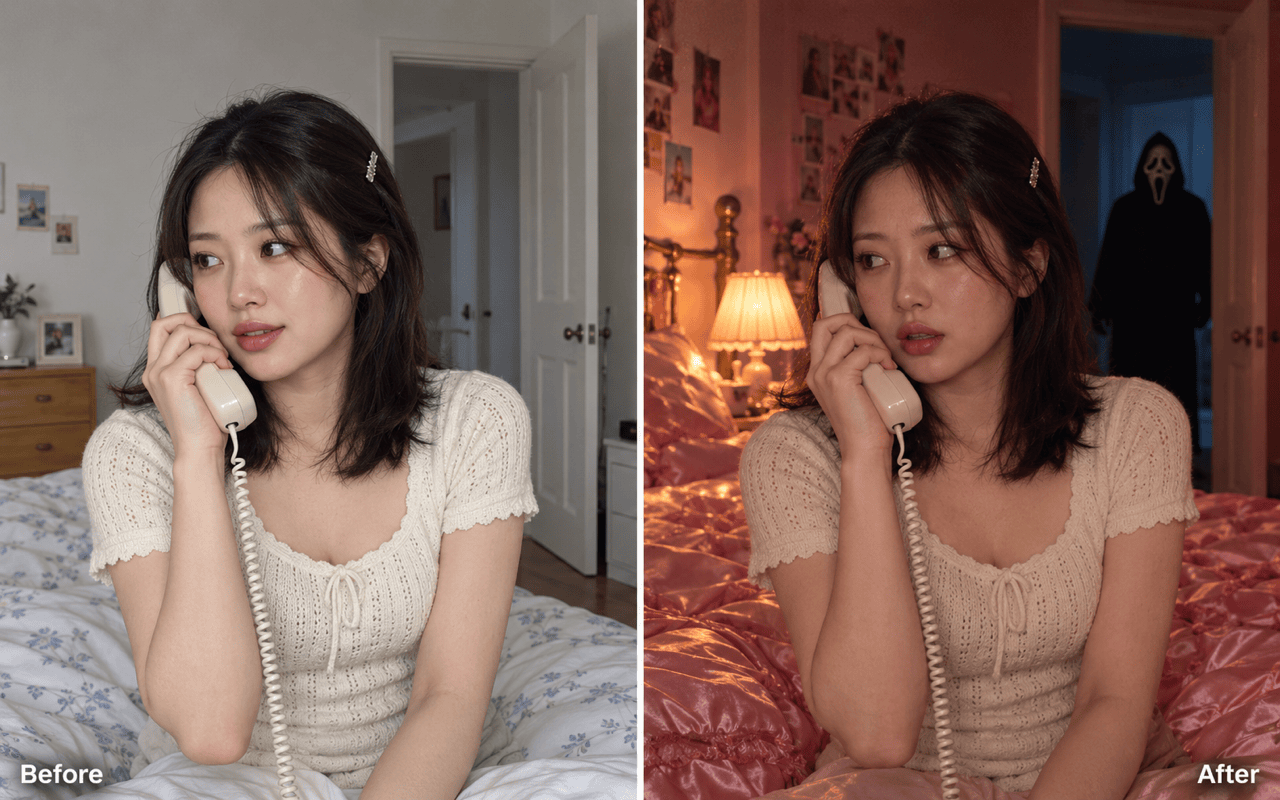
Build the Y2K Phone Scene
Ask for satin bedding, a corded phone, warm lamplight, and subtle film grain. Combine those details into a Y2K Ghostface photo with your own color palette.
Change the Mood Through Chat
Go from a playful Halloween edit to a darker movie-still look. Chat Edit lets you request changes to shadows, props, and framing after the first draft.
Explore More Than One Setting
Try bedroom, hallway, and flash-photo variations from the same reference. Compare the compositions and choose the version that suits your Halloween post.
Make a Photo You Can Share
Create a Scream AI photo online and download a watermark-free PNG or JPG. For an event layout with a headline and date, try our AI poster generator.
How to Get a Recognizable Ghostface Photo
- Keep the Face Clear: Use one sharp portrait without sunglasses, heavy filters, or a hand covering your face.
- Place the Figure Precisely: Name a doorway or background corner and specify distance. Avoid vague instructions that put the mask over your face.
- Balance the Lighting: Keep enough light on your face while leaving the hallway darker. Add grain lightly so skin details remain visible.
- Check Before Sharing: Inspect likeness, fingers, phone cords, and reflections. Request one focused correction at a time.
Fix Common Scream AI Photo Problems
Restore My Likeness: Compare this edit with my uploaded selfie. Bring my facial proportions, skin tone, and hairstyle closer to the reference. Keep the current room and Ghostface placement.
Move Ghostface Back: Make the masked figure smaller and place it inside the distant doorway. Keep my face unobstructed and retain the current pose and outfit.
Brighten My Face: Lift the light on my face without brightening the entire room. Keep the hallway dark and preserve the suspenseful background.
Repair the Phone Details: Correct the fingers holding the receiver and give the cord one continuous path to the phone base. Preserve my face and the bedroom composition.
Reduce the Film Grain: Make the grain finer and restore natural skin detail. Keep the warm Y2K colors and avoid a glossy, airbrushed finish.
Fit a Story: Recompose this image vertically at 9:16. Keep my face and the masked figure inside the frame, with extra space at the top for a caption I will add later.





