Free OnlineRelight AI
How to Relight a Photo with AI
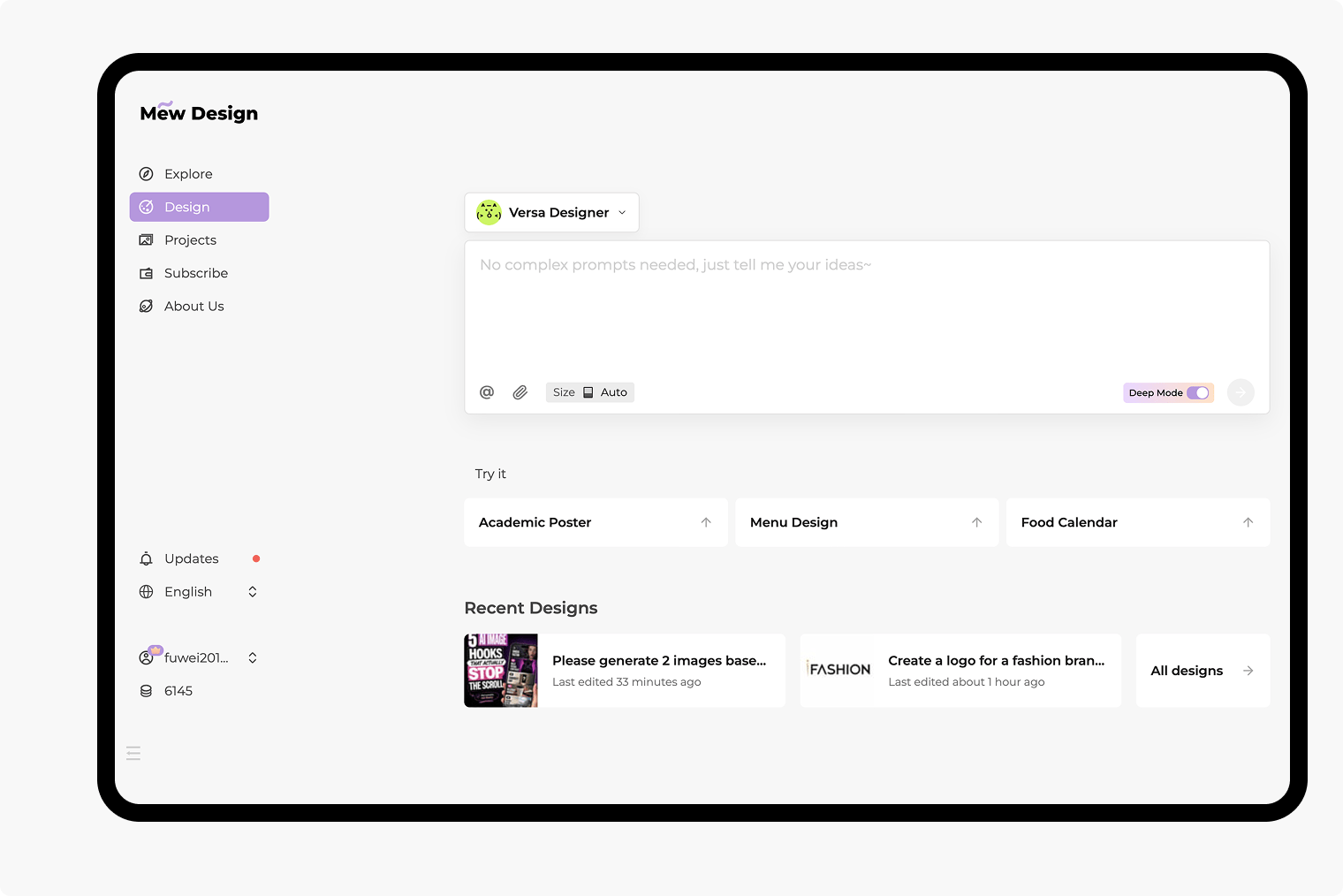
Upload a Clear Photo
Describe the New Light
Compare and Refine
Download Your Relit Photo
AI Relighting for Portraits, Product Photos, and Creative Edits
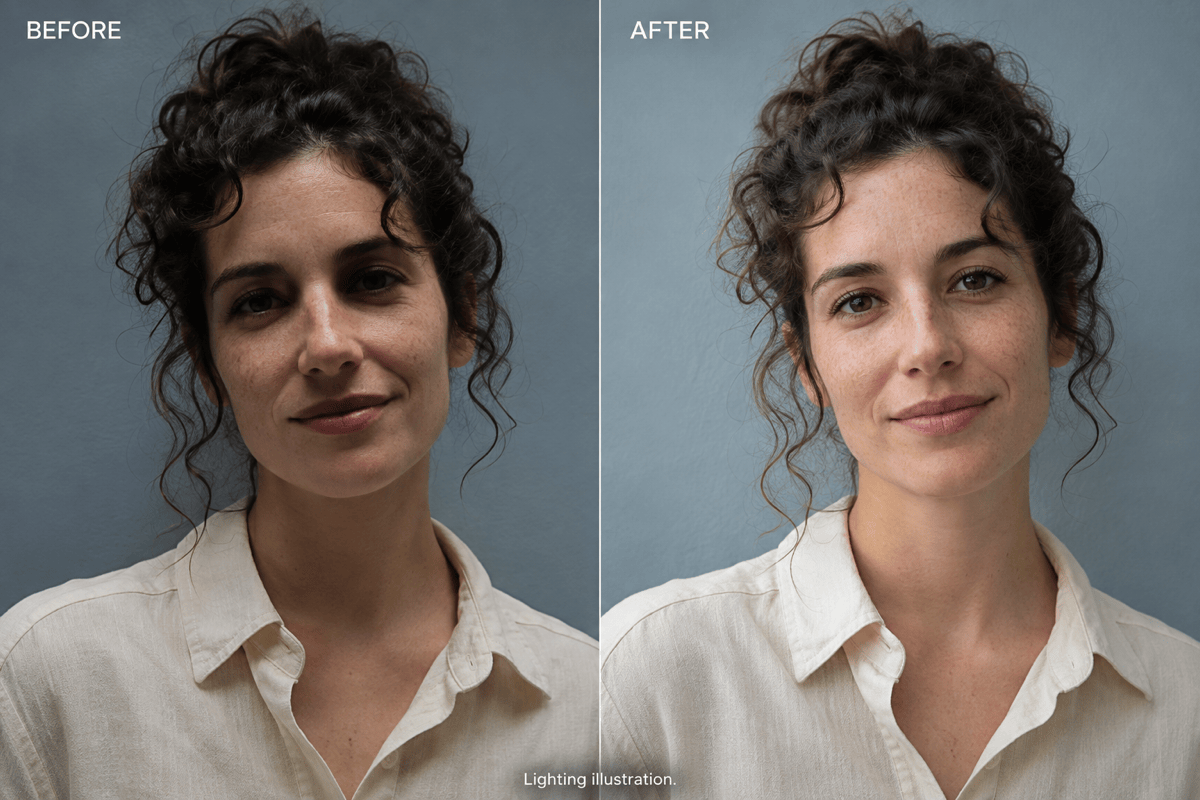
AI Portrait Relighting for Headshots and Selfies
Lift shadows on a backlit face or soften overhead lighting in a headshot. Ask the AI image relighter for natural skin tones, gentle facial shadows, and visible skin texture. For a professional profile photo, request soft neutral light; for a lifestyle portrait, keep some shadow to retain depth and the background mood.
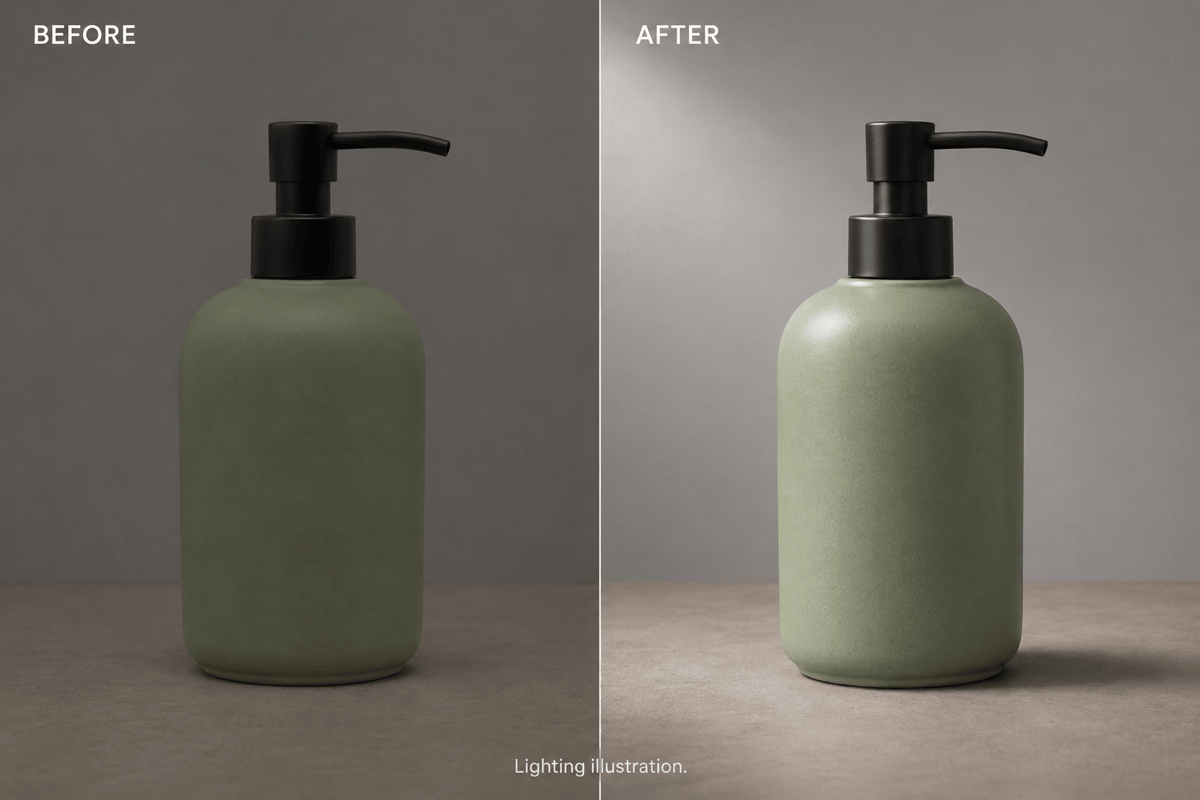
Studio Lighting for Product Photography
Relight product photos for online stores, catalogs, and ads with a broad softbox effect and a gentle contact shadow. Specify which surface needs more light and where reflections should be reduced. Matte packaging needs visible texture; glossy bottles need controlled highlights. Compare the label, shape, and color with the original before using the image in a listing.
Golden-Hour and Cinematic Photo Lighting
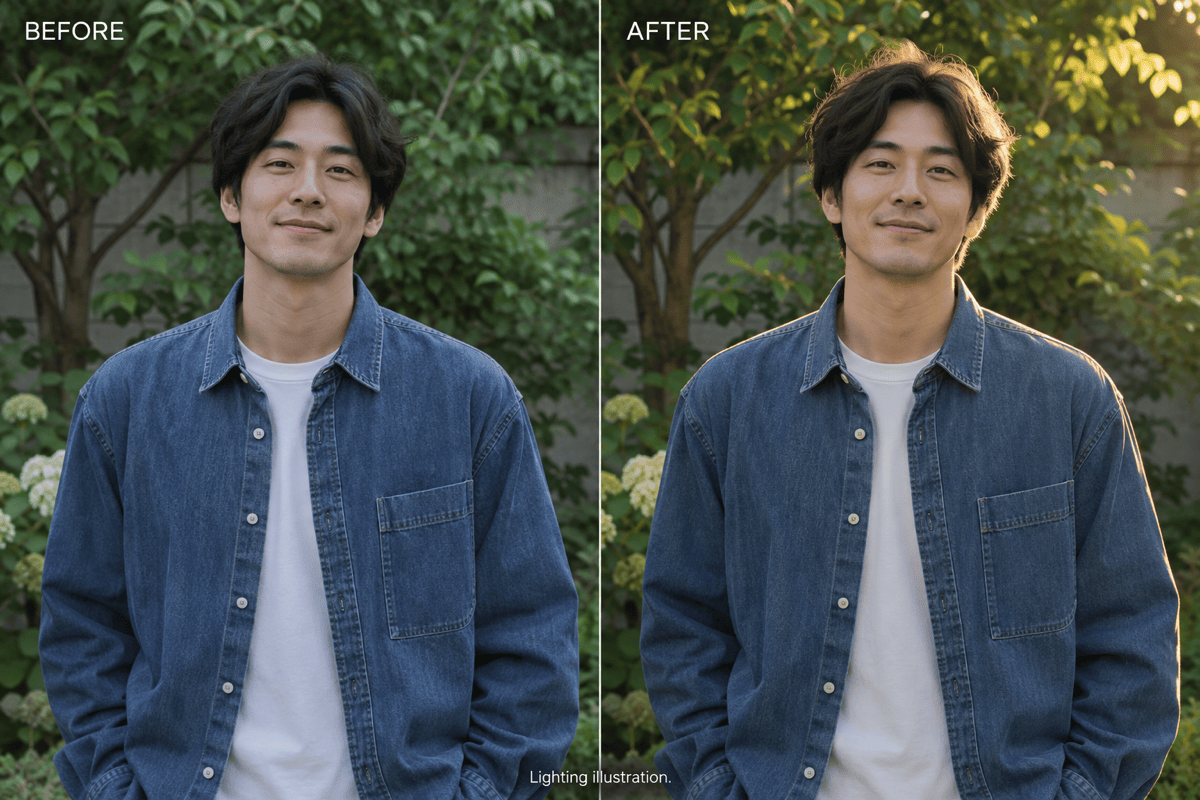
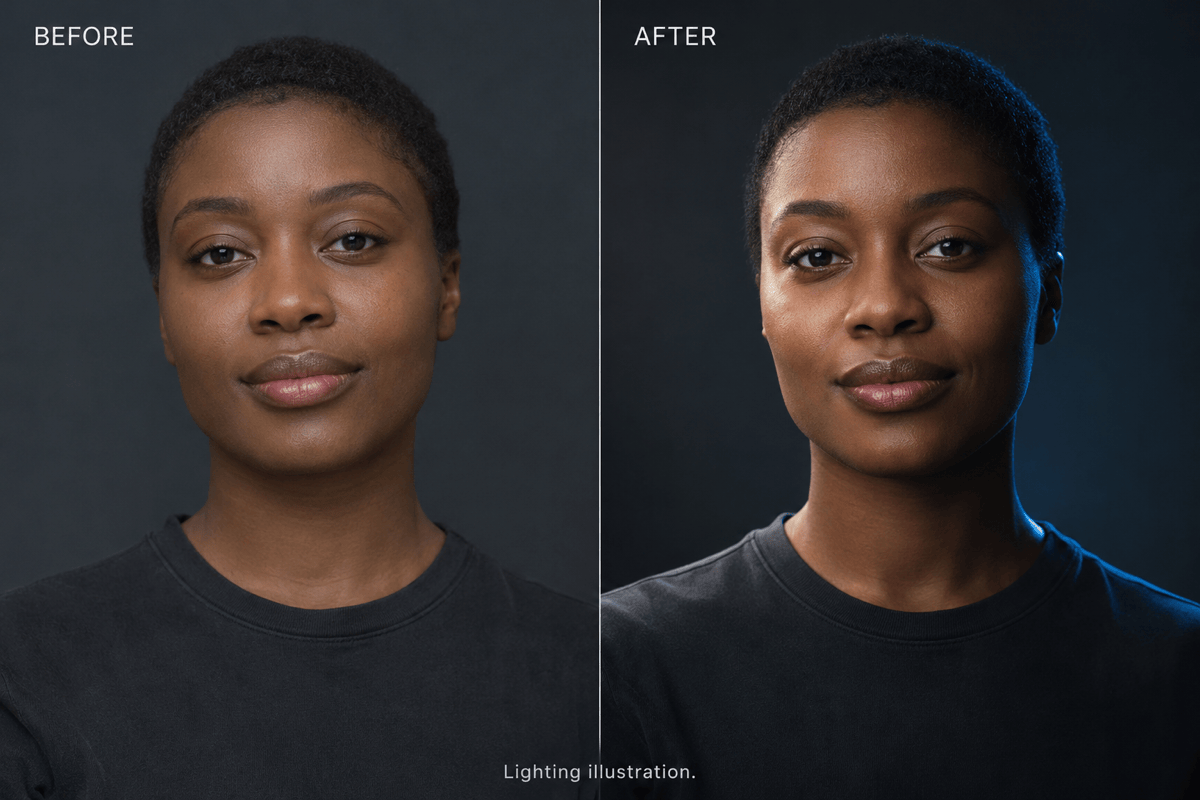
Try warm golden-hour backlighting, dramatic side light, or a colored rim light on the same uploaded photo. Backlighting can outline hair and shoulders, while side lighting emphasizes facial shape and surface texture. Ask for a neutral fill on the face when adding warm or colored light so the overall look does not become a flat color filter.
Refine Lighting Through Chat
Describe a specific change with Chat Edit, such as less orange light or softer cheek shadows. Add a lighting reference and explain which details to borrow.
Choose a Model for Your Photo Edit
Select an available image model yourself, or let Mew Auto choose for your photo and lighting request. Access the latest leading image models as new releases are added.
Try Relight AI with Free Credits
Test photo relighting online with free signup credits. Generation and Chat Edit use credits; exports are watermark-free. Further use depends on your credit balance and plan.
How to Get Natural AI Photo Relighting
- Start with Visible Detail: Use the clearest original available. Fully white highlights and deeply clipped shadows contain little detail to work with; reconstructed detail may be invented.
- Choose One Main Light: Name the light’s direction, softness, and warmth. Soft front light can lift facial shadows; side light adds depth; backlight creates a bright edge around the subject. Start with one main light, then adjust its effect through chat. Describe the light relative to the image, such as from the upper left, to reduce ambiguity.
- State What Must Stay: Identify the face, pose, product label, background, and framing to preserve. These instructions guide the edit but do not guarantee unchanged pixels.
- Check Shadows and Surfaces: Look for halos around hair, mismatched reflections, plastic-looking skin, and shadows pointing in conflicting directions. Correct one issue at a time.
Six Photo Lighting Problems You Can Fix
Backlit face: Relight my uploaded photo with gentle frontal fill so the face is easier to see. Preserve the bright background, natural skin tone, expression, and framing. Avoid flattening all facial shadows.
Harsh facial shadows: Soften the hard overhead light in my portrait. Reduce deep shadows under the eyes and nose while retaining facial shape, skin texture, and the original background.
Flat product lighting: Add a broad softbox light from the upper left to my product photo. Show the material texture with a gentle contact shadow. Keep the shape, label, color, and camera angle unchanged.
Cold outdoor portrait: Add subtle golden-hour light from behind and to the right. Keep the face naturally lit, skin tones believable, and the same setting. Avoid an orange filter over the whole photo.
Dull creative portrait: Add a restrained blue rim light along one side and soft neutral light on the face. Keep the person, pose, clothing, and background. Do not color the entire face blue.
Distracting glare: Reduce the bright reflection on my uploaded product photo with softer, broader lighting. Keep realistic material highlights and preserve all visible lettering. Do not replace or redesign the product.