Free OnlineGPT Image 2.6 AI Image Generator
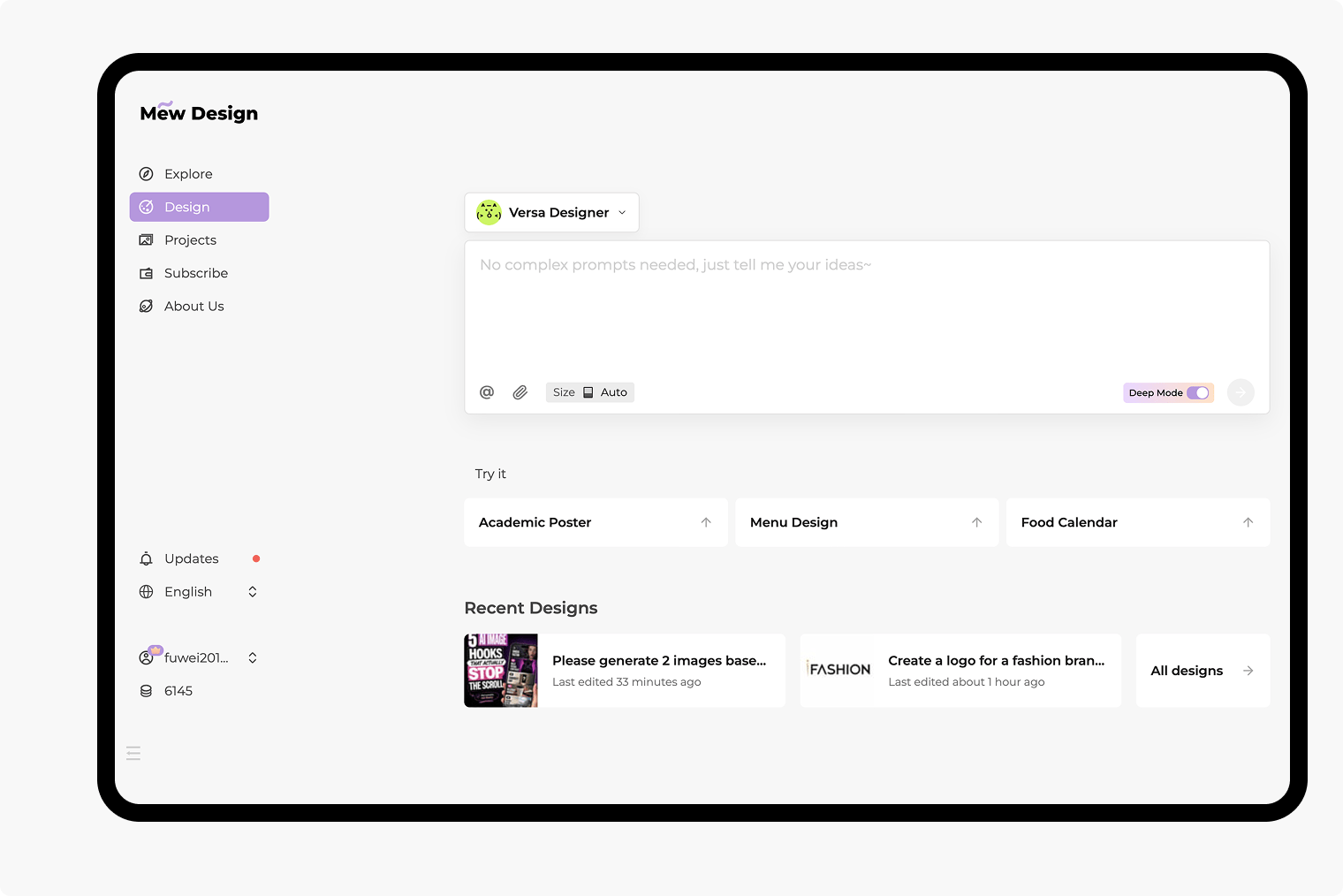
How to Create Campaign Images with AI
Bring Your Product or Character
Set the First Composition
Direct the Next Edit
Check and Export
Build a Campaign Around the Details That Matter
More Continuity Across Revisions
GPT Image 2.6 improves detail preservation across edits. Use your approved image as the reference when changing a setting or refining a campaign visual.
Product Photos with Brand Context
Bring your packaging, logo, and style references into Mew Design. This online AI image generator lets you explain what defines the product before exploring a new scene.
Posters with a Clear Message
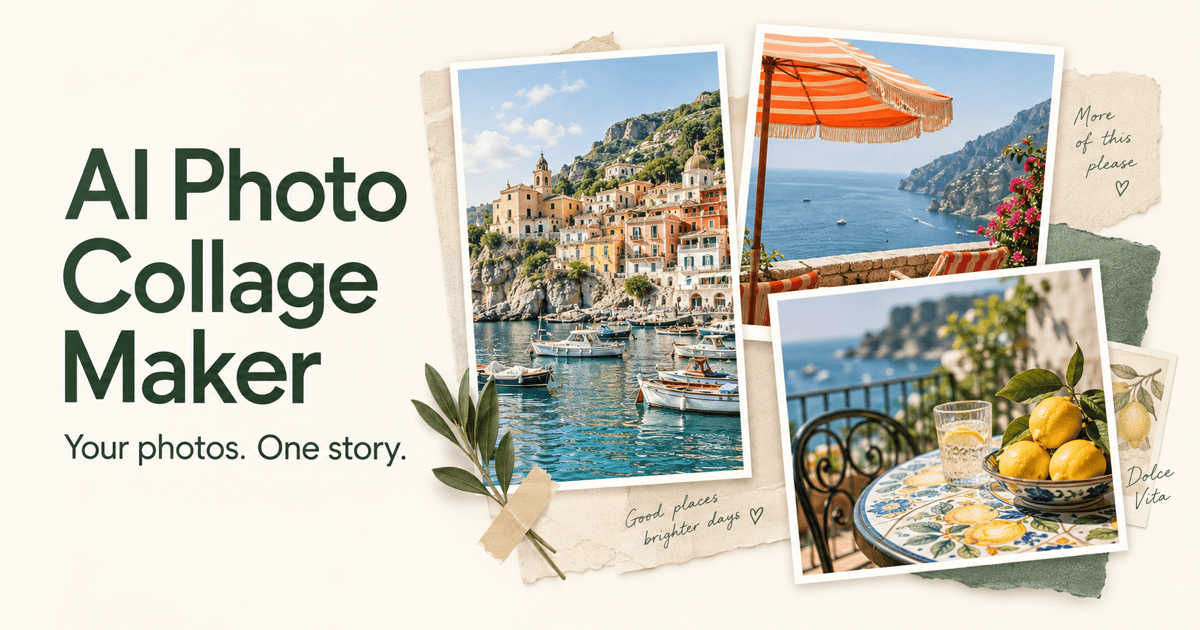
Pair product imagery with a headline and deliberate spacing. Give the exact wording and ask for a clear reading order, then check the text before sharing.
Changes You Can Describe
Use Chat Edit to request a warmer background, a larger headline, or more space around a product. Keep the revision focused so you can assess what changed.
Still Images and GIFs for Campaigns
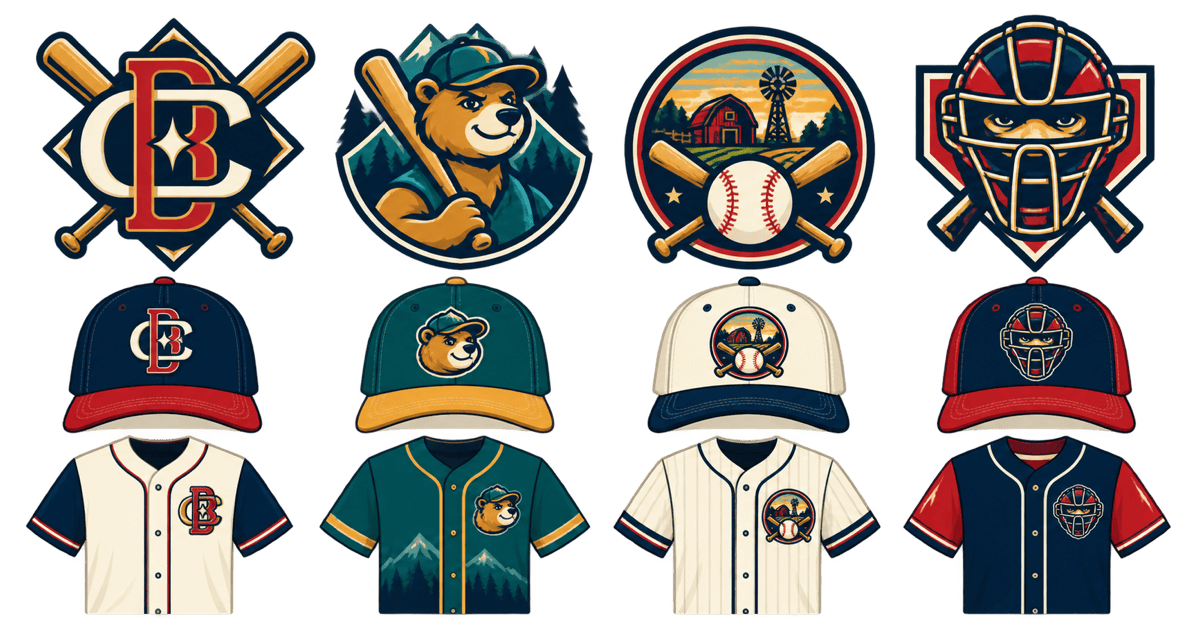
Create related product ads or character scenes with shared visual cues. Use GIF generation to bring a mascot or product image into motion for social content, then review the animation before sharing.
A Reusable Brand Workflow
Save a successful approach as a Mew Skill, including visual direction, brand rules, and output conventions. Reuse that workflow for the next campaign with less repeated briefing.
Edit One Detail While Protecting the Rest
- Name the Change: Specify the object, background, text, or lighting to revise instead of asking to improve everything.
- Protect Key Details: List the features that identify your subject, such as a label, outfit, face, or silhouette.
- Quote the Copy: Supply exact headline and label text. Keep essential small print readable and proofread it after each edit.
- Compare Each Revision: Check the new image against the reference. If an unrelated detail drifts, ask for that detail to be restored before making another change.
Six Ways to Put GPT Image 2.6 to Work
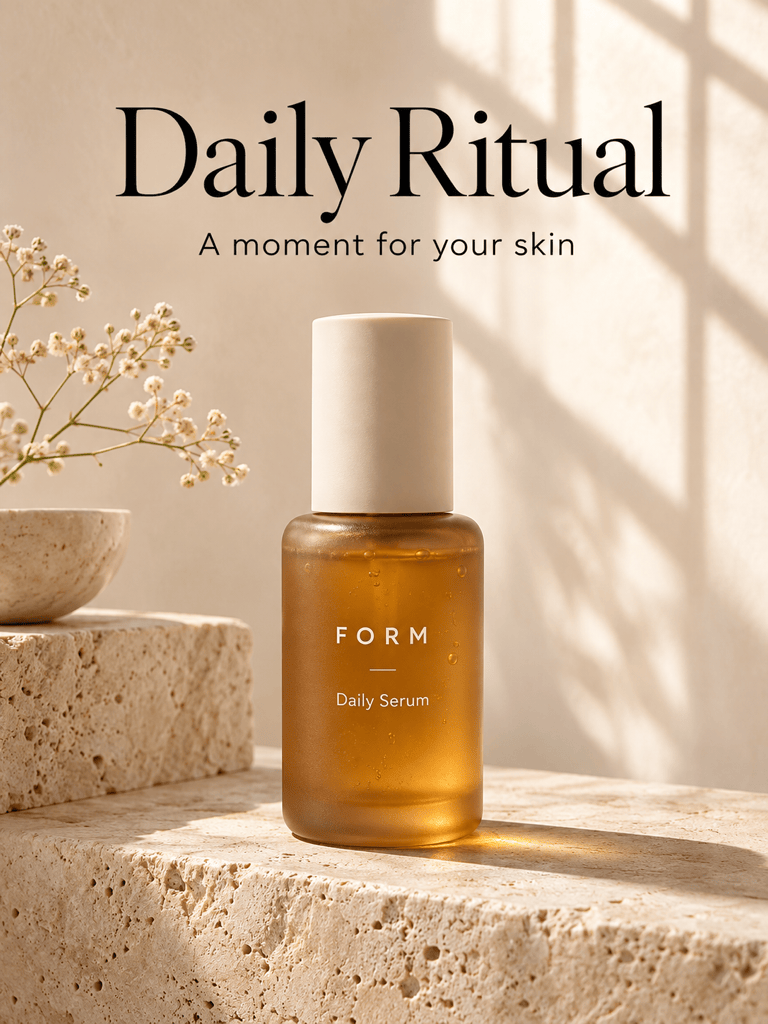
Use GPT Image 2.6 to create a skincare launch poster. Show a frosted amber bottle on warm ivory stone, with soft daylight and generous spacing. Add the headline "Daily Ritual". Use a vertical composition and a clear product-first hierarchy.
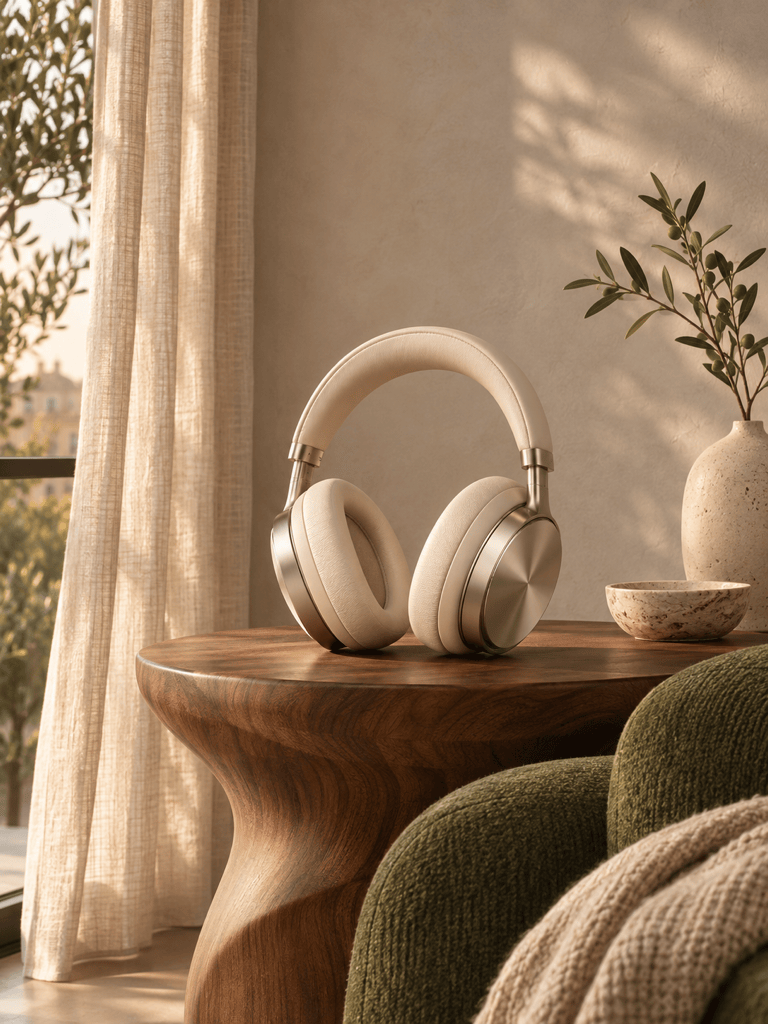
Use GPT Image 2.6 to edit my uploaded product image. Replace only the setting with a sunlit bathroom shelf. Preserve the packaging shape, cap, label wording, and viewing angle as closely as possible. Keep reflections believable.
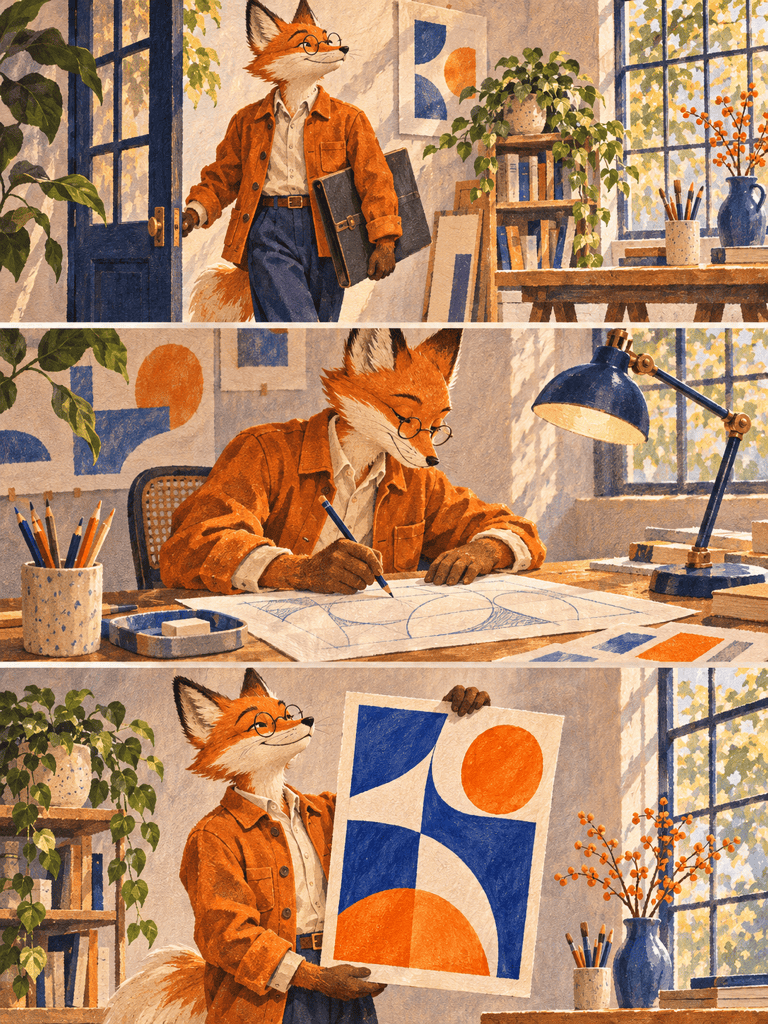
Create three illustrations based on my uploaded character reference: arriving at a studio, sketching at a desk, and presenting a finished poster. Use GPT Image 2.6. Keep the face, orange jacket, proportions, and illustration style consistent across the set.
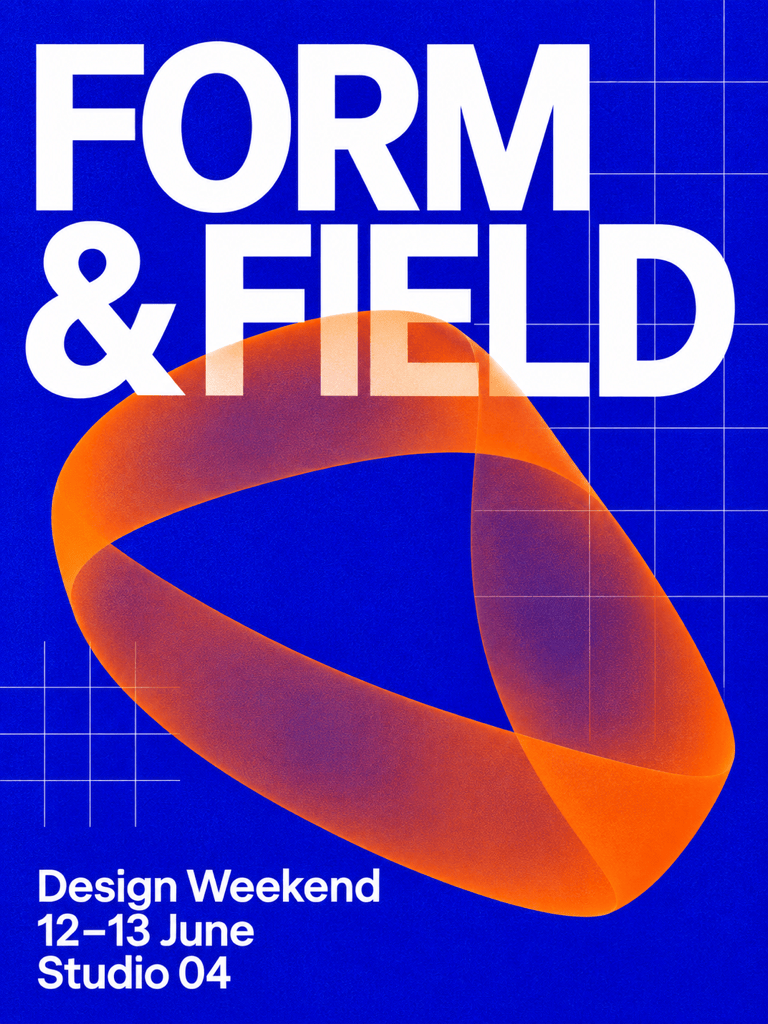
Use GPT Image 2.6 to refine my uploaded event poster. Make the headline easier to read at mobile size and give the date more space. Preserve the illustration, palette, event name, and all supplied details. Do not invent extra information.
Use GPT Image 2.6 to develop my uploaded rough sketch into a polished editorial illustration. Keep the main silhouette and object placement. Use textured paper, deep blue shadows, and warm orange accents. Leave the upper third clear for a headline.
Use GPT Image 2.6 to turn my uploaded brand mascot into a short looping GIF. Have the character wave gently, then return to the starting pose. Keep the face, outfit, colors, and background consistent. Keep the camera fixed and make the loop feel smooth.