Free OnlineExpand Photo Background AI
How to Expand a Photo Background with AI
Upload the Original Photo
Define the New Frame
Generate the Expanded Scene
Inspect, Refine, and Export

More Control Beyond the Original Frame
Expand Without Stretching the Subject
This online AI image extender creates new pixels beyond the crop instead of pulling the original photo wider. Your prompt can keep the central subject at its current scale while the canvas grows around it.
Direct the New Background in Plain Language
Describe what belongs outside the frame: more sky, a longer studio wall, a continued street, or quiet negative space. Image-to-image models such as GPT Image 2.5 can use the visible scene as context.
Protect the Parts That Matter
Tell the AI to preserve a face, outfit, logo-free product, horizon, or architectural line. Specific invariants make an expanded product photo or portrait easier to review and refine.
Repair Awkward Seams Through Chat
If a border, shadow, hand, or reflection looks wrong, click Chat Edit and describe that single issue. You can improve the transition without rewriting the whole expansion brief.
Reframe One Photo for Many Placements
Turn a square asset into a wide header, extend a portrait for a presentation, or ask for a 9:16 social version. The AI background extender helps you reuse a strong photo without sacrificing the subject to a new crop.
Compare Plausible Variations
Generated areas can differ each time, so explore more than one composition before choosing. New users receive free AI credits after signup, and finished images can be exported without a watermark.
How to Prompt AI for a Natural Background Extension
- Set the Frame First: Name the target ratio or dimensions and specify whether the AI should extend left, right, top, bottom, or all sides.
- Lock the Subject: List the face, pose, clothing, product geometry, logo, camera angle, or central crop that should remain unchanged.
- Describe the Continuation: Mention the expected surface, scenery, lighting, texture, perspective, and any objects that should or should not appear beyond the frame.
- Name the Destination: Explain whether the expanded photo is for a website banner, marketplace listing, story, thumbnail, print layout, or a design that needs negative space.
Prompts for Real-World Photo Expansion
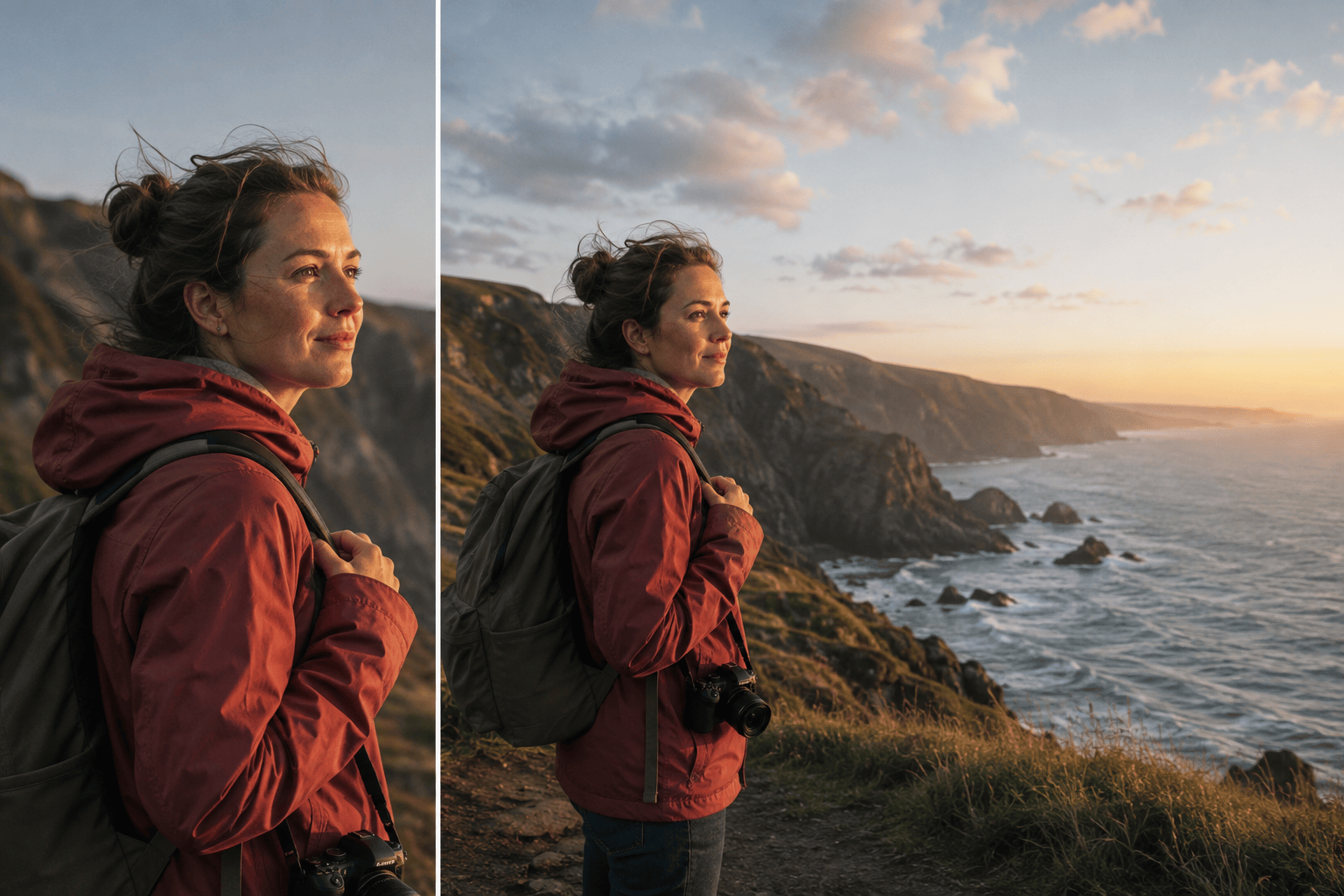
Portrait to Website Banner: Expand my uploaded vertical street portrait to 16:9. Keep the person, face, body, outfit, and pose unchanged on the right third. Continue the evening storefronts and pavement to the left, matching perspective and neon reflections. Leave uncluttered space for a headline. No new people or text.
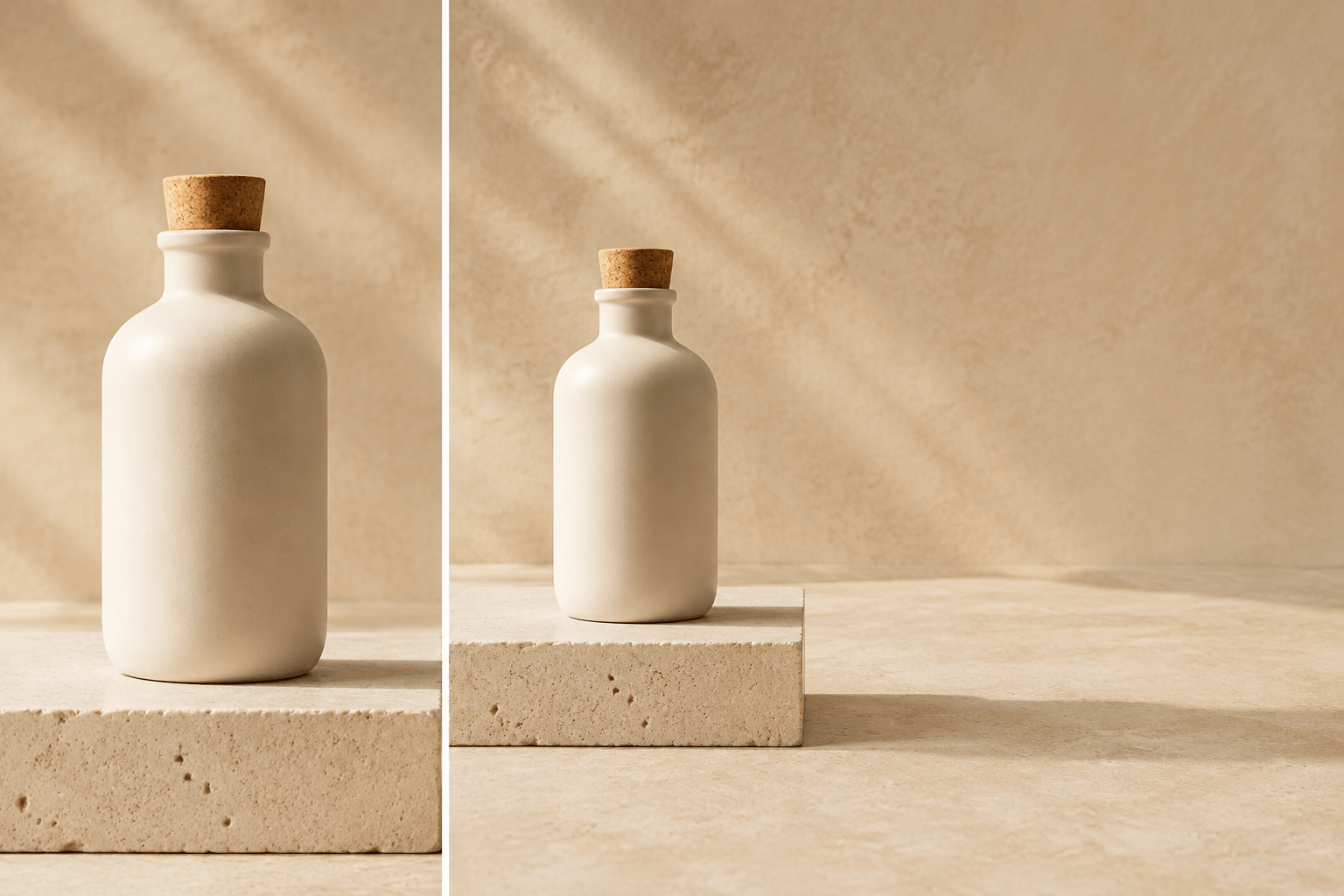
Product Photo to Wide Ad: Extend this square ceramic skincare bottle photo into a wide e-commerce banner. Preserve the bottle shape, label, cap, scale, and shadow exactly. Continue the pale stone surface and warm beige backdrop to the right with soft window light and generous empty space. Do not add props or duplicate the product.
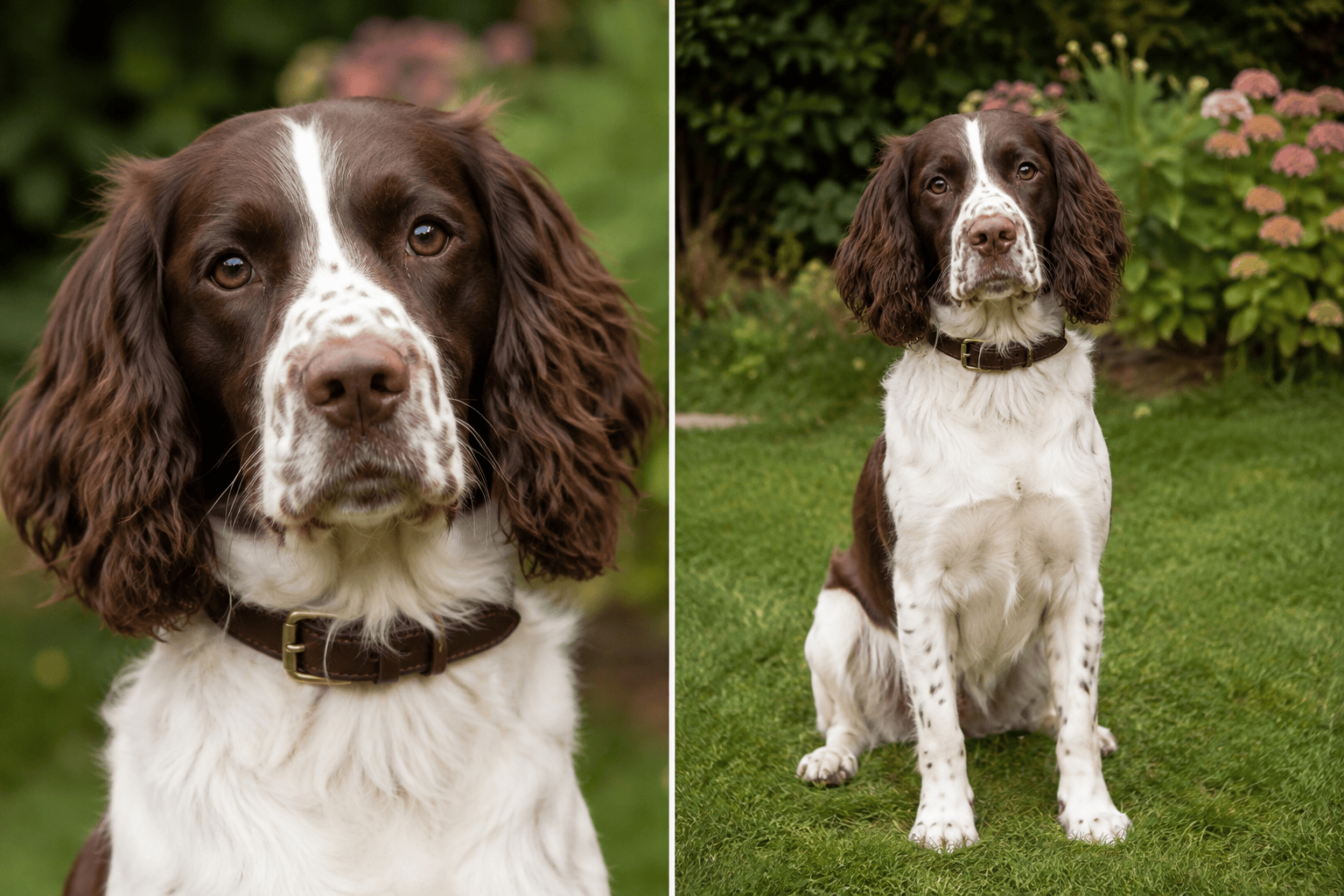
Uncrop a Pet Photo: Uncrop this close portrait of my spaniel into a natural seated garden photo. Keep the dog's face, markings, collar, and expression unchanged. Extend downward to show plausible front paws and more lawn, and extend both sides with matching plants and shallow depth of field. No costume or extra animals.
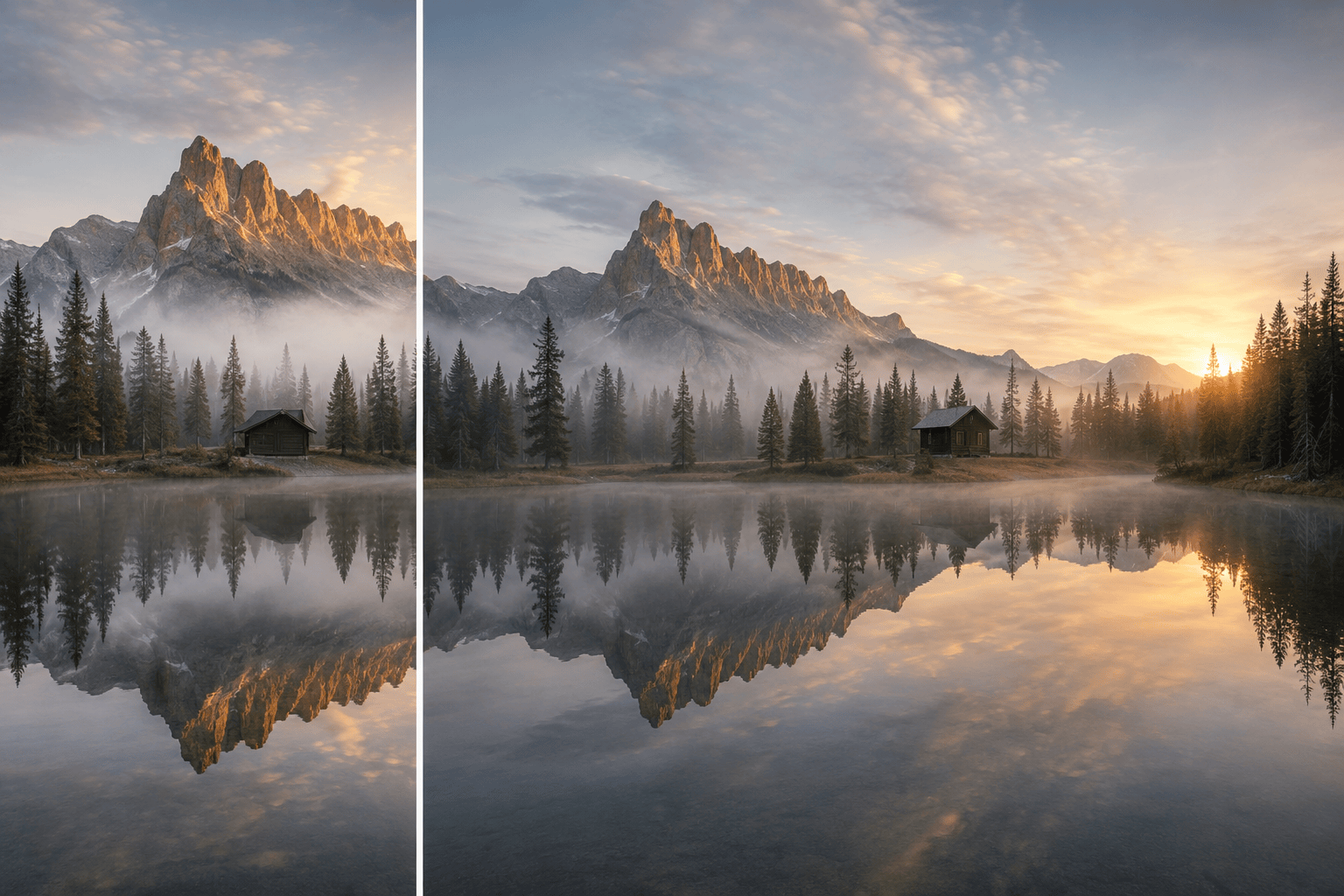
Create a Panoramic Landscape: Expand this mountain-lake image horizontally into a 21:9 panorama. Preserve the existing ridge, cabin, shoreline, water reflection, weather, and sunrise direction. Continue the forest and lake naturally on both sides without adding people, roads, or dramatic new landmarks.
Photo to 9:16 Story: Turn my horizontal beach photo into a 9:16 social story background. Keep the subject centered and unchanged. Generate more sky above and wet sand below, matching the horizon, cloud texture, sunset color, and reflections. Keep the upper third simple for later text placement; do not render text.
Add Editorial Negative Space: Expand this overhead food photograph from 4:3 to 16:9 for a magazine header. Keep the plate, food styling, linen, and utensils unchanged. Continue the dark wood table mainly to the left with natural grain and soft shadows, leaving a clean area for layout copy. No extra dishes or ingredients.





