Free OnlineAI Skin Retouching
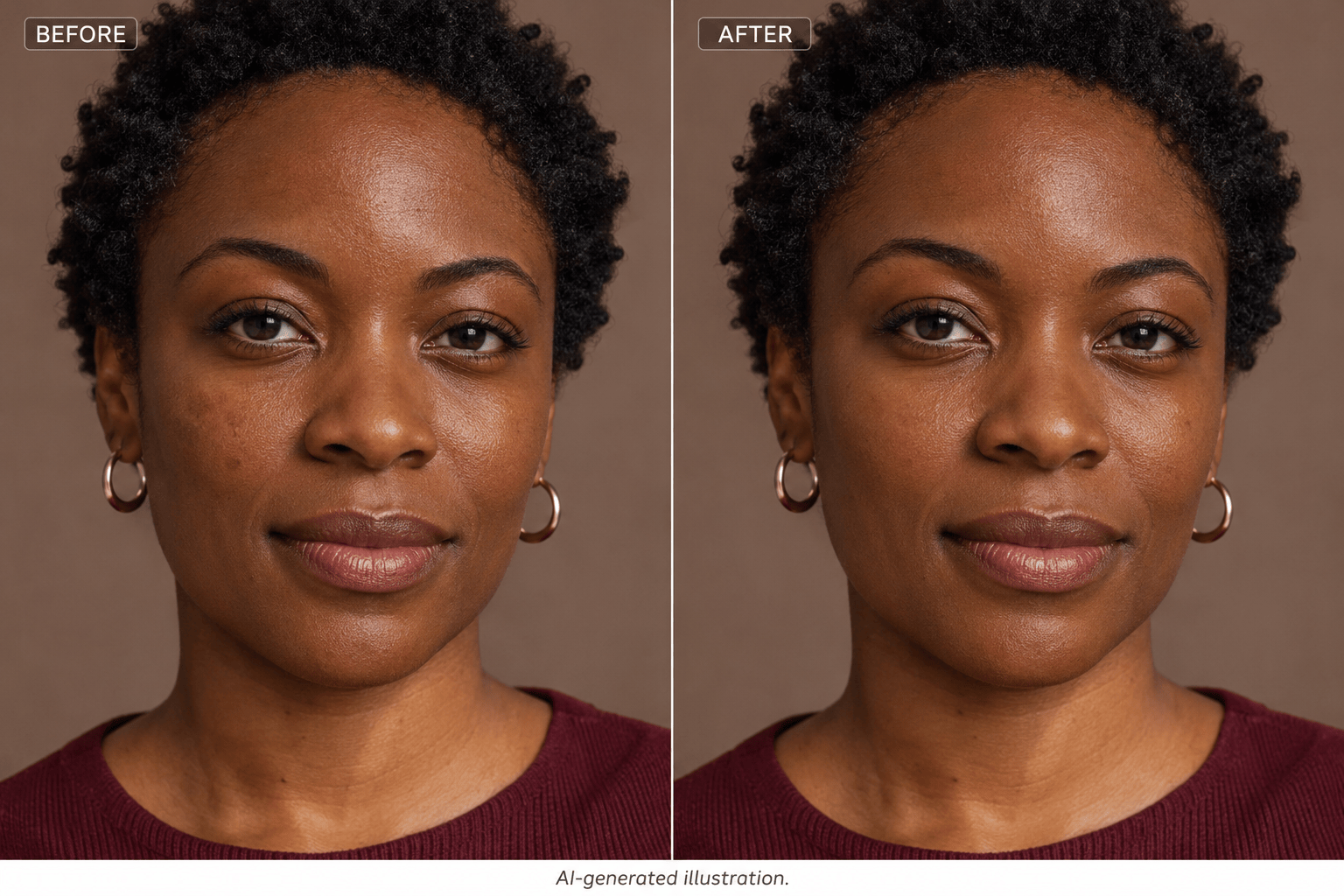
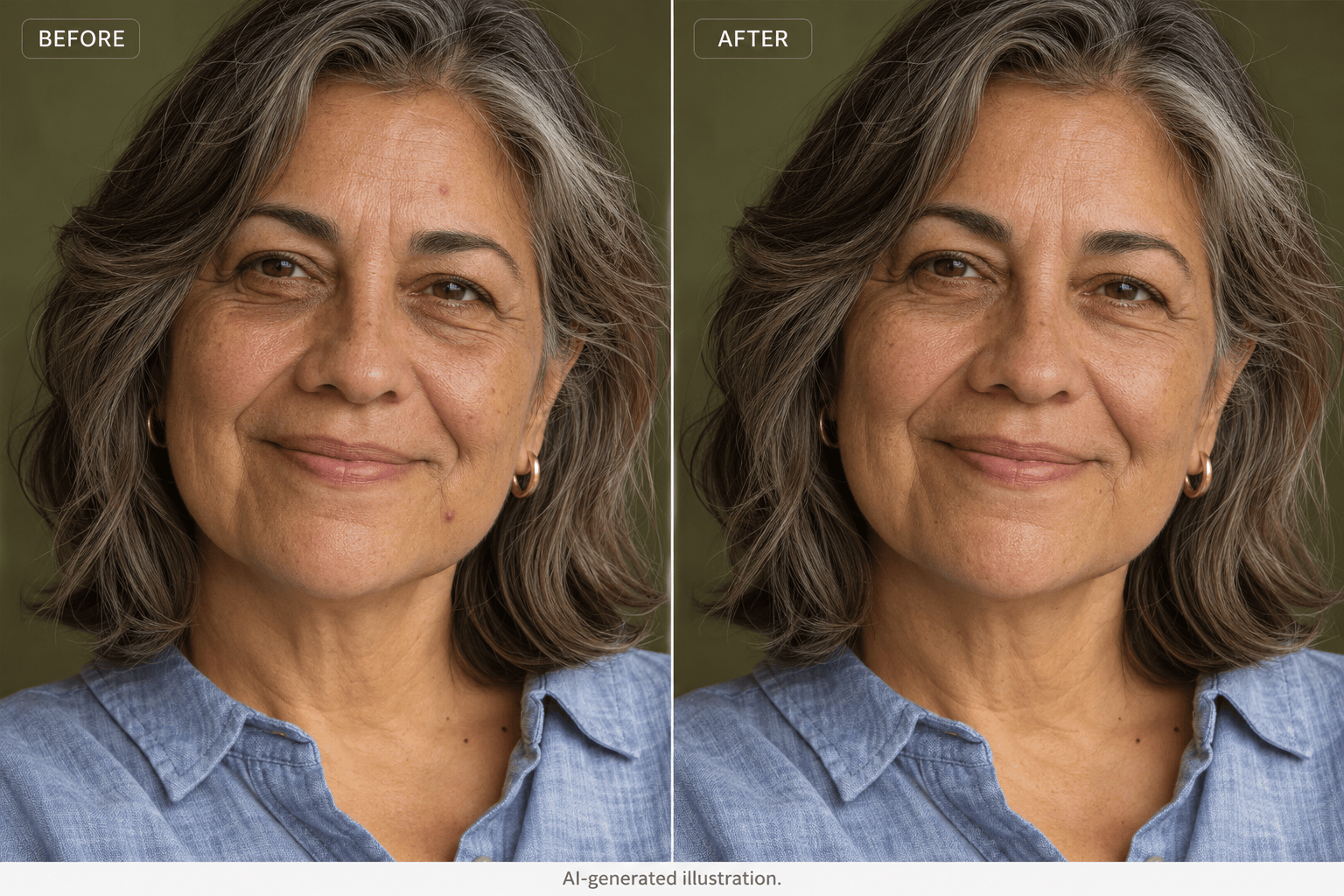
How to Retouch Skin with AI
Upload a Clear Portrait
Choose What to Retouch
Refine the Skin in Chat
Review and Download
Why Use Mew Design for AI Skin Retouching?
Natural-Looking Skin Smoothing
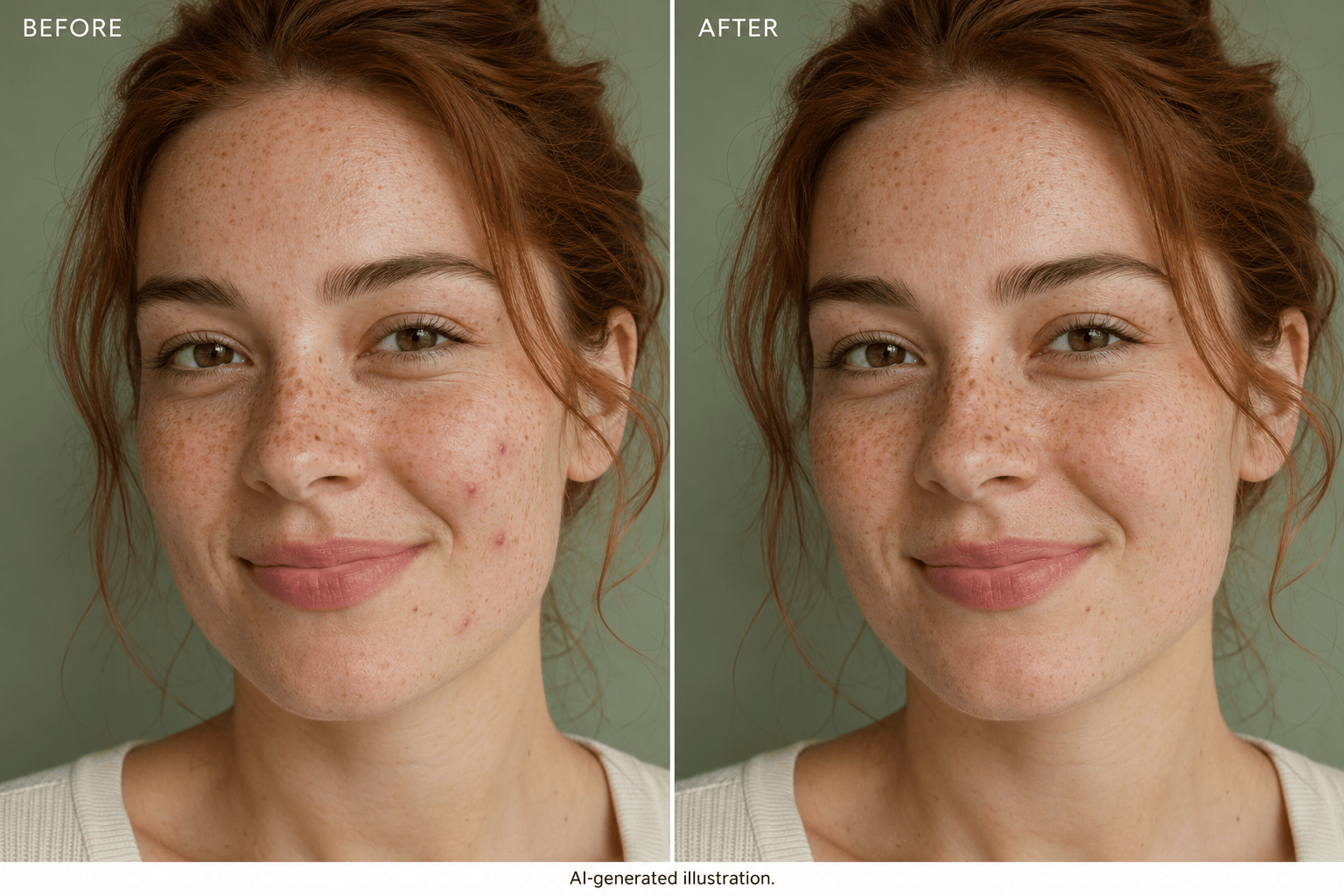
Use AI skin smoothing with clear boundaries: ask to keep pores, freckles, makeup, and facial proportions. Review the result to make sure the edit still looks like you.
Adjust the Finish in Words
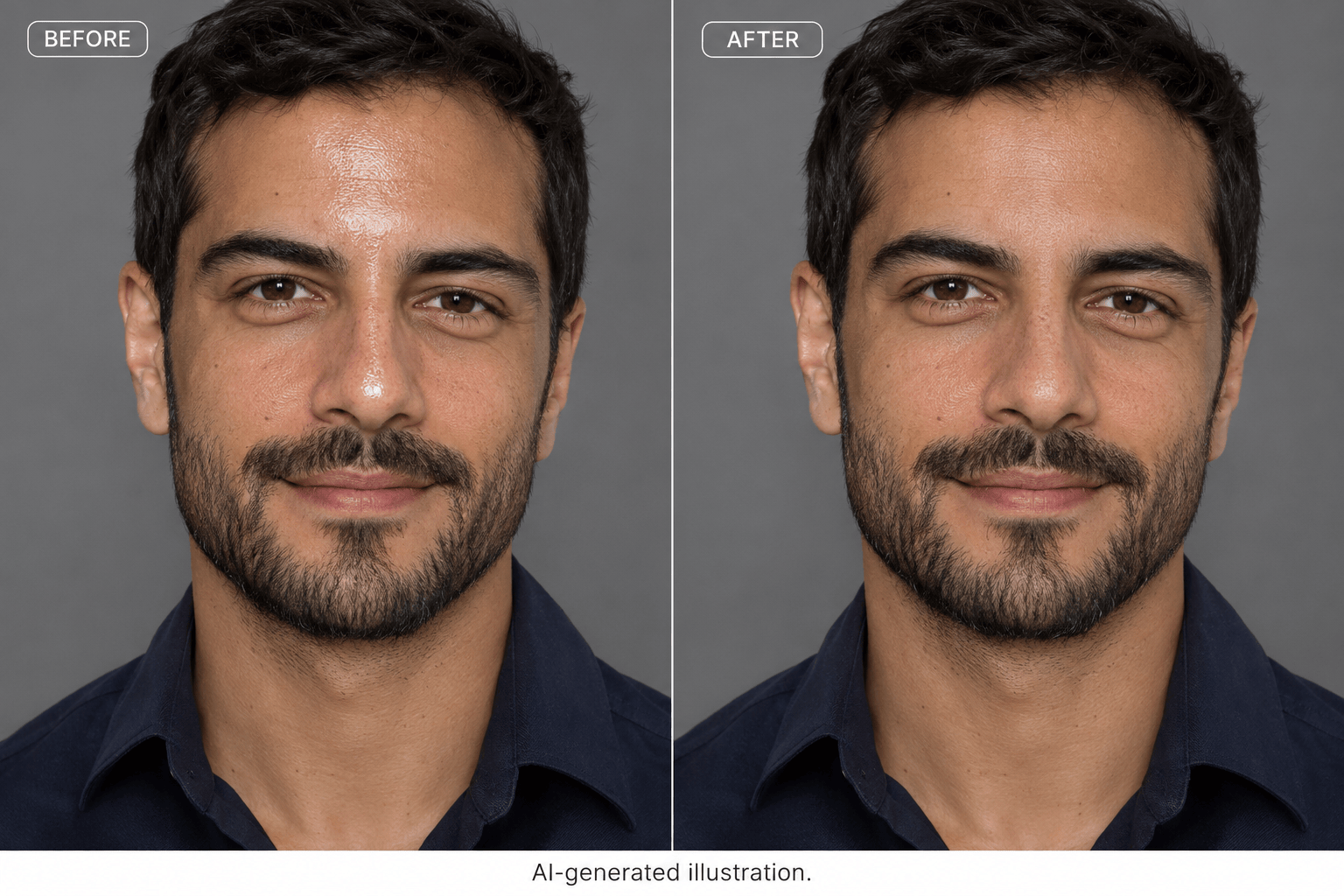
Ask for a lighter touch on the cheeks or less shine on the forehead. Conversational edits let you refine a portrait without learning a complex retouching workflow.
Choose a Model or Use Mew Auto
Select an available image model yourself, or let Mew Auto choose for your photo and requested edit. Access the latest leading image models, with new releases added promptly.
Retouch Selfies and Professional Headshots
Keep a headshot understated or request a more polished event portrait. After retouching, pair your profile photo with a matching LinkedIn banner.
Reuse Your Retouching Approach
Save an approach you like as a Mew Skill, including how much texture to retain and which details to protect. Reuse those instructions for future portraits and review each result.
Try Online with Free Credits
Test AI skin retouching online with free AI credits after signup. Exports are watermark-free. Further edits depend on your available credits and plan.
How to Smooth Skin Without Losing Texture
- Start with Real Detail: Choose a sharp original. A blurred or heavily filtered face gives the editor less reliable detail to work with.
- Separate Spots from Texture: Name the temporary blemishes you want softened. Specify whether freckles, moles, smile lines, and facial hair should stay.
- Check Color and Identity: Compare face and neck tones, eye shape, and hair edges. Ask for another edit if the skin looks lighter or the face changes.
- Reduce an Overdone Edit: If the skin looks waxy, return to the original and request lighter smoothing in fewer areas. Inspect the result at full size.
Skin Retouching for Blemishes, Shine, and Uneven Tone
Remove only the small temporary blemishes on my cheeks in this photo. Keep natural pores, freckles, and the rest of my face unchanged.
Reduce the oily shine on my forehead and nose in this headshot. Keep natural highlights, skin texture, and beard detail. Do not flatten the lighting.
Gently smooth uneven skin texture in this selfie while keeping every visible freckle. Keep my face shape and skin color unchanged; avoid an airbrushed finish.
Even out small patches of uneven skin tone in this portrait. Preserve my deep skin tone and warm undertones. Do not lighten my face or remove natural highlights.
Apply a light retouch to this mature portrait. Soften small temporary blemishes while keeping smile lines, fine wrinkles, and natural skin texture. Do not make me look younger.
Soften the dark under-eye shadows in this photo slightly. Keep natural creases, eye shape, makeup, and cheek texture. Match the surrounding skin without bright white patches.