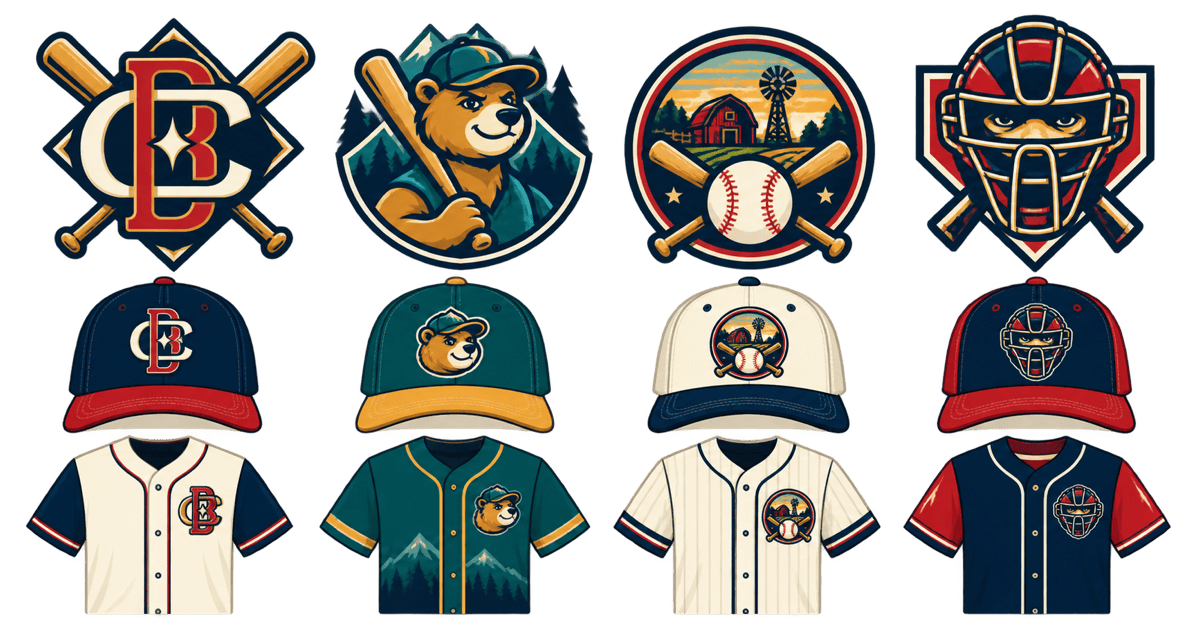
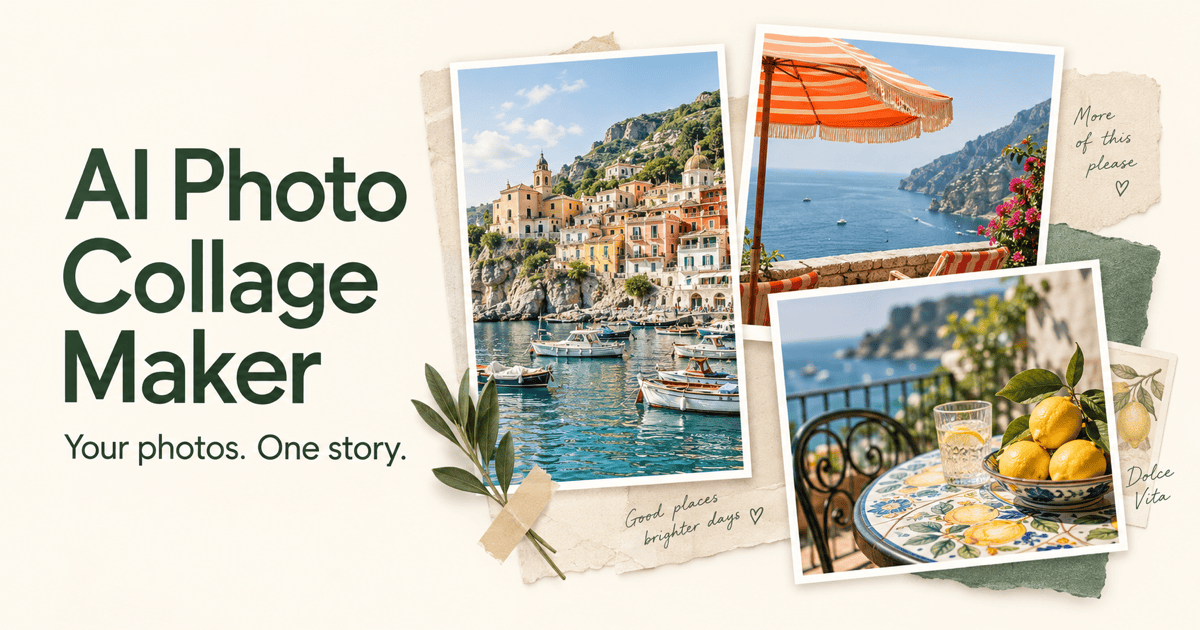
Free OnlineAI LinkedIn Banner Generator

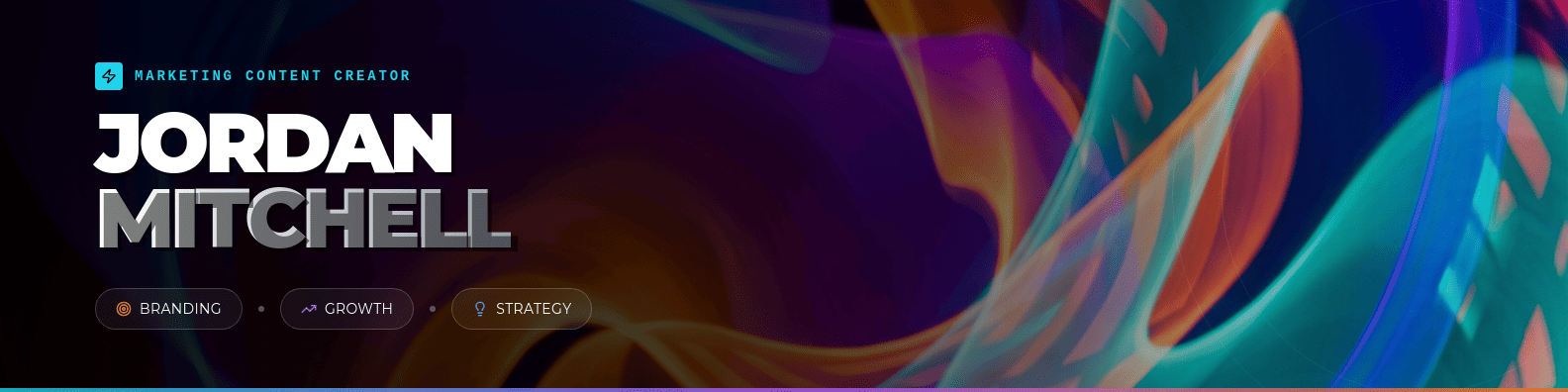
How to Create a LinkedIn Banner with AI
Write Your Prompt
AI Generates Your LinkedIn Banner
Refine and Customize
Download and Share
Why Trust Mew Design as Your AI LinkedIn Banner Maker
From Text to Banner Design
Most LinkedIn banner templates limit your layout options. With Mew Design, you describe your purpose and message, and the AI creates a layout around your content—giving you more freedom and originality.
Designed for Real LinkedIn Profile Display
Our AI LinkedIn banner generator follows official LinkedIn banner size and safe-area guidelines, ensuring your text and visuals stay clear on desktop, tablet, and mobile screens.
Absolute Text and Contact Accuracy
Your professional details must be flawless. We reduce the text distortions common in other AI tools, delivering crisp, readable names, job titles, and website URLs for your custom LinkedIn art.
Flexible Editing with AI and Visual Tools
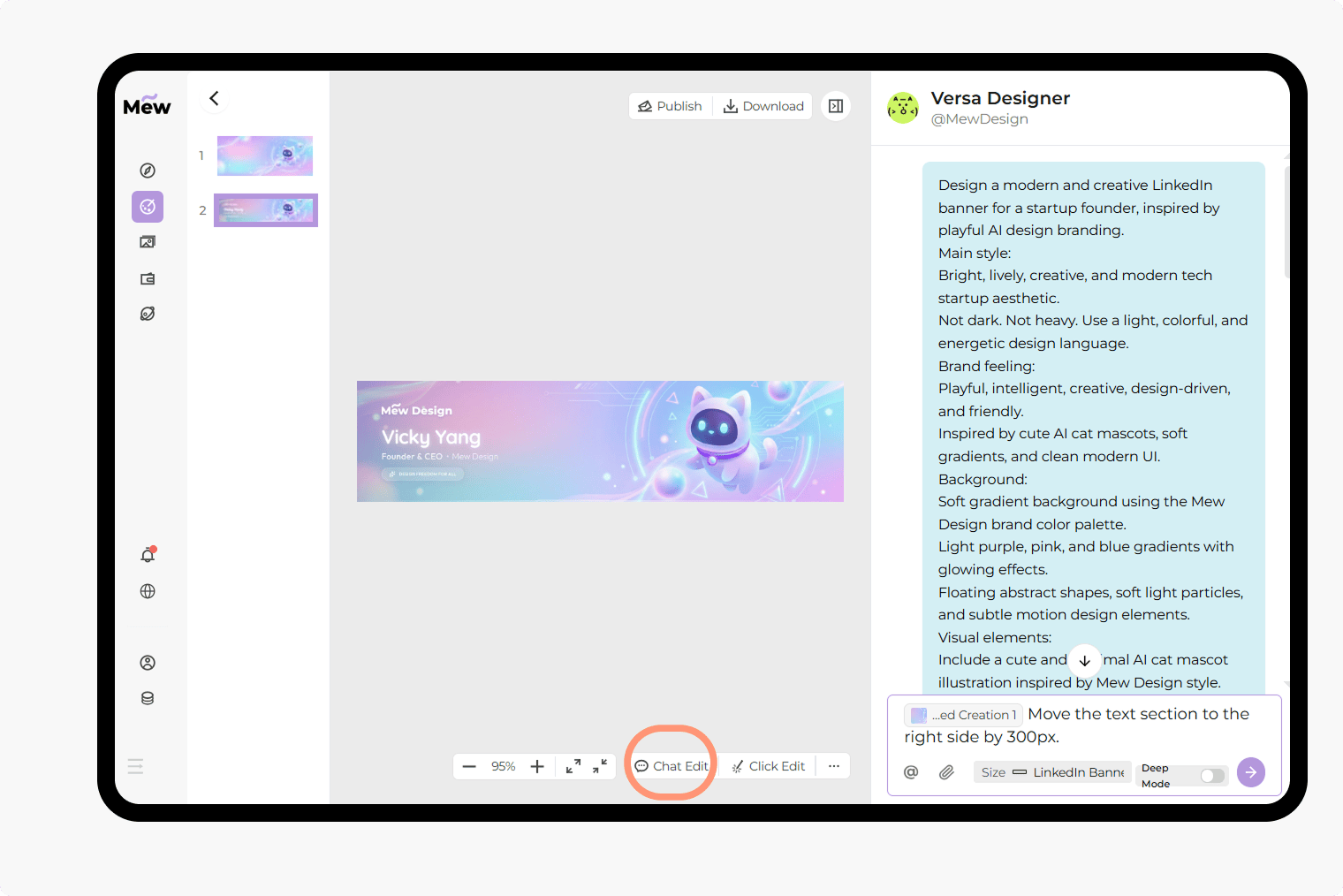
Adjust layouts, fonts, colors, and spacing through natural language prompts or visual editing tools. You remain fully in control of your final design.
Professional Headshot and Logo Integration
You can upload portraits, company logos, or brand visuals. The AI integrates them naturally into your design and handling background removal, helping you build consistent and professional AI-generated LinkedIn banners.
Deep Mode for Unified Branding
Professionalism thrives on consistency. Use Deep Mode to generate a matching set of assets, including your LinkedIn banner, featured section graphics, and post templates, creating a synchronized brand voice across your feed.
How to Write a Good AI Prompt for LinkedIn Banner Creation
- Identify Your Niche: Use terms like Software Engineering, Real Estate, Executive Leadership, or Creative Marketing.
- Specify Character Placement: Tell the AI to "place my uploaded headshot on the far right" to avoid overlap with the profile picture.
- Define the Atmosphere: Use terms like Minimalist, Authoritative, Modern Tech, or Clean Corporate.
- Mention Brand Assets: If you have a personal logo, ask the AI to "integrate my logo in the top right corner."
AI LinkedIn Banner Prompt Examples You Can Modify and Use
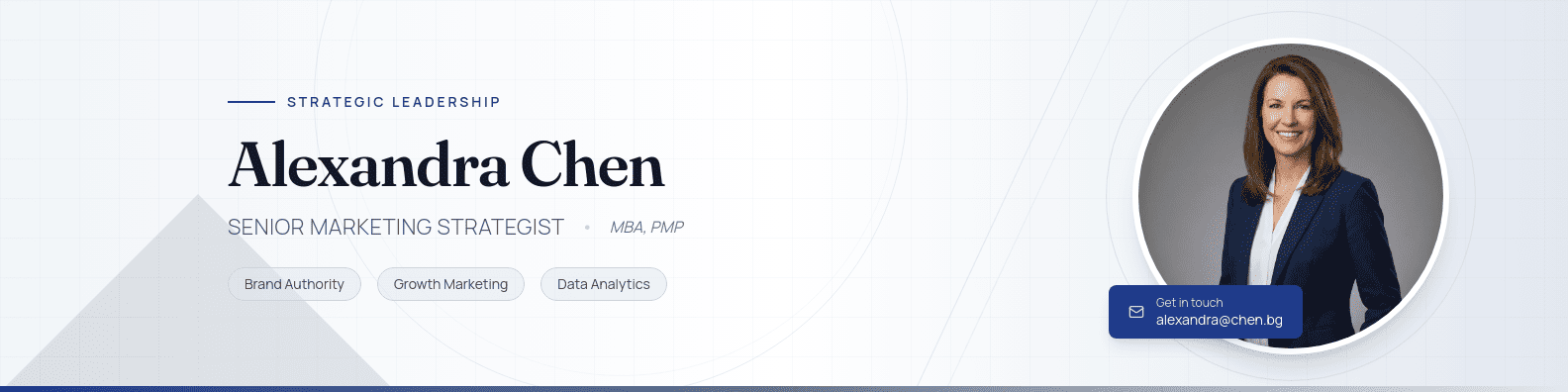
For Executive Leadership: Design a sophisticated LinkedIn banner. @[Uploaded Professional Headshot] and place it on the right. Background: Soft gray gradient with abstract lines. Text: '[Name] | Senior Marketing Strategist'. Style: Authoritative and clean.
For Tech and Innovation: Generate a modern tech LinkedIn banner. Visual: Abstract data visualization in dark mode with blue accents. @[Uploaded Logo] on the top right. Text: 'Building the Future of Technology'. Ensure the left third is clear for my profile picture.
For Creative Professionals: Create a vibrant, aesthetic LinkedIn banner for a Graphic Designer. @[Uploaded Reference Image] for the artistic style. Visual: Bold geometric shapes. Text: '[Name] | Design That Speaks'. Style: Innovative and professional.
For Sales and Real Estate: Create a high-end real estate LinkedIn banner. Visual: A blurred luxury city skyline at sunset. Place my @[Uploaded Headshot] on the right. Text: 'Your Trusted Partner in Luxury Property'. Style: Inviting and professional.
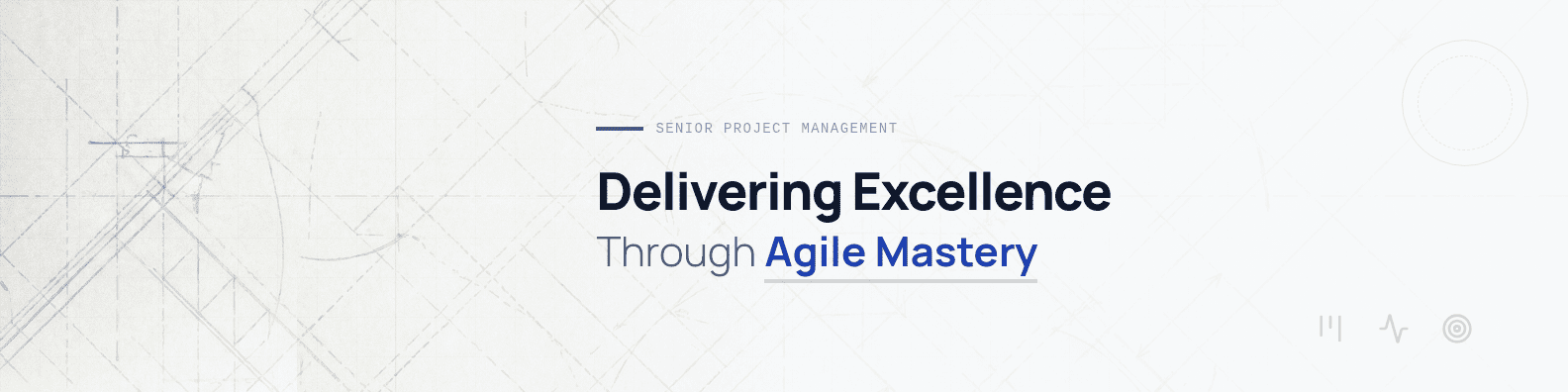
For Finance and Law: Generate a conservative, high-end LinkedIn banner for an Attorney. Style: Traditional with dark wood textures and bold serif typography. Text: 'Strategic Legal Solutions for 2026'. Keep the central area focused on the slogan.
For Independent Consultants: Create a personal brand LinkedIn banner for a Consultant. Style: Minimalist with a focus on typography. Visual: A clean, top-down view of a workspace. Text: 'Hello, I am [Name]'. Include: '[Professional Motto]'.