Free to Try OnlineAI Scene Generator
How to Create Scene Images with AI
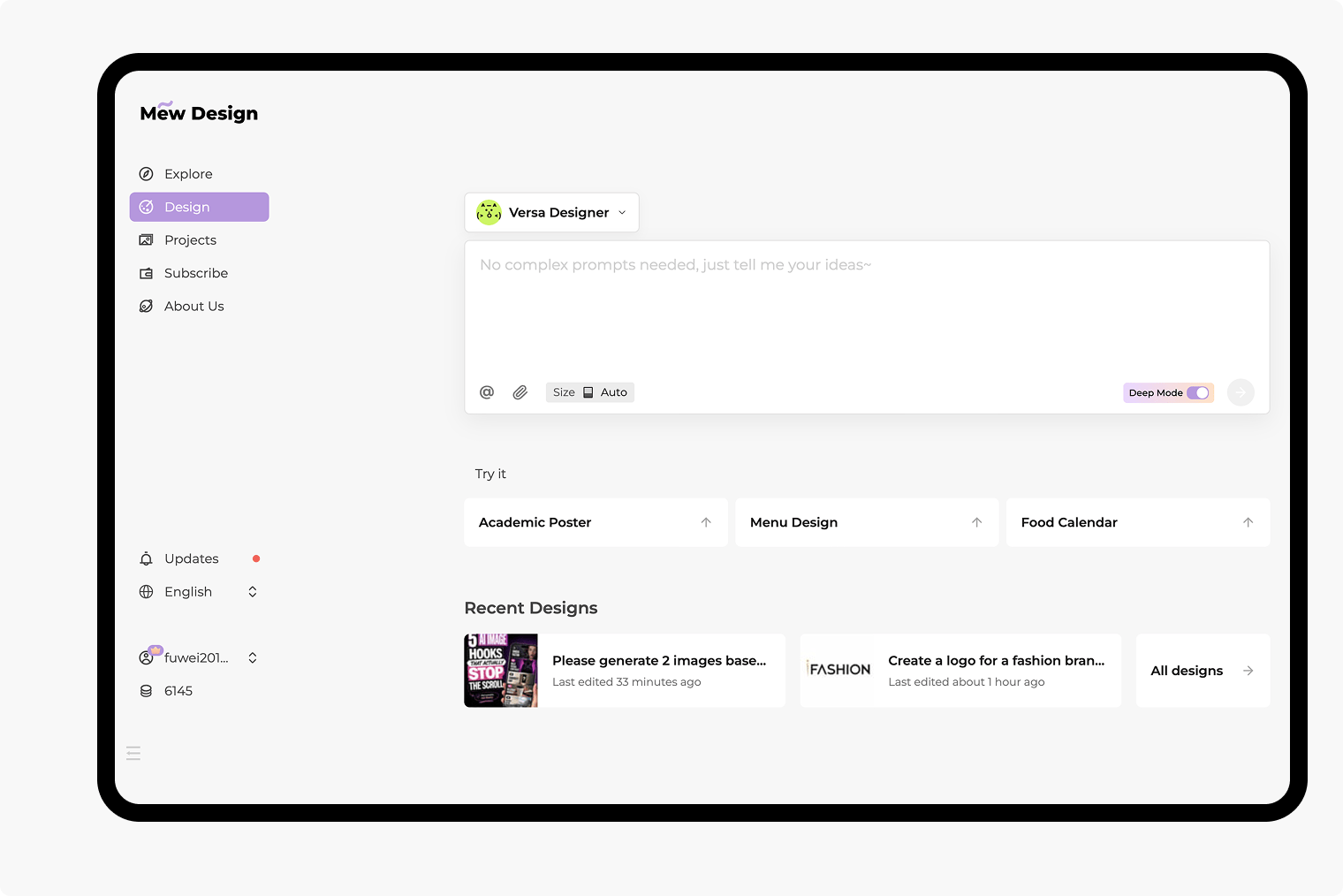
Describe What the Camera Sees
Generate Your Establishing View
Direct the Next Revision
Take the Scene Into Your Project
Build the Setting Around Your Story
Give Your World a Sense of Depth
Use this AI environment generator to describe a foreground path, a central landmark, and distant terrain. Spatial relationships help turn a location idea into a readable composition.
Test the Mood of the Same Place
Request dawn, rain, or warm window light through chat. Compare scene variations before choosing the atmosphere for your story.
Bring a Visual Starting Point
Upload a sketch or reference image to guide architecture, palette, or framing. Explain which details matter and which can change.
Choose How Your Scene Is Generated
Select your preferred available image model or let Mew Auto choose one for your brief. Mew Design brings leading image models into one workflow and adds new releases promptly.
Carry a World Across Related Images
Reuse references and location details for a scene series. Save a repeatable visual workflow as a Mew Skill to reduce repeated briefing; review each image for continuity.
Explore Before Committing
Try the AI scene generator free with signup credits, directly in your browser. Exports are watermark-free; further generation depends on your available credits and plan.
Describe a Scene That Holds Together
- Place the Landmarks: Use foreground, middle distance, and background to establish depth. Keep one main point of interest.
- Choose a Light Source: Name the time of day and where the light comes from. Avoid mixing conflicting daylight and night cues.
- Set the Viewpoint: A wide shot establishes a world; an eye-level view feels grounded. Match the framing to your intended use.
- Say What to Leave Out: For an empty background, ask for no people or text. Reserve clear space where a character or headline will go.
Six Scene Ideas to Start From
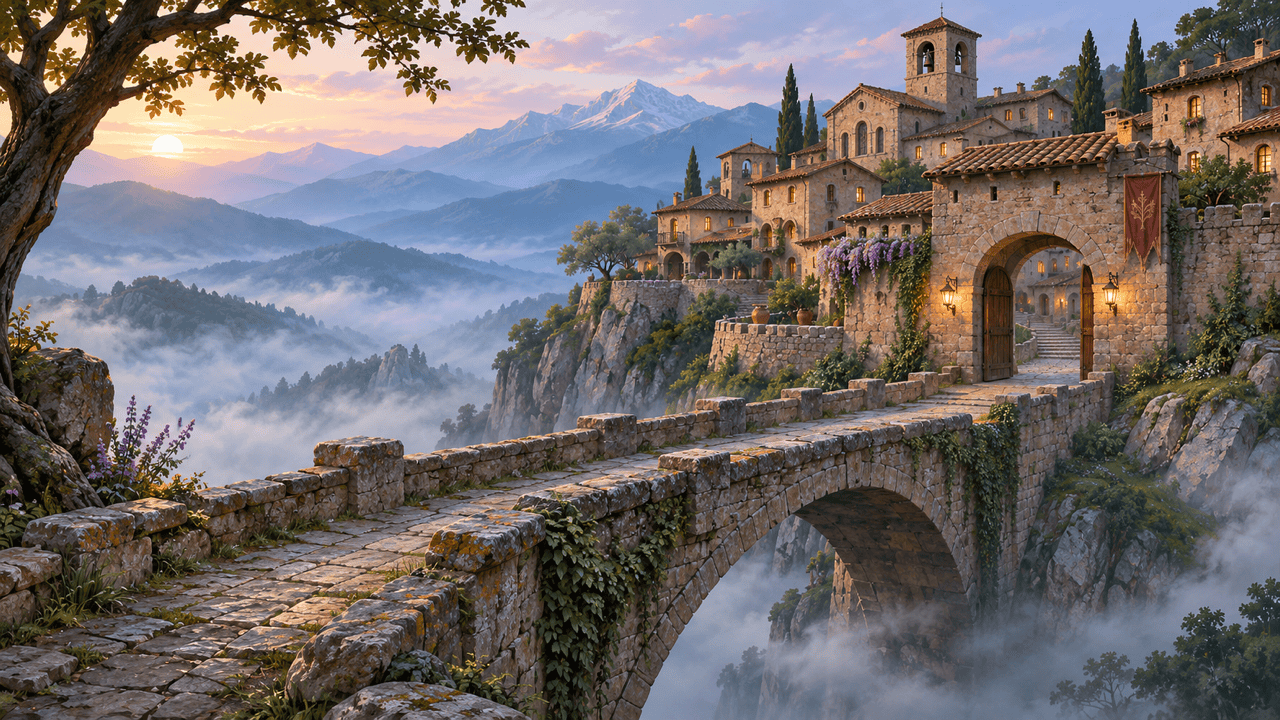
Create a fantasy game background with a cliffside village above a misty valley. A stone bridge leads toward one gate. Painterly environment concept art, soft dawn light, wide 16:9 composition, no characters or text.
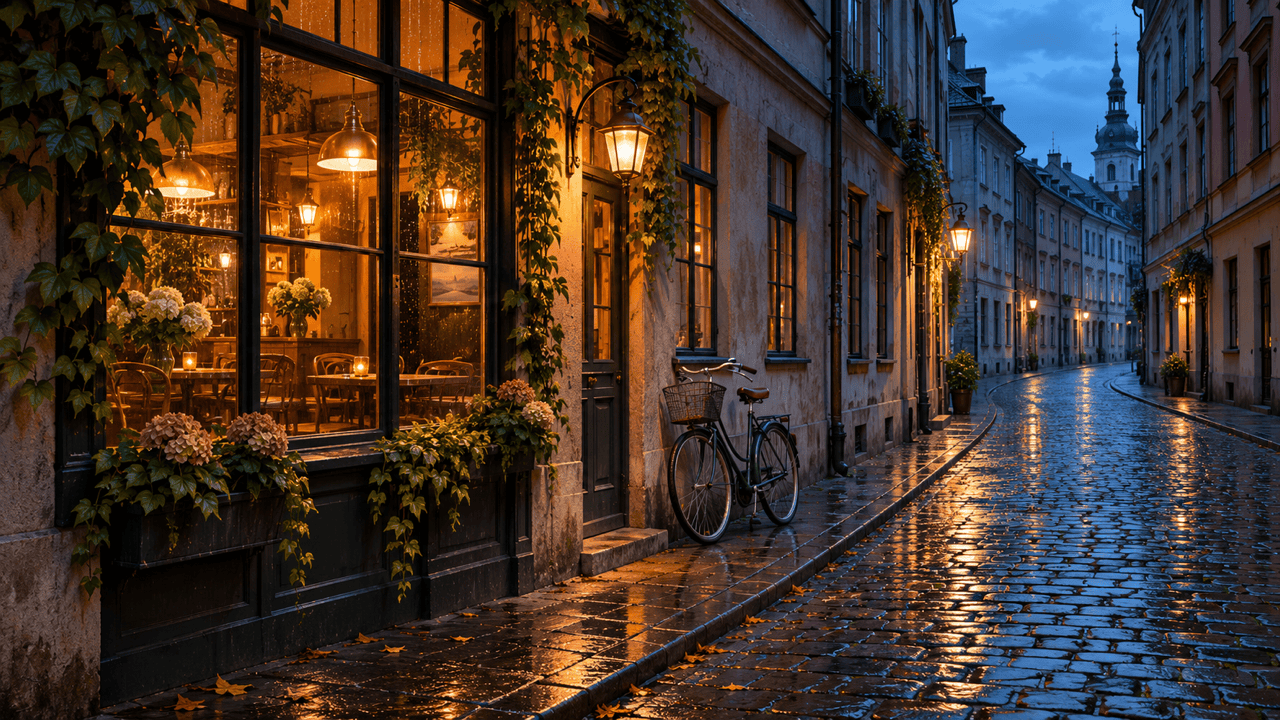
Generate a cinematic scene of an empty city street after rain. Warm cafe windows reflect on wet pavement; blue evening light fills the distance. Eye-level wide shot, realistic materials, 16:9, no readable signs.
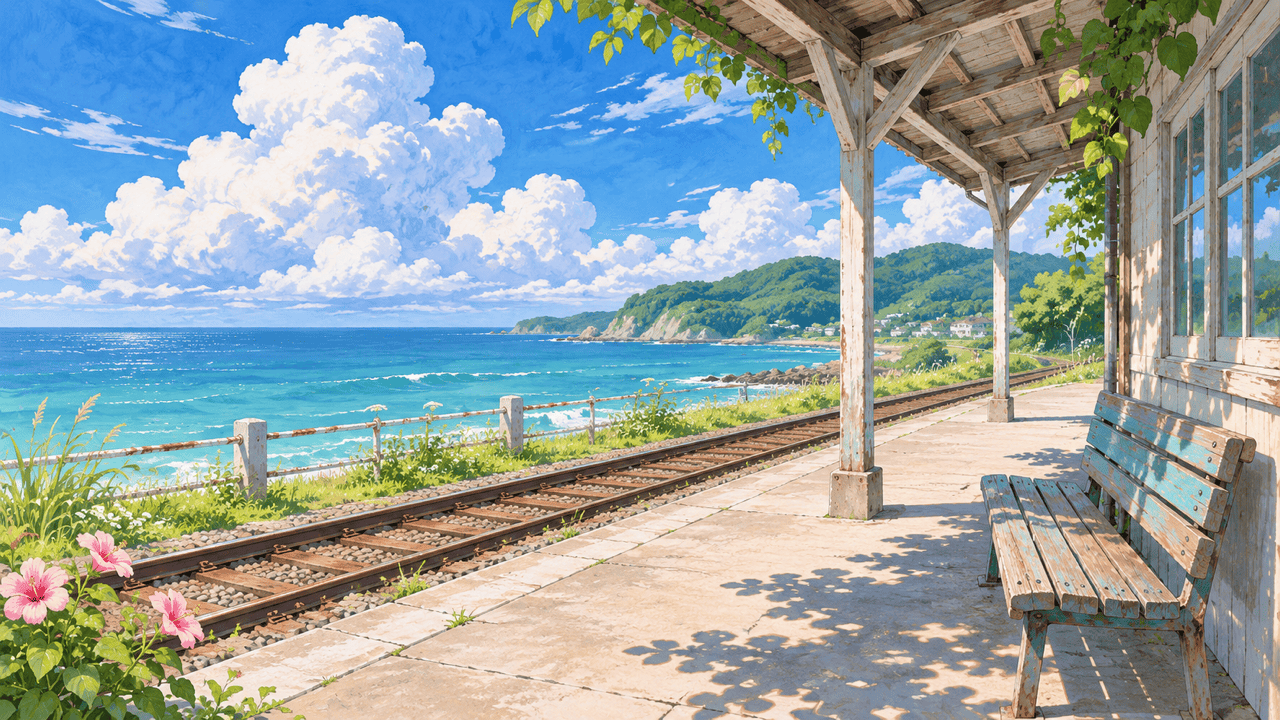
Create an anime background of a quiet seaside railway platform in summer. Put a bench in the foreground and the ocean beyond the tracks. Hand-painted textures, bright clouds, 16:9, no people or text.
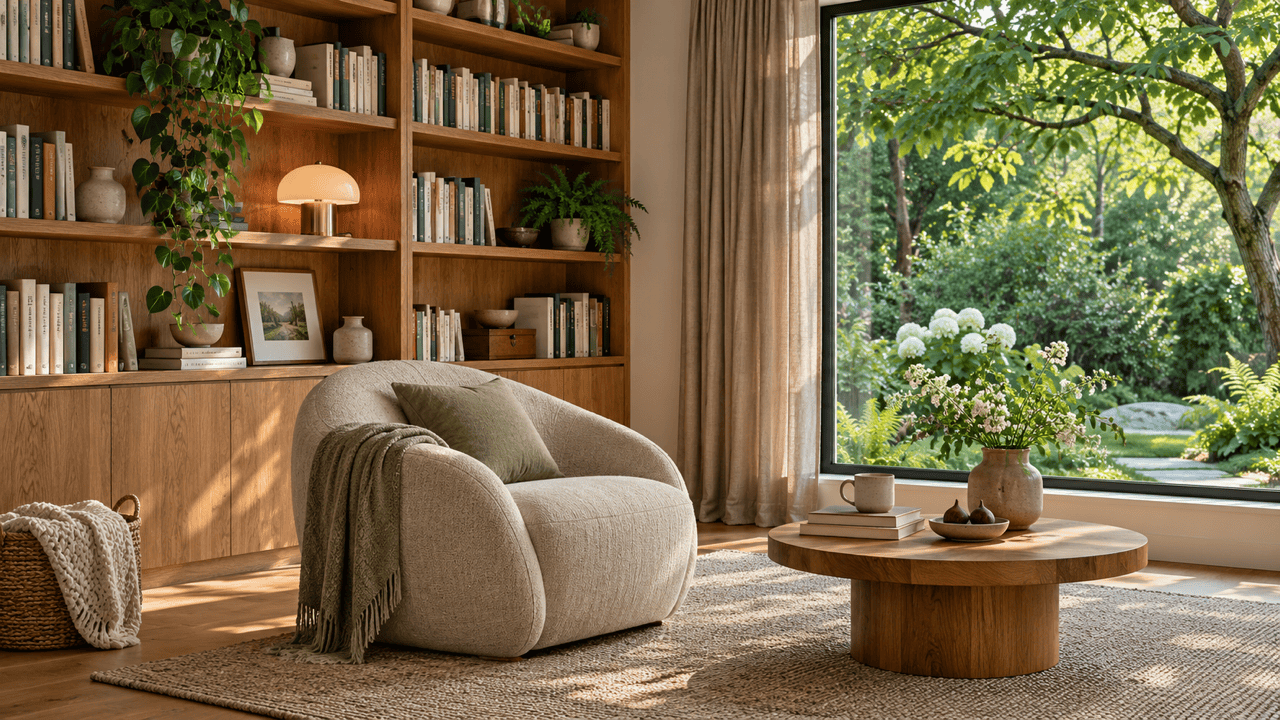
Generate a realistic reading room with oak shelves, a linen chair, and a garden-facing window. Use soft side light, believable furniture scale, and a wide 16:9 view. No people or lettering.
Create a science-fiction environment inside an orbital greenhouse. Curved walkways lead to a large window overlooking a planet. Cool ambient light, warm plant lights, cinematic concept art, 16:9, no text.
Generate a forest background for a character illustration. Put ferns near the edges, a clear path in the lower center, and tall trees behind it. Soft overcast light, 16:9, no characters, animals, or text.