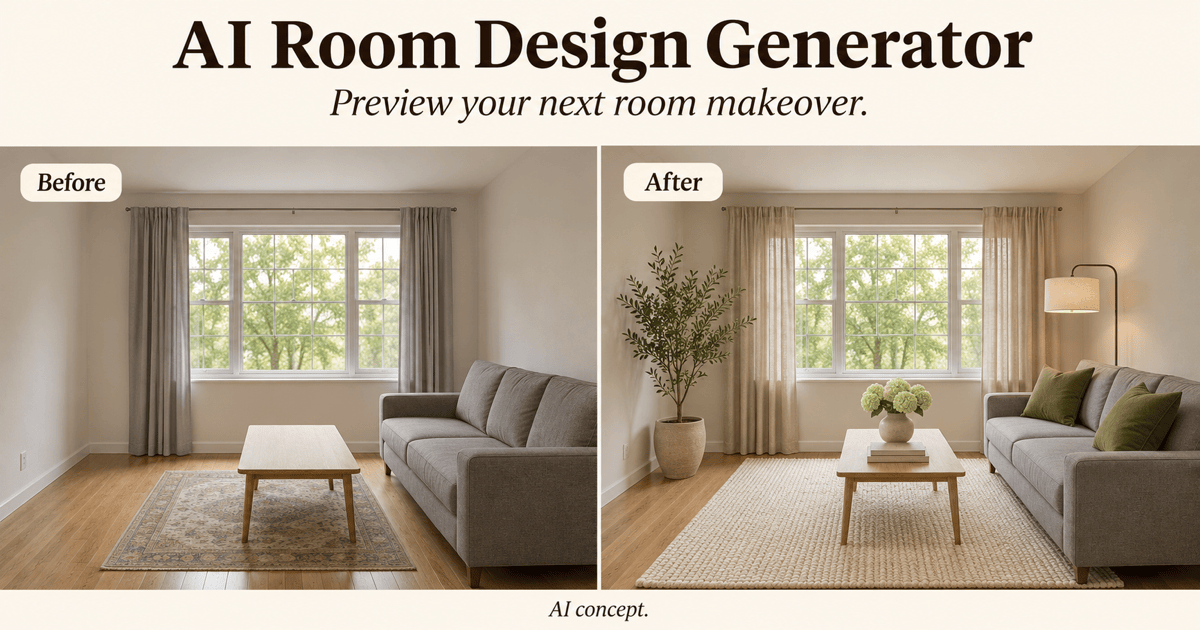
See It in Your RoomAI Rug Visualizer
How to Create a Rug Preview with AI
Show the Floor and Furniture
Place the Rug in Context
Compare One Change at a Time
Save the Preview and Check the Fit
Compare Rugs Where They Will Actually Go
Work With Your Room Photo
See how a rug relates to your existing sofa, wood floor, and wall colors. A living room rug visualizer gives those choices a shared setting.
Bring a Rug You Already Like
Upload a product image to guide the pattern, border, and color. Request the same design in your room, then check the preview against the reference for changed details.
Explore Size and Placement Options
Use the area rug size visualizer to compare a smaller footprint with a larger one. Supply real dimensions for context and confirm the final fit with a tape measure.
Develop an Original Rug Pattern
Use the AI rug generator for custom concepts: an abstract area rug, a geometric runner, or a simple tufted design. Request a top-down view to see the full pattern.
Choose a Model for the Task
Select an available image model yourself, or let Mew Auto choose one for your reference-led edit or new pattern. Mew Design adds new leading image models as they launch.
Share a Clear Design Direction
Export rug previews as PNG or JPG images for a partner, client, or rug maker. Use Chat Edit to revise the palette or border before discussing physical samples.
What Makes a Rug Preview Useful?
- Floor Visibility: Avoid close-ups of the sofa. Include the floor edges and furniture legs so the requested placement is clear.
- Pattern Fidelity: Use a straight-on rug image with all edges visible. Check borders, motifs, and fringe against the original after generation.
- Furniture Contact: Look for rug edges that lie flat, plausible shadows, and legs resting on top of the rug rather than disappearing into it.
- Real-World Fit: AI previews can alter scale and color. Measure the footprint, allow for moving chairs and opening doors, and compare material samples in your room.
Six Rug Decisions You Can Explore
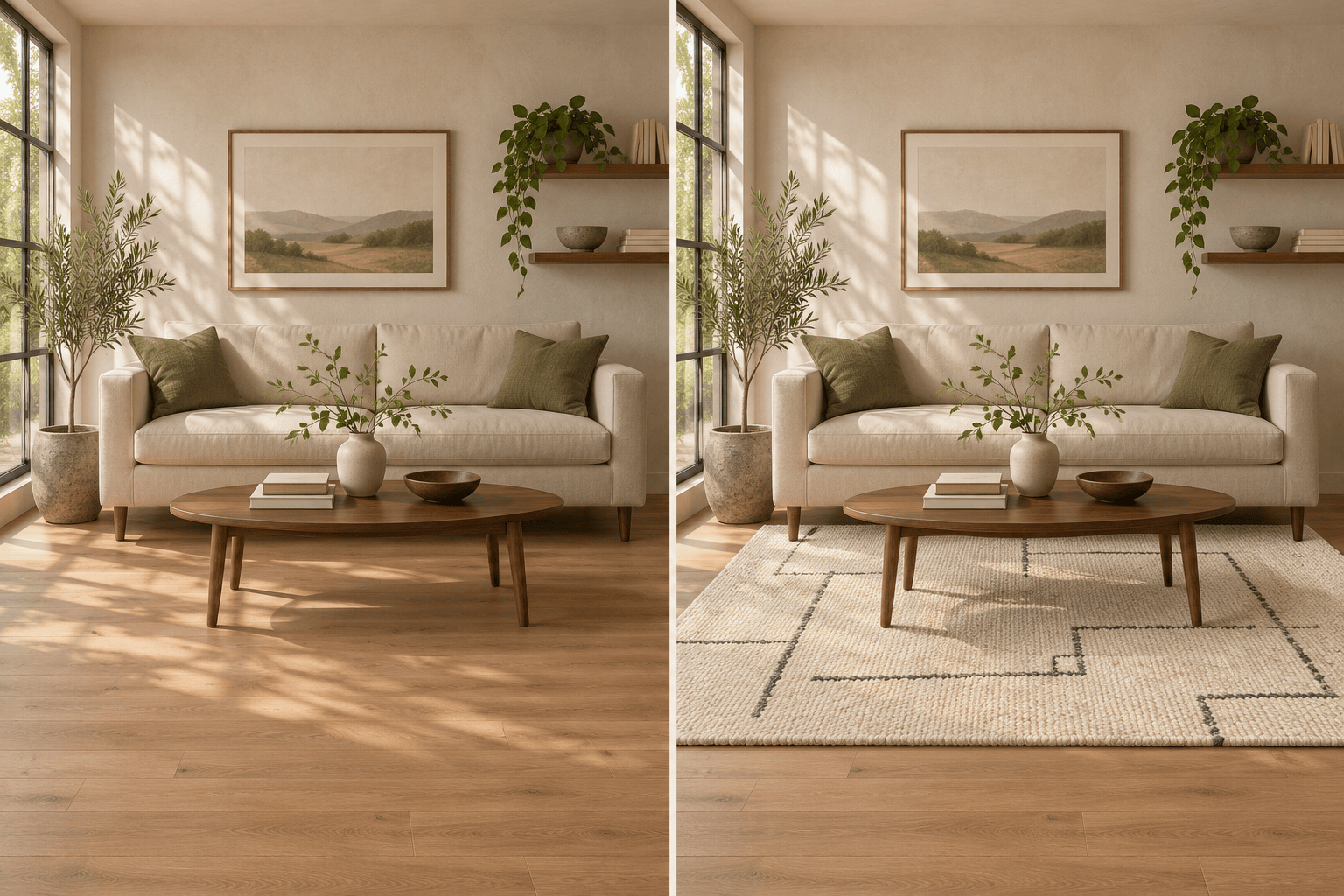
Preview a cream rug with a subtle charcoal geometric pattern in my living room photo. Place it under the coffee table and the sofa’s front legs. Keep the furniture, floor, and lighting unchanged.
Create two rug previews from my room photo, using the same rug reference: one with a 5 × 8 ft footprint and one with an 8 × 10 ft footprint. Treat these as approximate visual comparisons and keep the camera angle unchanged.
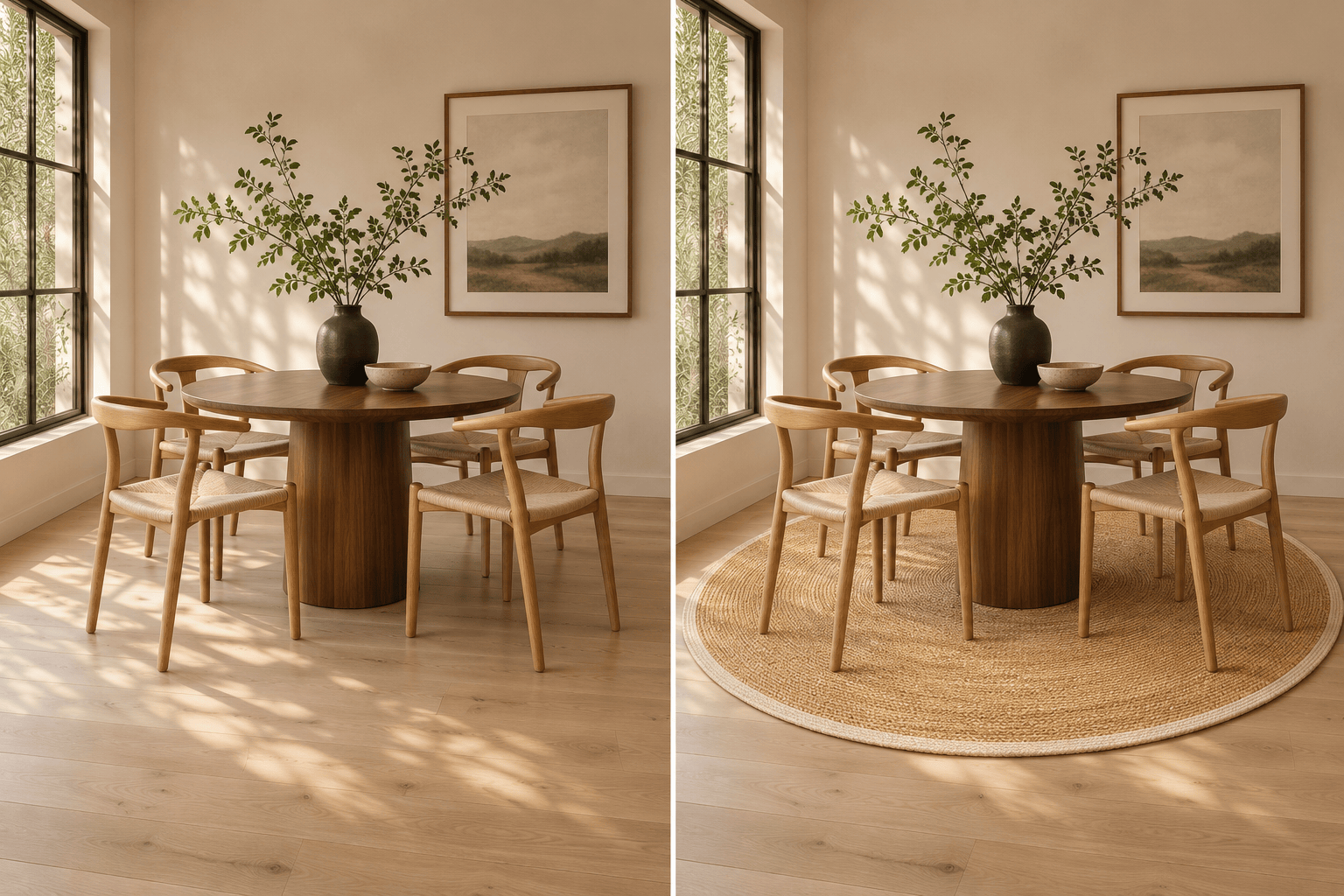
Add a round natural-fiber-style rug beneath the round dining table in my photo. Show a generous border beyond the chairs and keep the table and chair shapes unchanged.
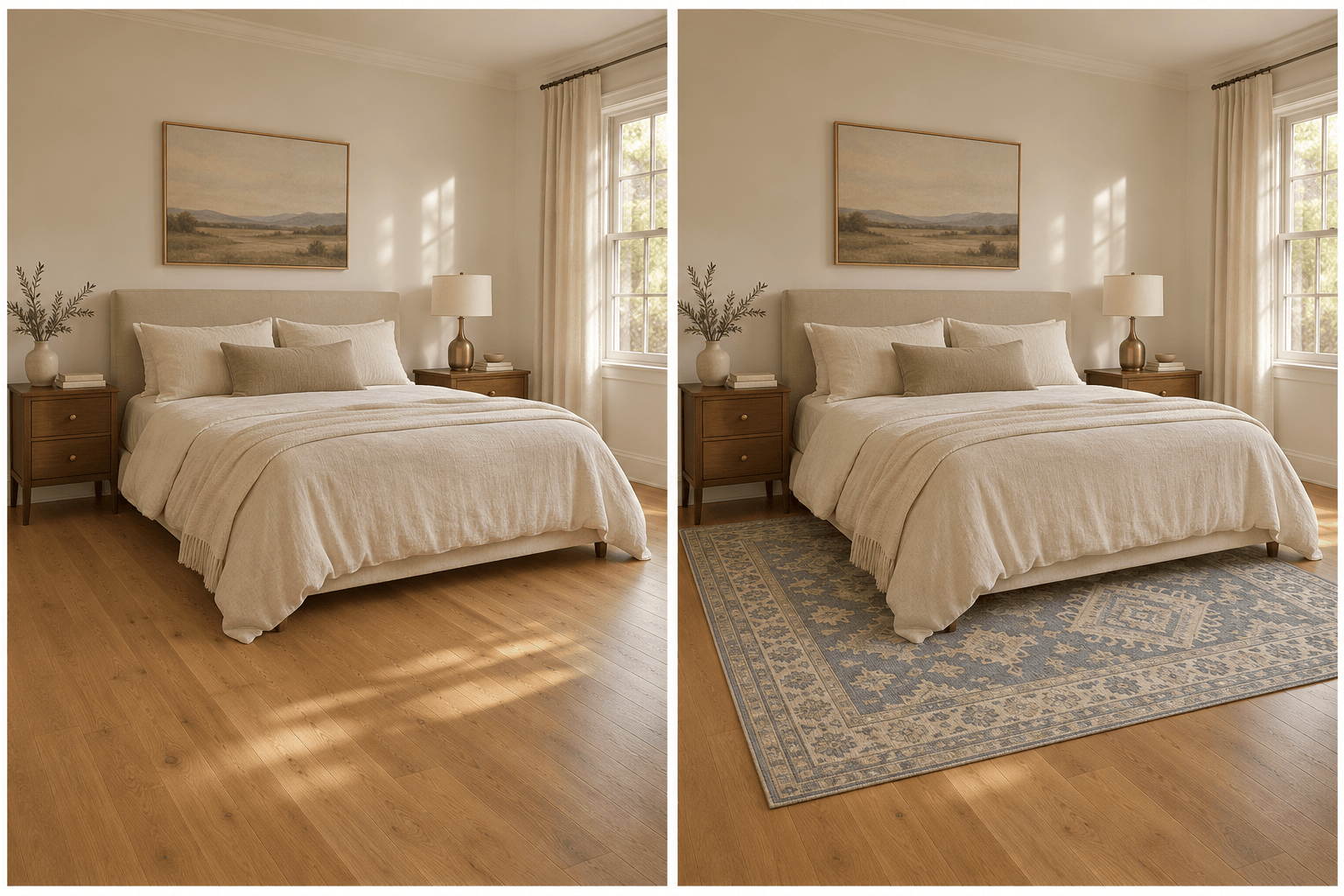
Place a muted blue patterned rug under the lower portion of the bed in my bedroom photo. Show the rug extending on both sides and beyond the foot of the bed. Preserve the bedding and nightstands.
Preview a narrow rust-and-cream striped runner in my hallway photo. Leave visible flooring along both sides and keep doorways clear. Preserve the existing floor and wall colors.
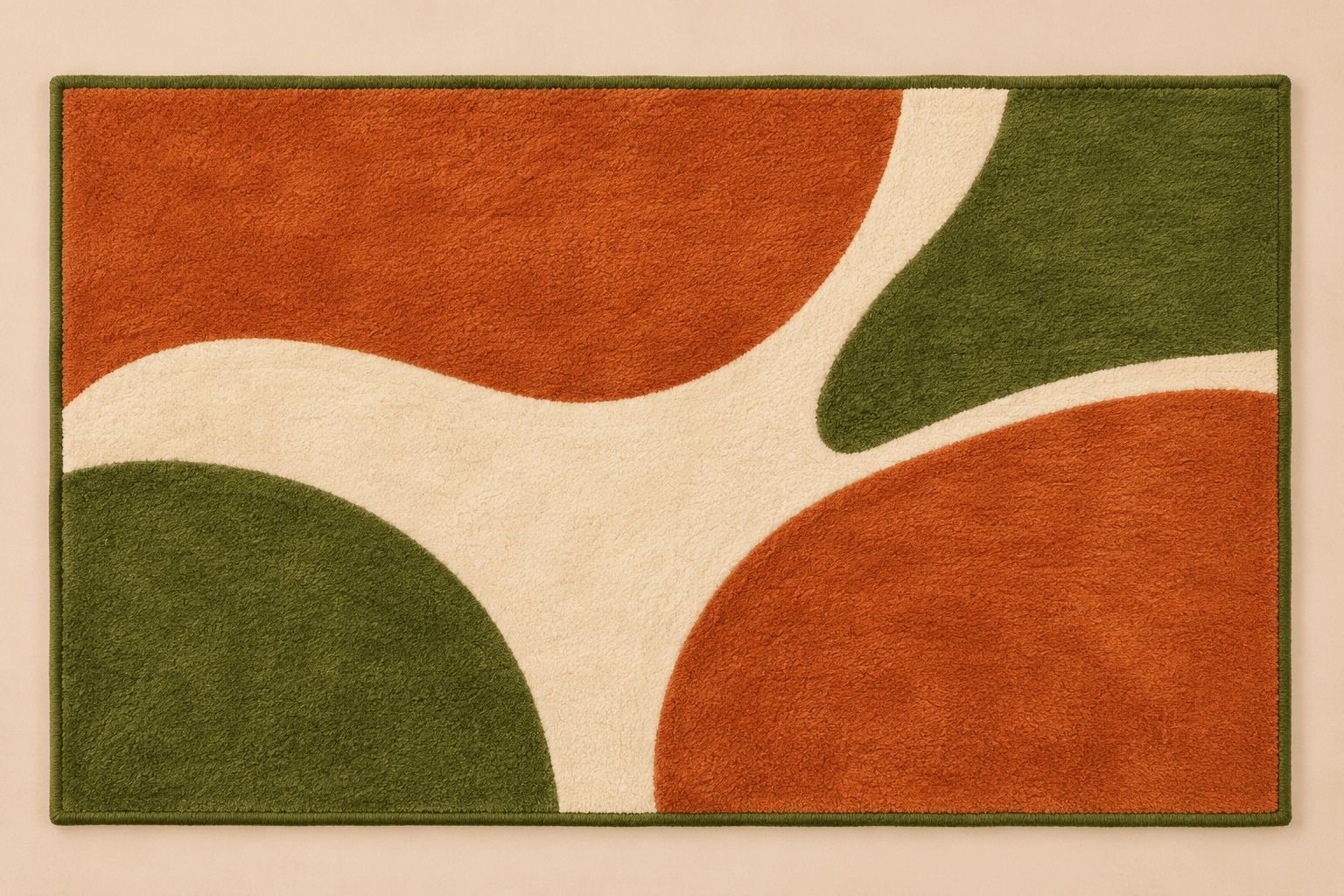
Generate an original tufted rug concept viewed directly from above. Use moss green, terracotta, and cream in large curved shapes, with a simple border and clear color areas. Show the entire rug on a plain background, without furniture.