Free to Try OnlineAI Profile Picture Generator

How to Create a Profile Picture with AI
Choose Your Photo or Idea
Generate Your Profile Look
Check the Face and Refine
Download and Check the Crop

One Profile Picture Maker, More Ways to Be You
Build from Your Own Photo
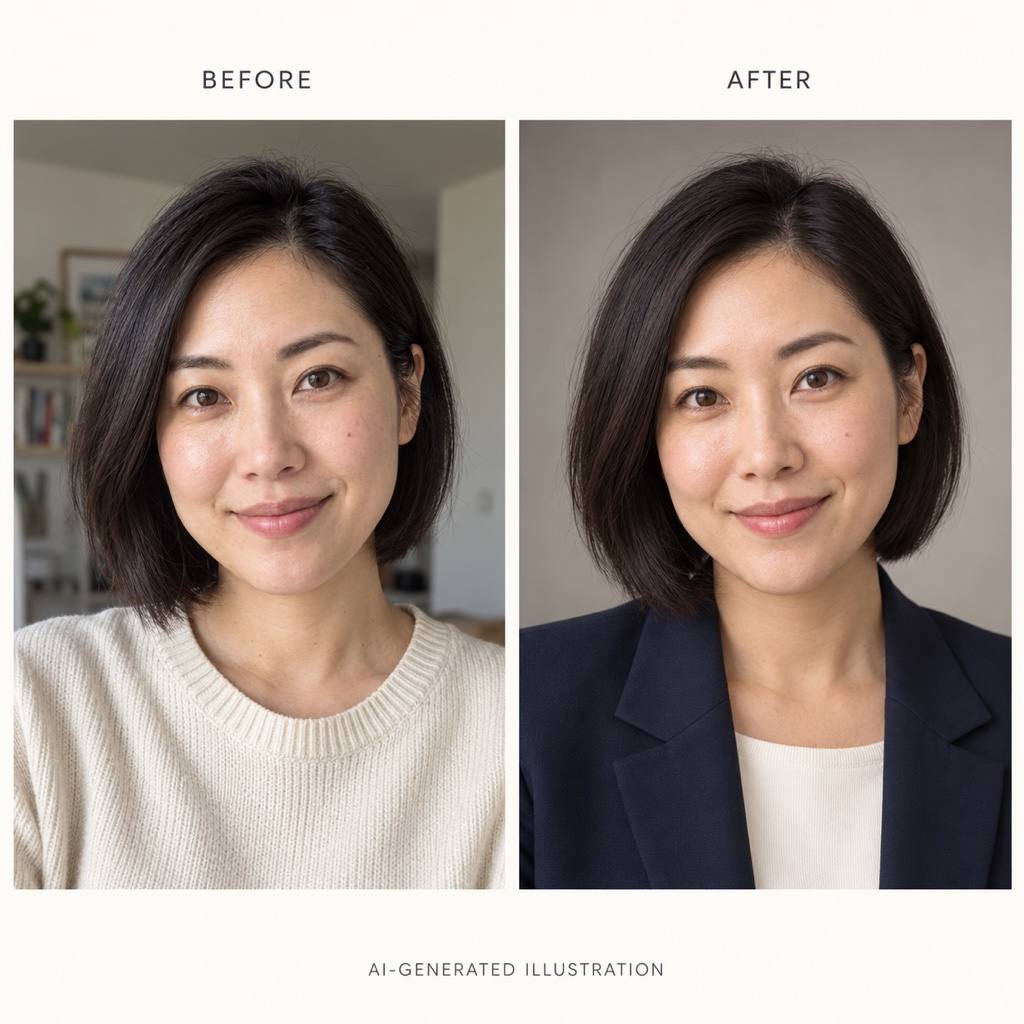
Use an uploaded portrait as the starting point for a professional AI profile picture. Ask for softer lighting or different clothing, then check the result for a believable likeness.
Create an Avatar Without a Selfie
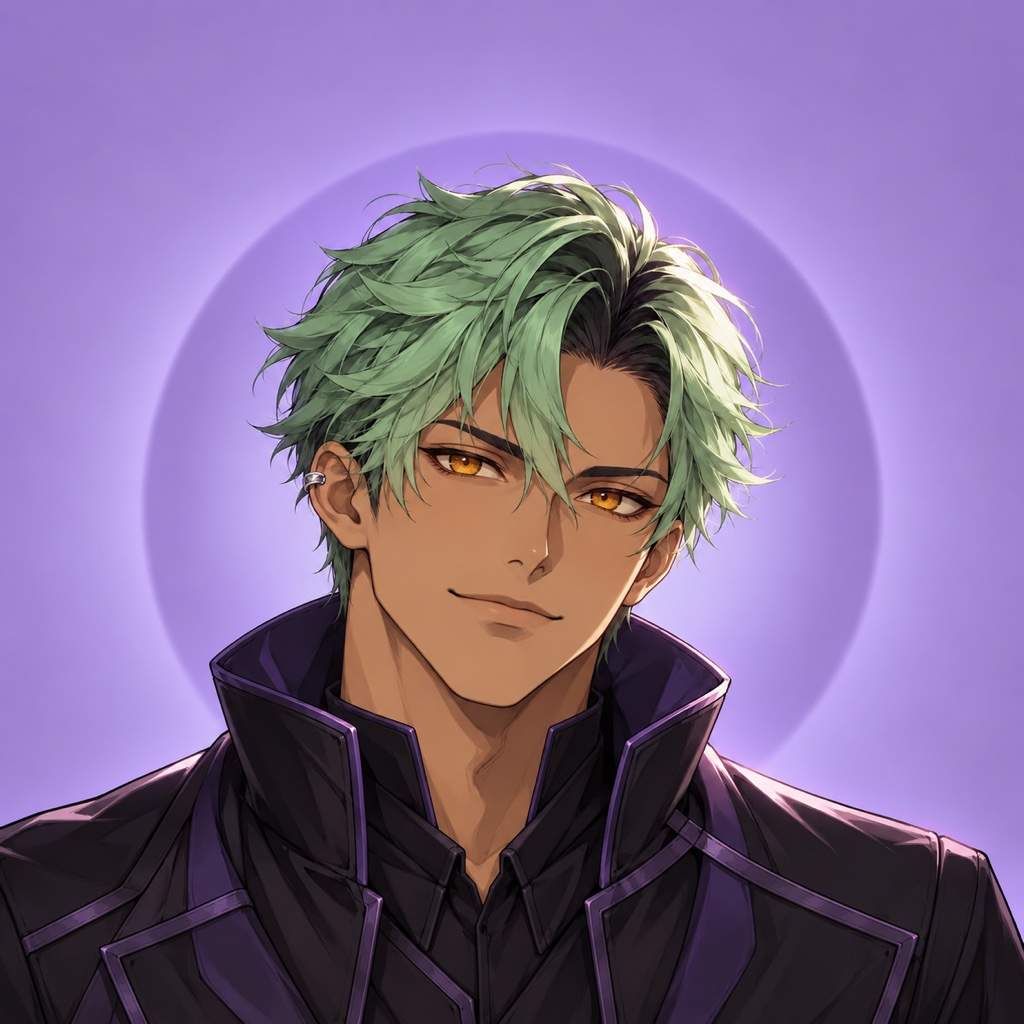
This AI profile image generator also works from text. Describe an anime character, illustrated portrait, or gaming mascot when you want an original identity for a community account.
Fix What Distracts from Your Face
Describe edits in Chat Edit: simplify a busy backdrop, soften harsh shadows, or adjust the framing. Refine the details that matter for a small profile image.
Explore a Consistent Personal Style
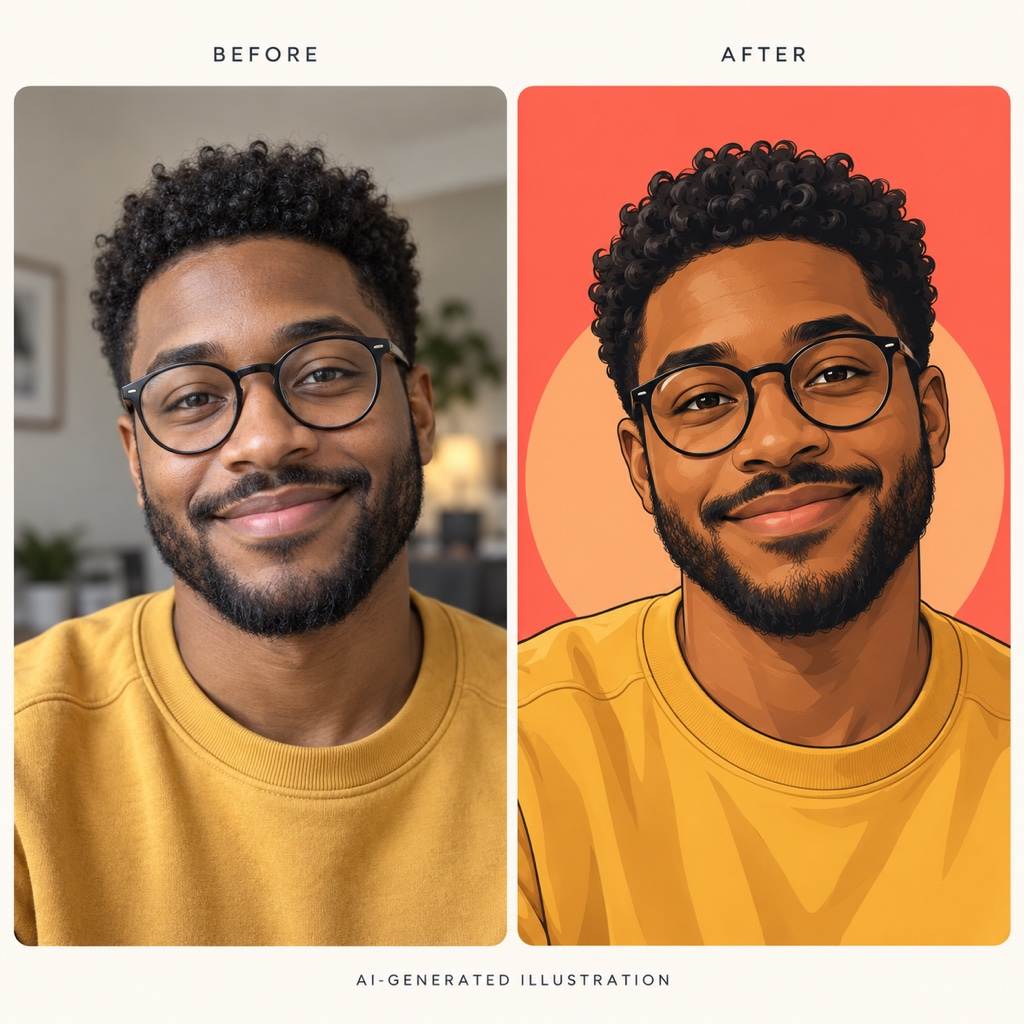
Use a reference image and your preferred colors to create related profile variations. Compare a professional look with a relaxed creator style before choosing.
Keep the Subject Clear at Small Sizes
Ask for a centered face, a distinct silhouette, and a quiet background. These choices help your avatar stay recognizable when it appears beside a comment or message.
Try It with Free Signup Credits
Test the AI profile picture maker with free AI credits after signup. Exports are watermark-free; available credits and higher-resolution options depend on your plan.
Start with a Photo That Still Looks Like You
- Choose a Clear Face: Use a well-lit photo of one person, with visible eyes and no heavy filter. Avoid distant group shots and cropped hair.
- Name What Should Stay: Mention glasses, hairstyle, skin tone, and other recognizable details. Review the output; AI can change features even when asked to preserve them.
- Match the Destination: Choose a natural portrait for a work profile or a more expressive style for a social account. Keep the background simpler than the subject.
- Leave Room for the Circle: Start with a square image and keep important details away from the corners. Check the final crop where the picture will appear.
Quick Fixes for a Better Profile Picture
Make this portrait look less airbrushed. Restore natural skin texture and soften the lighting. Keep my face shape, skin tone, and expression close to the uploaded photo.
Simplify this profile picture’s background to a soft, solid teal. Keep the subject clearly separated from it, with no text or distracting objects.
Reframe this avatar as a square with more space around the head. Keep the face centered and leave the hair and ears inside a circular profile crop.
Use my reference photo to correct the glasses in this portrait. Match the frame shape, make both lenses consistent, and keep my eyes visible without strong glare.
Simplify this anime profile picture for Discord. Keep the character’s main colors and hairstyle, reduce tiny accessories, and make the face easy to recognize at a small size.
Create two profile variations from my uploaded portrait: one professional and one casual. Use the same muted blue palette and similar framing. Keep recognizable facial details in both.





