OnlineAI Portrait Enhancer
How to Enhance Portraits with AI
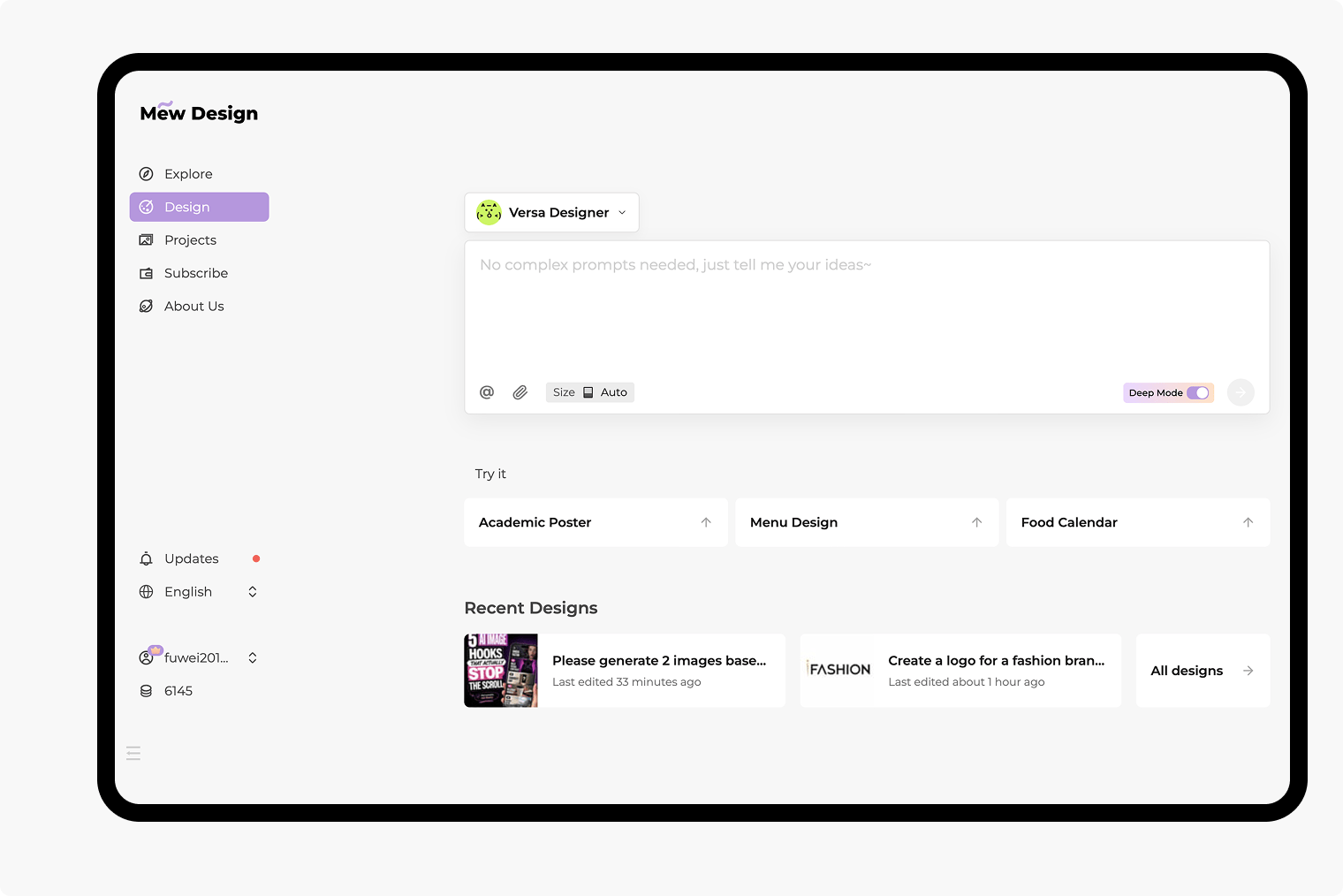
Upload the Original Portrait
Choose What Needs Improving
Check the Face and the Frame
Download Your Chosen Version
Enhance Portrait Photos, Selfies, and Headshots
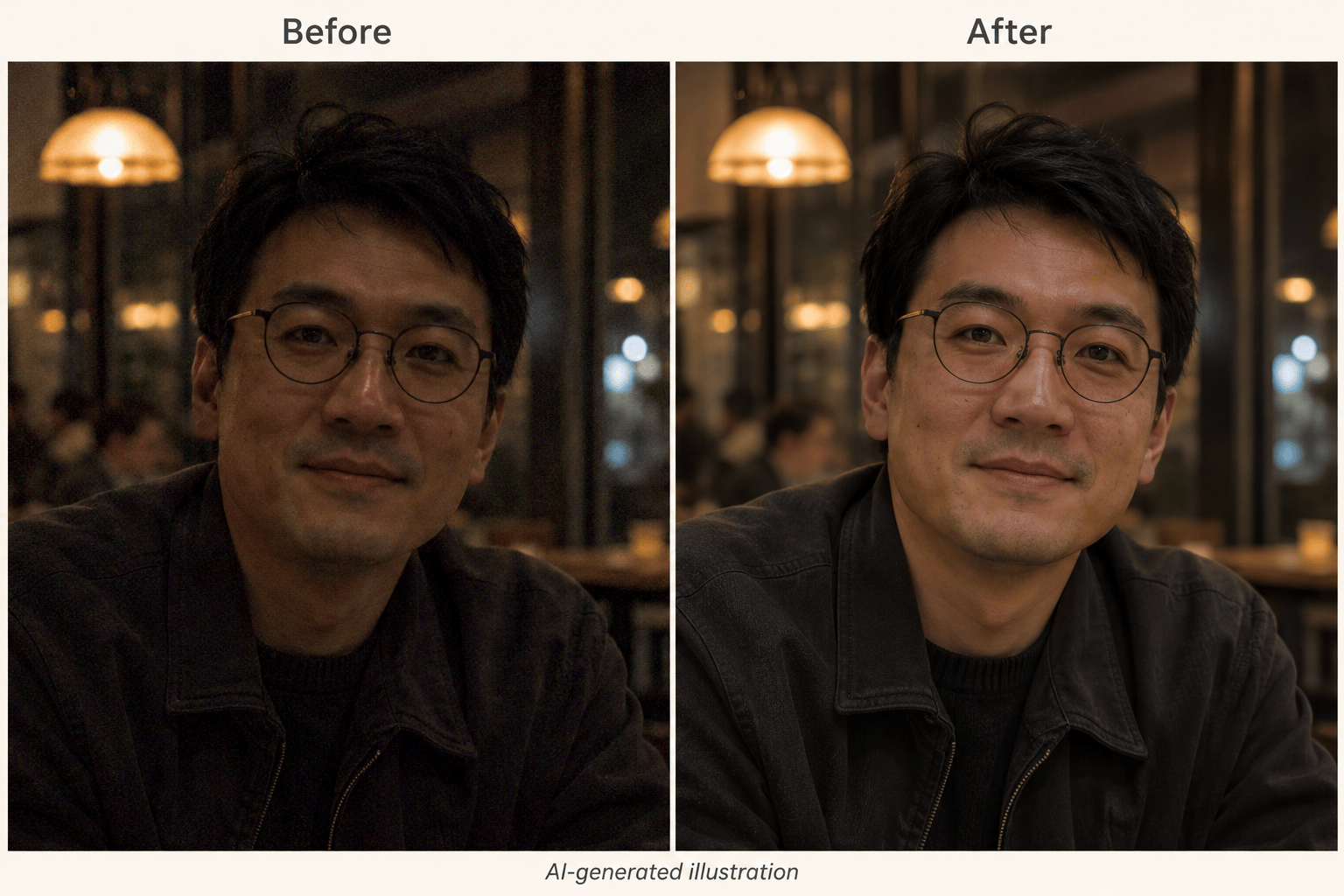
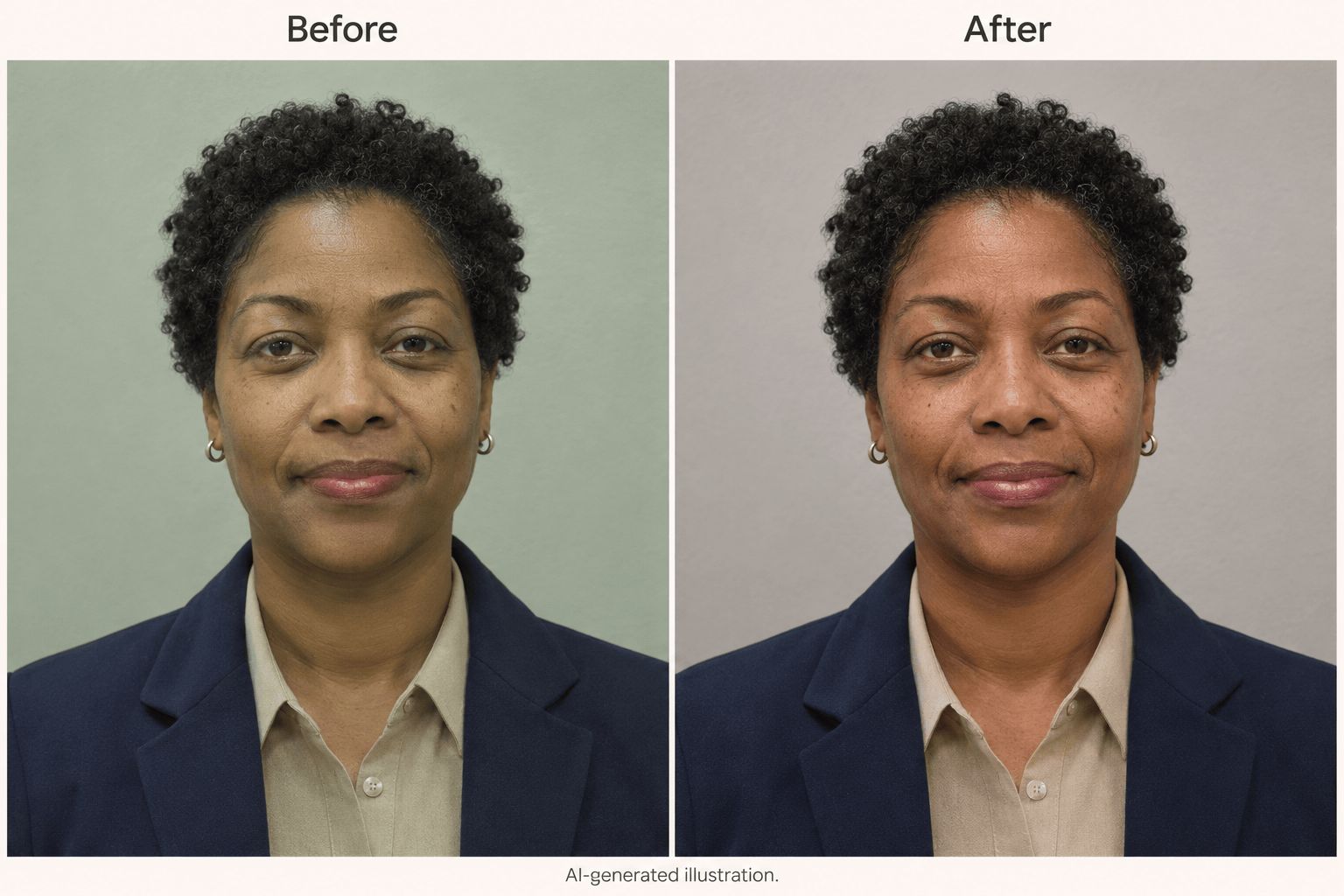
Correct Lighting in Low-Light Portraits
Describe a dark face, a strong color cast, or distracting shadows. This online portrait enhancer lets you request a coherent finish across skin, clothing, and background.
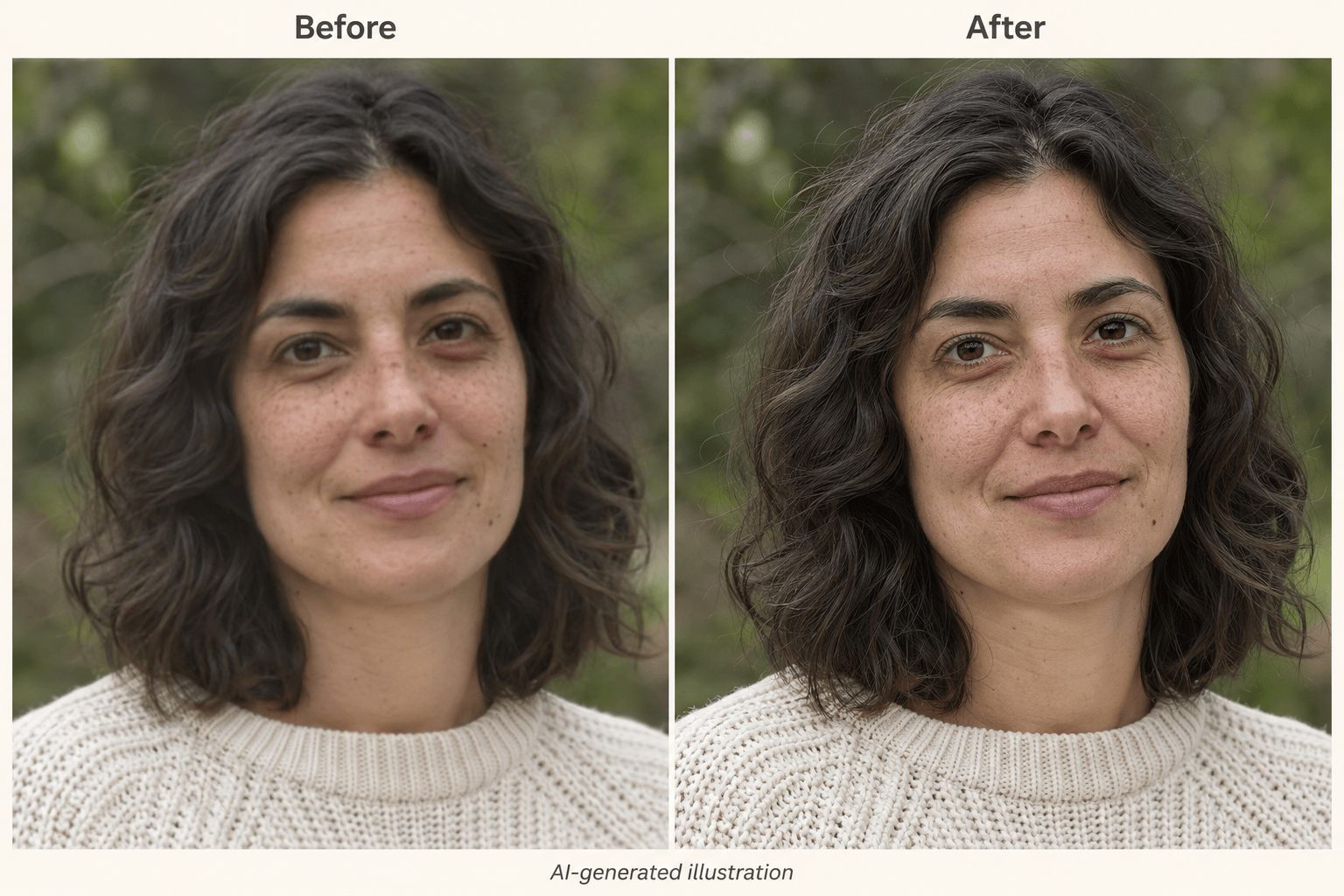
Retouch Portraits with Natural Skin Texture
Ask for clearer eyes and hair with restrained skin smoothing. Keep freckles, fine lines, and facial proportions in your instructions, then compare the result for unwanted changes.
Improve Headshots for Professional Profiles
Improve an existing profile photo without planning a new portrait. Use Chat Edit to soften harsh contrast or reduce an edit that looks too polished.
Choose How Your Edit Is Generated
Select an available image model yourself, or let Mew Auto choose one for your portrait and requested changes. Access the latest leading image models, with new releases added promptly.
Guide the Finish with a Reference
Upload a reference for soft lighting or restrained color. Explain that it guides the finish, while your own photo remains the source for the person, pose, and clothing.
Try a Portrait Edit Before Upgrading
Use free signup credits to test AI portrait enhancement online. Export watermark-free PNG or JPG images; standard downloads and paid HD exports have different plan requirements.
Keep Portrait Retouching Natural
- Start with Real Detail: Choose a photo with visible facial features. Severe blur or a tiny face leaves less reliable information for an AI portrait enhancer.
- Separate Lighting from Skin Tone: Ask to correct exposure or a color cast without lightening the person’s natural complexion.
- Keep the Background Believable: Retain intentional background blur. Sharpening every surface can make the portrait look cut out.
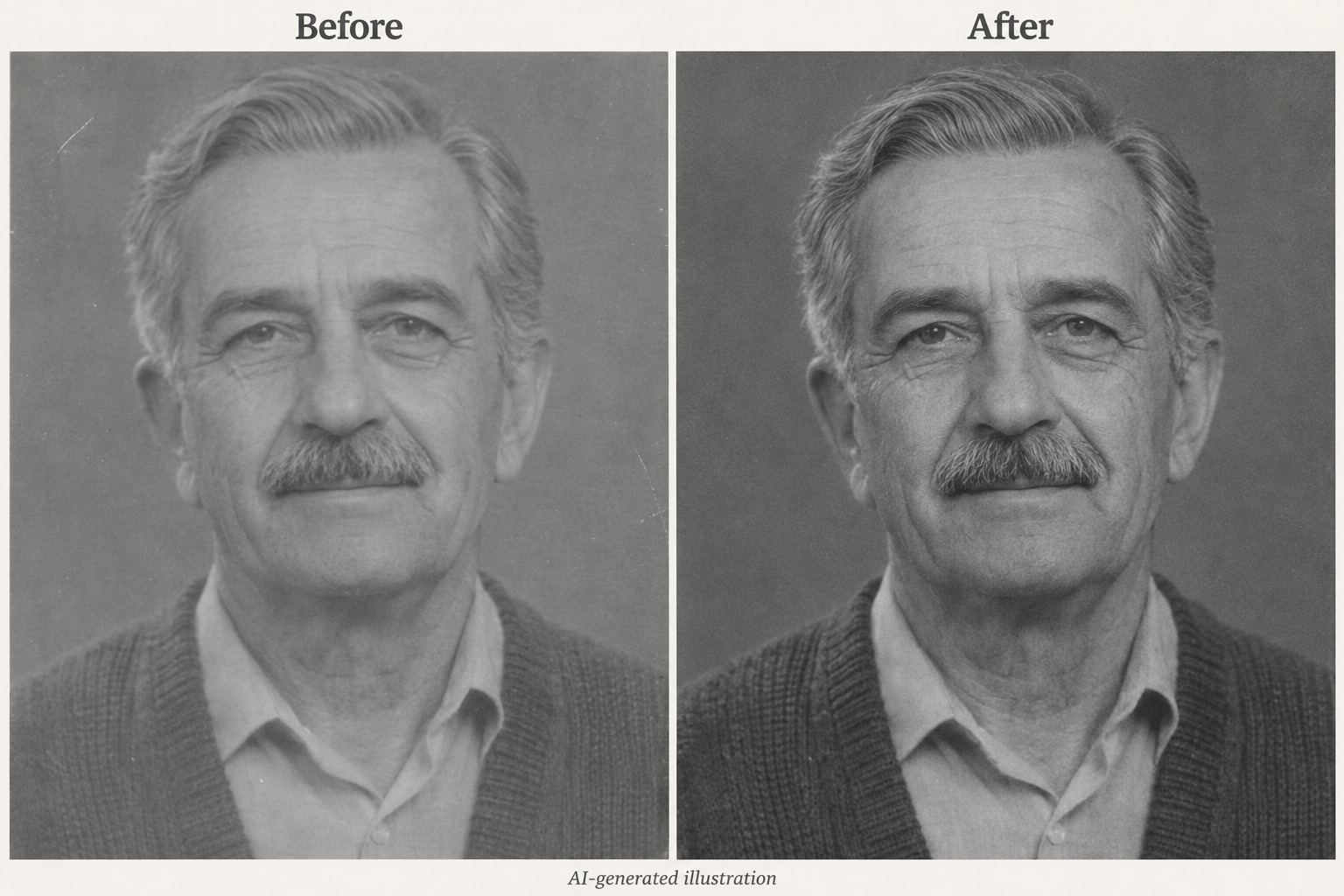
- Know What AI Can Infer: Newly generated facial detail may be plausible rather than historically accurate. Keep the original, especially for old family photos.
Fix Common Portrait Photo Problems
Mildly blurry portrait: Improve the clarity of my uploaded portrait with gentle sharpening around the eyes and hair. Keep the face shape, expression, skin texture, clothing, and composition close to the original. Avoid halos and invented fine details.
Low-light selfie: Brighten the face in my uploaded selfie and reduce colored noise in the shadows. Keep the evening atmosphere, natural complexion, and visible skin texture. Do not brighten the background into daylight.
Professional profile photo: Refine the lighting and white balance of my uploaded headshot for a team page. Keep my clothing, pose, age, facial proportions, and background. Aim for a subtle, credible finish without beauty reshaping.
Faded family portrait: Improve contrast and reduce minor surface marks in my uploaded old portrait. Keep its original monochrome or color treatment, expression, age cues, and period details. Avoid inventing sharp features where the source is unclear.
Over-smoothed skin: Rework the edited portrait from my original upload with less skin smoothing. Preserve visible freckles and fine lines, reduce the artificial shine, and keep the approved lighting. Do not add exaggerated pores.
Compressed profile picture: Reduce visible compression blocks in my uploaded portrait and gently clarify the subject. Keep the original crop and background blur. Do not turn missing texture into crisp but artificial facial detail.