Free OnlineAI Photo to Digital Art
How to Turn a Photo into Digital Art with AI
Upload Your Photo and Set the Direction
Generate Your First Art Version
Compare and Refine the Details
Check the Crop and Download

Give Your Photos a New Style, with Room to Refine
Build Around Your Own Photo
Use your portrait, pet, or travel photo as the starting point. Tell the image-to-art AI which features matter most, so your request guides both the subject and the transformation.
Choose Brushwork, Not Just a Label
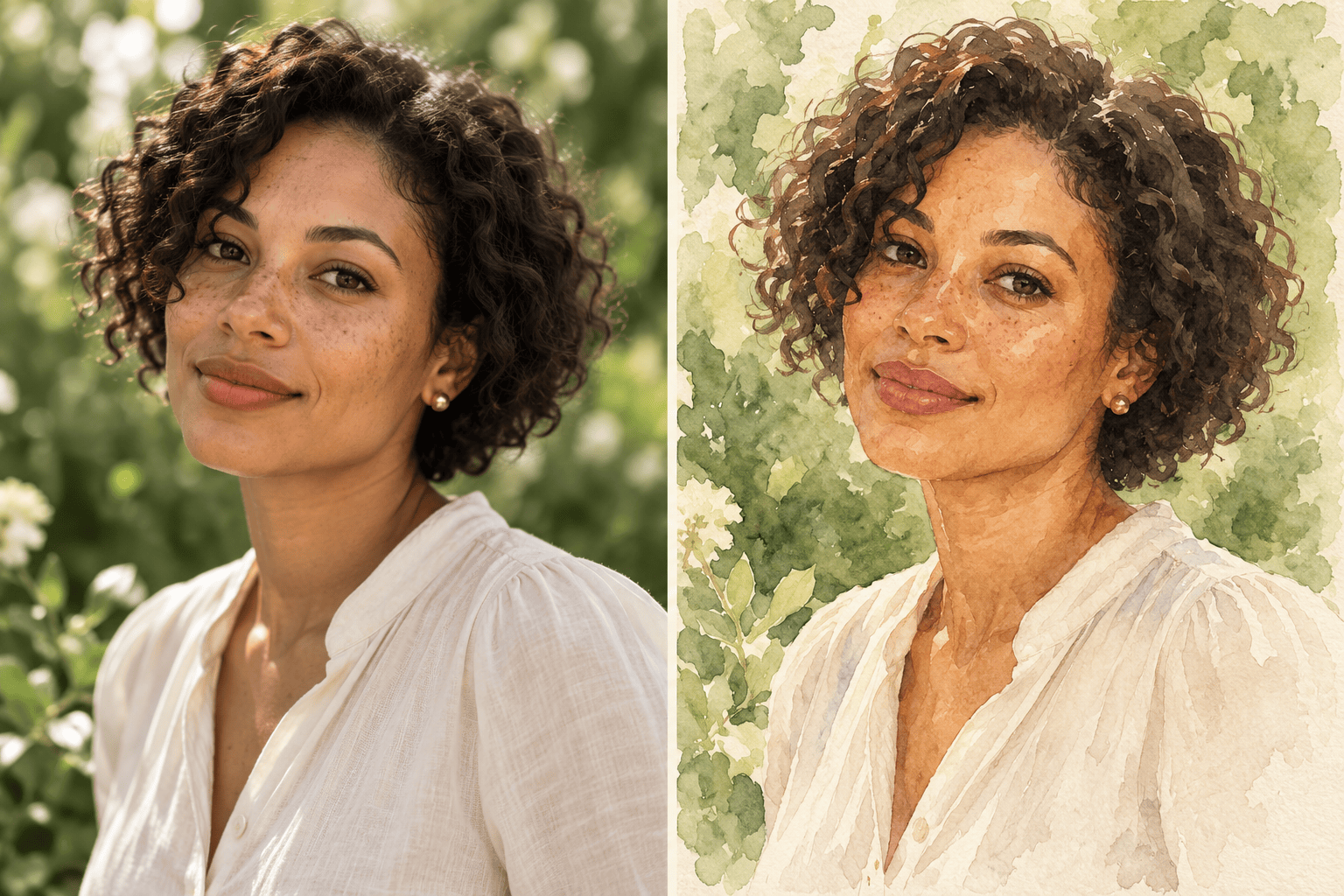
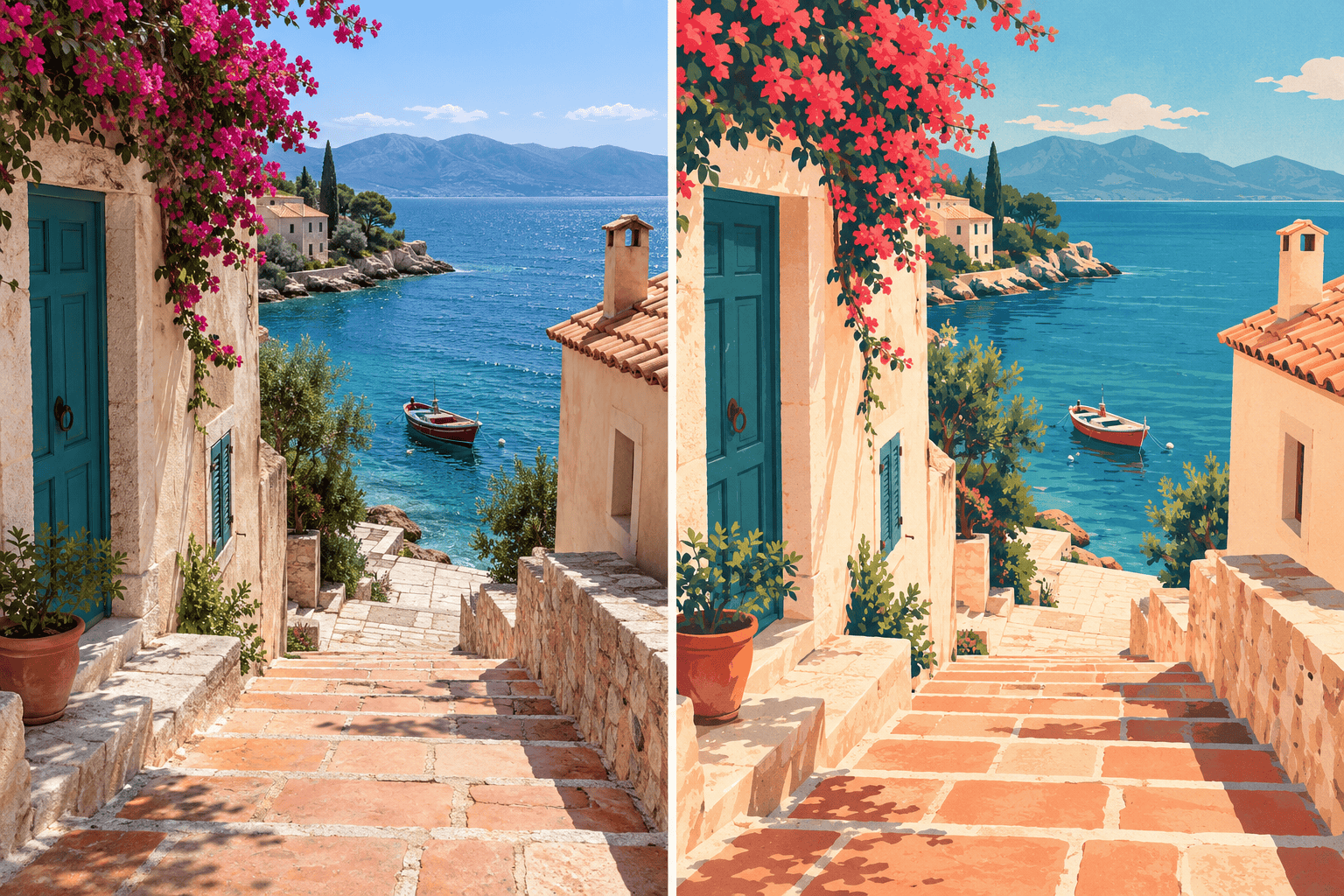
Create an AI digital painting from a photo with translucent watercolor, textured oil strokes, or smooth color blocks. Describe the finish you want instead of settling for a single preset.
Bring a Visual Style Reference
Upload a reference you can use and identify it as the style guide. Keep your source photo separate so Mew Design knows which image supplies the subject and which suggests color and texture.
Correct What Looks Off
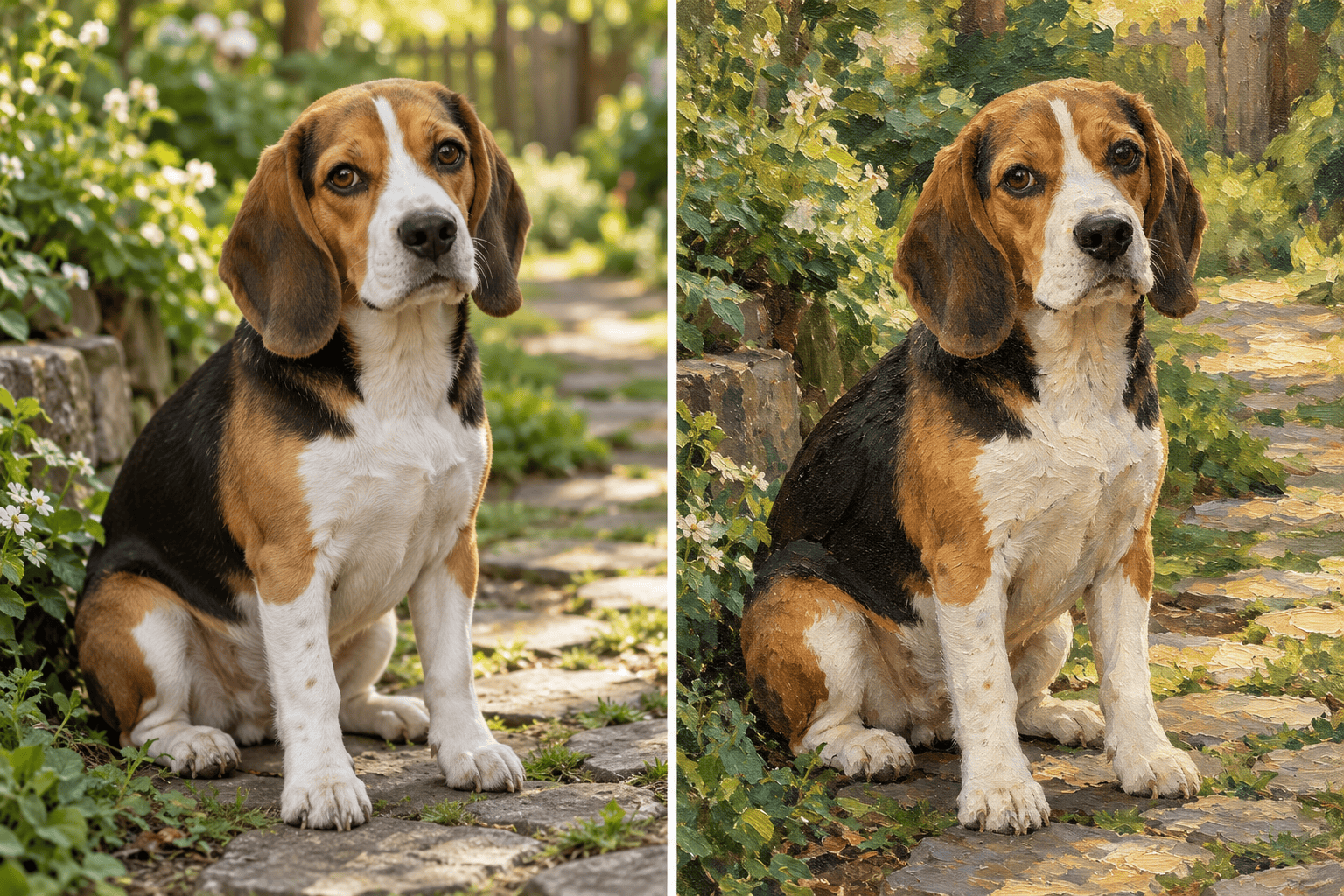
Use Chat Edit to reduce overly smooth skin, recover a pet’s markings, or make a background less busy. Review each revision against the photo; likeness can change during stylization.
Compare Artistic Directions
Request several interpretations of the same photo to compare a painted portrait with a graphic illustration. Choose the version that suits your gift, social profile, or personal collection.
Reuse a Look Across a Collection
Turn an approved palette, texture, and photo-to-art workflow into a reusable Mew Skill. Apply that approach to later photos with less repeated briefing, then review each image for consistency.
Keep the Details That Make the Photo Yours
- Choose a Clear Source: Use a well-lit photo with a visible subject. Small, blurred faces give the AI less reliable detail to work from.
- Name the Recognizable Features: Mention facial proportions, glasses, pet markings, clothing, or landmarks. Say whether the pose and crop should stay the same.
- Describe the Artistic Change: Separate what should change from what should stay. Ask for softer edges, visible brushwork, or a limited palette without redesigning the subject.
- Check Side by Side: Compare expressions, anatomy, and important objects with the original. A stronger art effect can reinterpret details; revise any changes you do not want.
Fix Common Photo-to-Art Problems
Restore portrait likeness: Compare this artwork with my uploaded photo. Bring the eyes, nose, jawline, and expression closer to the original while keeping the current painted texture. Avoid smoothing away freckles.
Recover pet markings: Use my original pet photo to correct the fur patches, muzzle shape, and ears in this painting. Keep the current brushwork and background; do not add a collar or accessories.
Keep the place recognizable: Match the shoreline, building positions, and perspective to my uploaded landscape photo. Keep the digital illustration style and palette without inventing extra landmarks.
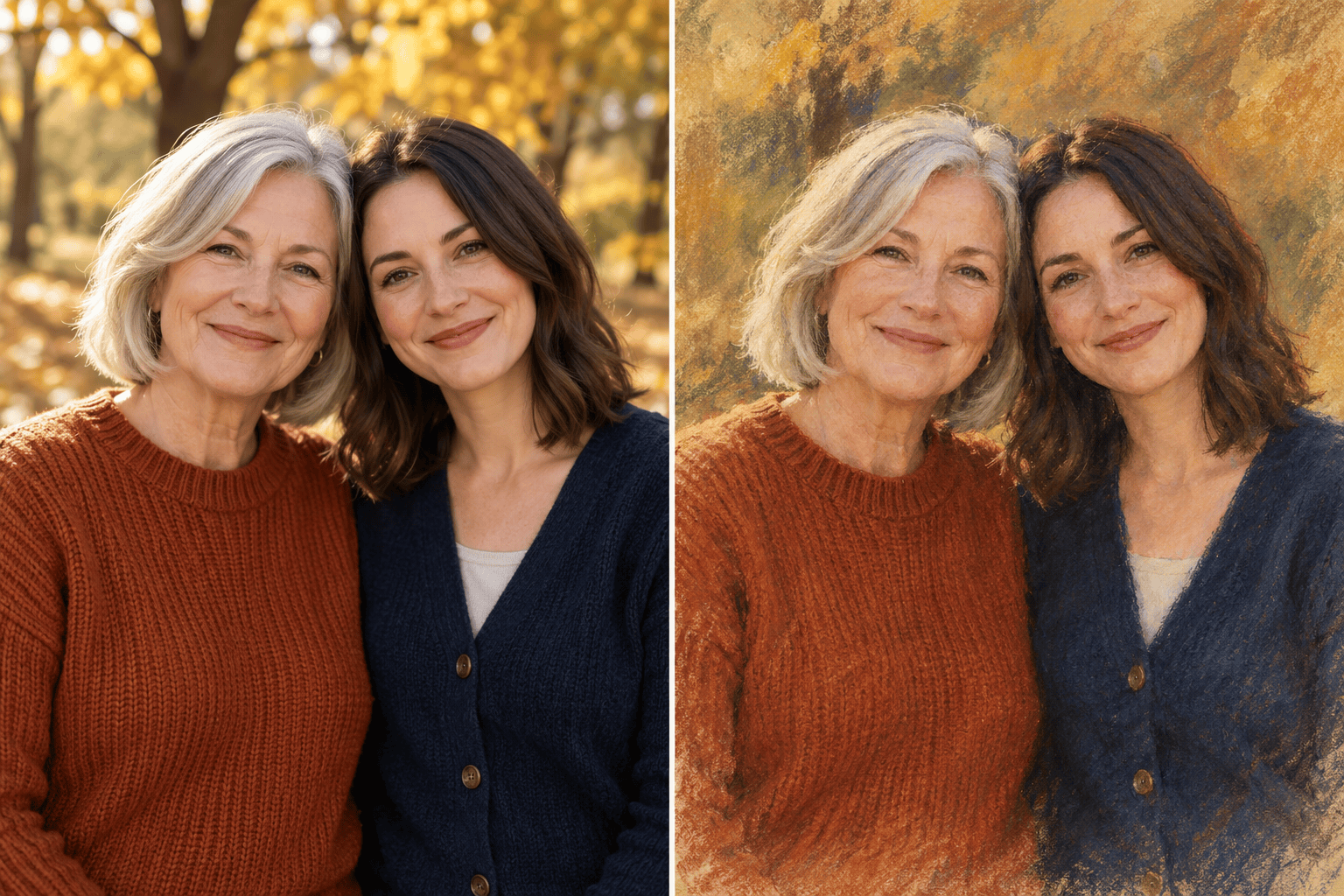
Quiet a distracting background: Simplify the background of this family portrait into soft painted shapes. Keep every person, their positions, clothing, and expressions. Do not add or remove anyone.
Make the painting less plastic: Replace the glossy, airbrushed finish with visible brush strokes and subtle canvas texture. Keep the subject’s proportions and original lighting; avoid heavy texture across the eyes.
Prepare a profile crop: Reframe this digital portrait as a square with the face centered and comfortable space around the head. Keep the current style and expression, and do not crop off the hair.





