Free OnlineAI Photo Color Correction
How to Correct Photo Colors with AI
Upload the Photo You Want to Fix
Ask for a Natural Color Correction
Compare and Refine the Result
Download Your Corrected Photo
AI Color Correction for Portraits and Product Photos
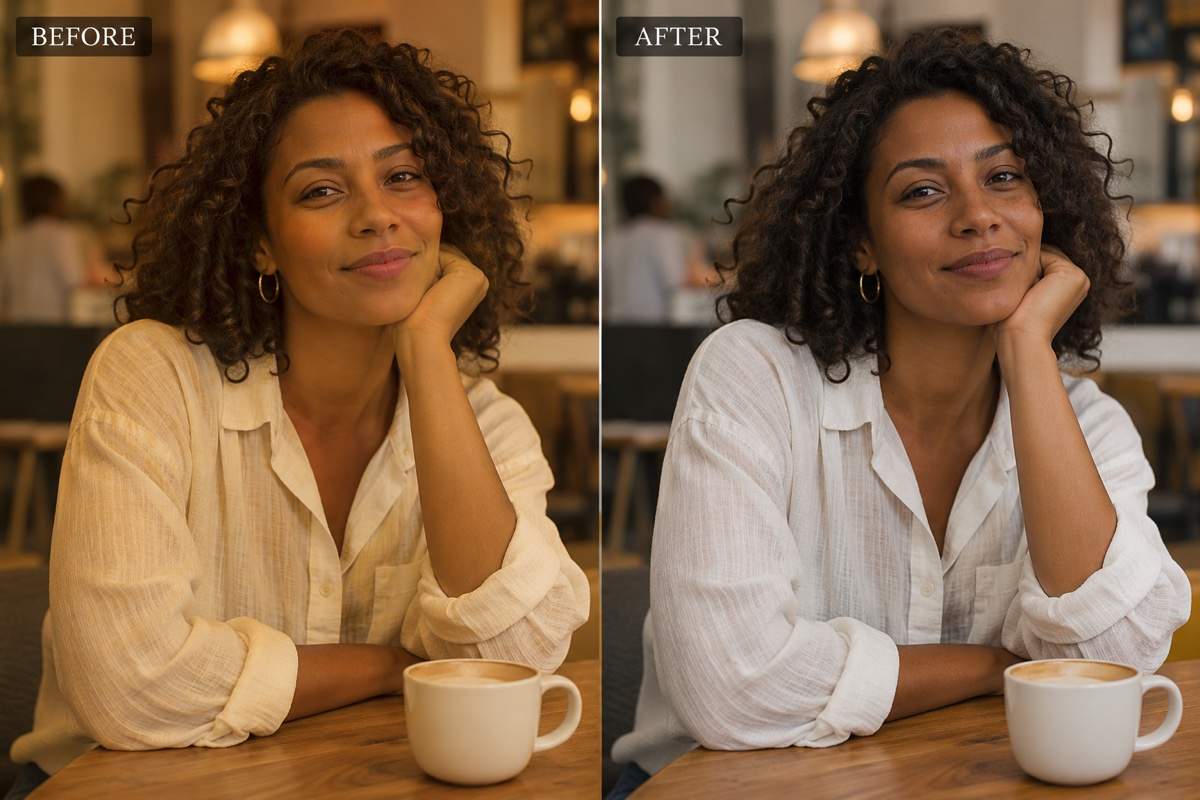
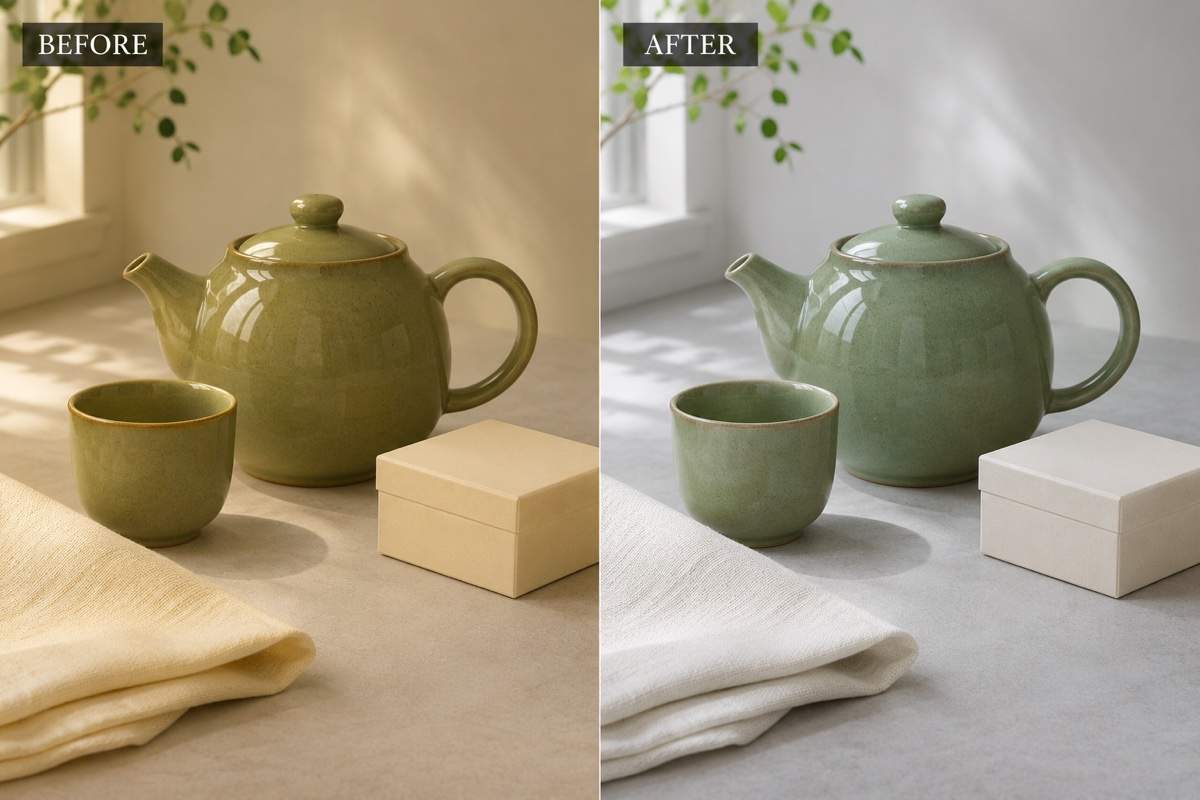
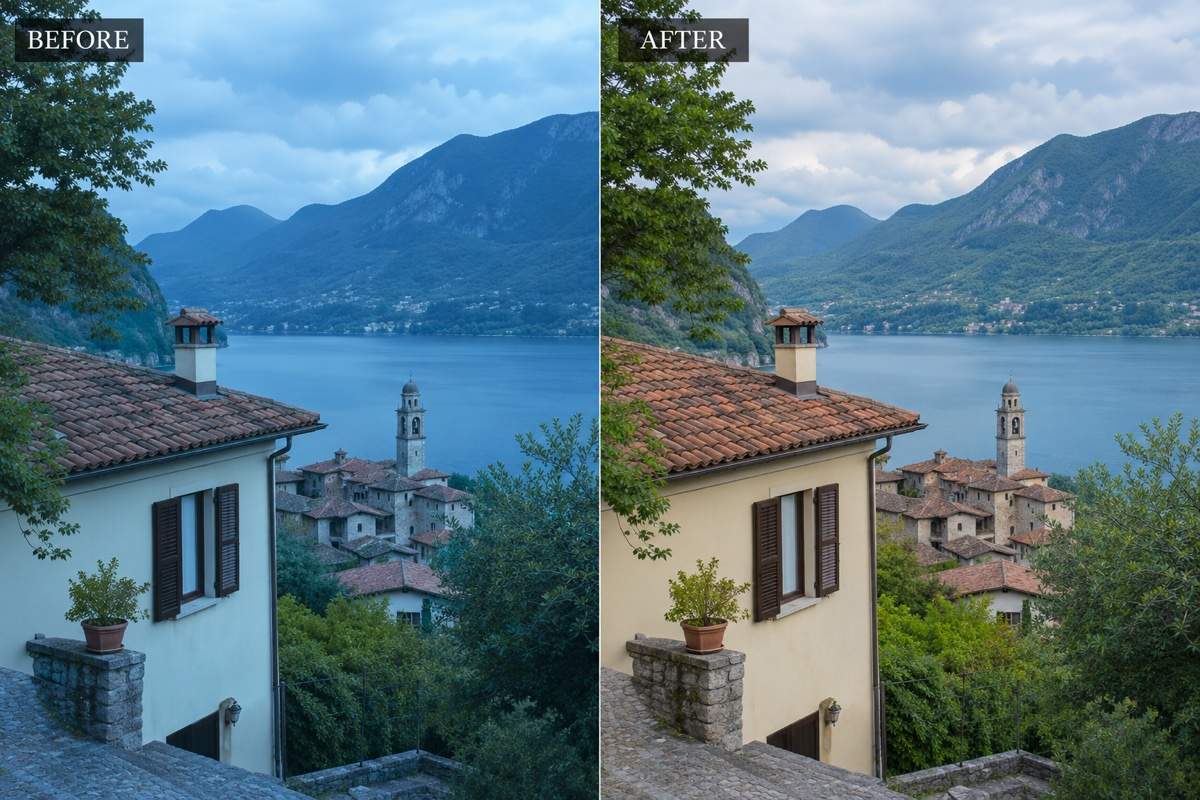
Remove Yellow, Blue, or Green Color Casts
Tell our AI image color correction tool which tint to reduce. Fix a yellow cast in an indoor photo or balance blue shadows without learning curves or color sliders.
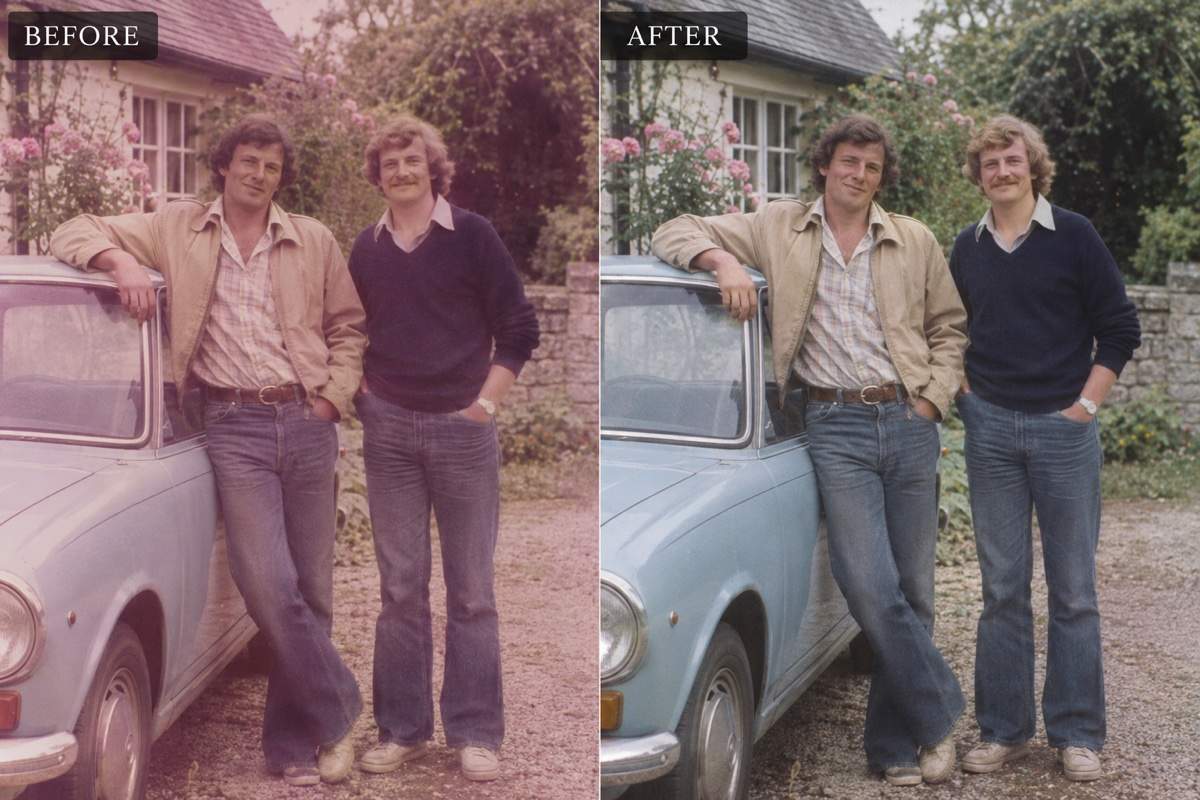
Correct Skin Tones in Portrait Photos
Ask for less orange or green cast while retaining the person’s natural complexion. Review the face and skin texture, then request a smaller adjustment if needed.
Correct White Balance in Product Photos
Upload a reference photo to show the intended color of fabric, ceramics, or packaging. Ask for lighting corrections rather than a new product color, then compare the result with the real item.
Choose the Model for Your Edit
Select your preferred available image model or use Mew Auto to choose for your photo and instructions. Mew Design brings the latest leading image models into one workspace and adds new releases promptly.
Keep a Consistent Direction across Photos
Use an approved image as a reference when editing another photo from the same shoot. Carry over the intended warmth and saturation, then review each image under its own lighting.
Try Color Correction in Your Browser
Try AI photo color correction online with free credits after signup. Refine the image through chat and download watermark-free results; continued editing depends on your available credits.
Get Natural Results with AI White Balance Correction
- Start with a Neutral Reference: Identify something that should be white or gray, such as a shirt or wall. A cream object or a bright reflection can be a misleading reference.
- Keep the Light’s Character: Warm sunset light does not need to become pure white. With mixed indoor and window light, describe which area needs correction rather than cooling the whole photo.
- Check Skin and Important Details: Compare complexion, facial features, product labels, and edges with the original. Generative edits can change details; ask for a focused revision if they drift.
- Watch Highlights and Saturation: Check bright fabric, clouds, and colorful objects for lost texture or harsh color. Fully clipped detail cannot be reliably recovered as original information.
Color Correction Fixes for Common Photo Problems
Remove the yellow tint from my uploaded indoor photo. Make the white shirt and wall more neutral while retaining natural skin tones, facial details, and the original framing.
Correct the blue cast in my uploaded outdoor photo. Keep the shaded areas believable, restore balanced greens and skin tones where visible, and avoid warming the entire scene too much.
Correct the white balance in my product photo using the reference image for the intended color. Retain the product shape, surface texture, label text, and background composition.
Reduce the green cast on the subject in this mixed-light portrait. Keep the warm background lighting and the person’s natural complexion. Do not smooth skin or reshape the face.
Gently rebalance the faded colors in this scanned color photo. Retain the original grain, people, clothing, and composition. Avoid inventing fine details or applying modern vivid filters.
Make this dull travel photo look more natural with a modest exposure and saturation adjustment. Keep detail in the clouds and shadows, avoid neon greens, and preserve the original scene.