Free OnlineAI Paint Visualizer
How to Preview Paint Colors with AI
Upload Your Room or House Photo
Name the Surface and Shade
Compare and Refine the Color
Download Your Color Shortlist
Preview Interior, Exterior, and Cabinet Paint Colors
Interior Paint Colors on Your Own Photo
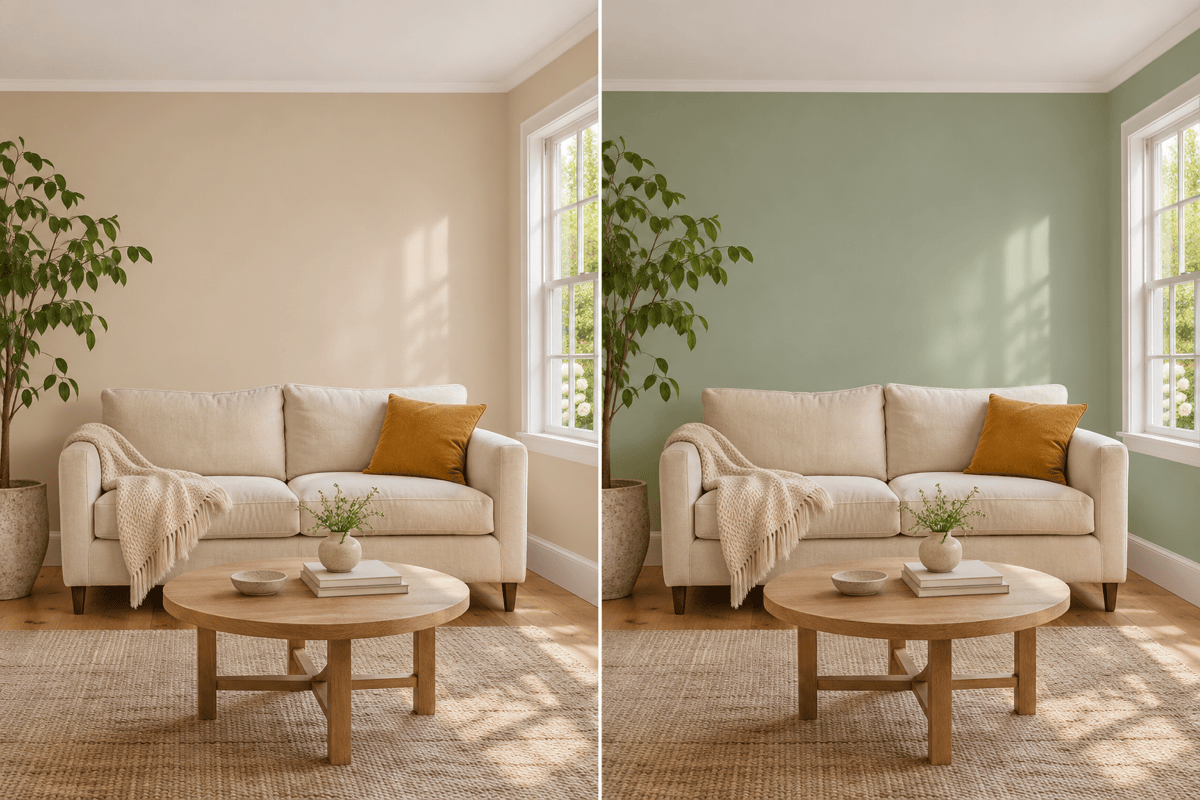
Use this interior paint visualizer to compare living room, bedroom, or dining room wall colors with your existing sofa, curtains, and flooring. Upload your own room photo and ask for warm neutrals, soft greens, or a darker feature wall while preserving the layout.
Exterior House Paint and Trim Combinations
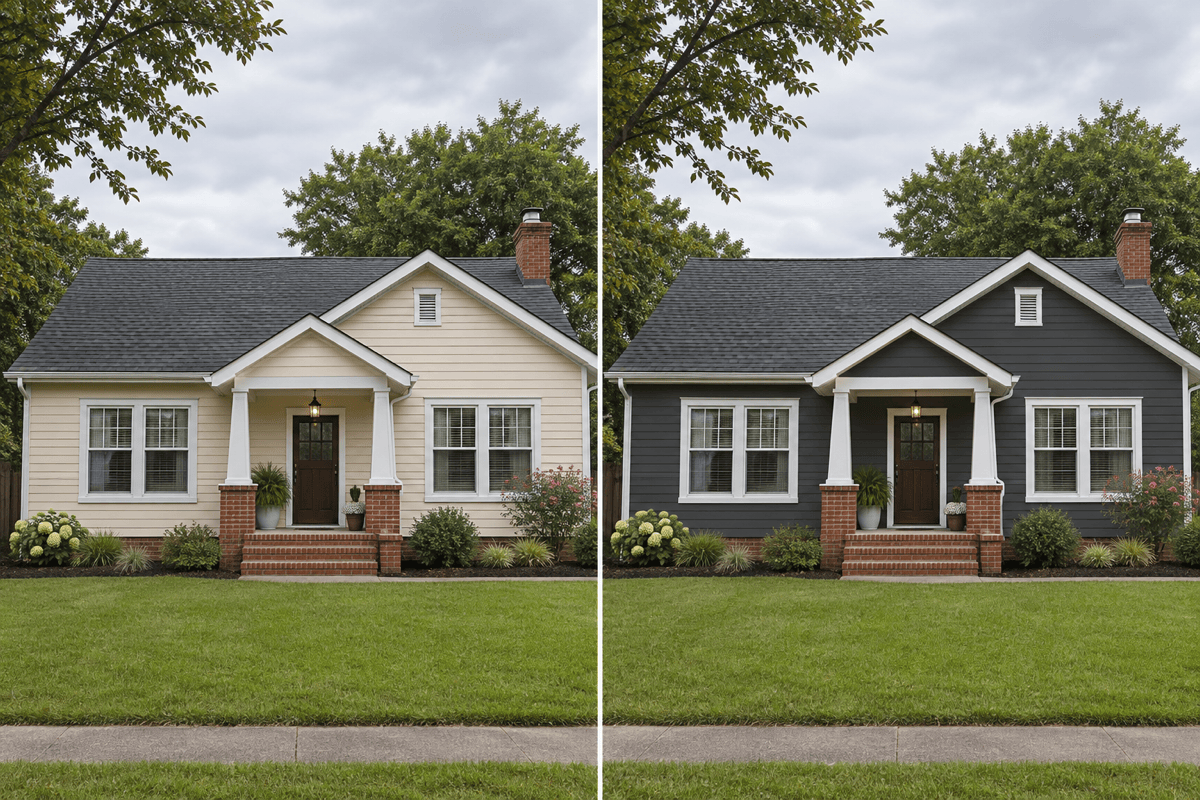
Explore exterior house paint colors on a photo of your home. Request a new siding color, then try a contrasting front door or lighter trim in separate versions. Ask to keep the roof, brickwork, stone, and landscaping unchanged so you can judge the paint scheme.
Kitchen Cabinet and Accent Wall Colors
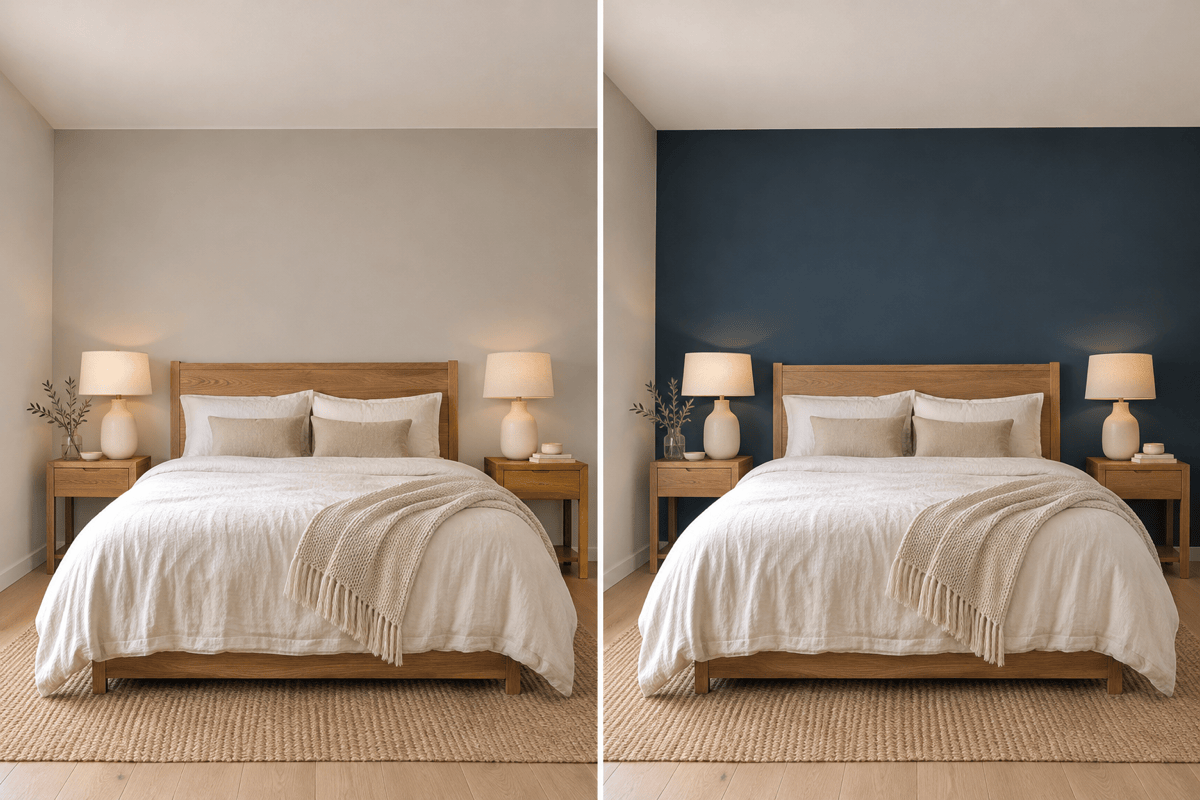
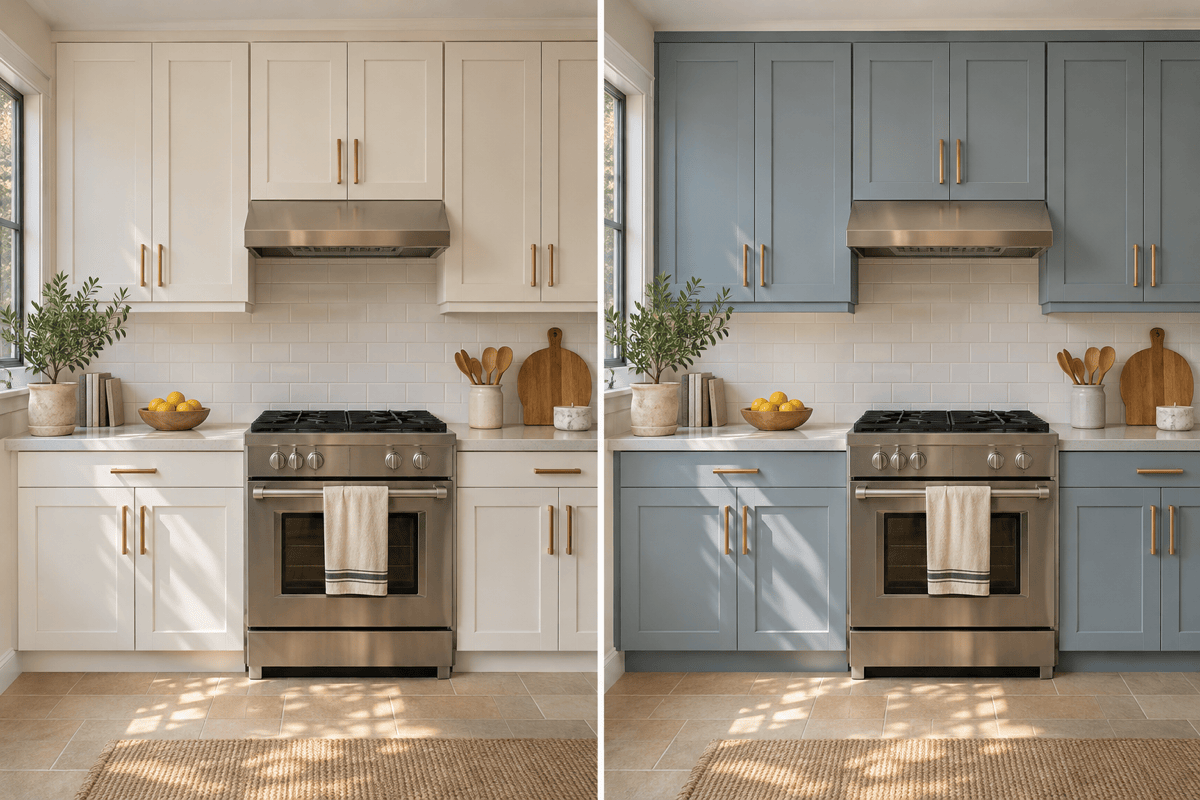
Try a kitchen cabinet paint visualizer without redesigning the whole kitchen. Ask for sage, navy, or cream cabinet fronts while keeping counters and hardware. For bedrooms and living rooms, use the AI wall color changer to test just one accent wall.
Compare Paint Colors and Reference Swatches
Use the AI paint color visualizer to create separate color options from the same original photo. Compare each shade beside existing floors and trim, or upload a color swatch as a reference. Name one change per version; brand names and codes guide an approximate preview rather than an exact paint match.
Let Mew Auto Choose a Model
Mew Auto selects a suitable image model for your photo and request. You can also choose a model manually when your plan allows, with new leading image models added over time.
Download and Share Your Paint Color Ideas
Save watermark-free paint previews to compare before-and-after colors or discuss a shortlist with your family, decorator, or painter. Free accounts include standard downloads. See plan details for higher-resolution options, and keep physical paint samples for the final color decision.
How to Get Better Results When Changing Wall Color in a Photo
- Use Clear Light: Choose a sharp photo with visible wall edges. Avoid strong filters, deep shadows, or blown-out windows that make colors difficult to judge.
- Separate the Surfaces: Name walls, ceiling, trim, doors, and cabinets separately. State what should change and what should stay as it is.
- Check What Stayed the Same: Review furniture, handles, window frames, and floor patterns. If they change, return to the original photo and request only the paint edit.
- Confirm with Real Samples: Screen settings, lighting, texture, and paint sheen affect appearance. Use the preview to narrow your choices, then test samples in daylight and evening light.
Paint Color Ideas to Try on Your Photo
Living room walls: Use my uploaded room photo to preview muted sage green on the painted walls. Keep the ceiling, trim, furniture, flooring, and existing light unchanged.
Bedroom accent wall: Repaint only the wall behind the bed in deep navy. Keep the other walls light and preserve the bedding, artwork, lamps, and room layout.
Kitchen cabinet paint: Change only the painted cabinet doors and frames to soft blue-gray. Keep the handles, worktops, backsplash, appliances, and floor unchanged.
Exterior house paint: Preview charcoal on the painted siding in my house photo. Keep the white trim, roof, brickwork, windows, plants, and original perspective unchanged.
Warm white comparison: Create two separate previews from my original room photo, one with warm off-white walls and one with neutral white walls. Keep the lighting and furnishings the same.
Fix an unwanted change: Start again from my original photo and apply only the wall color from the last preview. Restore the original furniture, trim, floor, and window details.