Free OnlineAI Object Replacer
How to Replace Objects in Photos with AI
Upload and Identify the Object
Describe the Replacement
Compare and Refine
Download Your Edited Photo

Make the New Object Fit Your Photo
Start from the Scene You Have
Use your own photo as the starting point. Our AI image replacer lets you describe a focused swap and specify which surroundings to preserve.
Show the Look You Want
Upload a reference to guide the replacement’s shape, color, or style. Explain which image is the scene and which shows the new item.
Refresh Product Photo Props
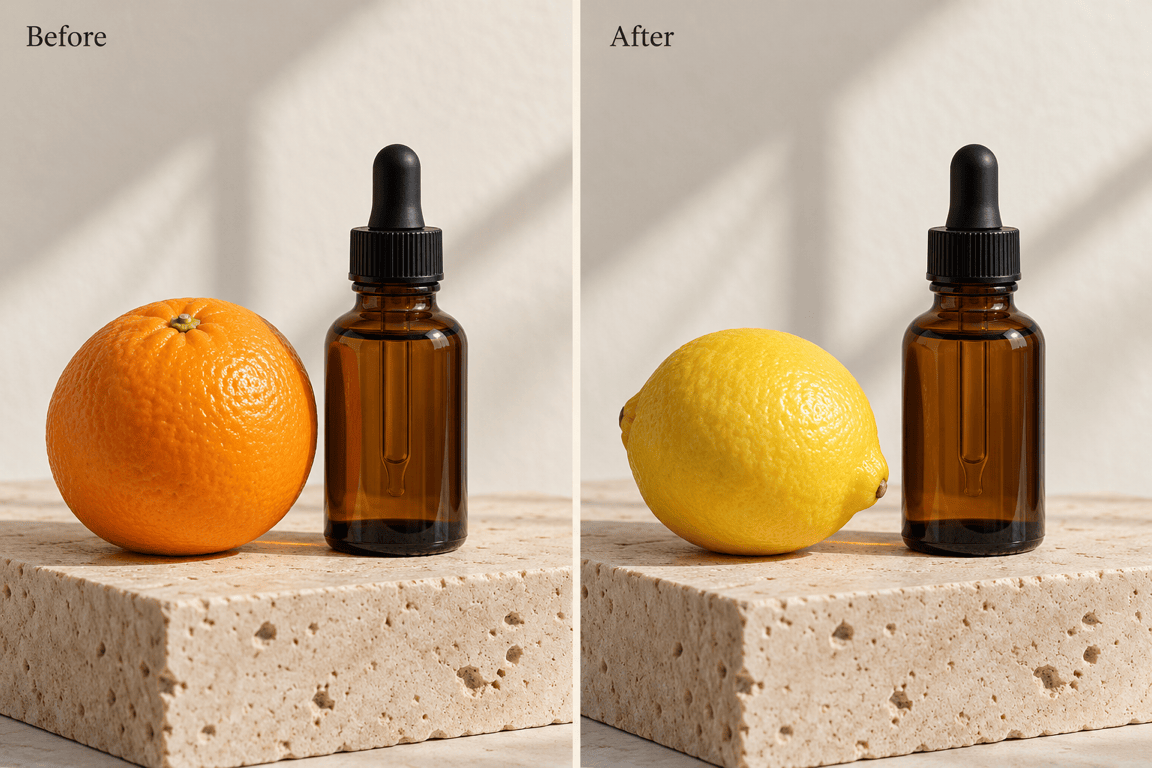
Replace props in product photos to explore a seasonal mood or campaign idea. Ask to retain the main product, then check its label and shape against the original.
Compare Different Options
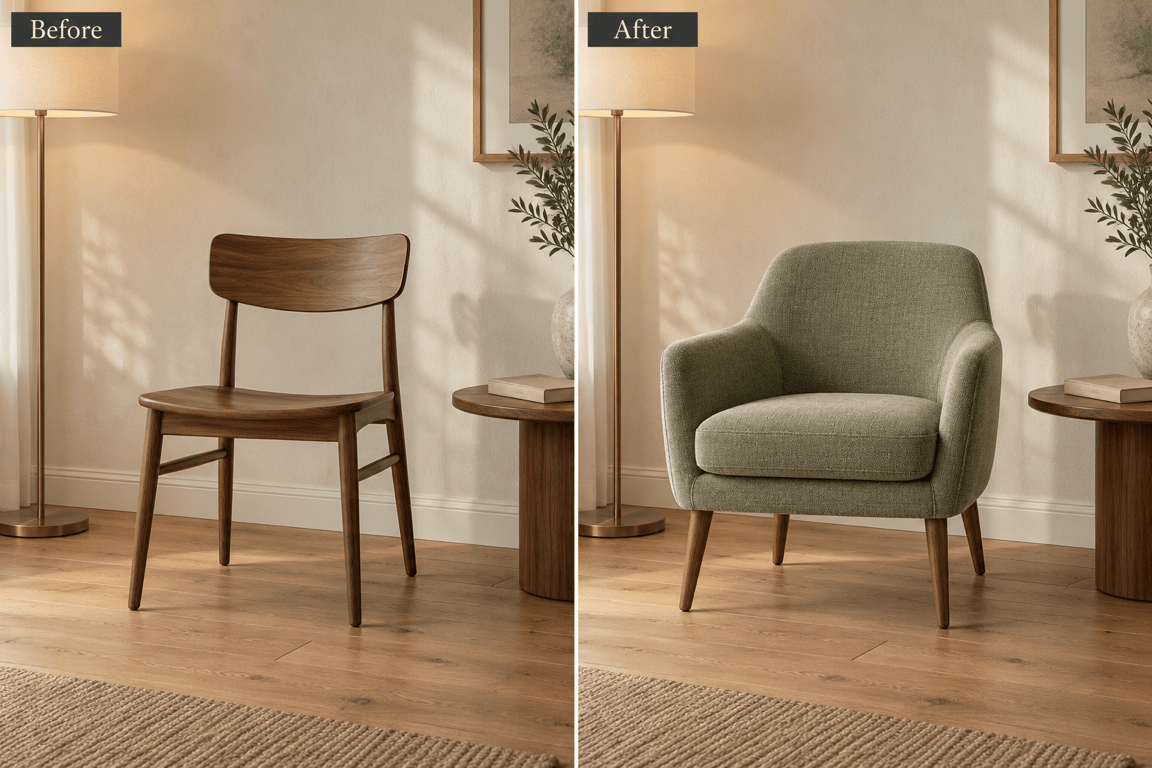
Try a wood chair, a fabric armchair, or another object in the same setting. Request separate versions to compare materials and colors before choosing a direction.
Correct the Details in Chat
If the replacement looks too large or its shadow feels wrong, use Chat Edit to describe the fix. Keep refining the photo in the same conversation.
Reuse Your Editing Approach
For recurring product scenes, save your preferred style, preservation rules, and export needs as a Mew Skill. Reuse the workflow with your next photo.
Replace an Object Without Losing the Scene
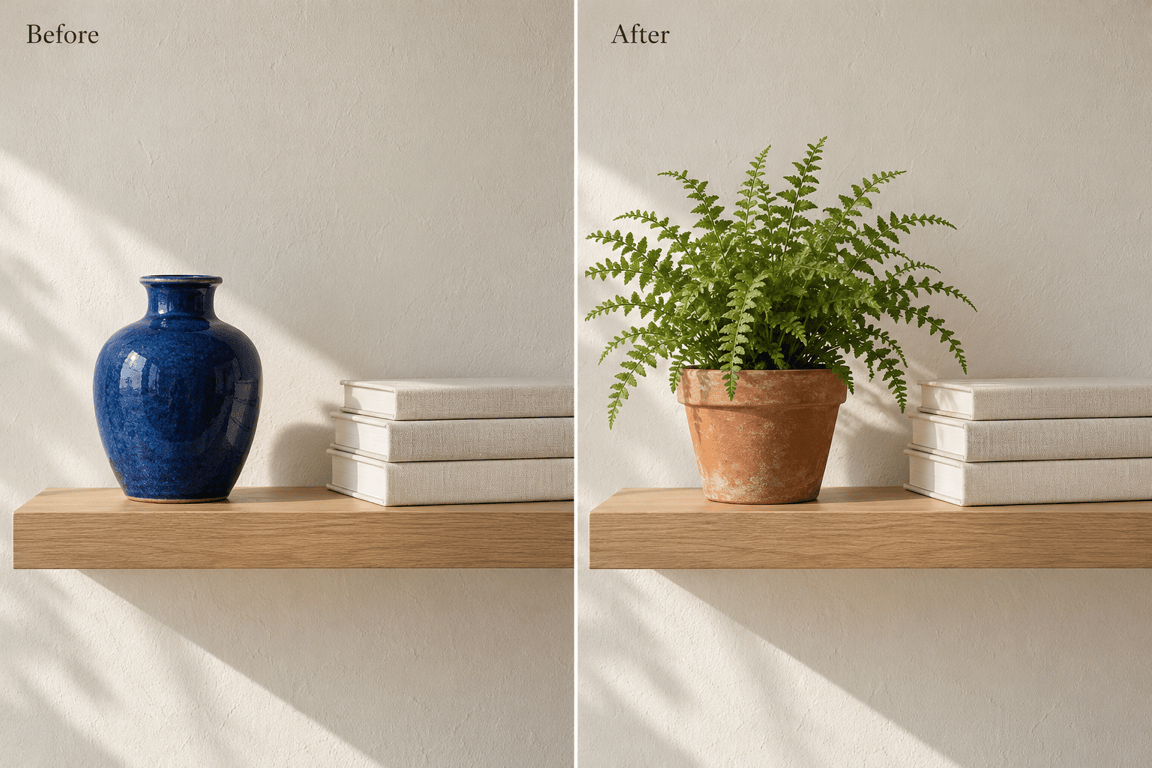
- Locate the TargetIdentify the object by position and appearance. “The blue vase on the left” is clearer than “that object.”
- Describe the New ItemInclude shape, material, color, and relative size. A reference photo can help communicate a specific look.
- Name What StaysList important surroundings, people, product details, and framing. Preservation instructions guide the edit but do not guarantee identical pixels.
- Check How It FitsInspect perspective, contact shadows, reflections, and overlapping edges. If the background drifts, return to the original and request a narrower edit.
Fix Common Object Replacement Problems
Reduce the replacement chair so its seat height matches the dining table. Keep its current design and preserve the room layout and camera angle.
Adjust the new pot’s shadow to match the soft light coming from the left. Add a contact shadow where it touches the shelf; keep the other objects unchanged.
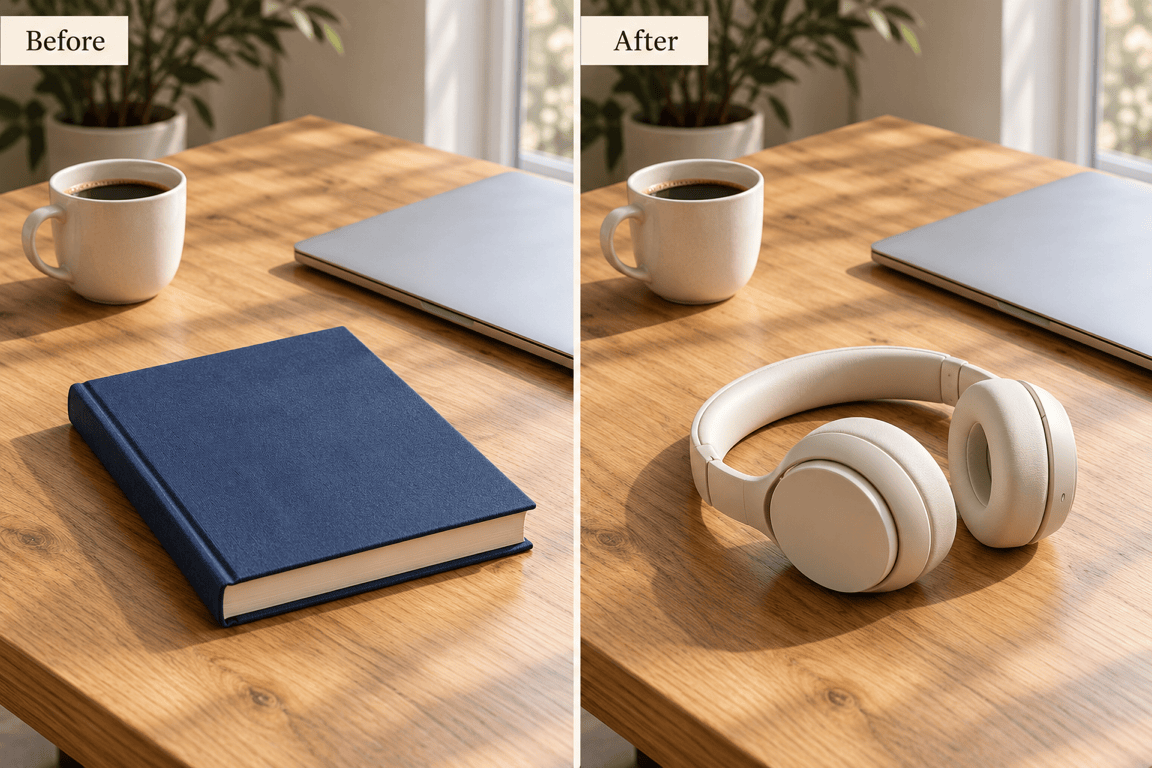
Rotate the replacement book to follow the desk’s perspective. Align its lower edge with the tabletop and keep the original framing.
Remove the remaining edge of the old vase beside the new plant. Restore the wall texture in that small area and keep the plant unchanged.
Place the new mug behind the notebook where their edges overlap. Keep the notebook in front and preserve its shape, text, and position.
Use my original photo again. Replace only the orange beside the bottle with a lemon. Keep the bottle, label, background, and crop as close to the original as possible.





