Remove Mosaic From Photos With OurAI Mosaic Remover
How to Remove Mosaic From a Photo With AI
Upload the Best Source Photo
Point Out What Needs Repair
Generate a Context-Aware Reconstruction
Inspect, Chat Edit, and Download

Built for Careful Photo Reconstruction, Not One-Click Guesswork
Rebuild Only the Damaged Region
This online mosaic remover follows your instruction about the blocked area while keeping the surrounding composition, color, and lighting in view.
Guide the Missing Detail in Words
Describe a face angle, fabric texture, wall pattern, product surface, or landscape feature. Prompt guidance gives the reconstruction more context than generic sharpening alone.
Use References When Accuracy Matters
Upload an authorized reference image to guide appearance or texture. Mew Design can use image-to-image context powered by models such as GPT Image 2.5.
Correct Artifacts Through Conversation
If an edge looks too smooth or a texture feels invented, ask Chat Edit for a subtler pass. You can refine one issue without rewriting the whole brief.
Handle More Than Face Photos
Use the AI photo depixelizer for old family pictures, pets, products, landscapes, or compressed graphics. Each job can have its own preservation rules.
Try the Workflow With Free Credits
Sign up with free AI credits, test a mosaic-removal edit, and export watermark-free results. Credit use varies with the model and number of revisions.
Tell the AI What the Pixels No Longer Show
- Locate the mosaic: Name its position and boundaries, such as the lower-left sleeve or the product label background.
- Describe the context: Mention likely material, color, pattern, facial angle, or scene structure visible around the blocked pixels.
- Lock the original: List features to preserve, including identity, pose, crop, lighting, color grade, grain, logos, and unaffected text.
- Set a realistic finish: Ask for subtle texture and natural transitions. Avoid forensic claims, extreme sharpening, or invented micro-detail when the source is very small.
Prompts for Real-World Mosaic and Pixelation Fixes
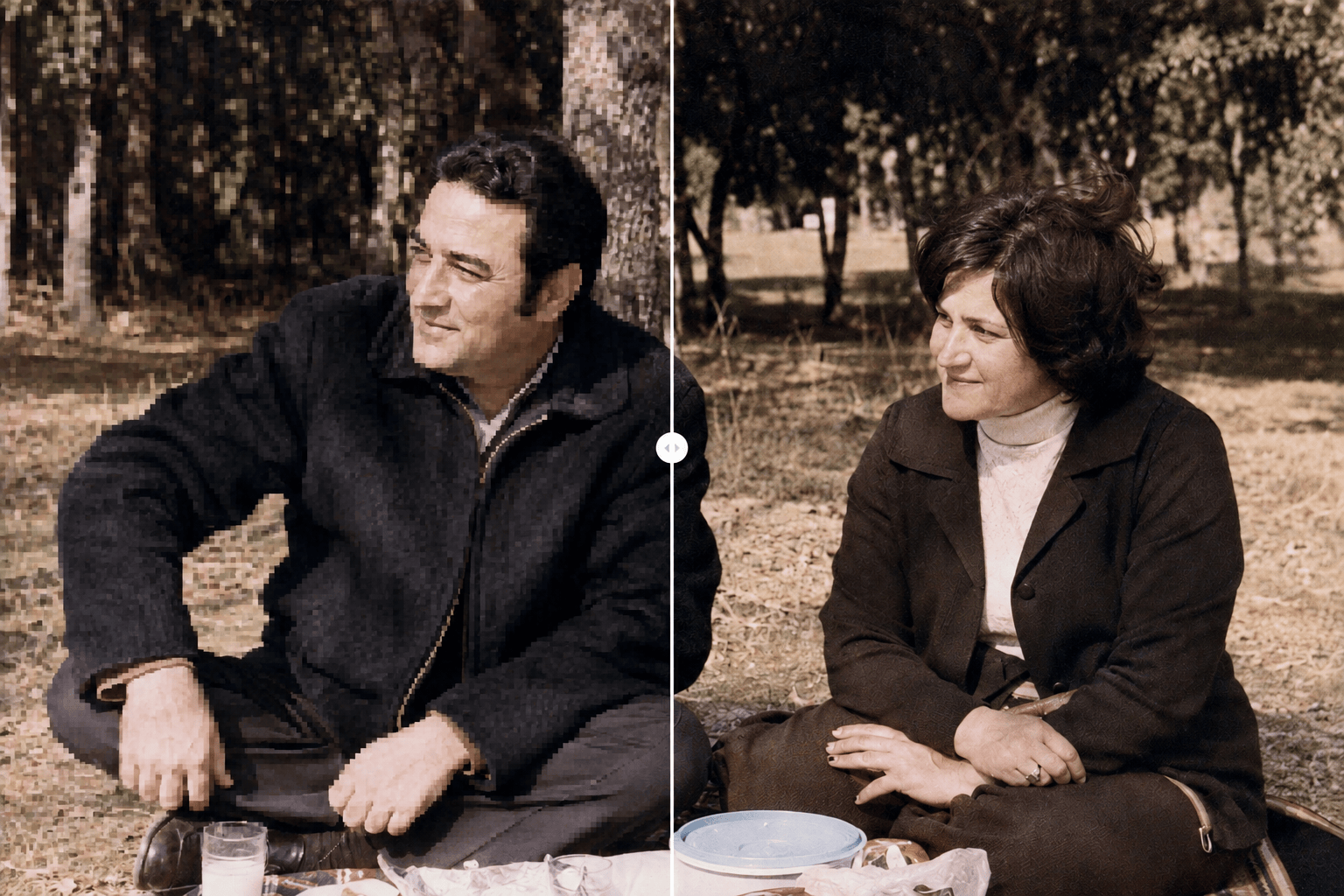
Old family photo: Remove mosaic blur from the damaged coat area in my scanned portrait. Reconstruct muted wool texture from nearby fabric, keep every face and hand unchanged, and preserve the faded sepia grain.
Owned selfie: Fix the pixelated area over my cheek in this selfie. Use the visible side of my face as a reference for skin tone and lighting. Keep my expression, eyes, hair, background, and crop unchanged; make the repair subtle.
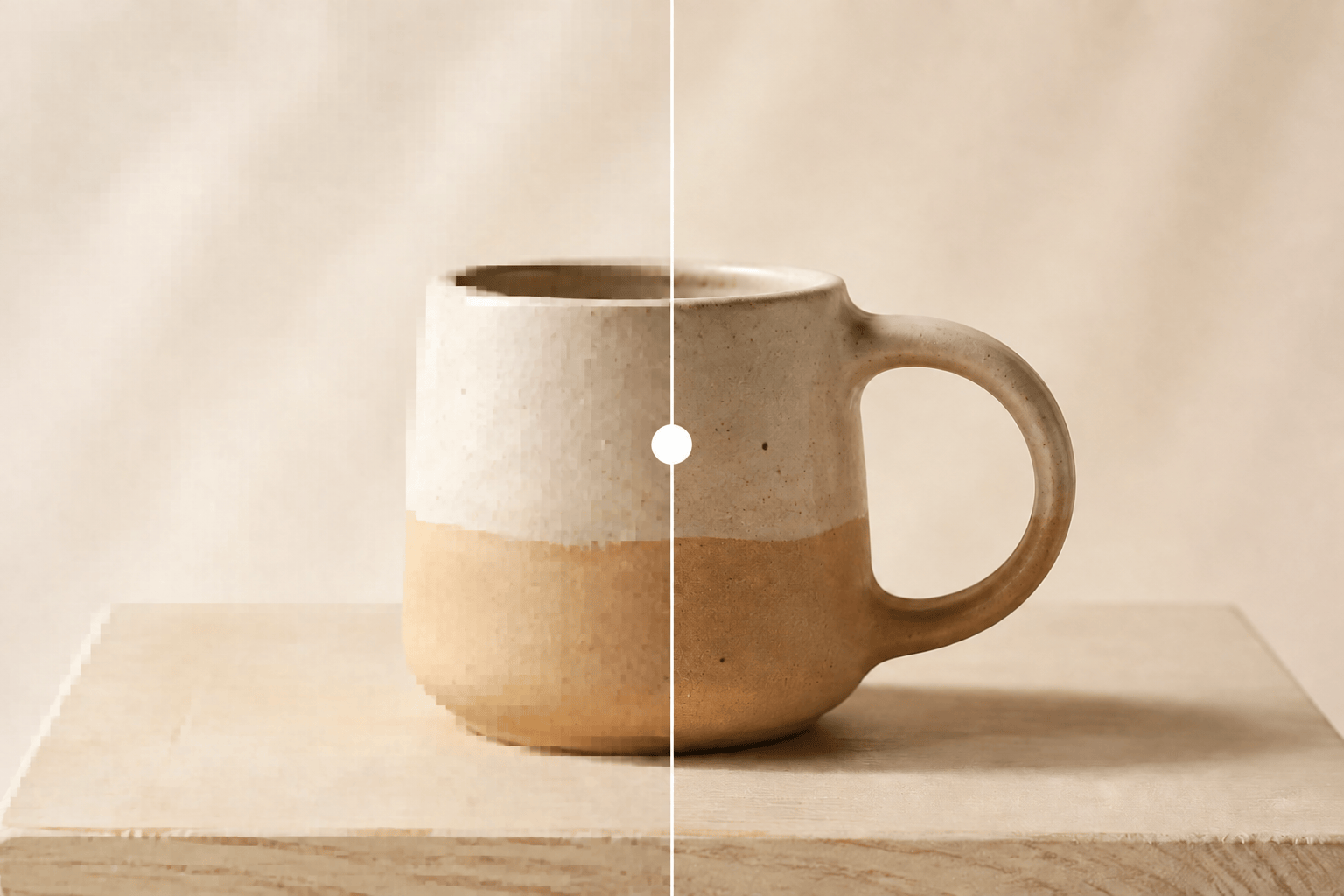
Product photo: Depixelate the blocky ceramic surface on this product image. Restore a smooth matte glaze with the same warm highlights and shadow direction. Preserve the silhouette, printed logo, table, and camera angle exactly.
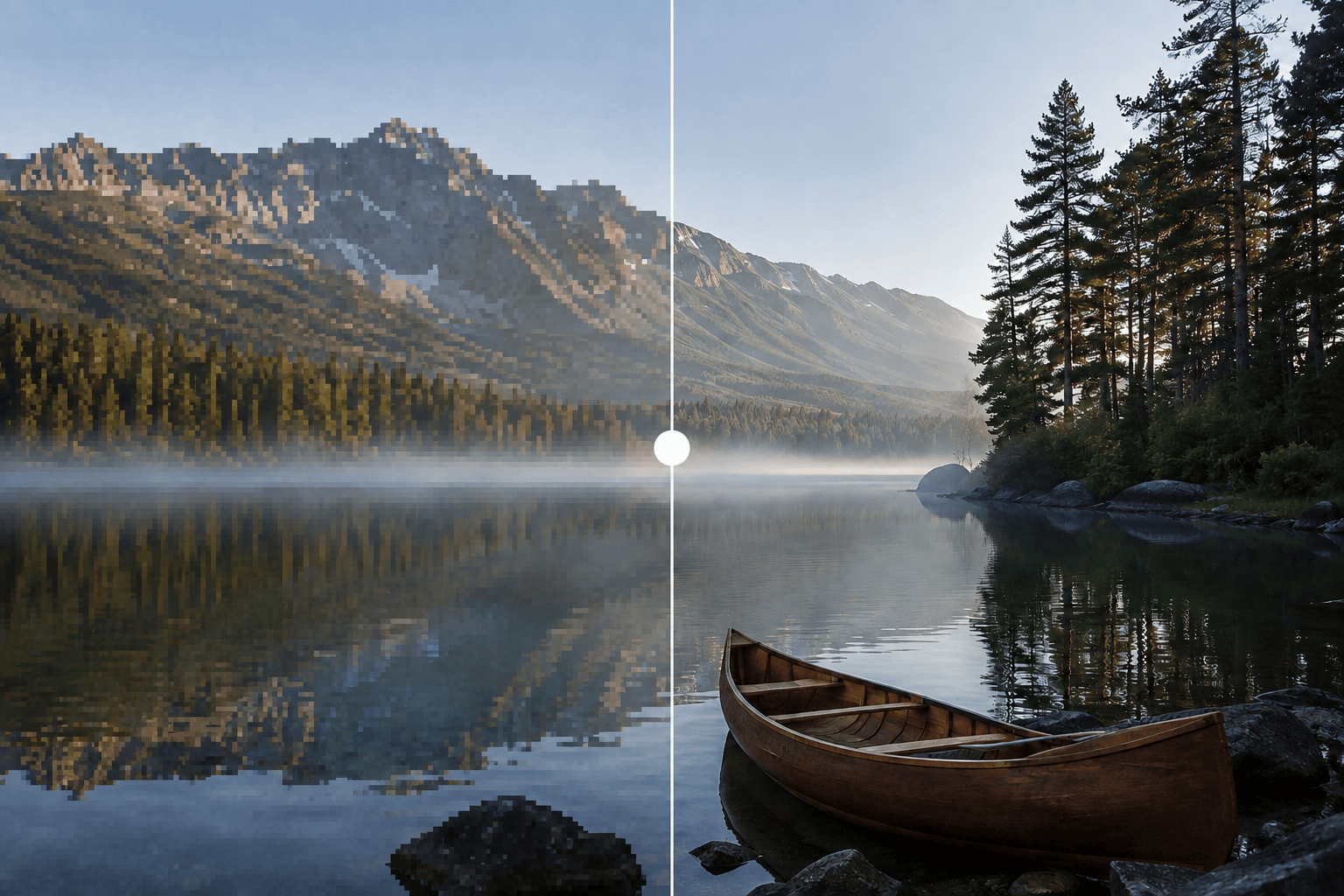
Landscape: Unpixelate the distant mountain ridge and compressed sky in this travel photo. Rebuild natural rock edges and a gentle cloud gradient without changing the foreground, horizon, or original color grade.
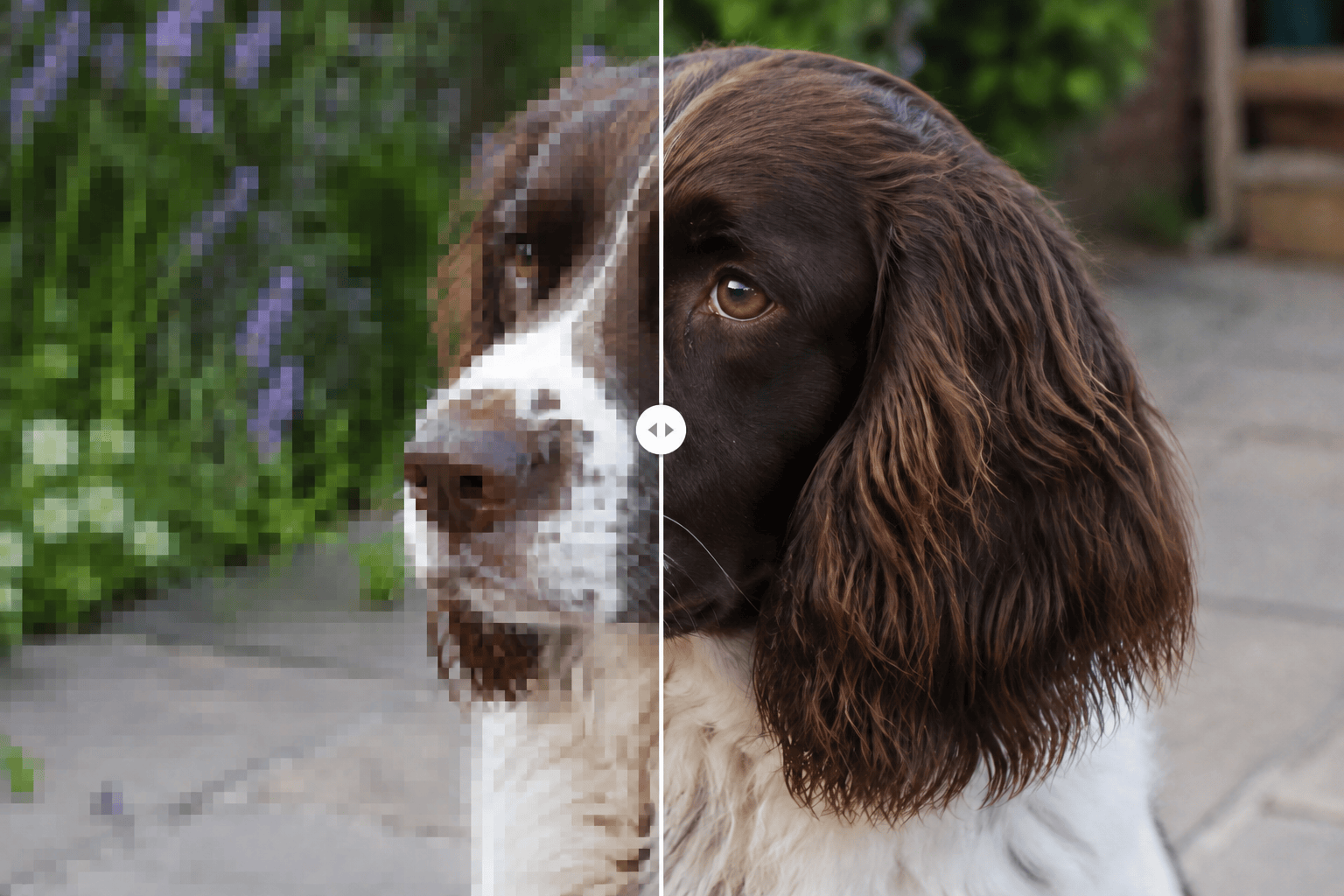
Pet portrait: Remove square mosaic artifacts from the fur around my dog's ear. Match the visible brown-and-white fur direction and daylight. Keep the eyes, nose, collar, pose, and garden background unchanged.
UI screenshot: Clean the blocky compression around icons and panel edges in this app screenshot. Preserve all readable text and exact layout; rebuild only flat-color edges and gradients. Do not guess or rewrite obscured text.





