Free OnlineAI Makeup Remover
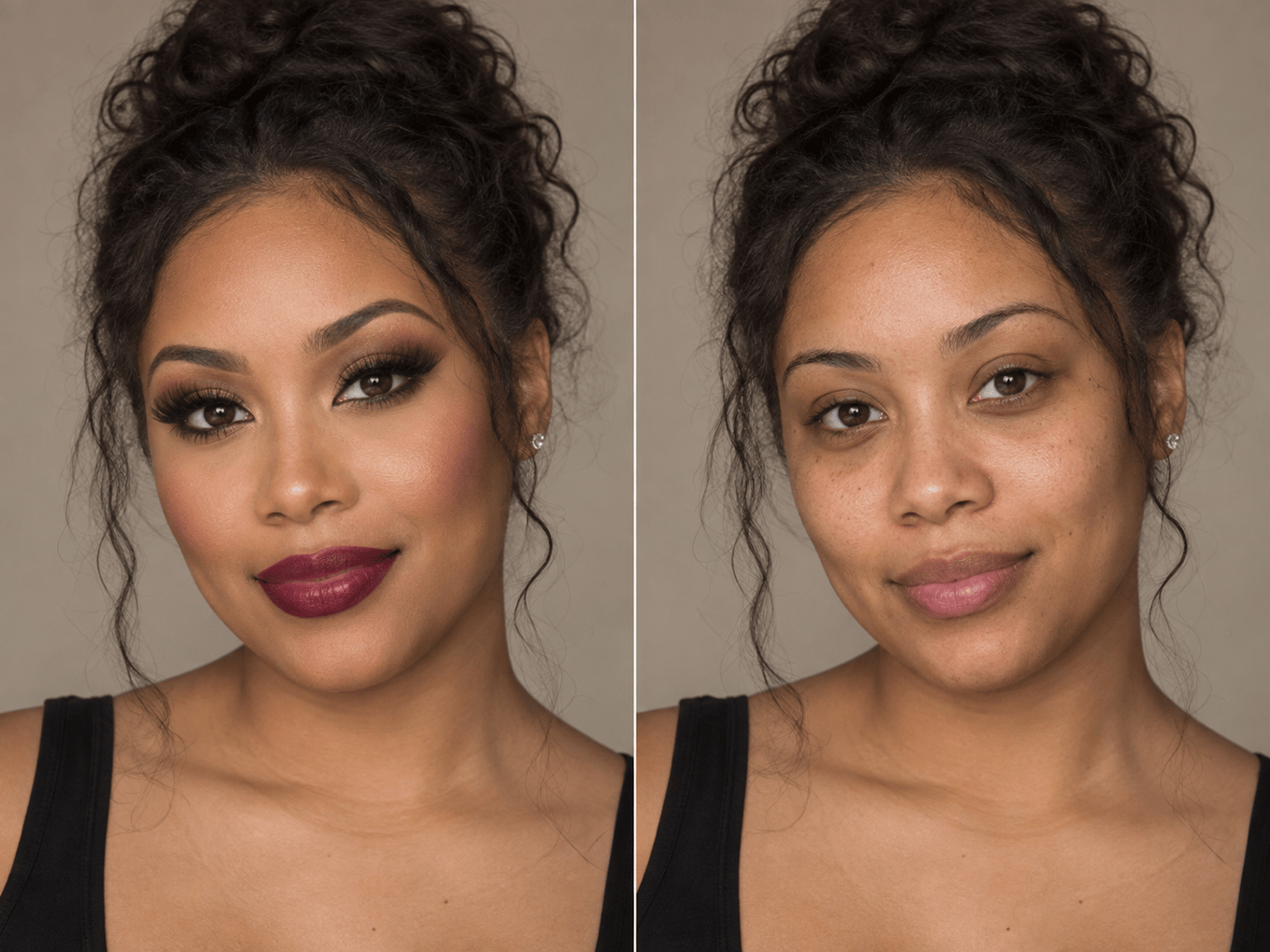
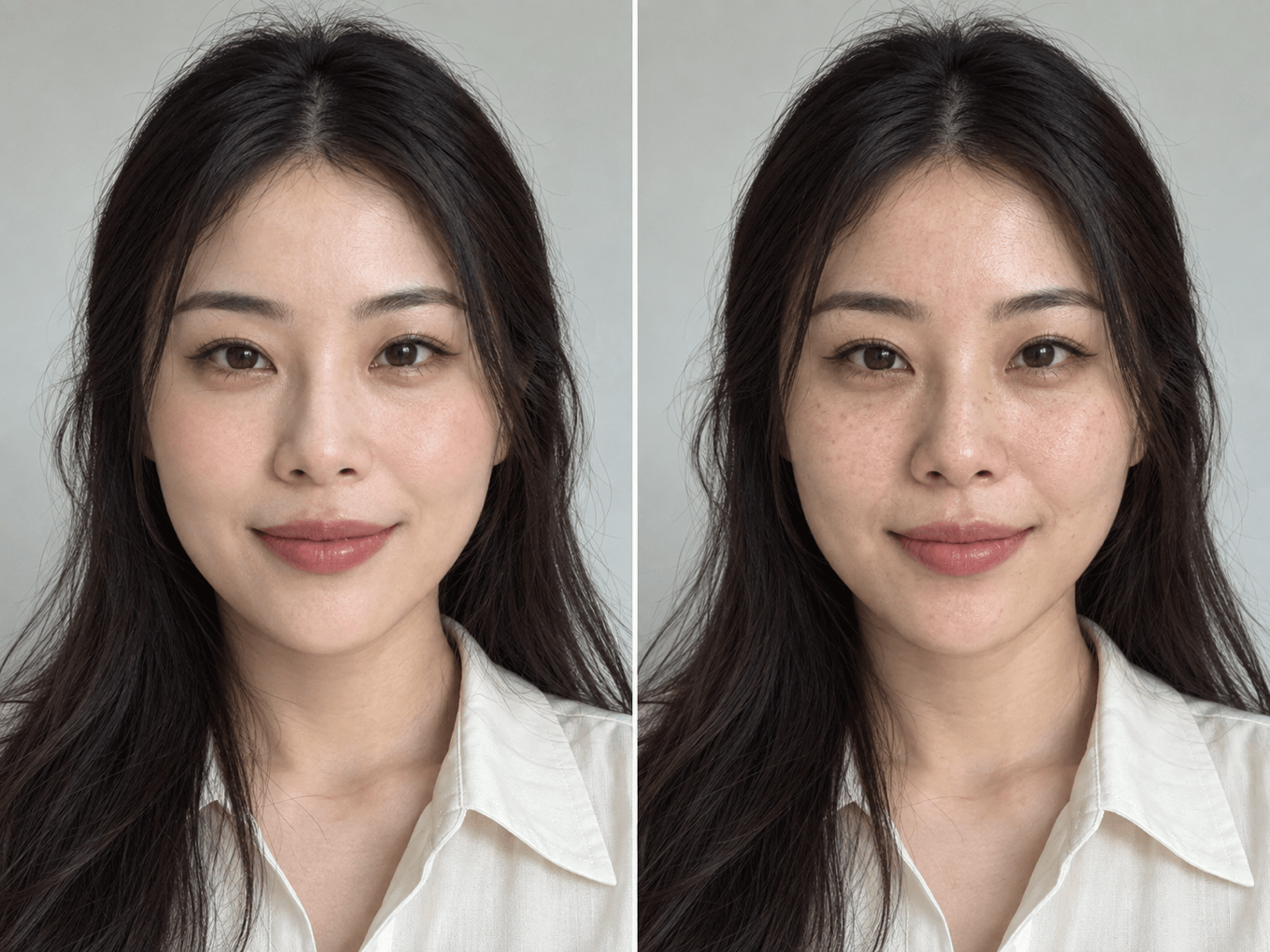
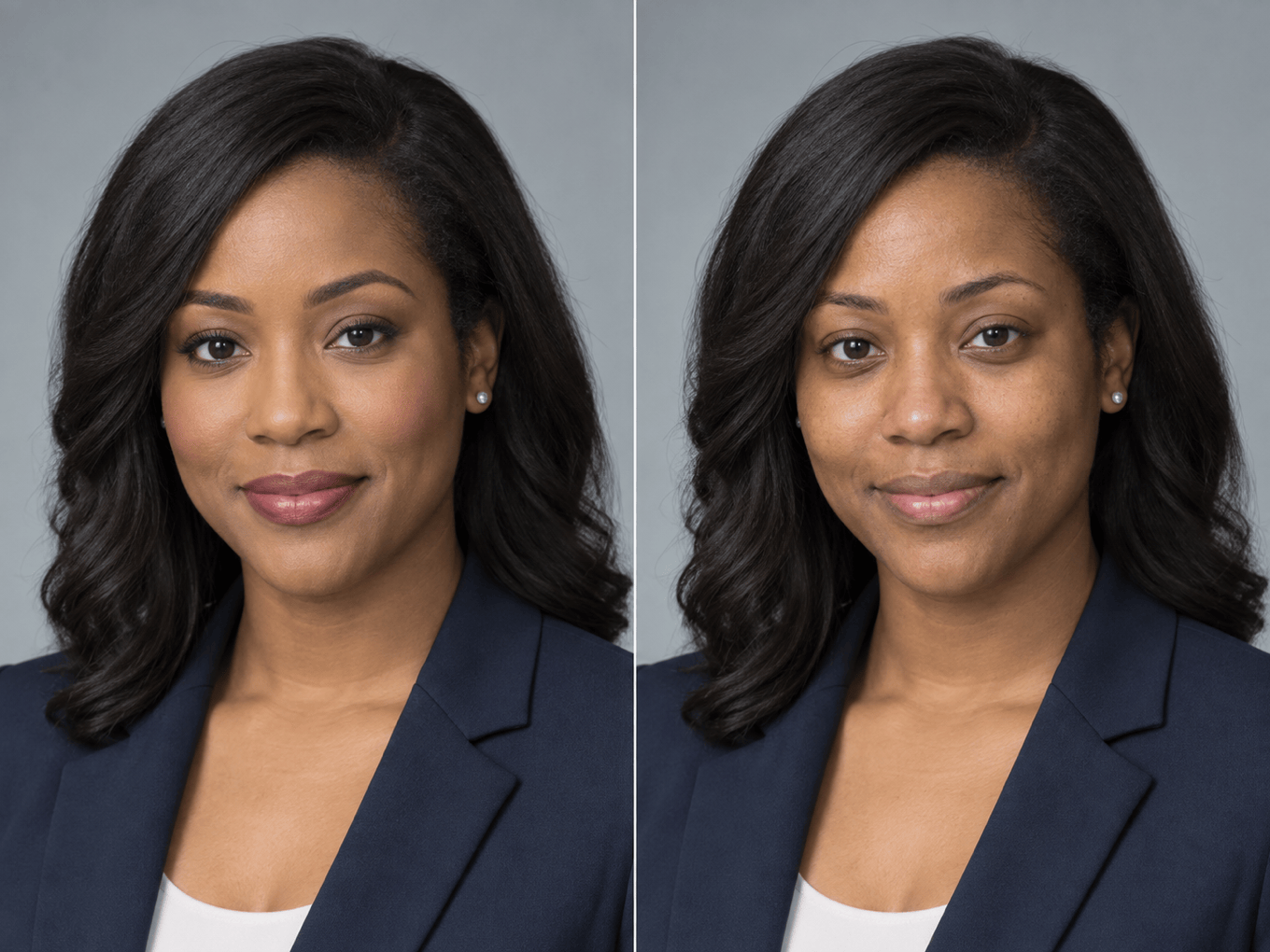
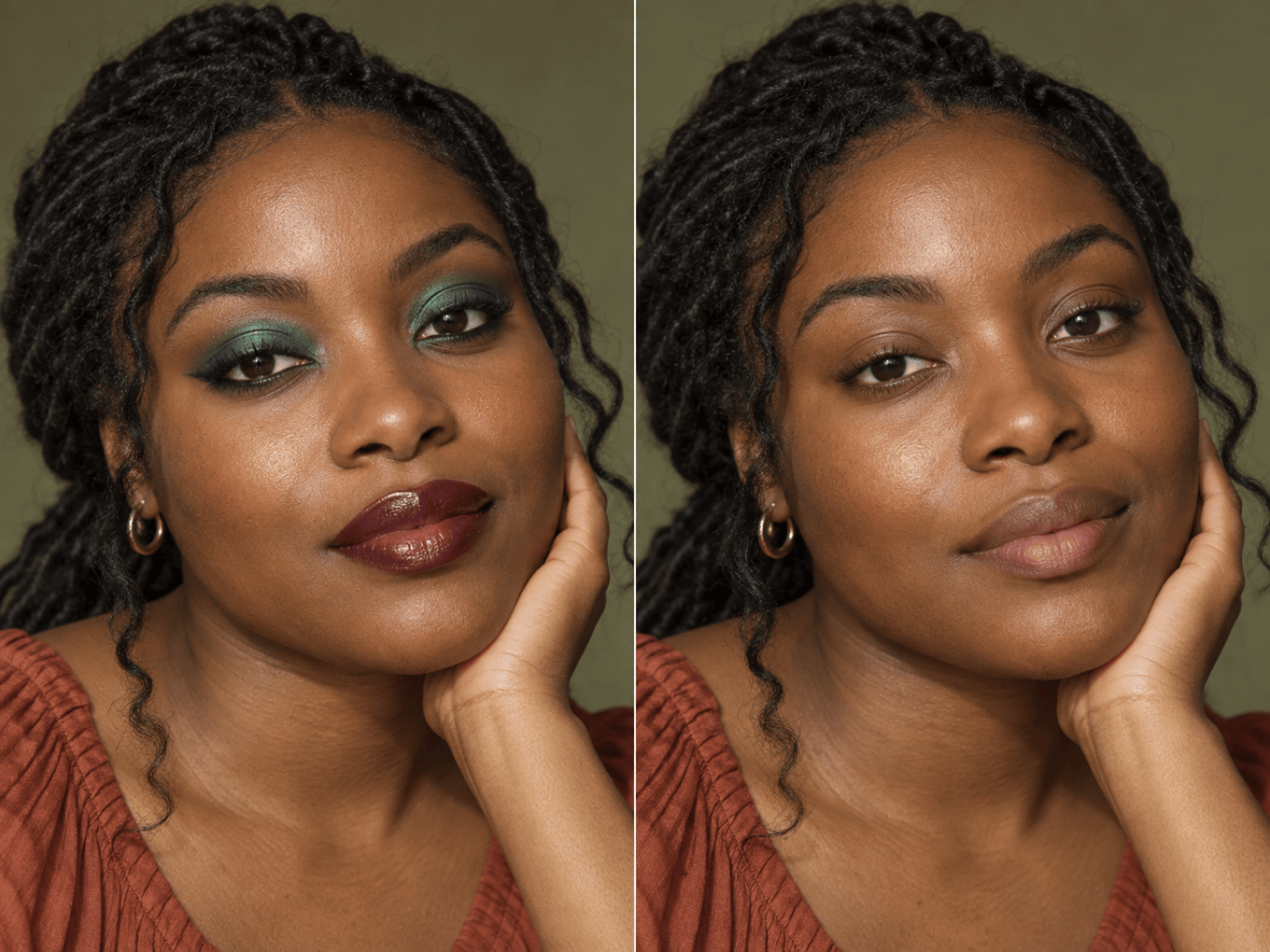
Upload a portrait and ask Mew Design - AI Design Agent to remove foundation, lipstick, eyeliner, blush, or a full glam look. This online AI makeup remover works like a controllable no makeup filter: it creates a natural-looking, makeup-free edit while you direct which facial features, skin details, lighting, and background should stay unchanged.

How to Remove Makeup From a Photo With AI

Start with a clear portrait, describe what should come off, and review the generated bare-face result closely before downloading it.
1

Upload a Clear Portrait

Choose a sharp, well-lit photo with one unobstructed face. Front-facing selfies and headshots give the AI makeup removal tool more visible skin, facial edges, and lighting cues to work from.
2

Name the Makeup to Remove

Ask the AI to remove all makeup or specify foundation, concealer, contour, blush, lipstick, eyeliner, mascara, or eyeshadow. Add what must remain unchanged, such as freckles, expression, hair, clothes, and background.
3

Generate and Inspect the Edit

Mew Design analyzes the portrait and creates a makeup-free version. Zoom in to check the eyes, brows, lips, skin tone, pores, face shape, shadows, and background continuity rather than assuming the first result is exact.
4

Refine and Download

Click Chat Edit and request one focused correction at a time, such as restoring freckles or reducing skin smoothing. Compare the edit with the source, then export the finished portrait as PNG or JPG.
how to remove makeup from photo with ai

Makeup Removal That Keeps the Portrait Recognizable

Protect Identity and Expression

Tell the AI makeup remover to keep facial proportions, eye shape, lip line, expression, hairstyle, pose, and framing unchanged. Clear identity constraints help the edit stay close to the original portrait.

Keep Real-Looking Skin Detail

Ask for visible pores, freckles, moles, fine lines, and natural tone variation instead of a waxy beauty-filter finish. The no makeup filter can create a more believable bare-face look without automatic glamorization.

Remove Only What You Choose

Use the face makeup remover for a full makeup reset or a targeted edit. Remove lipstick while keeping eye makeup, clear foundation and concealer while retaining a natural lip, or reduce one heavy effect at a time.

Refine Through Conversation

If the first AI makeup removal result changes a brow, smooths too much, or shifts the skin tone, use Chat Edit to correct that detail while asking the agent to preserve everything that already works.

Preserve the Original Photo Context

Keep the camera angle, light direction, shadows, clothing, jewelry, hair, and background consistent. That makes before-and-after comparisons easier to judge than edits that quietly alter the whole photo.

Try It Online and Export Cleanly

New users receive free AI credits after signup. Test this online AI makeup remover, compare variations, and download a watermark-free PNG or JPG when the portrait is ready.

How to Get a Realistic Makeup-Free Edit

Remove all visible makeup from my uploaded portrait, including foundation, concealer, blush, contour, highlighter, eyeshadow, eyeliner, mascara, brow product, and lipstick. Create a natural bare-face appearance with realistic pores, freckles, lip texture, and subtle tone variation. Preserve identity, facial proportions, expression, eye and brow shape, hairstyle, clothing, jewelry, camera angle, lighting, shadows, and background. Do not reshape the face, whiten the skin, erase natural features, add new cosmetics, or over-smooth the result.
A convincing edit depends on both the source photo and the instruction. Treat the result as an AI estimate of skin hidden by cosmetics, not a factual reconstruction of how someone looks without makeup.
  • Use a Readable Source: Choose one clear face with even light and enough resolution to see the makeup boundaries. Avoid deep shadows, motion blur, tiny faces, masks, hair across the eyes, and strong beauty filters.
  • Separate Changes From Invariants: List the cosmetics to remove, then name the traits that must remain fixed—identity, face shape, freckles, expression, hair, pose, clothing, light, and background.
  • Ask for Natural Texture: Request pores, fine lines, moles, freckles, natural lip color, and subtle tone variation. Say no plastic skin, no face reshaping, no skin whitening, and no added beauty retouching.
  • Review Sensitive Details: Inspect lash lines, brows, lip edges, skin tone, and shadows at full size. For heavy glam, remove base makeup first and eye or lip makeup in a second pass if one edit introduces artifacts.

Makeup Removal Requests to Try

Full Makeup Removal: Remove all cosmetics from my portrait and create a realistic bare-face result. Preserve identity, facial proportions, expression, freckles, pores, hair, lighting, clothes, and background. Do not reshape or beautify the face.

Foundation and Concealer Only: Remove foundation, concealer, contour, blush, and highlighter. Keep my eye makeup, brows, and lip color unchanged. Restore natural skin texture and tone variation without changing my face or the photo lighting.

Natural Lip Color: Remove the lipstick and lip liner only. Reconstruct a natural lip tone and texture that matches the visible complexion. Keep teeth, mouth shape, expression, all other makeup, and the rest of the photo unchanged.

Eye Makeup Removal: Remove eyeshadow, eyeliner, mascara, and false lashes while preserving natural lashes, eye shape, brows, gaze, skin texture, and facial identity. Keep the lips, base makeup, hair, and background unchanged.

Heavy Glam to Bare Face: Reduce the edit in two stages. First remove foundation, contour, blush, and highlighter while keeping natural texture. Then remove dramatic eye and lip makeup. Preserve the same person, pose, expression, light, and camera framing.

Natural Professional Headshot: Remove visible makeup and beauty-filter effects from this headshot. Keep the person recognizable and preserve realistic skin texture, neutral color, suit, hairstyle, studio light, background, and crop. No face reshaping or extra retouching.


FAQs About AI Makeup Removal

It generates an edited version of a portrait without selected cosmetics. You can remove a full makeup look or target foundation, lipstick, eyeliner, eyeshadow, mascara, blush, contour, and similar effects while asking the AI to preserve the rest of the photo.
No. Makeup can hide color and texture that are not visible in the source image, so any AI makeup remover must estimate those areas. Use the output as a creative preview, not as factual evidence, a medical skin assessment, or an official identity photo.
You can start with free AI credits after signing up for Mew Design. Credit use depends on the model and settings, and finished portraits can be downloaded without a watermark.
Use a sharp, well-lit, front-facing selfie or headshot with one clearly visible face. Avoid extreme angles, harsh shadows, low resolution, hair covering the face, and stacked beauty filters when possible.
Yes. Name only the products or face areas you want changed and state what should stay. Selective instructions often work better than a vague request, especially when you want to keep part of the original makeup.
A no makeup filter tries to subtract visible cosmetics and create a bare-face estimate. A beauty filter usually adds smoothing, reshaping, color correction, or cosmetic effects. You can ask Mew Design to avoid those enhancements and retain natural texture.
Yes. After creating a natural-looking baseline, use the AI makeup generator to explore permitted makeup directions. Compare looks for inspiration, but do not treat generated results as exact product or shade predictions.
Only edit photos you own or are authorized to use, especially for public or commercial work. Avoid deceptive, harassing, or non-consensual edits, and disclose AI alteration when the context requires it.

Ready to Generate Designs With AI?

Get Started - 50 Free Credits
No credit card required
© 2025 - 2026 Mew Design, MAGOAI LTD.All rights reserved.