Free OnlineAI Logo Enhancer
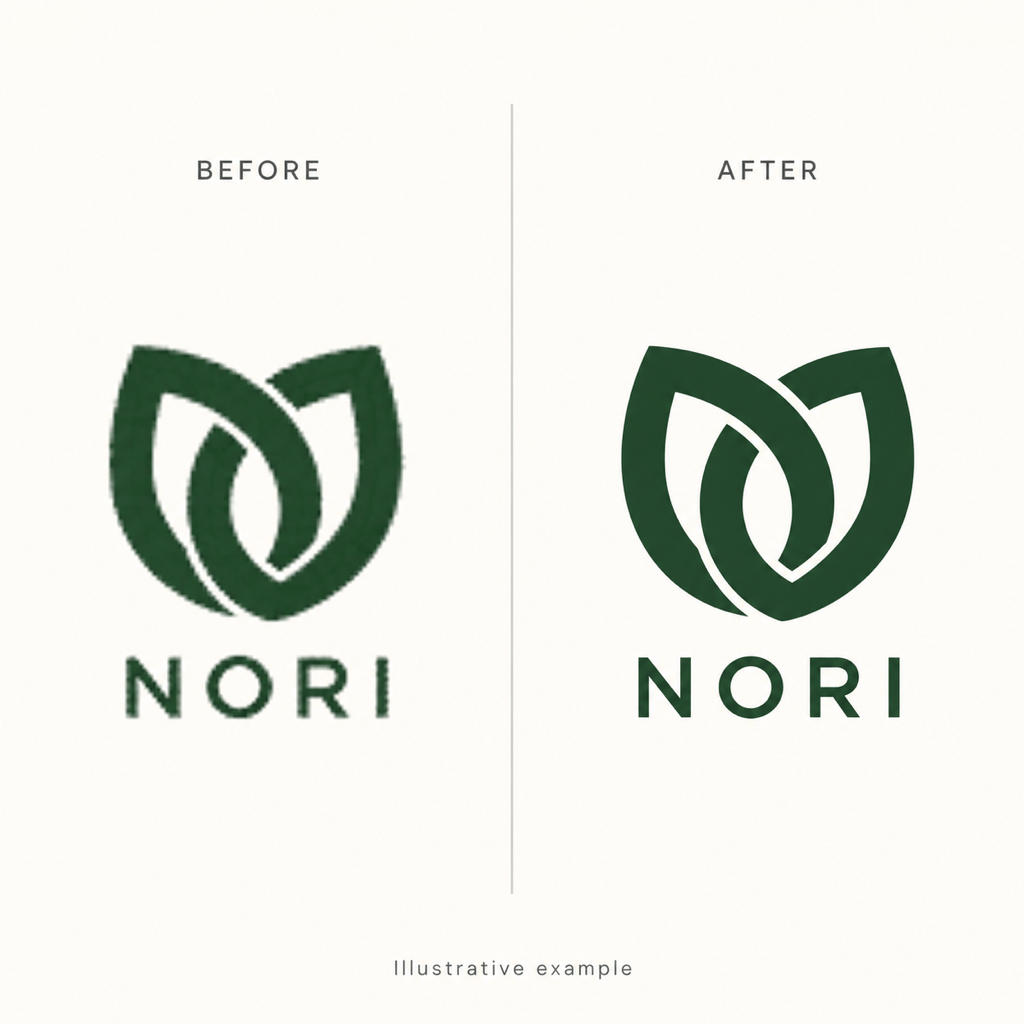
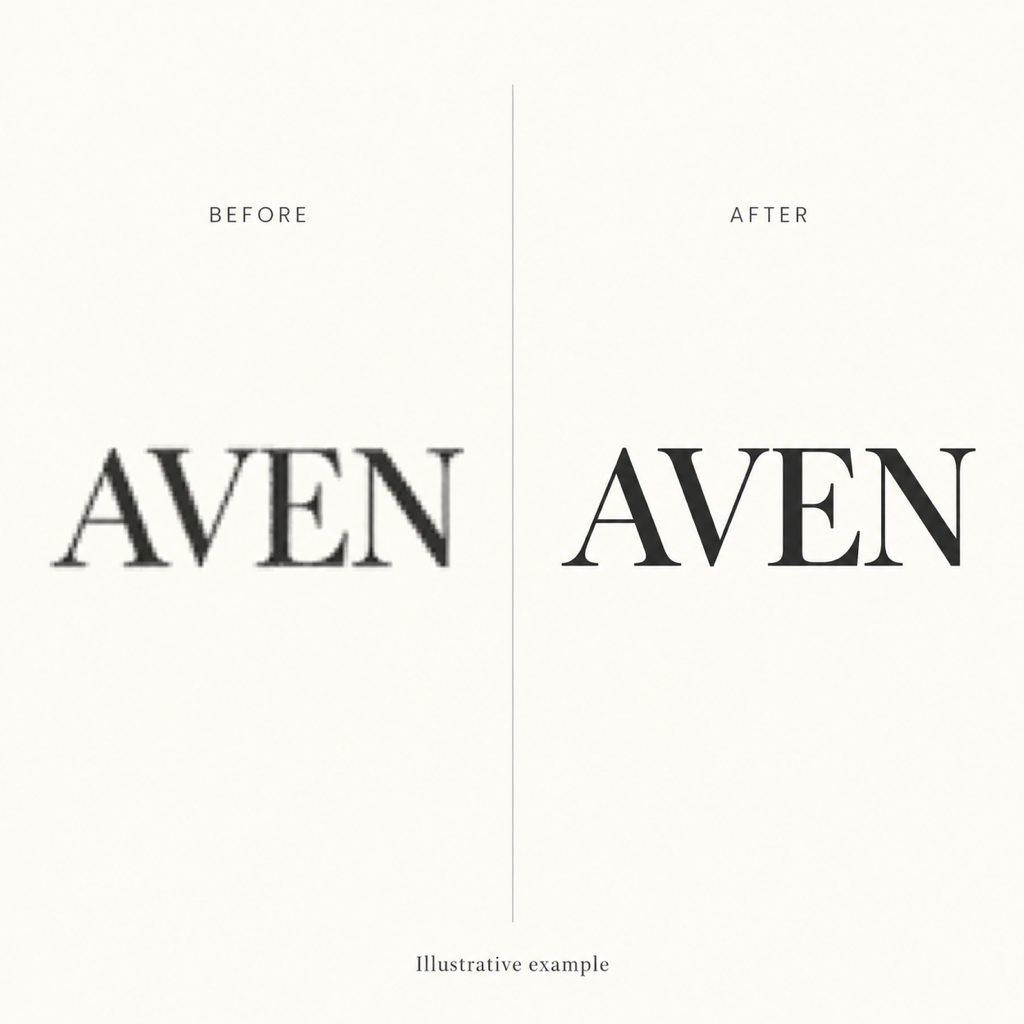
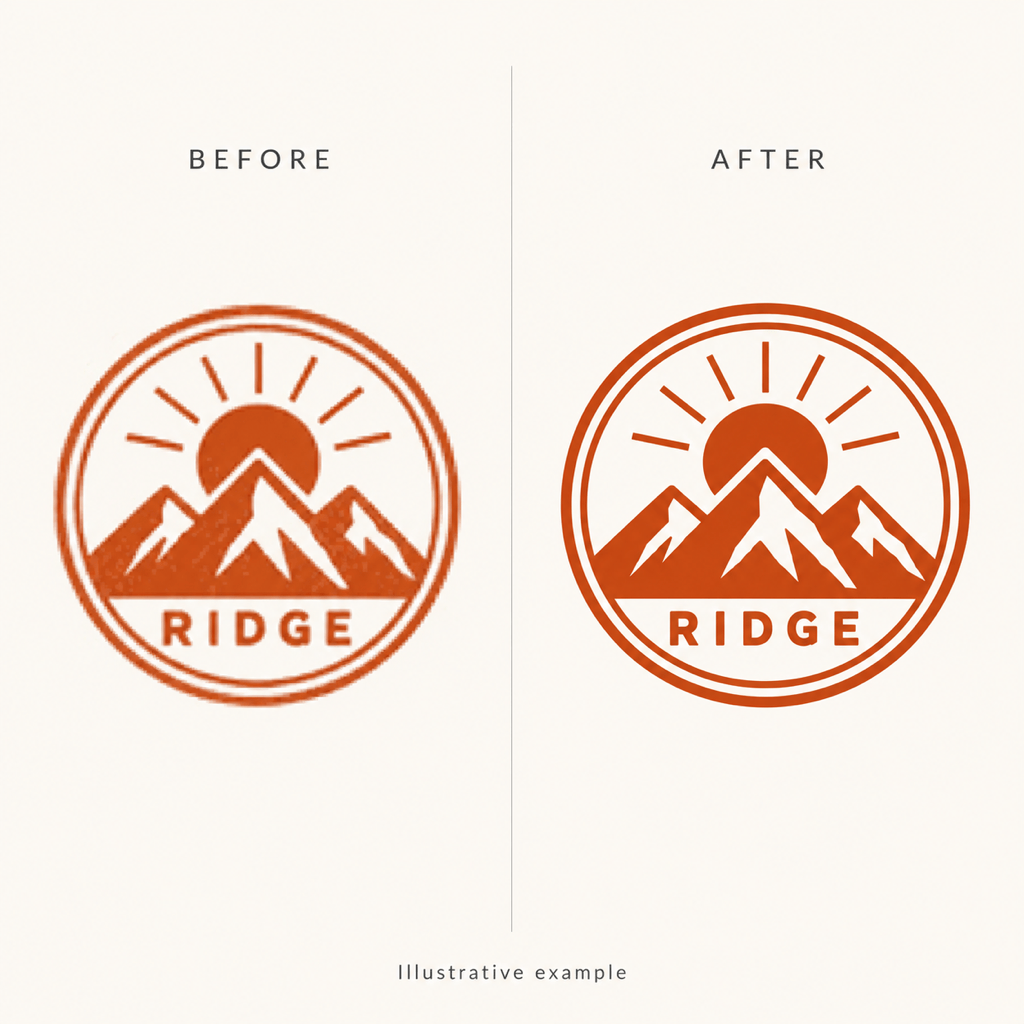
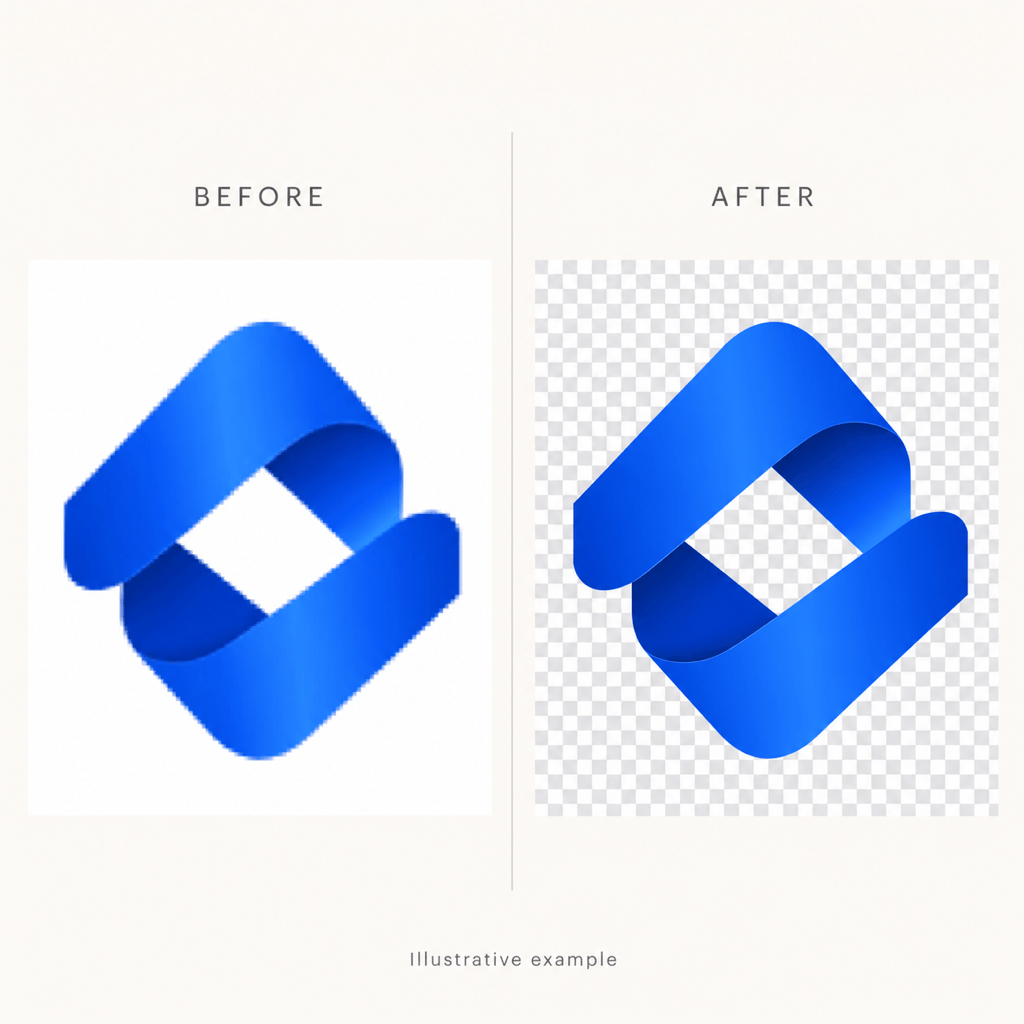
How to Make a Logo Clearer with AI
Upload the Clearest Original
Request a Focused Cleanup
Compare the Brand Details
Export and Check the Fit

Logo Cleanup You Can Direct in Chat
Start from Your Existing Mark
Upload the logo you already use. Our online AI logo enhancer works from your reference, so you can request cleanup with clear instructions about what to preserve.
Refine Letters and Outlines
Point out a soft wordmark, uneven curve, or jagged edge. Ask for a targeted correction, then inspect the result against your approved artwork.
Remove a Distracting Background
Ask for background removal when you need a transparent PNG logo. Review the edges on light and dark backgrounds to spot pale fringes or missing details.
Give Brand Colors a Reference
Supply approved colors and a clear reference image. These guide logo quality enhancement; compare the final colors before using the file in brand materials.
Put the Cleaned Logo to Work
Use your reviewed logo in branded stickers or promotional flyers. Check its clarity within the finished layout.
Keep Your Cleanup Rules Handy
Save a successful review and editing workflow as a Mew Skill. Reuse your brand requirements for later assets with less repeated briefing.
Before You Upscale a Logo with AI
- Look for a Vector Original:If you already have an SVG, export it at the size you need. Enlarging a raster image does not turn it into editable vector paths.
- Define the Target Size:To make a logo high resolution, specify the intended placement and pixel dimensions. Check the exported size; an HD label alone does not establish print suitability.
- Protect the Lettering:Provide the exact brand name and tagline. Tiny or unreadable text can be reinterpreted, so compare every letter rather than trusting sharpness alone.
- Separate Cleanup from Redesign:Request fewer artifacts and clearer contours first. New colors, different fonts, or altered proportions are separate design decisions.
Fix Common Logo Quality Problems
Fix the blurry edges in my uploaded logo. Reduce softness around the symbol without adding shadows, texture, or new details. Keep the original silhouette and spacing.
Clean up compression artifacts around my JPG logo. Keep the flat color areas even and the lettering unchanged. Prepare a PNG version for review.
Remove the white background from my uploaded logo. Keep the interior white shapes that belong to the mark, and check the outer edges for pale fringes.
Improve the small lettering in my logo using the exact brand name and tagline I provide. Keep the original letter shapes and spacing; ask about unreadable characters.
Prepare my logo for a website header. Use the target dimensions I provide, keep the proportions, and leave clear space around the mark. Do not add a tagline.
Clean up the thin outlines in my badge logo for a print proof. Keep the line weight and gaps consistent with the original. Do not fill in small enclosed spaces.





