Free OnlineAI Image Cropper
How to Crop an Image with AI
Upload the Original Photo
Describe the Frame You Need
Check the Edges and Refine
Download and Check the Fit

A Better Frame Starts with What Matters
Tell AI What to Keep
Use everyday language to name the focal point. This AI photo cropper lets you guide the framing around a face, a full product, or a detail that a centered crop might miss.
Start with Your Own Image
Upload the photo you want to use instead of describing a new scene. Ask for framing changes and specify which details should remain unchanged.
Adapt One Photo for Different Spaces
Request a square product image, a vertical social post, or a wide cover. AI image cropping gives you a starting point for each layout; review every version before use.
Fix a Tight Crop Through Chat
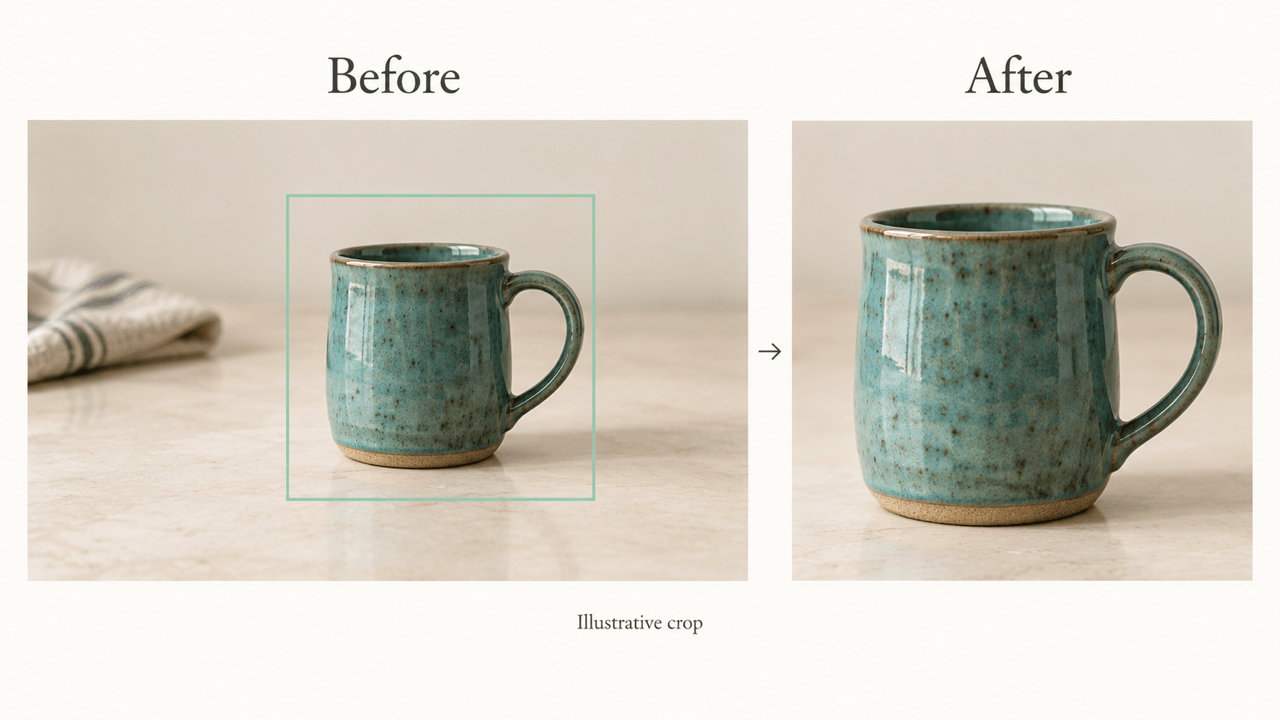
Need more space above a head or around a mug handle? Click Chat Edit and describe that specific adjustment without rewriting the whole brief.
Reuse Your Framing Preferences
For recurring product or social images, save a successful workflow as a Mew Skill. Reuse your preferred margins and composition rules with the next photo.
Try Online with Free Credits
Try cropping images with AI in your browser using free credits after signup. Export results without watermarks; further edits and generation depend on available credits.
Keep the Details That Make the Photo Work
- Choose the Shape FirstA ratio describes the frame; pixel dimensions describe its size. State the ratio you need, then check the downloaded file against your destination requirements.
- Name Every Must-Keep DetailMention hair, hands, product edges, labels, or people near the border. A tighter crop is not better if it cuts out the reason for the photo.
- Leave Room for the LayoutKeep useful negative space for a headline or profile overlay. For channel art, use the YouTube banner maker to build the full layout.
- Review Against the OriginalAI editing may change small details. Compare faces, logos, and text with the original. Use a conventional crop tool when every retained pixel must remain identical.
Crop Fixes for Profiles, Products, and Posts
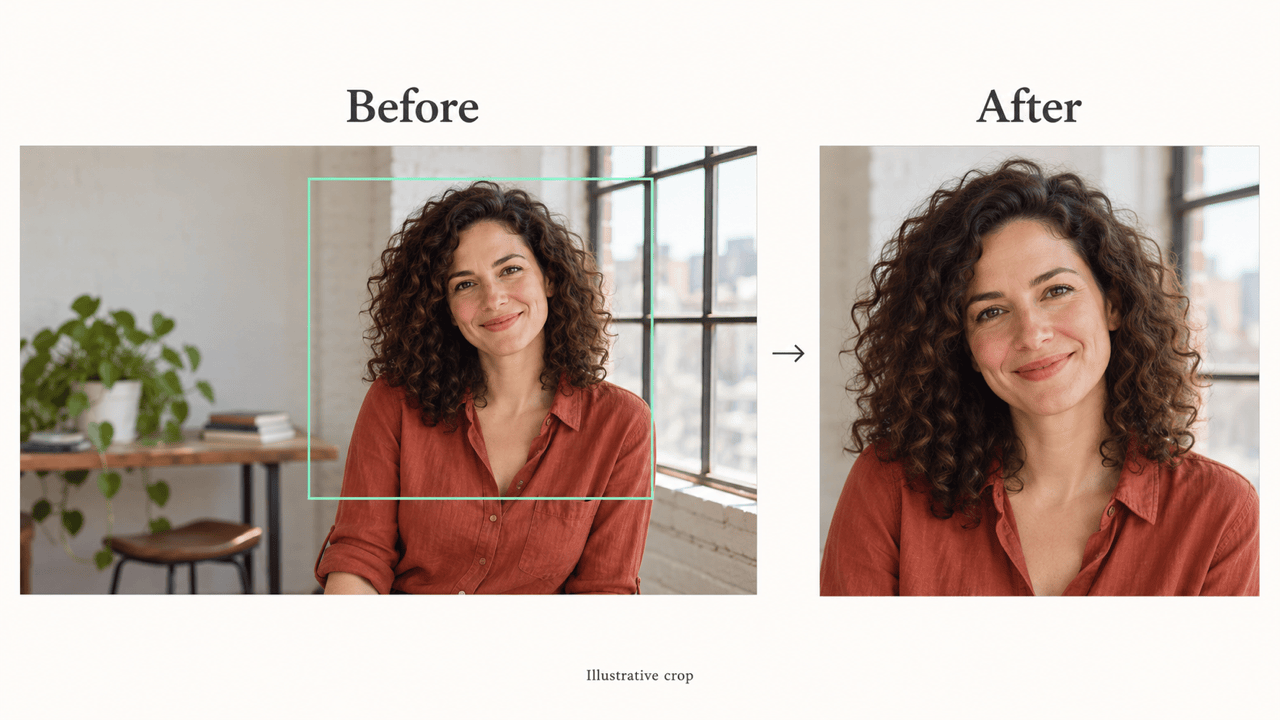
Profile picture: Crop my uploaded portrait to a square. Center the face and leave space around the hair and shoulders so a circular profile display will not cut them off. Do not retouch the face.
Product listing: Crop my uploaded product photo to 1:1. Keep the whole item, including handles and corners, with an even margin. Preserve its shape, color, and label; do not add props.
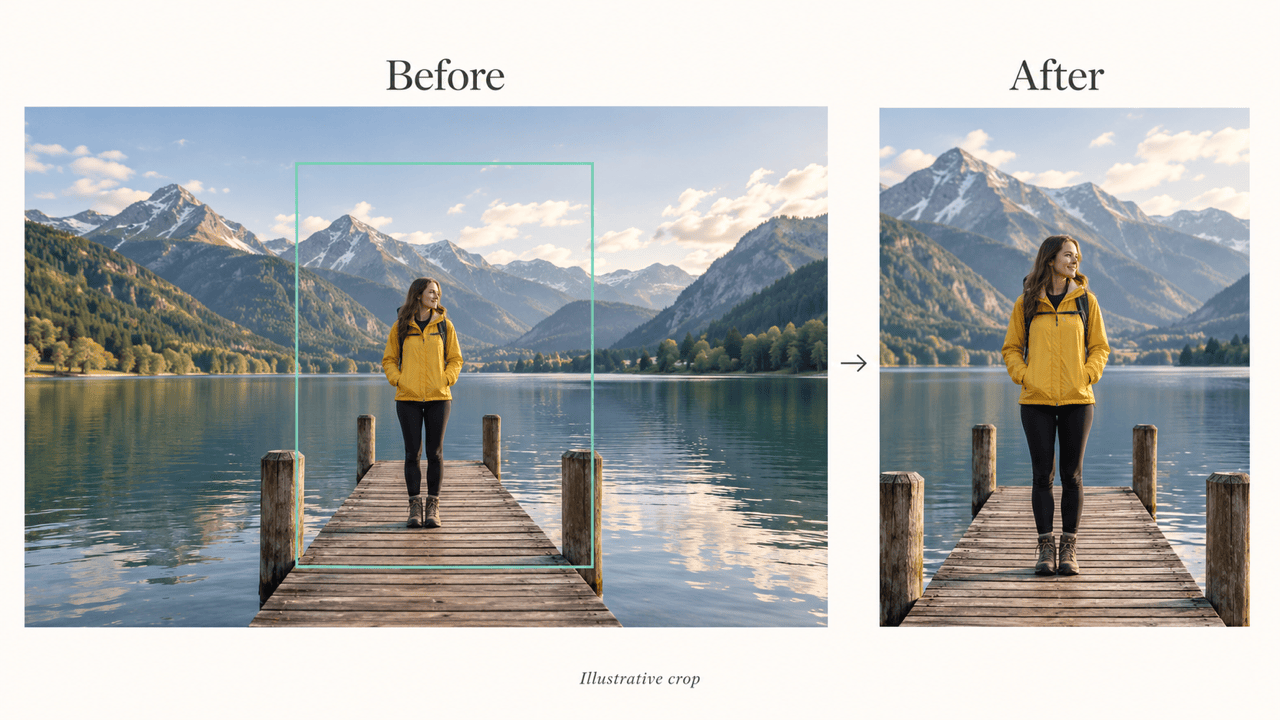
Instagram portrait post: Reframe my uploaded photo to 4:5. Keep the main subject and the context that explains the scene. Trim empty edges without stretching the image.
Vertical story: Crop my uploaded photo to 9:16. Keep the important subject away from the top and bottom, where interface elements may overlap. Do not invent missing parts of the subject.
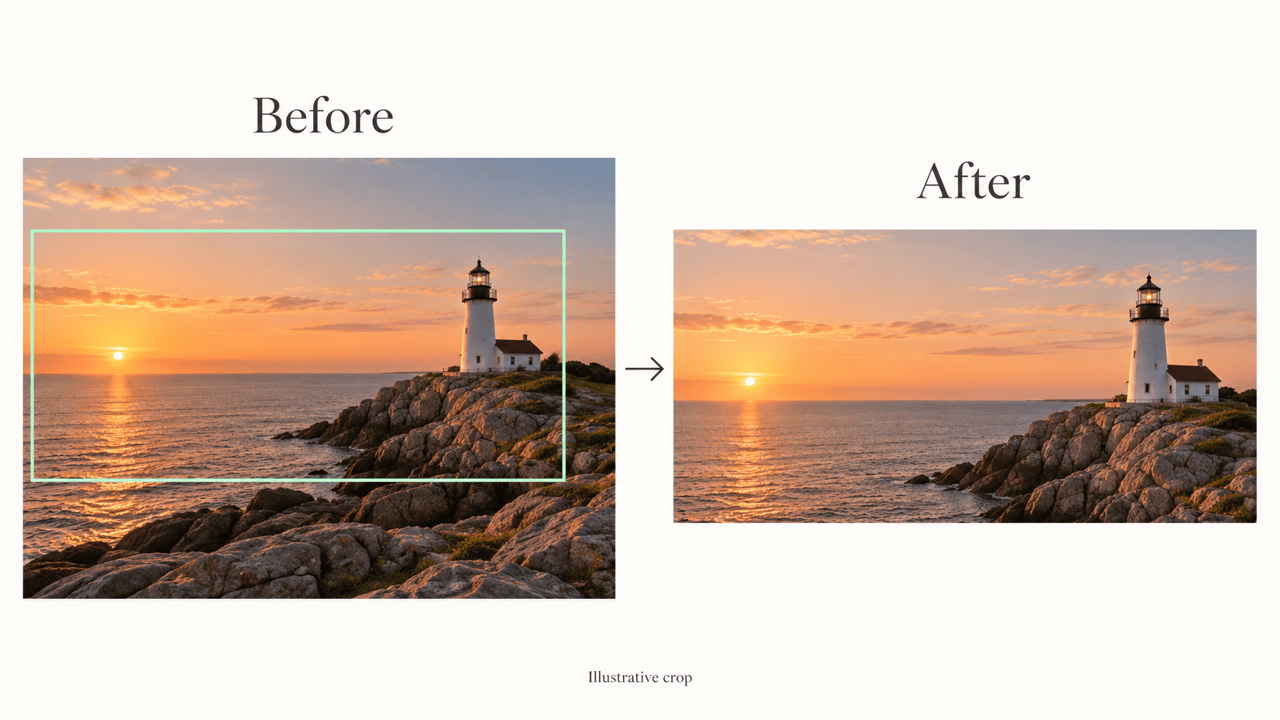
Wide cover: Crop my uploaded landscape photo to 16:9. Keep the horizon and main focal point, with open space on the left for a headline. Do not add the headline yet.
Group photo: Reframe my uploaded group photo while keeping every person visible. Leave space beside the outermost people. If the requested crop would cut someone off, suggest a wider ratio instead.





