Free to Try OnlineAI Headshot Generator
How to Create a Professional Headshot with AI
Upload a Clear, Recent Photo
Set the Professional Look
Check the Face and Refine
Download Your Profile Photo

Professional Headshots, with Room to Refine
Start with Your Own Photo
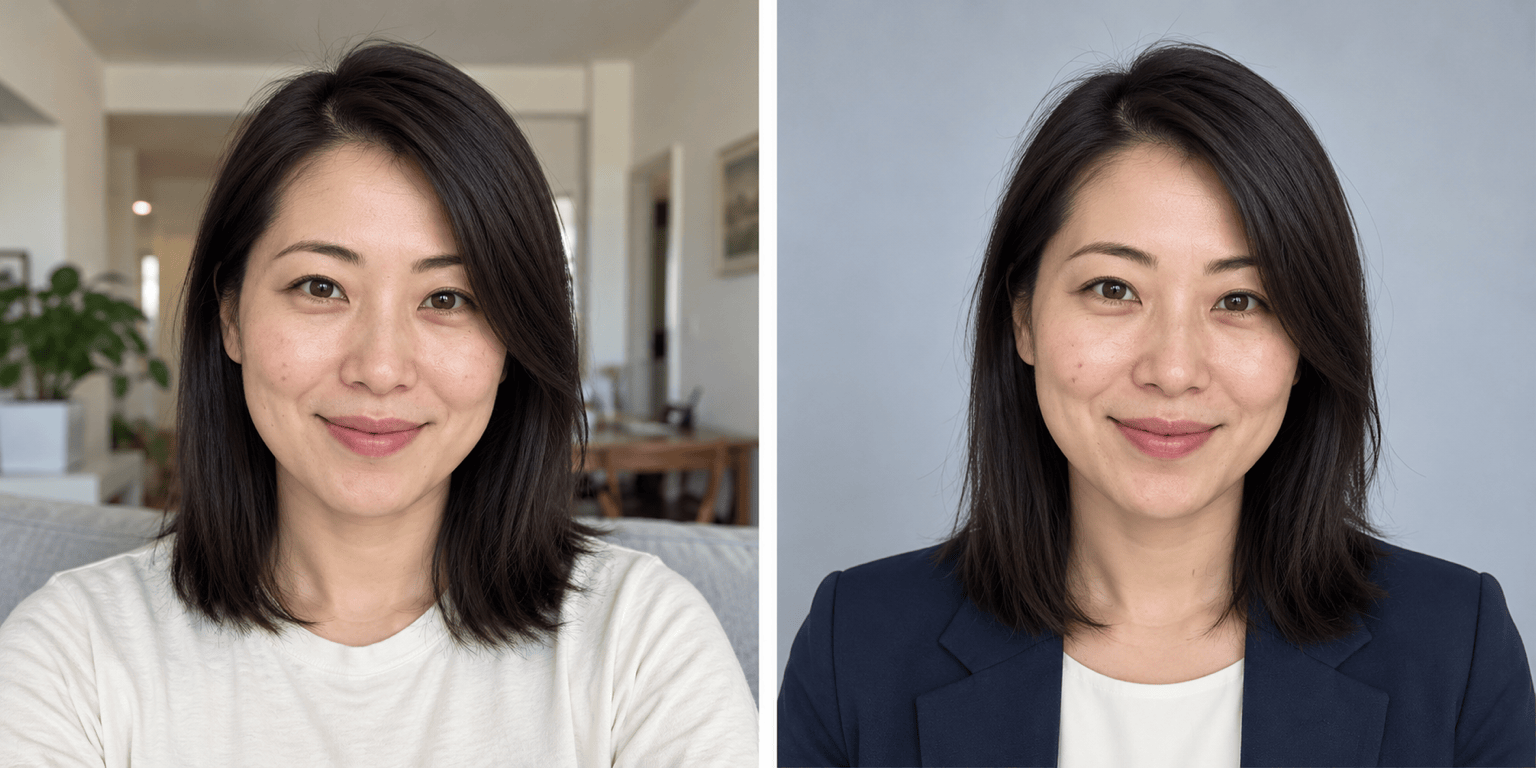
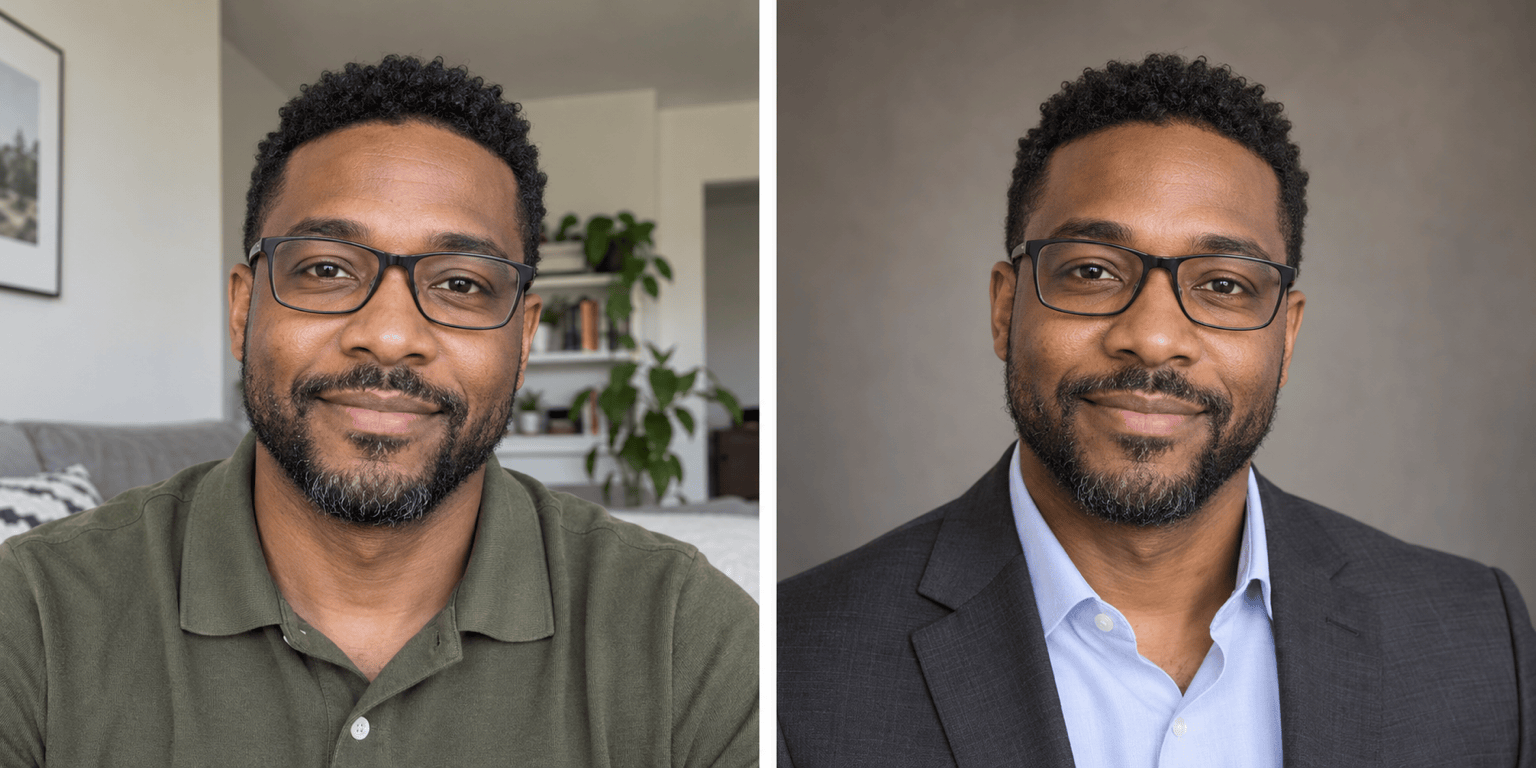
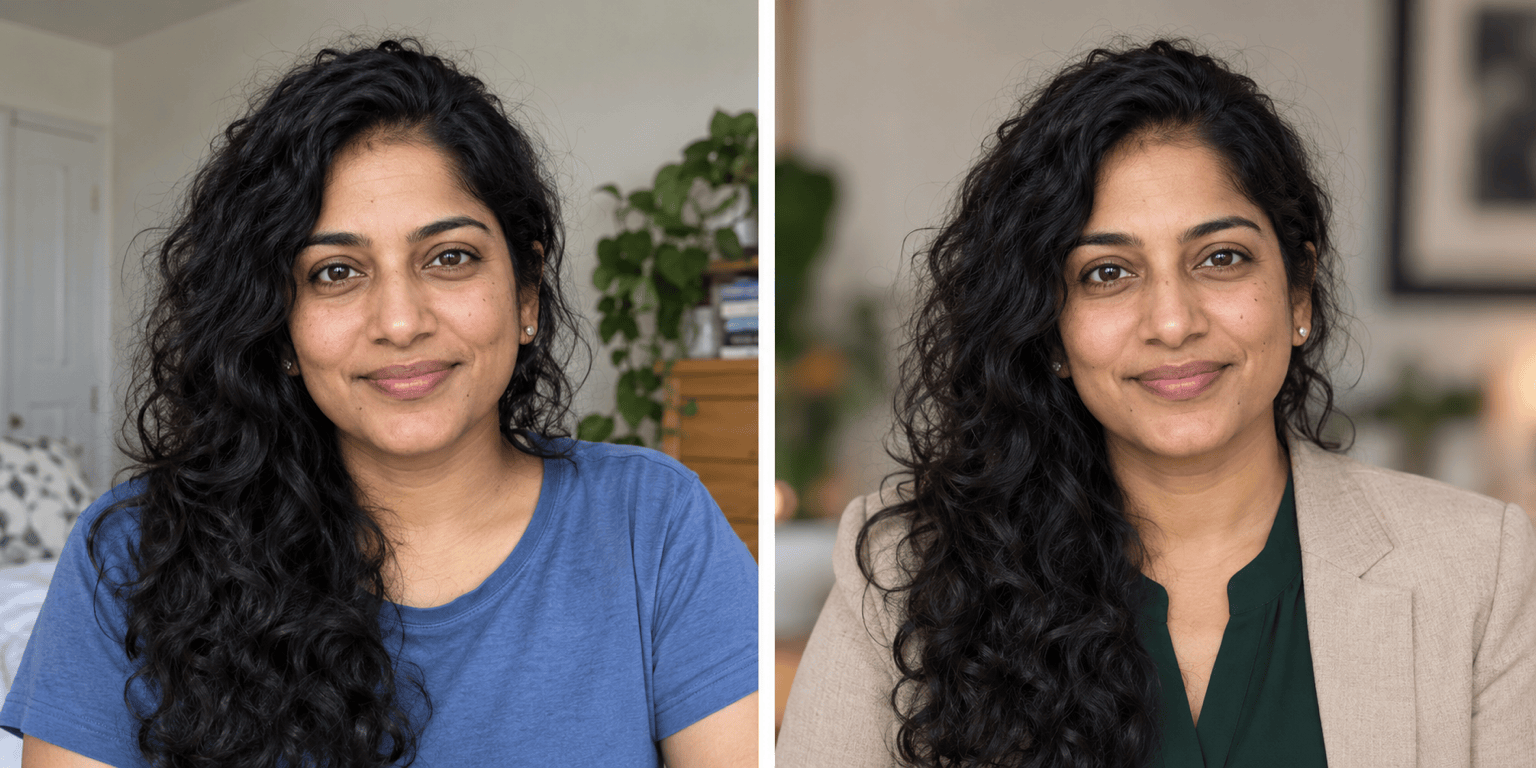
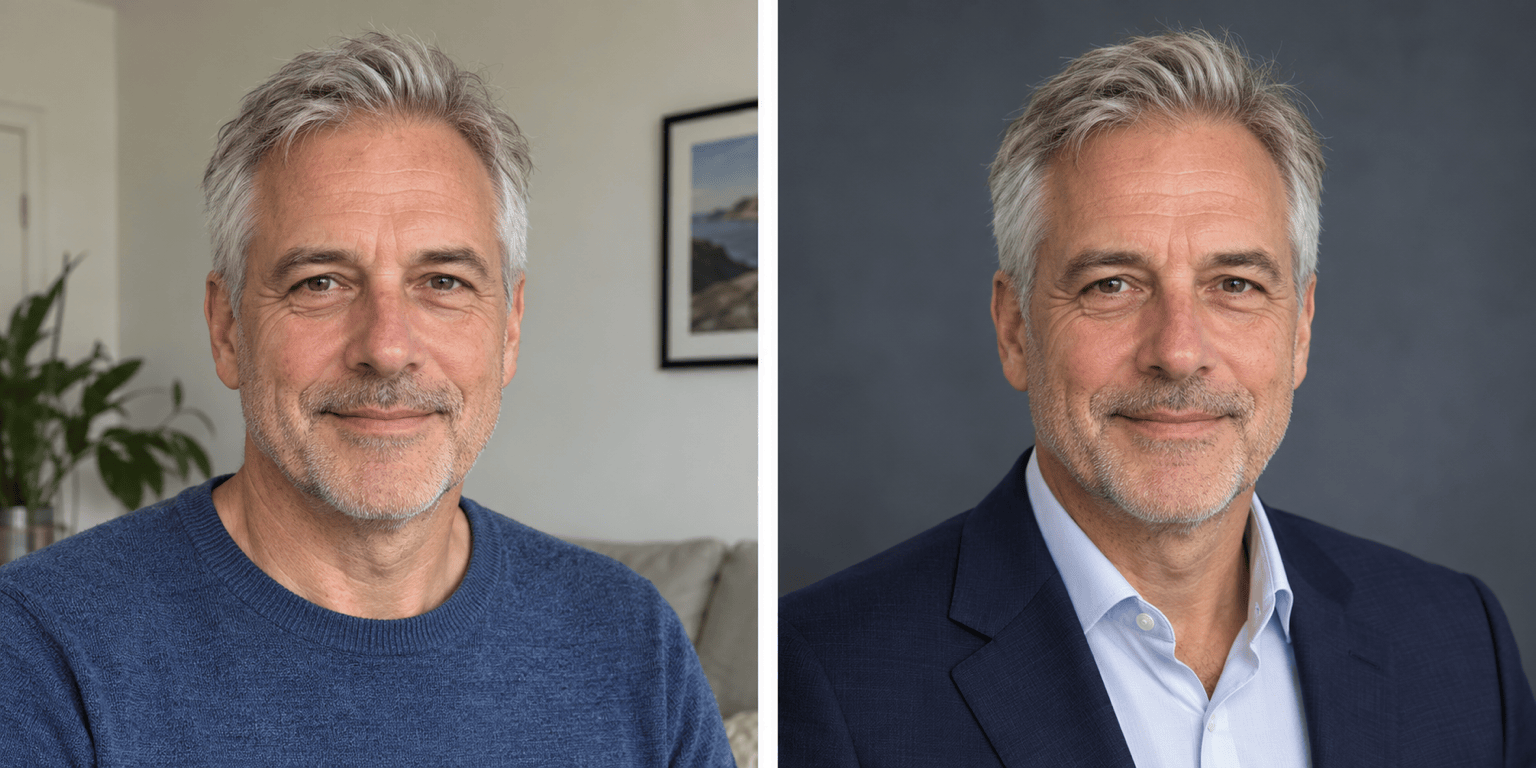
Use an uploaded image as the basis for your headshot. Ask to keep your recognizable features while changing the setting, then compare the result with the original.
Dress for Your Actual Role
Create business headshots with AI in a style that suits your workplace. Try a tailored jacket, an open-collar shirt, or a relaxed creative look without defaulting to a formal suit.
Change the Setting Through Chat
Ask this online AI headshot maker for a clean studio backdrop or a softly blurred office. Refine the lighting and background without learning photo-editing controls.
Correct One Detail at a Time
Chat Edit lets you request targeted revisions to a generated portrait. Describe distracting glare, an overly smooth face, or an awkward crop, and review each revision.
Reuse a Team Style
Turn a successful background, lighting, and framing approach into a reusable Mew Skill. Apply that direction to future portraits, then review each person’s likeness and the set’s consistency.
Try Online and Export Cleanly
Test an AI headshot generator online with free AI credits after signup. Download watermark-free PNG or JPG files; generation and further edits use credits.
Choose a Photo That Still Looks Like You
- Use Clear Light: Choose a recent, sharp photo taken in even light. Avoid heavy filters, strong shadows, sunglasses, and tiny crops from group photos.
- Keep Personal Details: If you normally wear glasses or a head covering, use a reference that shows it clearly. State which details should remain unchanged.
- Match the Destination: For LinkedIn, leave room around your head for a circular crop. For a company bio, match the background and framing used by the rest of the team.
- Review Before You Share: Check eyes, teeth, glasses, hair edges, clothing, and skin texture at full size. If the result changes your face, return to the original and request a smaller edit.
Fix Common AI Headshot Problems
This headshot changes my face. Use my original uploaded photo as the reference again. Keep my facial proportions, age, skin tone, and expression; change only the background to light gray.
The skin in this portrait looks too smooth. Use my original photo to restore natural skin texture and expression lines. Keep the current outfit, pose, and background.
Refine the glasses in this headshot using my uploaded photo. Keep the frame shape and my eye shape, reduce distracting lens glare, and leave the rest of the portrait unchanged.
Make this headshot suitable for a business profile. Replace the casual top with a navy jacket and plain shirt. Keep my face, hair, body proportions, and expression unchanged.
Simplify this professional headshot for a company team page. Use a plain warm-gray background and soft, even lighting. Keep my appearance and match the framing in the supplied team reference.
Reframe this headshot for a LinkedIn profile photo. Use a square composition with my face centered, shoulders visible, and space above my hair for a circular crop. Keep facial details unchanged.





