Free OnlineAI Generative Fill
How to Edit Photos with AI Generative Fill
Upload the Photo You Want to Edit
Describe the Result You Want
Check the Edges and Lighting
Download Your Finished Photo

Make the Change Your Photo Needs
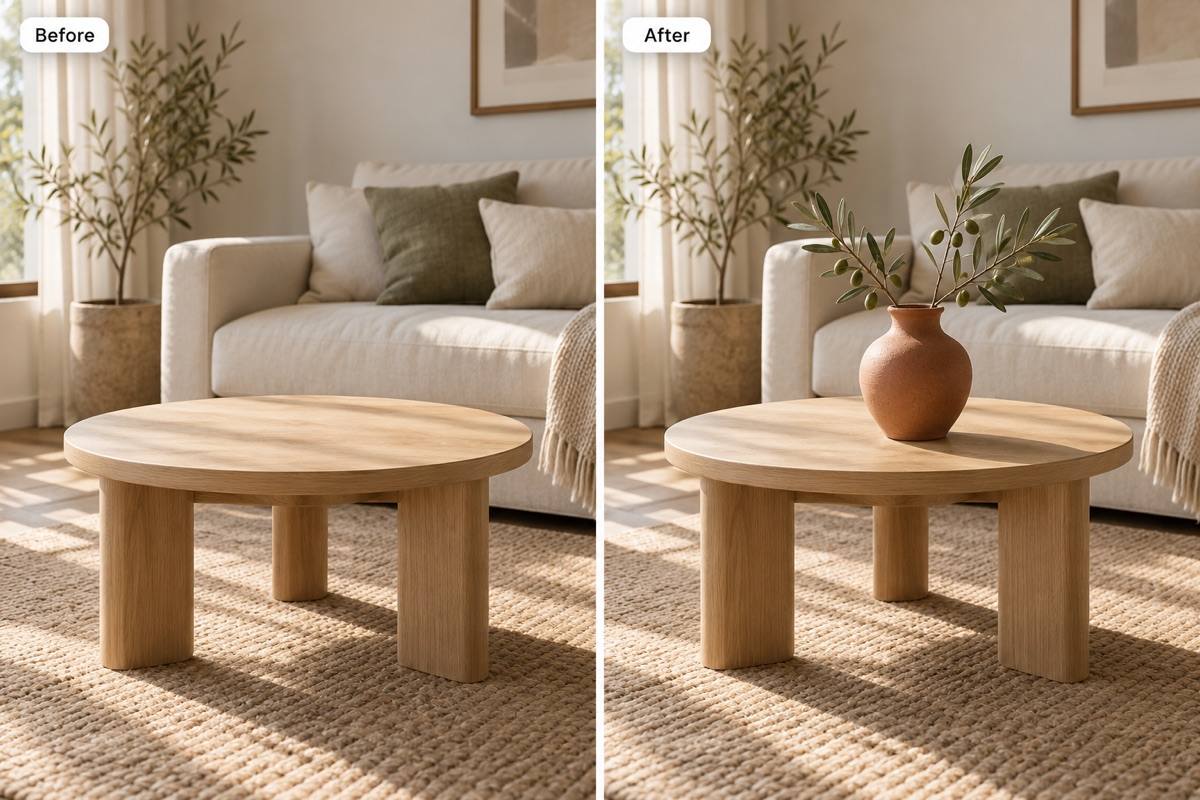
Add Props Where They Belong
Add objects to photos with AI by describing their size, position, and material. A vase on a table or a plant beside a chair can give an existing shot a new purpose.
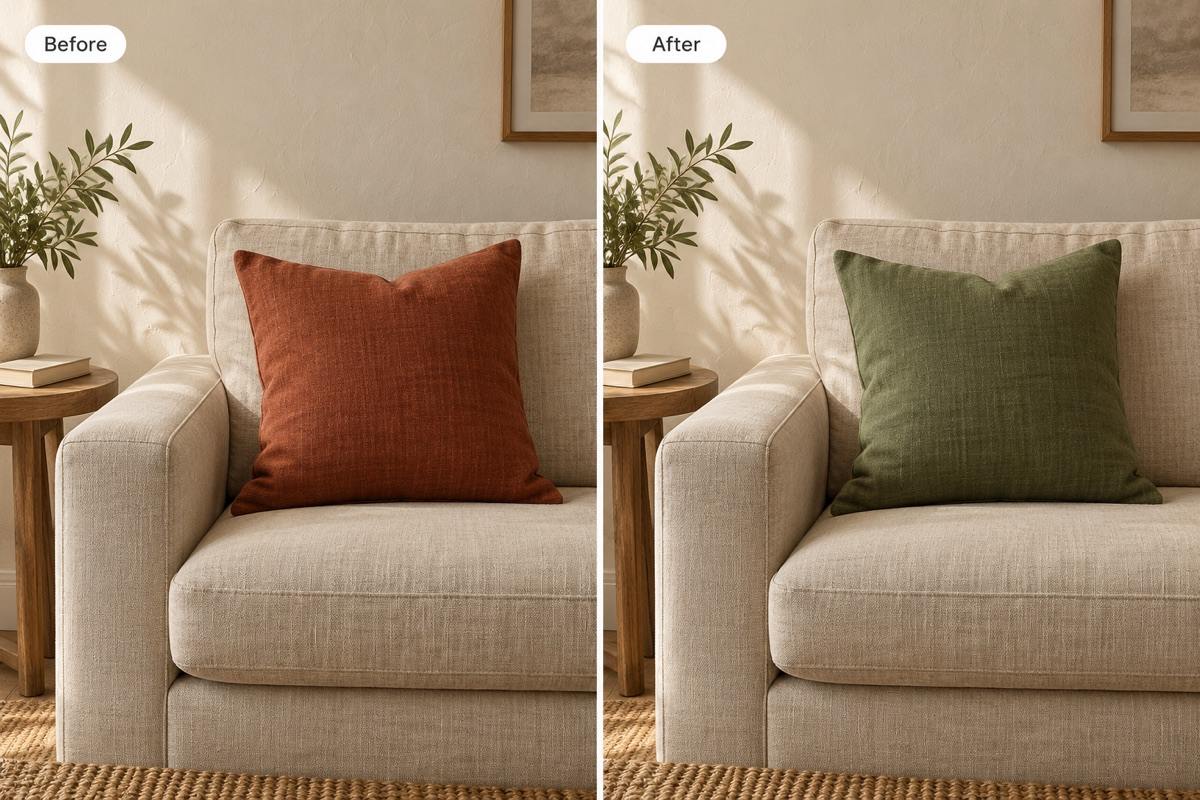
Replace One Detail, Explore a New Look
Use this AI image filler to try a different cushion, accessory, or background element. Upload a reference when a particular color or shape matters.
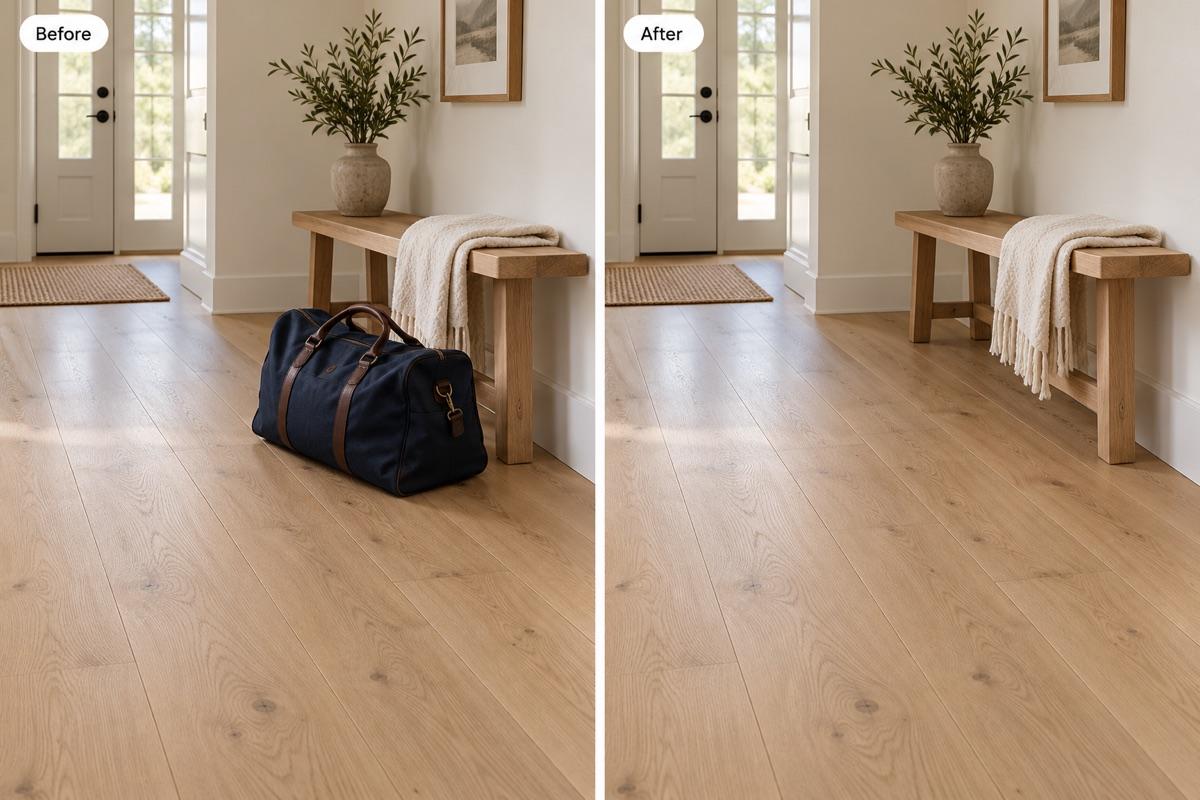
Remove Distractions from the Scene
Ask to remove unwanted objects from photos and continue the surrounding texture. Specify the object and its shadow so the cleanup addresses both.
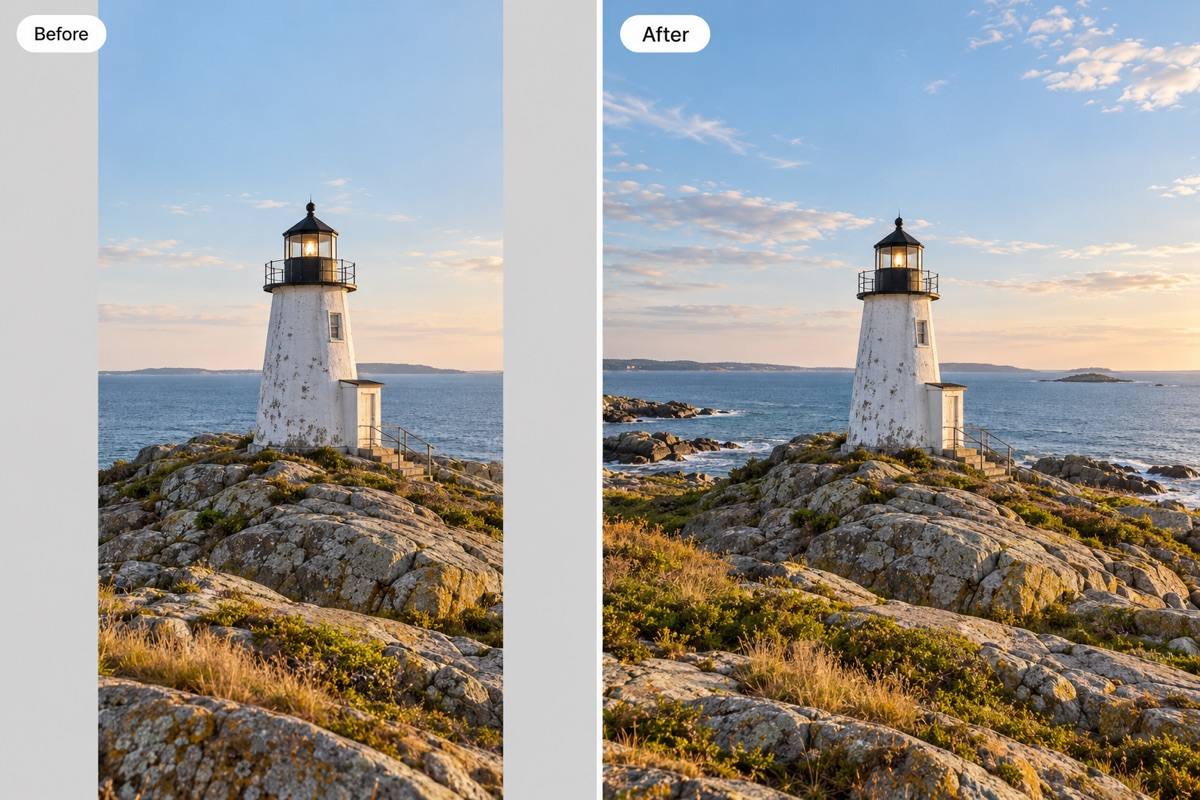
Make Room Beyond the Original Frame
Request a wider background for a banner or extra space above a product for a headline. Describe what should continue into the new area and keep the subject in place.
Refine the Blend Through Chat
Use Chat Edit to adjust scale, soften an edge, or match the existing light. Work through one correction at a time while keeping your original photo as a reference.
Try an Edit Before Committing
Test AI generative fill online with free credits after signup. Download watermark-free results as PNG or JPG; generation and follow-up edits use credits.
How to Keep Generative Fill Edits Natural
- Name the Exact Area: Say “the red cushion on the sofa” rather than “change the room.” Separate unrelated edits into different requests.
- Describe the Light and Material: Mention the light direction, shadow softness, and surface texture when a new object looks out of place.
- State What to Preserve: Call out faces, product shapes, logos, and text that matter. These instructions guide the edit; they do not guarantee unchanged pixels.
- Inspect the Transition: Look closely at hair, object edges, repeating patterns, and background seams. Correct visible artifacts before using the image.
Fix Common AI Photo Editing Problems
The added vase looks too large. Make it half its current height on the same table, with a soft contact shadow beneath it. Keep the room and camera angle unchanged.
The replacement cushion is brighter than the room. Match its exposure and color temperature to the sofa, with the same soft window light from the left.
The removed bag left a dark patch. Fill that area with the surrounding floor texture and remove the remaining bag shadow. Keep the floorboard direction consistent.
The expanded background has a visible seam. Continue the sky gradient and horizon across the join, keeping the original subject and composition as the reference.
The background edit changed the product label. Use my original upload as the reference and restore the label wording, bottle shape, and cap color. Change only the backdrop.
The image needs space for a headline. Extend the plain background above the product into a 4:5 portrait composition. Keep the product proportions and leave the added space free of text.





