Free to Try OnlineAI Face Retouch
How to Retouch a Face Online with AI
Upload a Clear Portrait
Generate a Light Retouch
Compare and Refine
Download Your Portrait
AI Portrait Retouching for Natural-Looking Photos
Reduce Blemishes, Dark Circles, and Shine
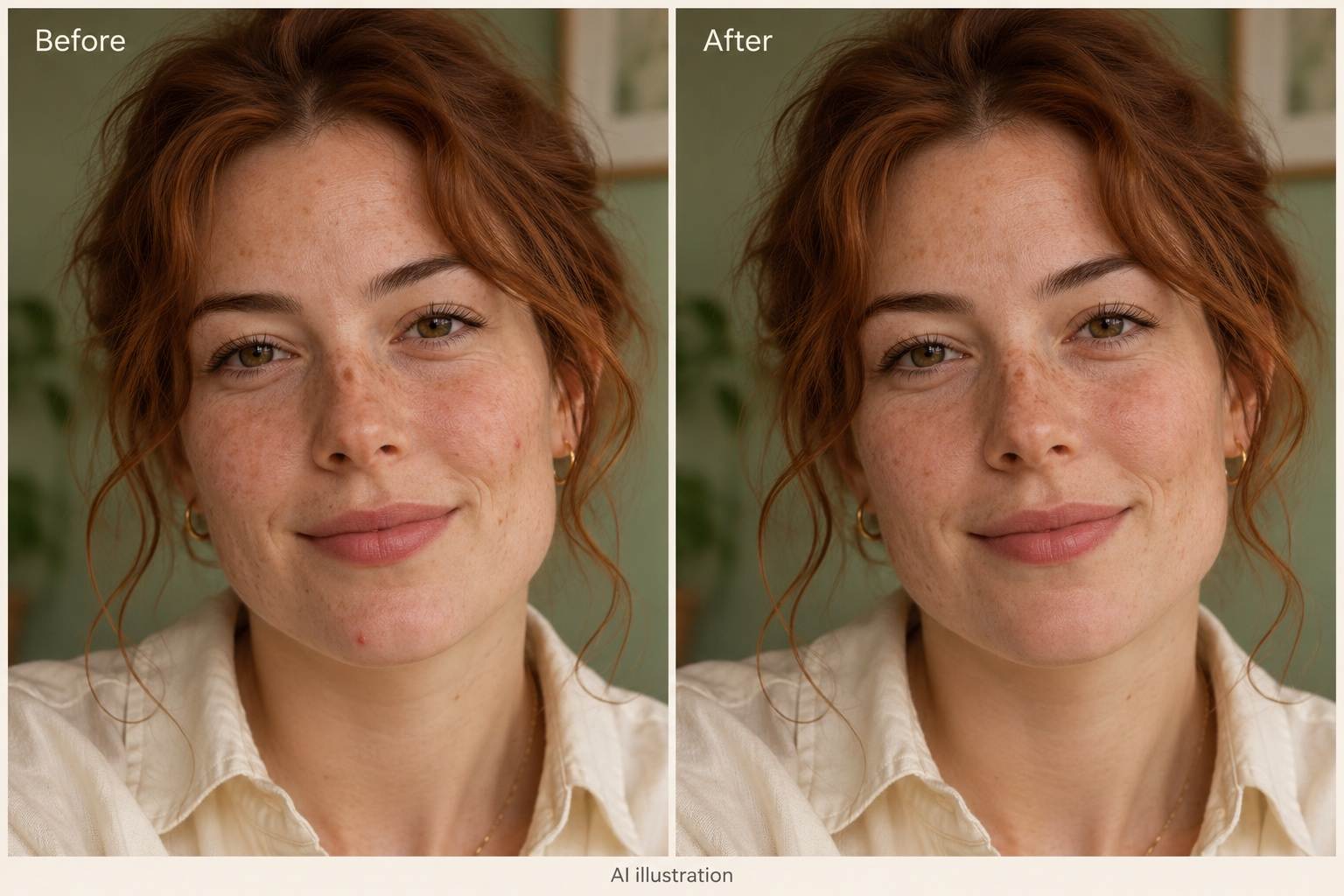
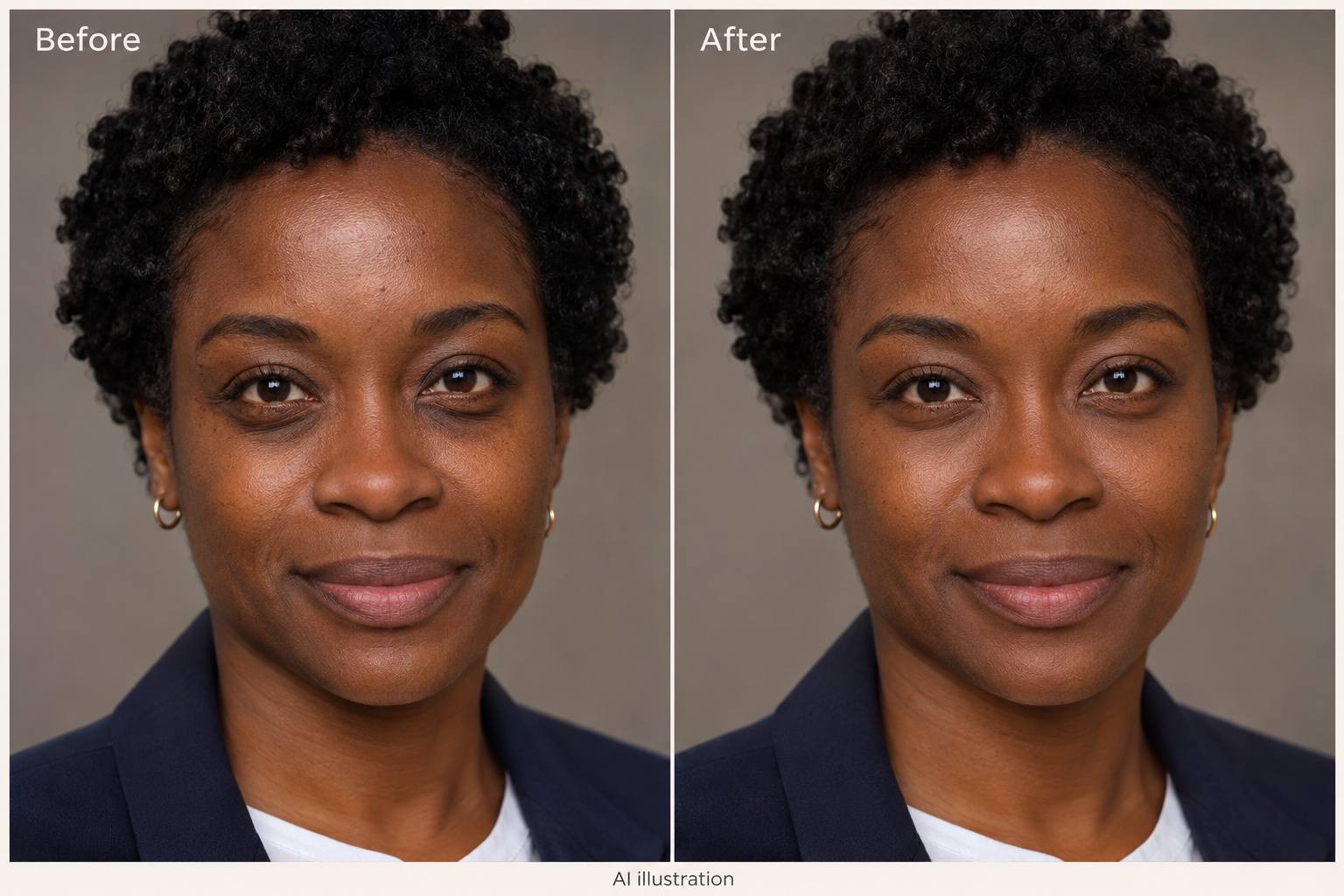
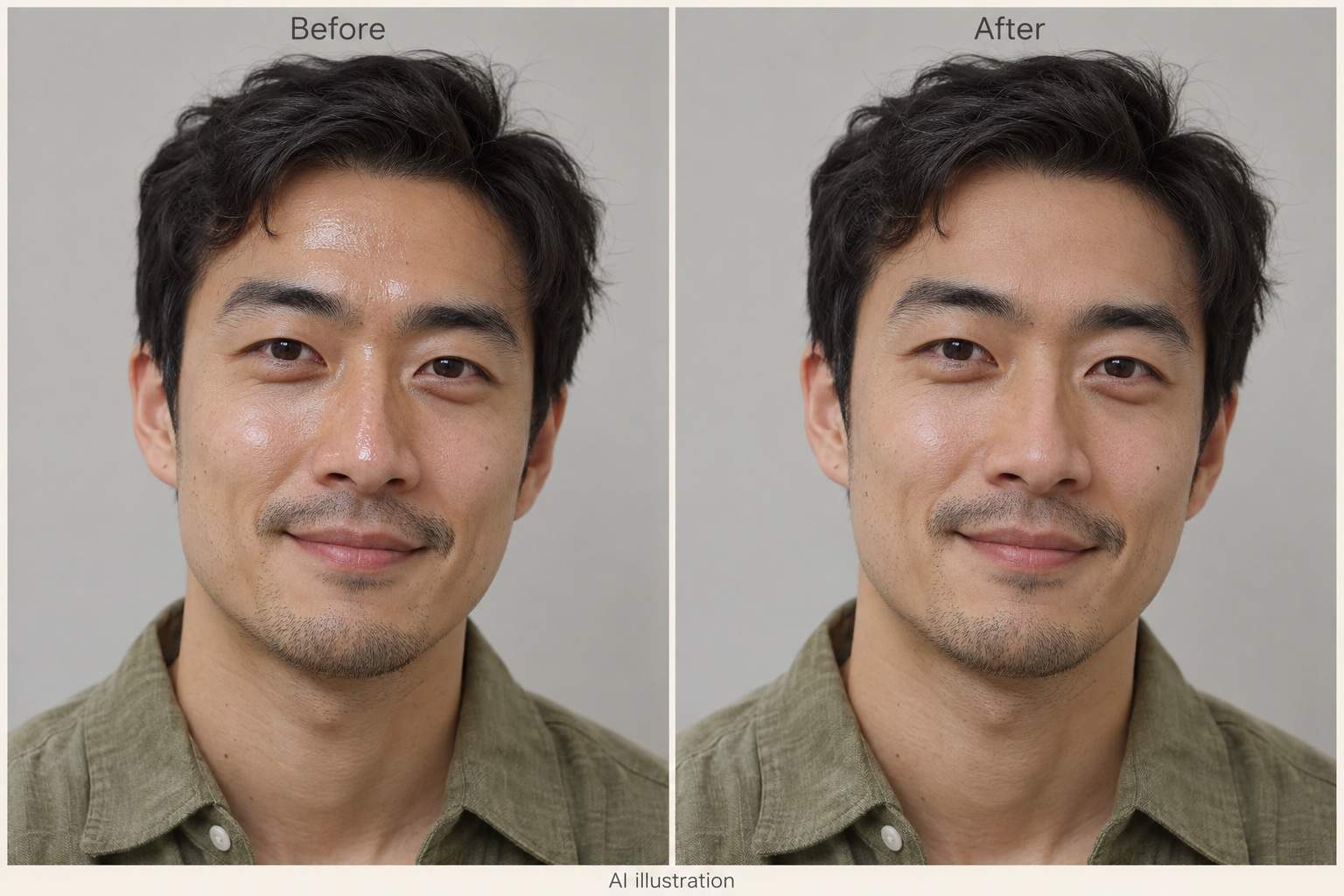
Use AI portrait retouching for a specific request: reduce a spot, soften dark circles, or tone down forehead shine. Describe the area instead of applying the same change to the whole face.
Retouch Skin with Your Natural Features in Mind
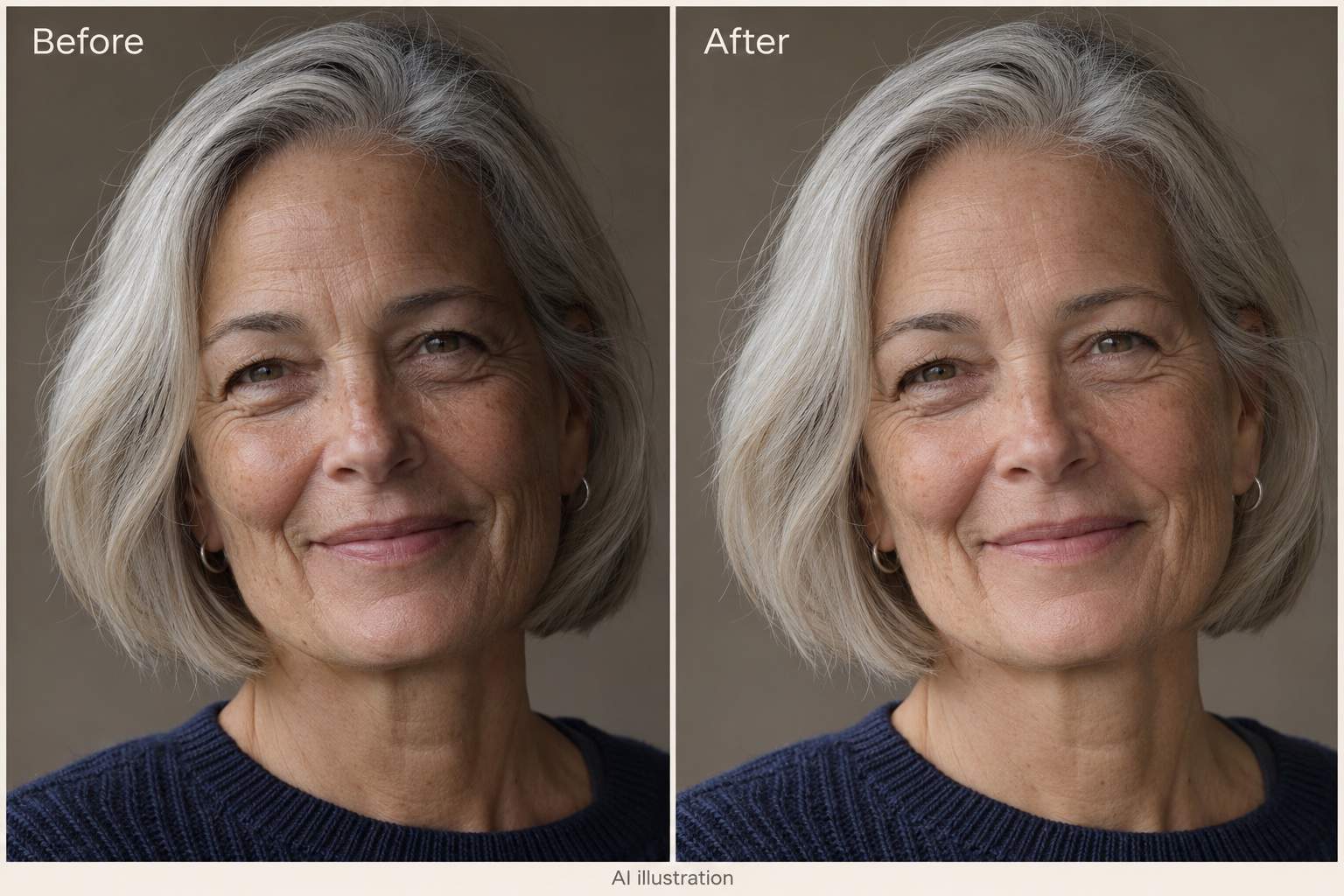
Ask to retain freckles, pores, smile lines, and your original skin tone. These instructions guide the edit; compare the result with the source to check that it still looks like you.
Refine the Edit in Conversation
If the skin looks too smooth, ask Chat Edit for less smoothing and more visible texture. Make a focused adjustment while asking to keep the rest of the portrait unchanged.
Choose a Model for Your Photo
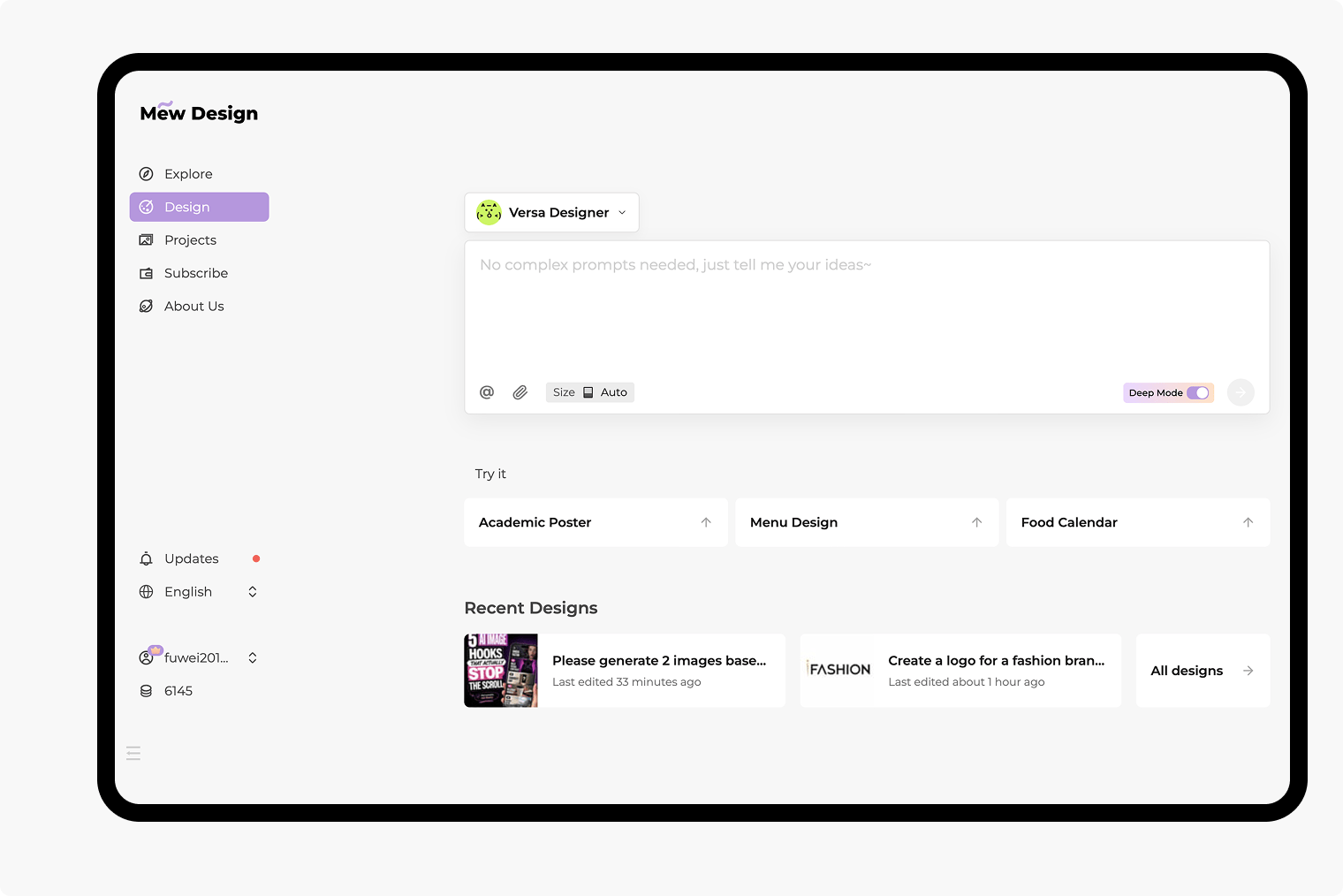
Select a preferred image model or use Mew Auto to match your request to a suitable option. Mew Design offers the latest leading image models and adds new releases to the same workspace.
Retouch Headshots for LinkedIn and Portfolios
Retouch a headshot for a team page, portfolio, or social profile. For a coordinated LinkedIn profile, pair the portrait with a design from our AI LinkedIn banner generator.
Try Online with Free Credits
Try AI face retouch free with signup credits before choosing a paid plan. Work in your browser and export without a watermark. Free credits are limited; further edits depend on your balance.
How to Smooth Skin Without Losing Texture
- Start with Detail: Upload the original photo rather than a compressed screenshot. Avoid heavy beauty filters that have already removed texture.
- Separate Marks from Features: Name temporary spots you want reduced and freckles, moles, or lines you want preserved.
- Check at Full Size: Look for waxy skin, changed eyelids, altered teeth, or mismatched skin tone between face and neck.
- Reduce the Edit When Needed: If the result feels overdone, request a lighter retouch using the original as a reference. Review again before exporting.
Face Retouching for Selfies and Headshots
Remove the temporary pimples on my cheeks in this uploaded selfie. Keep my freckles and visible pores. Do not change my face shape or apply makeup.
Soften the dark circles in this uploaded headshot without erasing the natural under-eye folds. Preserve my eye shape and expression, and keep the lighting believable.
Reduce excess shine on the forehead and nose in this portrait. Keep natural highlights on the cheeks and retain the original skin tone and texture.
Make this retouch less smooth, using my original photo as the reference. Bring back visible skin texture and fine lines. Leave the successful lighting adjustments in place.
Lightly reduce the yellow cast on the teeth in this uploaded smiling portrait. Keep tooth shape, spacing, and natural shading. Do not change my smile or lips.
Gently balance the light on this mature portrait and soften only the deepest shadows. Preserve age, fine lines, silver hair, and the original facial features.