Free OnlineAI Face Generator from Drawing
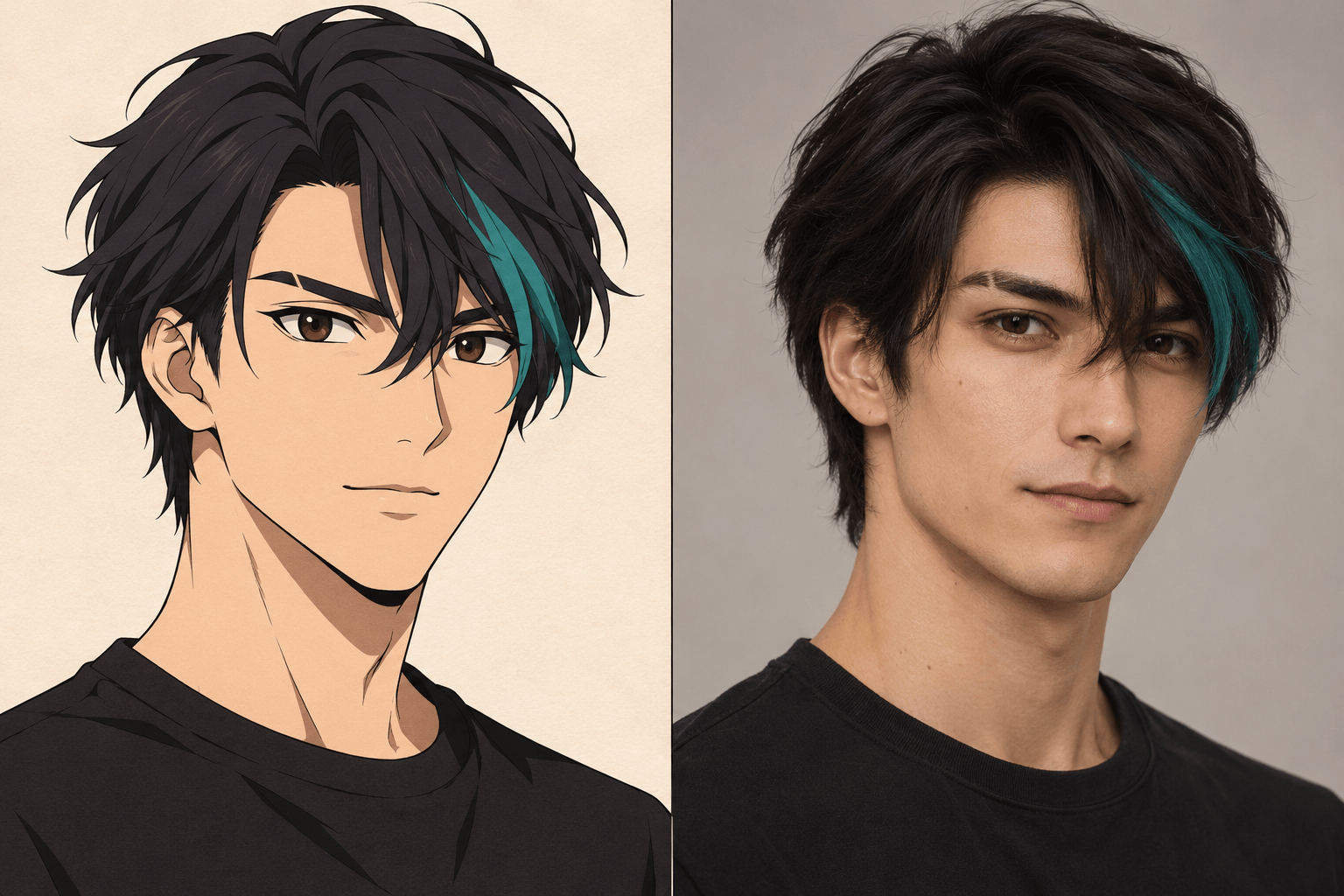
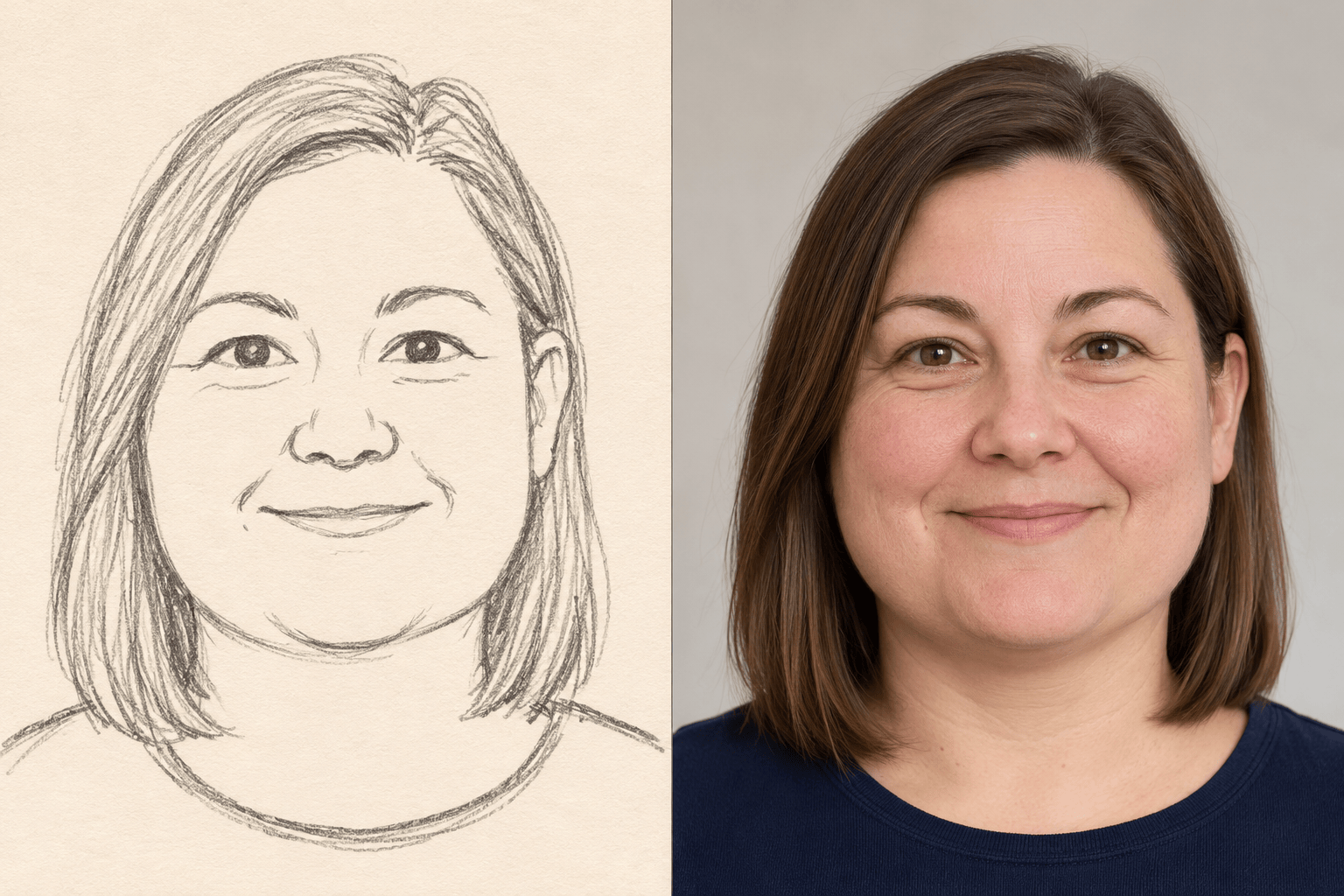
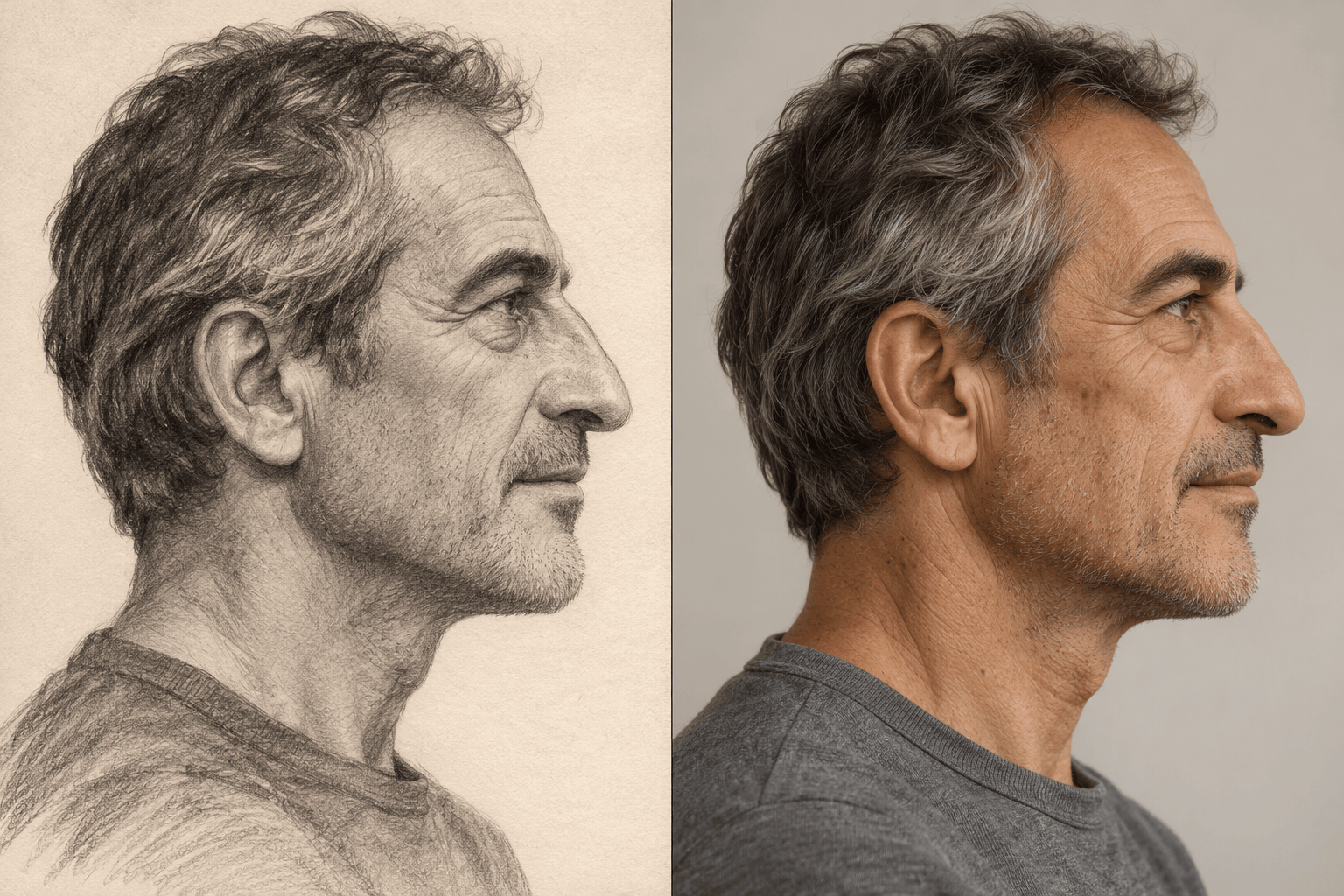
How to Turn a Drawing into a Realistic Face with AI
Upload a Clear Face Sketch
Choose the Realistic Interpretation
Bring the Features Closer to Your Drawing
Download Your Character Portrait
Why Use Mew Design for Sketch-to-Face AI
Convert Pencil Sketches and Line Art into Faces
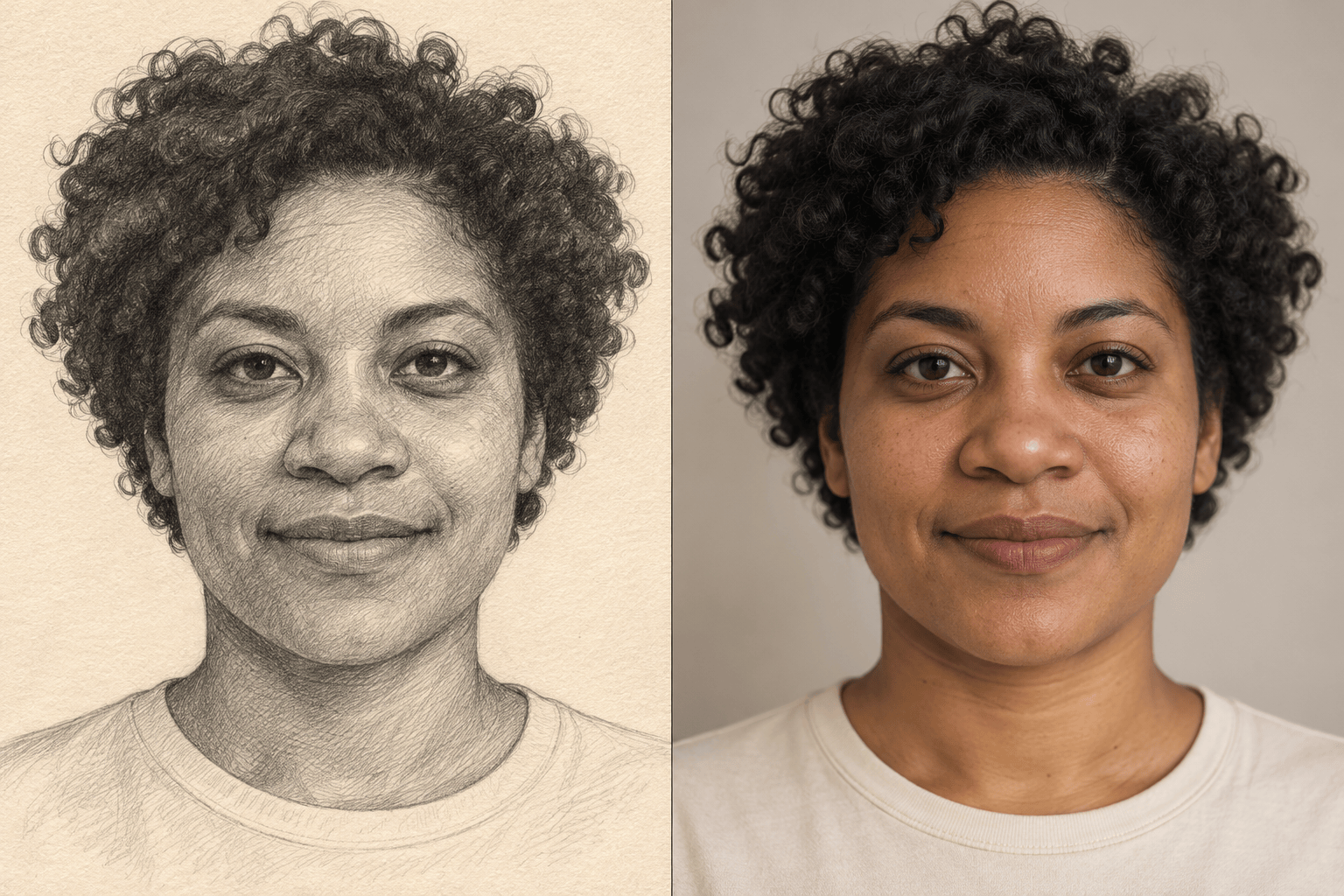
Convert a pencil sketch to a realistic face or use digital line art as your starting point. Your uploaded drawing gives the AI a visual reference for the face shape, pose, and expression.
Direct the Details Missing from the Sketch
Black-and-white lines leave skin tone, eye color, and texture undecided. Describe those details to guide a realistic face from your sketch instead of leaving every choice to AI.
Adjust Likeness Through Conversation
Use Chat Edit to refine brows, a nose, or a smile against the source. Ask for focused changes and review each version; exact facial matching is not guaranteed.
Choose a Model for Reference-Based Work
Select an available image model yourself, or let Mew Auto choose one for your drawing and portrait brief. Access the latest leading image models in one workflow, with new releases added promptly.
Turn Anime Drawings into Realistic People
Turn an anime drawing or comic face into a realistic character concept. Decide which stylized traits to keep and which proportions to adapt for a believable human face.
Try Sketch-to-Face AI Online
Start in your browser with free credits after signup. Generate and edit portraits in the same conversation, then export watermark-free images. Generation and editing use credits.
How to Prepare a Face Sketch for Realistic AI Results
- Make the Lines Readable: Crop away the notebook edges, reduce glare, and remove heavy shadows from a phone photo. Keep the full hairline and chin visible.
- Separate Fixed Features from Open Choices: Name the nose shape, eye spacing, or asymmetry to retain. Specify color and age only where the drawing leaves room for interpretation.
- Translate Stylized Proportions: For anime or cartoon art, decide whether oversized eyes and a tiny chin should become natural human proportions. Keep recognizable hair and expression cues.
- Check Structure Before Texture: Correct the head angle and facial proportions before refining pores, lighting, or background. A polished surface cannot fix the wrong face shape.
Sketch-to-Face AI Examples and Refinement Ideas
Pencil Sketch to Realistic Face: Turn my uploaded pencil portrait into a realistic adult character photo. Follow the drawn face shape, eye spacing, nose, and expression. Add natural skin texture and soft daylight. Keep the original head angle and use a plain background for a character reference board.
Make Anime Features Believable: Use my uploaded original character drawing to create an adult human portrait. Adapt oversized eyes and the tiny chin to realistic anatomy while retaining the hairstyle, eye color, and expression.
Develop a Rough Face Sketch: Turn my simple face outline into a realistic adult portrait. Follow the visible eye positions, nose, mouth, and jaw. Use neutral lighting and a plain background so I can judge the facial structure.
Remove the Plastic Skin Look: Refine my generated portrait with subtle pores, natural skin variation, and softer highlights. Keep the facial structure and apparent age. Avoid airbrushed skin and exaggerated sharpening.
Keep the Side-Profile Silhouette: Render my uploaded profile sketch as a realistic portrait. Follow the forehead, nose tip, lips, and chin outline. Keep the side view instead of rotating the head toward the camera.
Recover the Drawn Expression: Compare the portrait with my original drawing. Restore the eyebrow tilt, gaze direction, and mouth shape without adding a bigger smile. Keep the current hairstyle and background.