Create Your OwnAI Emoji from Photo
How to Turn a Photo into an Emoji with AI
Upload a Clear Photo
Shape the First Reaction
Check the Likeness
Export and Try It in Chat

Make the Reaction Yours with Mew Design
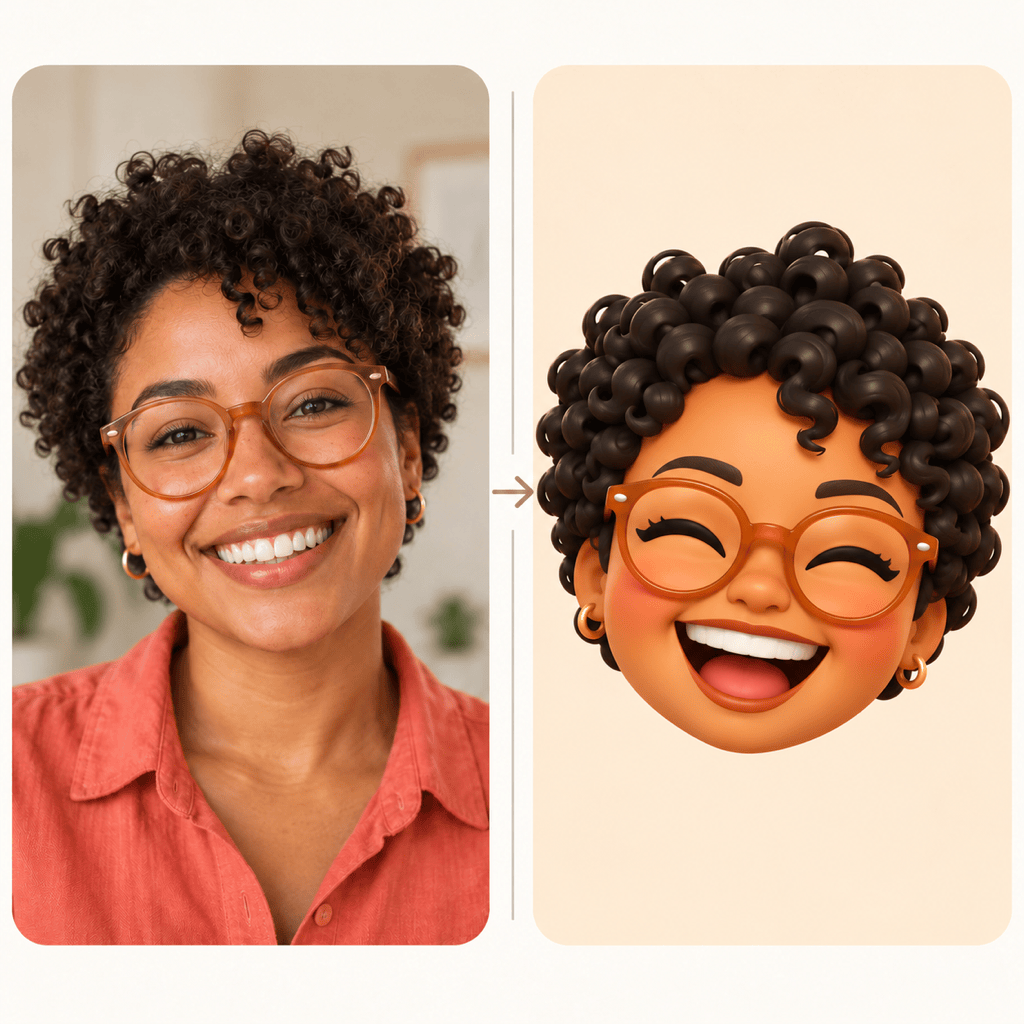
Give the AI a Familiar Face
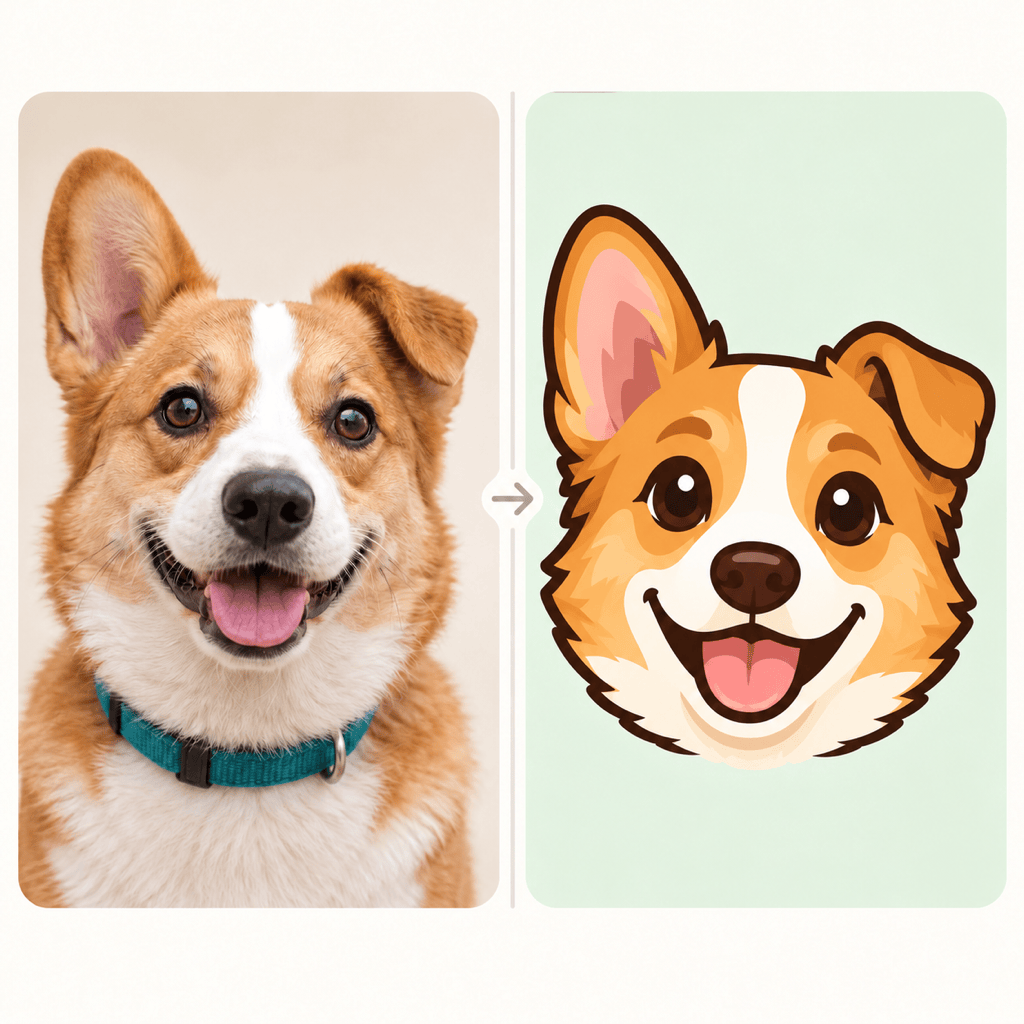
Your uploaded photo gives our AI emoji maker a visual starting point. Specify distinctive hair, glasses, or fur markings, then review how well the result matches.
Change the Look, Keep the Character
Try soft 3D, bold cartoon, or simple line art from the same reference. Compare styles before choosing the one that feels most like you.
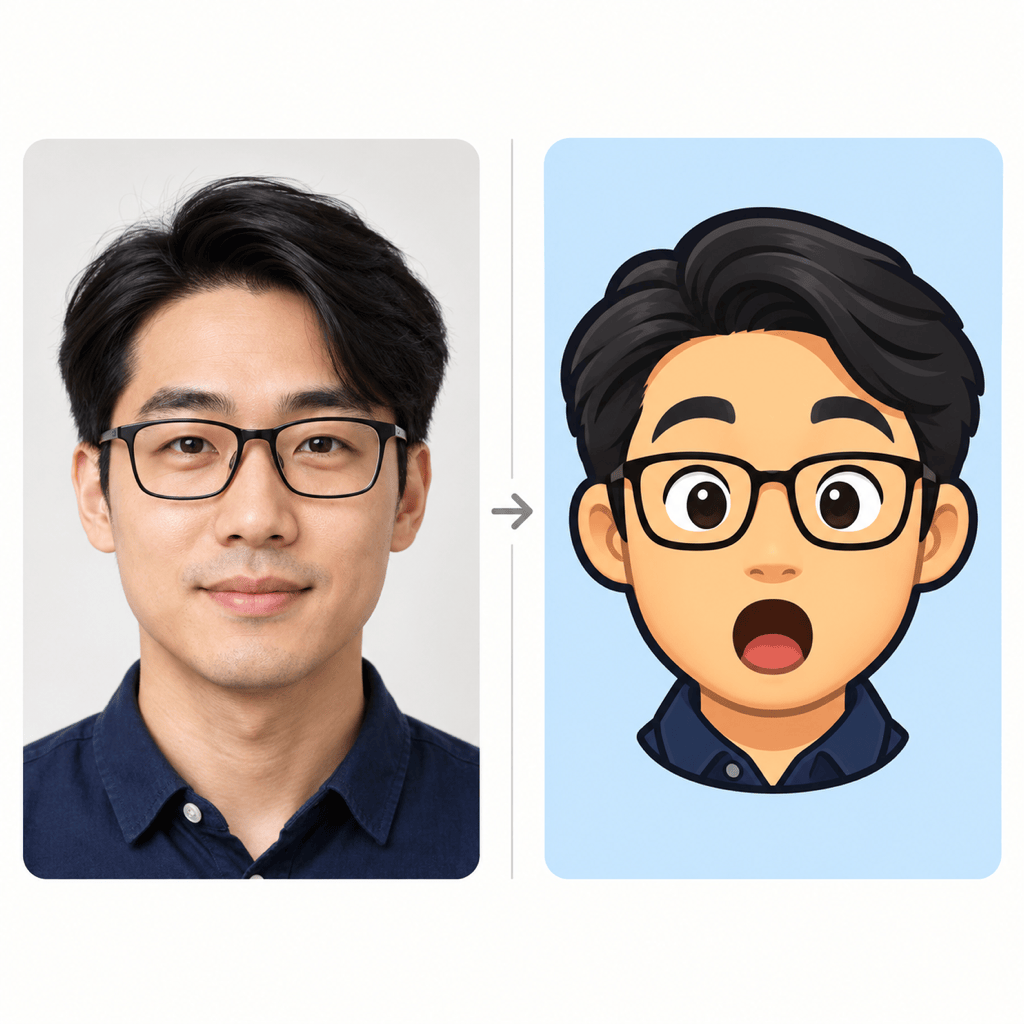
Direct the Expression
Turn a neutral selfie into a laughing, surprised, or skeptical reaction. Chat Edit lets you ask for a raised eyebrow or wider grin without rewriting the whole brief.
Lose the Photo Background
Create a custom emoji from a photo without carrying the room or scenery into the chat. Request background removal and export a transparent PNG.
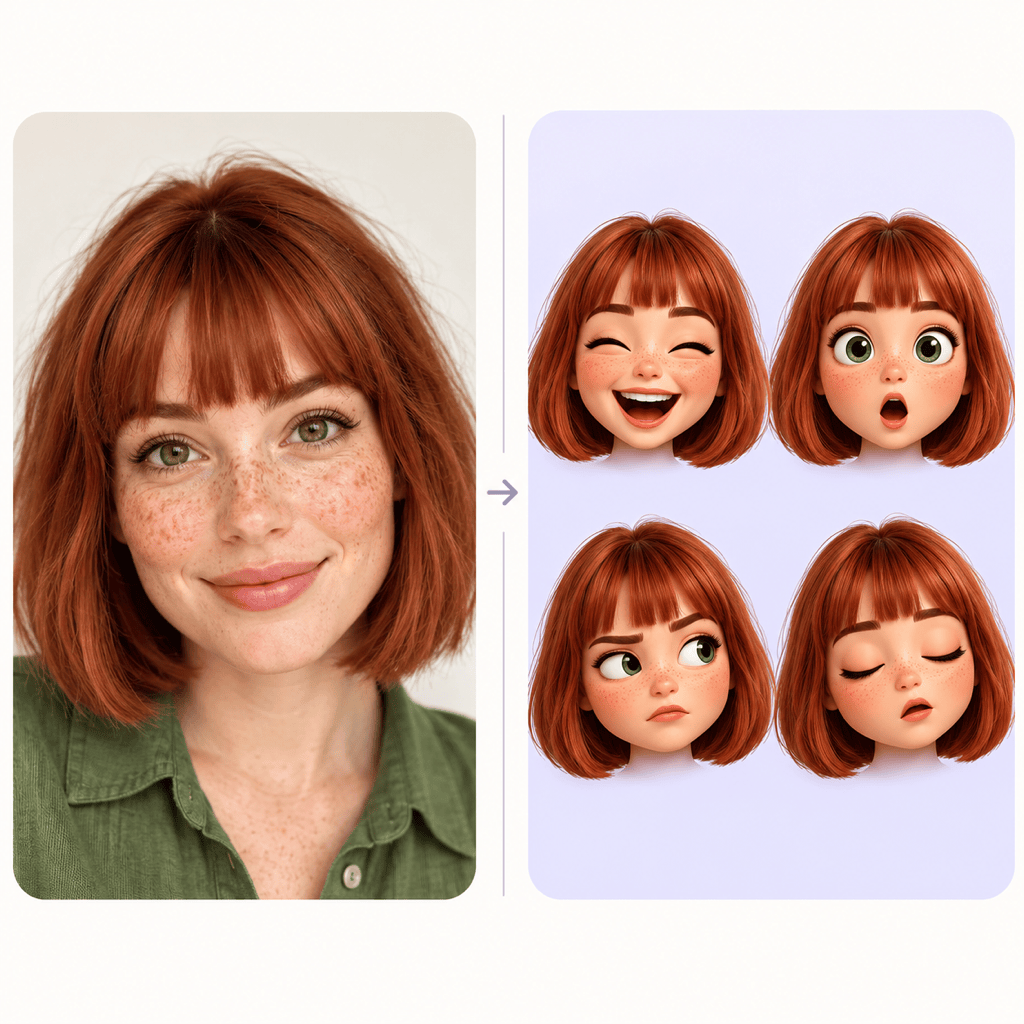
Build Reactions Around One Reference
Use one photo to make a coordinated emoji pack. Keep the same proportions and colors, then review each expression and correct any visual drift.
Reuse Your Emoji Style
Save a successful reaction-design workflow as a Mew Skill. Reuse its style and output rules when you add new emotions, with less repeated setup.
Choose a Photo That Makes a Better Emoji
- Use One Clear Subject: Crop a group photo to the person you want. Avoid blur, deep shadows, and anything covering the eyes or mouth.
- Name the Defining Details: Choose two or three visible traits, such as glasses, a curl pattern, or a white patch on your pet’s nose. Ask to preserve them.
- Separate Style from Identity: Describe the rendering style and expression separately from the features that must stay. Heavy stylization can change the likeness.
- Check the Tiny Version: Shrink the preview to chat size. If the reaction becomes hard to read, simplify shadows, remove extra props, and bring the face closer.
Fix Common Photo-to-Emoji Problems
Restore the likeness: Compare this emoji with my uploaded photo. Bring back the original face shape, hairstyle, and glasses. Keep the current expression and illustration style.
Make the reaction clearer: Keep the person recognizable, but make the surprised expression stronger with raised eyebrows and an open mouth. Remove small decorative details.
Keep my pet’s markings: Use the uploaded pet photo to correct the ear shape, muzzle color, and fur patches. Keep the cheerful cartoon expression and simple outline.
Clean the cutout: Remove the background from this emoji. Keep the hair, ears, and glasses intact, remove the visible halo, and prepare a transparent PNG.
Fix the reaction set: Use my approved emoji as the reference for the other expressions. Match its face proportions, colors, shading, and crop while keeping each emotion distinct.
Make it readable in chat: Enlarge the face within a square canvas, simplify fine lines, and increase contrast around the eyes and mouth. Keep the likeness and remove all text.





