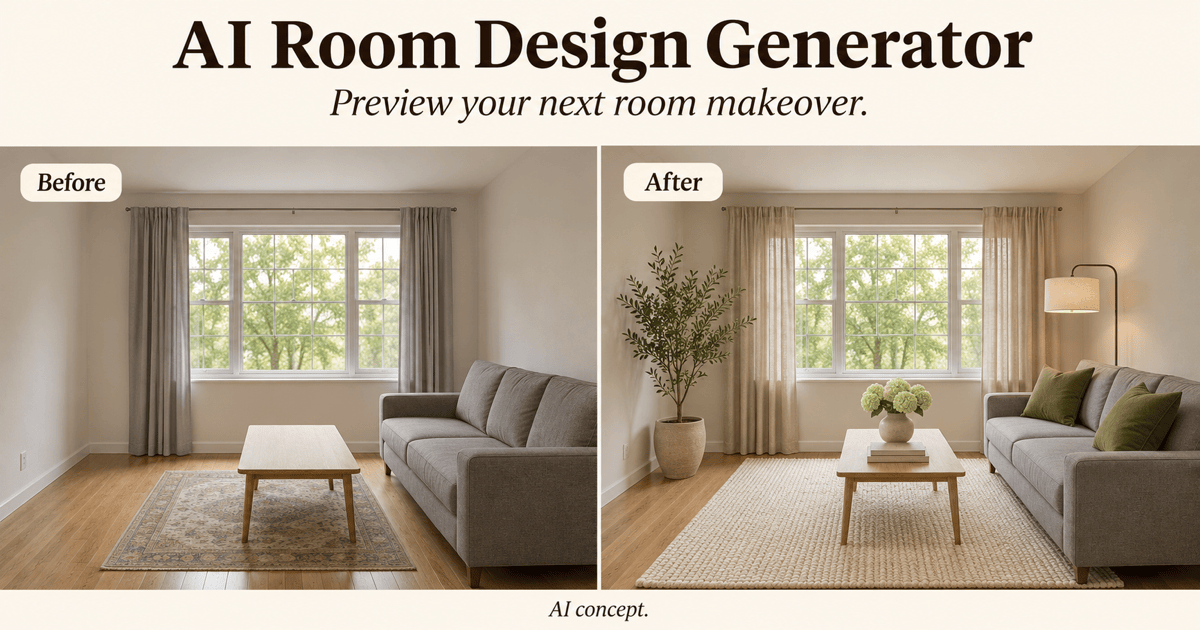
Free OnlineAI Driveway Design
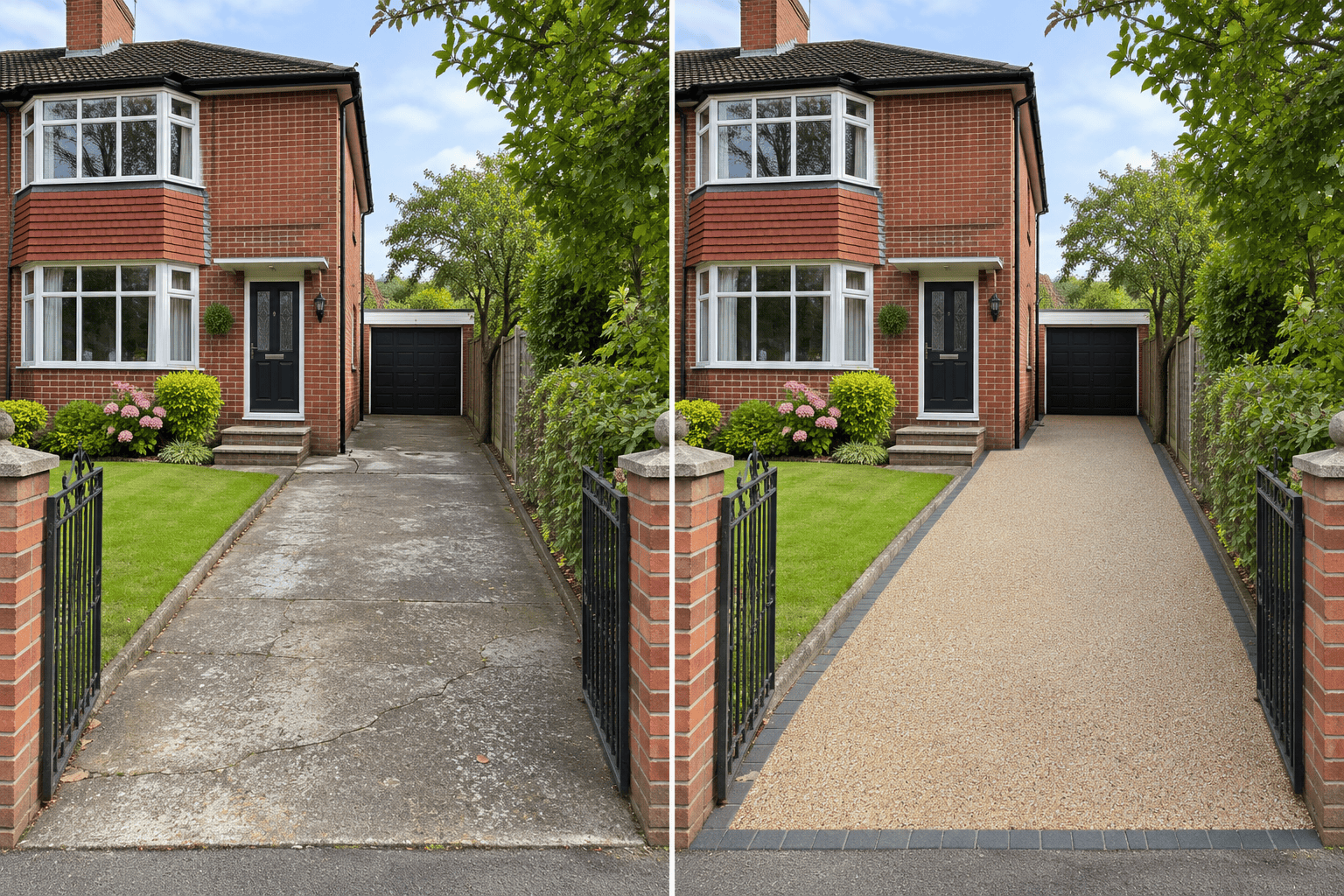
How to Create a Driveway Design with AI
Show the Whole Driveway
Test One Surface First
Compare a Focused Revision
Take a Concept to Your Installer
Compare Driveway Materials, Patterns, and Layouts
Design Around Your House and Garage
Start AI driveway design from a photo of your property. Identify the facade, garage, trees, and boundaries you want the edit to preserve.
Compare Pavers, Concrete, and Gravel
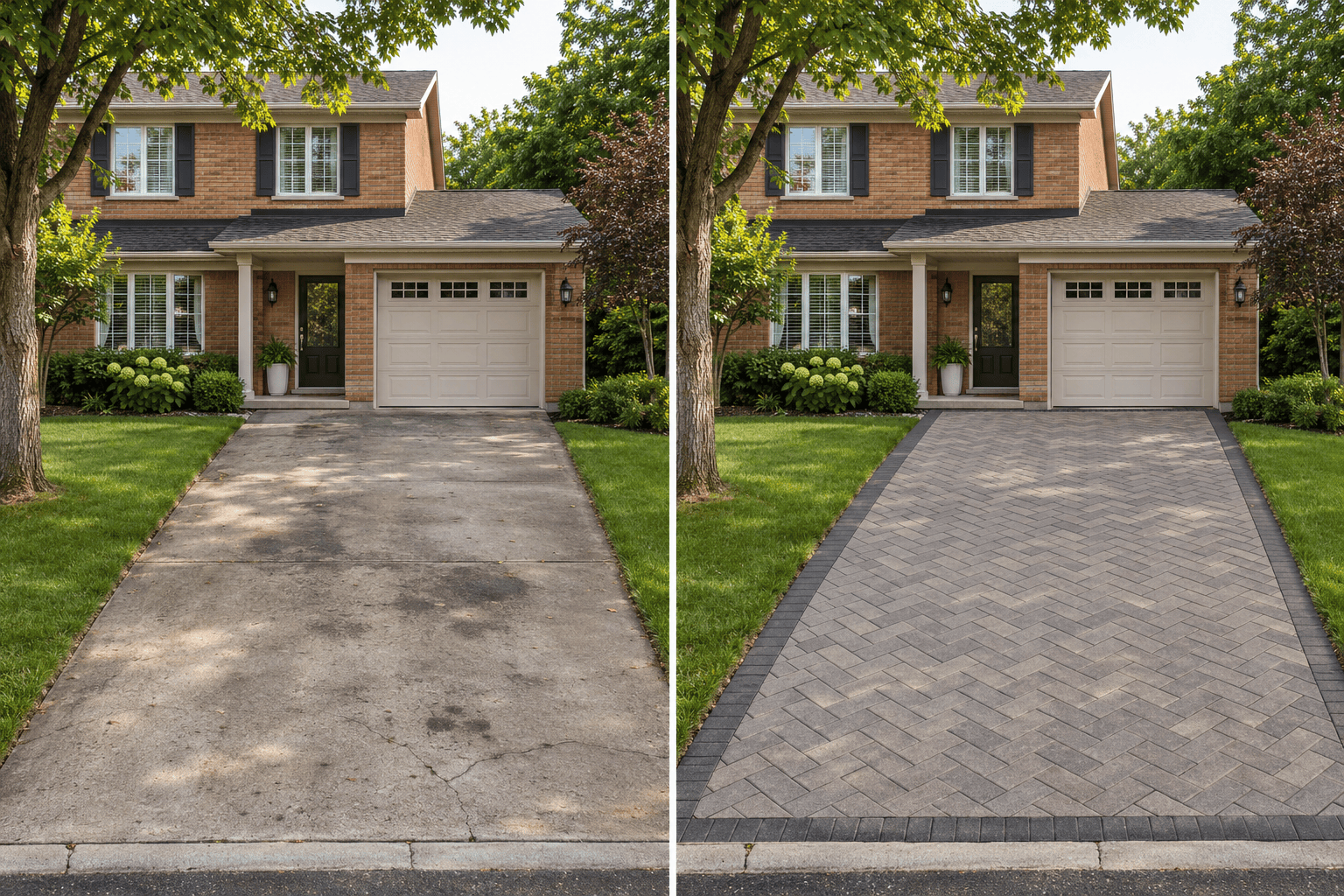
The AI driveway visualizer lets you compare brick or concrete pavers, poured concrete, asphalt, and gravel against your facade. Test color, paving-unit size, and contrast before selecting a surface.
Change Paving Patterns and Borders
Compare herringbone with running bond, or try a dark border around lighter paving. Ask for one change at a time so you can judge the pattern without changing the house or driveway layout.
Match a Paving Reference
Upload a paving reference alongside your house photo. Ask for its general color and texture; verify real products with physical samples.
Choose a Model for Your Driveway Concept
Mew Design provides leading image models in one design workflow. Let Mew Auto choose for your driveway concept and reference photos, or select an available model on a paid plan.
Explore Small and Circular Driveway Layouts
Ask for small driveway ideas within the existing footprint, or explore a curved entrance or circular driveway on a larger plot. Describe parking, gate, and pedestrian access needs; compare these as visual concepts before measuring on site.
Keep Your Driveway Preview Grounded in the Photo
- Keep Edges VisibleInclude the street connection and both driveway boundaries. Avoid tight crops, deep shadows, and cars hiding the paving.
- Separate Surface From LayoutFor material comparisons, keep the driveway footprint fixed. Request widening or a new turning area as a separate concept.
- Check What MovedCompare rooflines, doors, paths, and trees with the source. If the edit changes them, request a correction using the original photo.
- Treat Drainage as a Site QuestionAn image cannot establish levels, load capacity, or permeability. Ask your installer to assess the site and local requirements.
Driveway Ideas to Test on Your Property
Paver driveway: Replace the existing surface in my photo with warm gray herringbone pavers and a slim charcoal border. Keep the driveway edges, garage, and house unchanged.
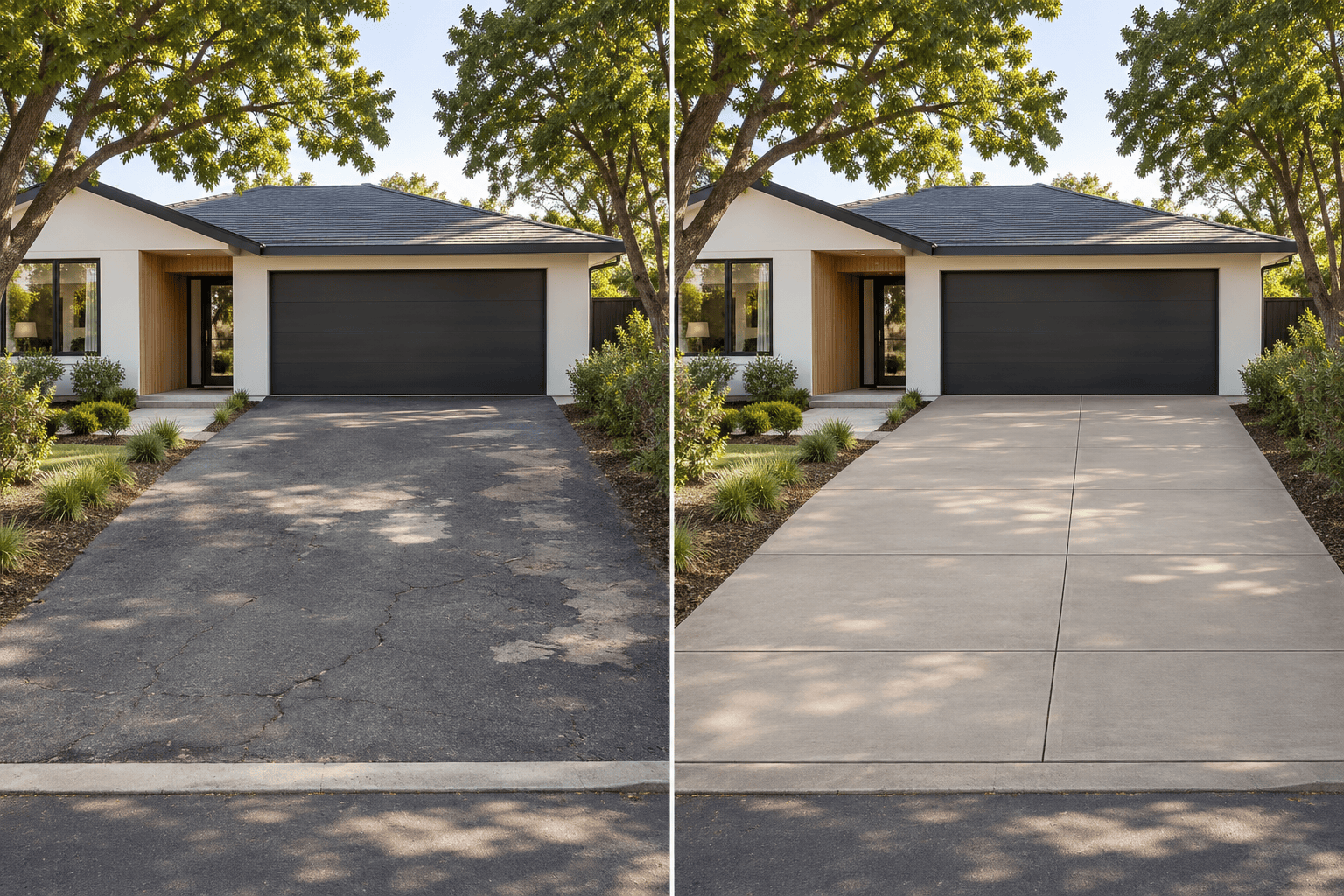
Modern concrete driveway: Show a pale concrete finish with a simple joint layout. Keep the existing width and entry path, and avoid adding grass strips across the parking area.
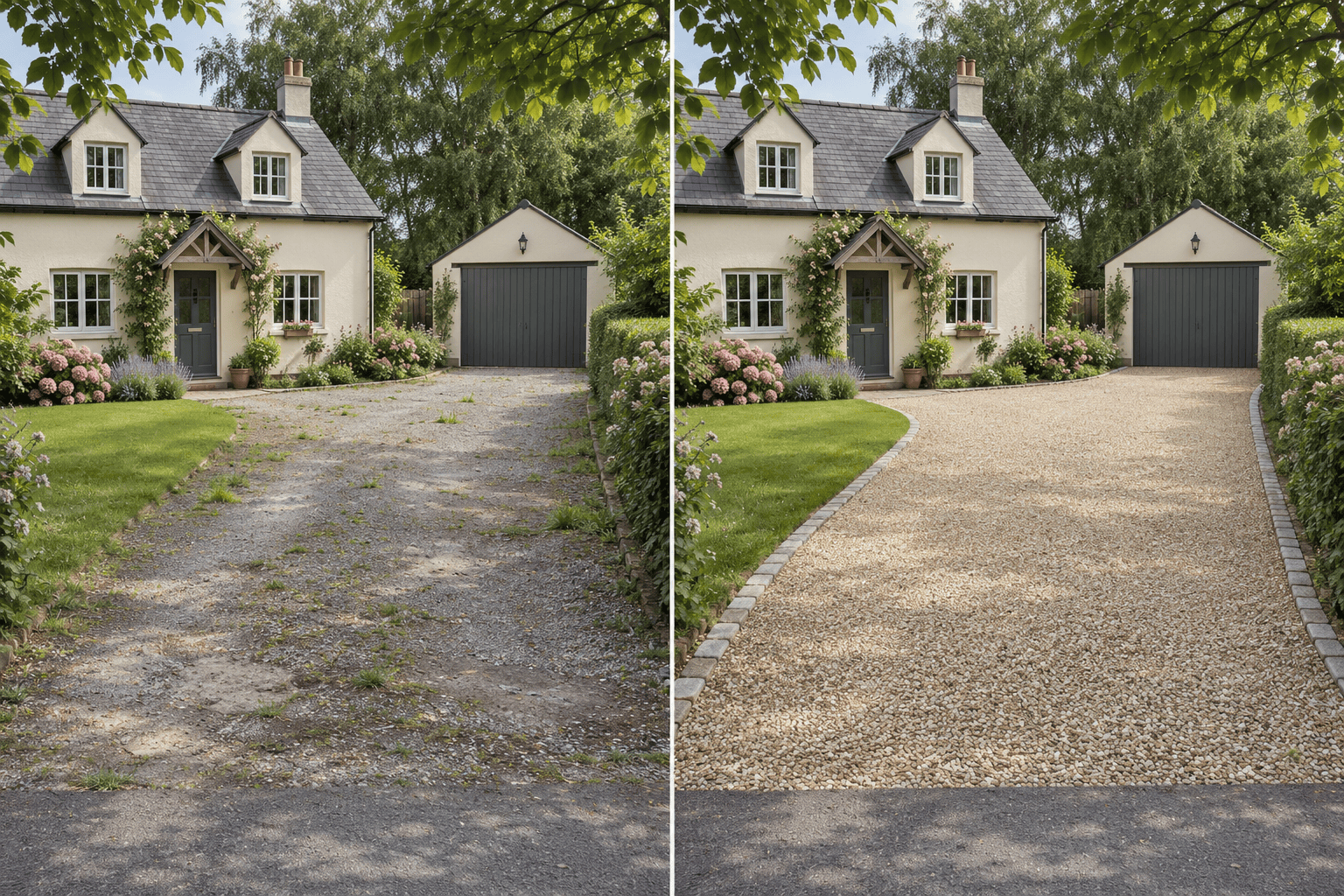
Gravel driveway: Preview natural buff gravel with stone edging for this cottage. Retain the curved route and planting beds; keep loose stone visually separate from the front path.
Small driveway: Compare a restrained paving pattern with a plain concrete finish in two versions. Keep the same narrow footprint, gate opening, and pedestrian access in both.
Resin-bound driveway: Show a fine warm beige aggregate surface with dark edging on my existing drive. Preserve the garage threshold, front steps, and lawn boundaries.
Circular driveway: Create an early concept with two entrances and a planted center island for the wide front yard shown. Preserve the house and property boundaries; treat the layout as unmeasured inspiration.