Free OnlineAI Cutout Image Tool
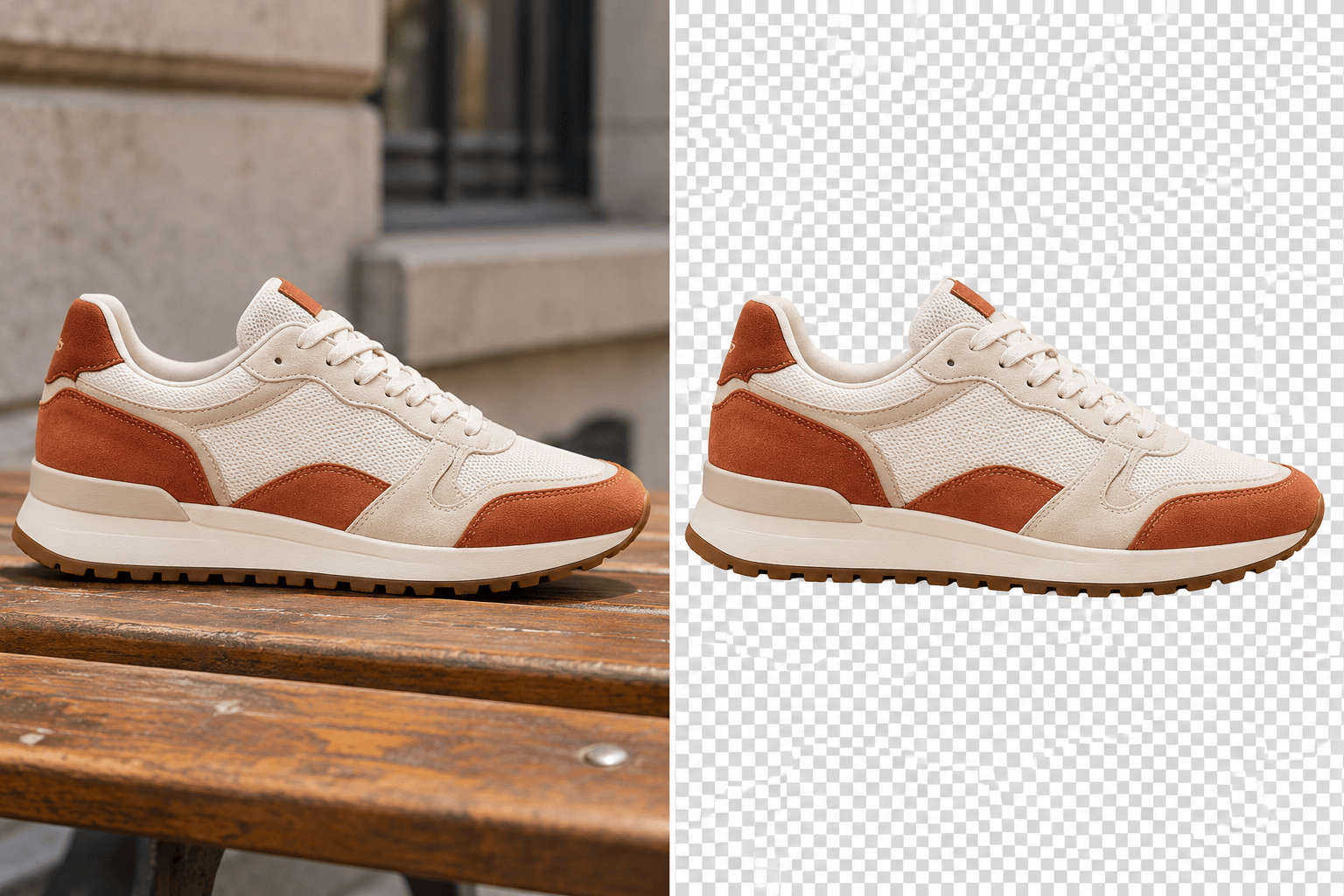
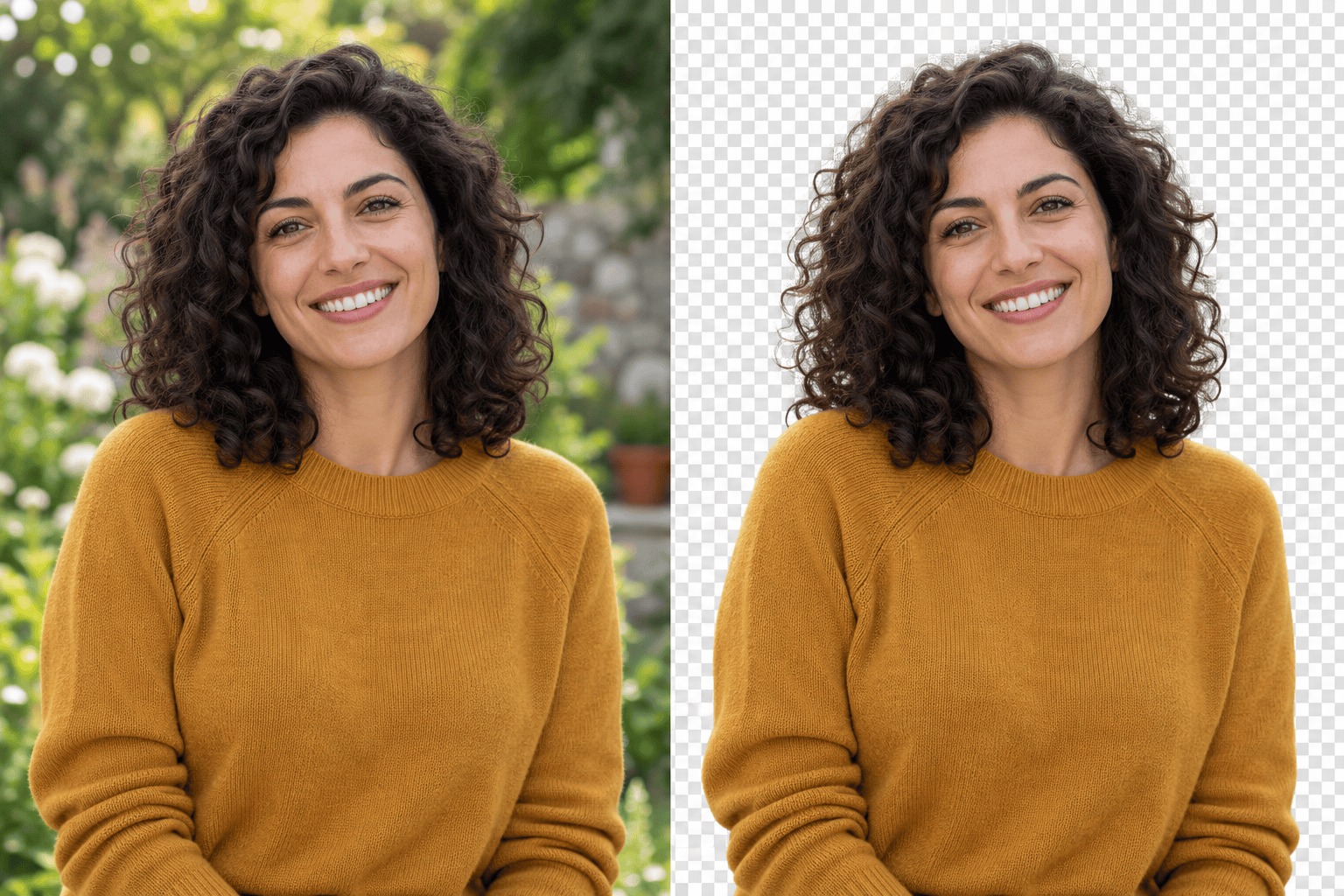
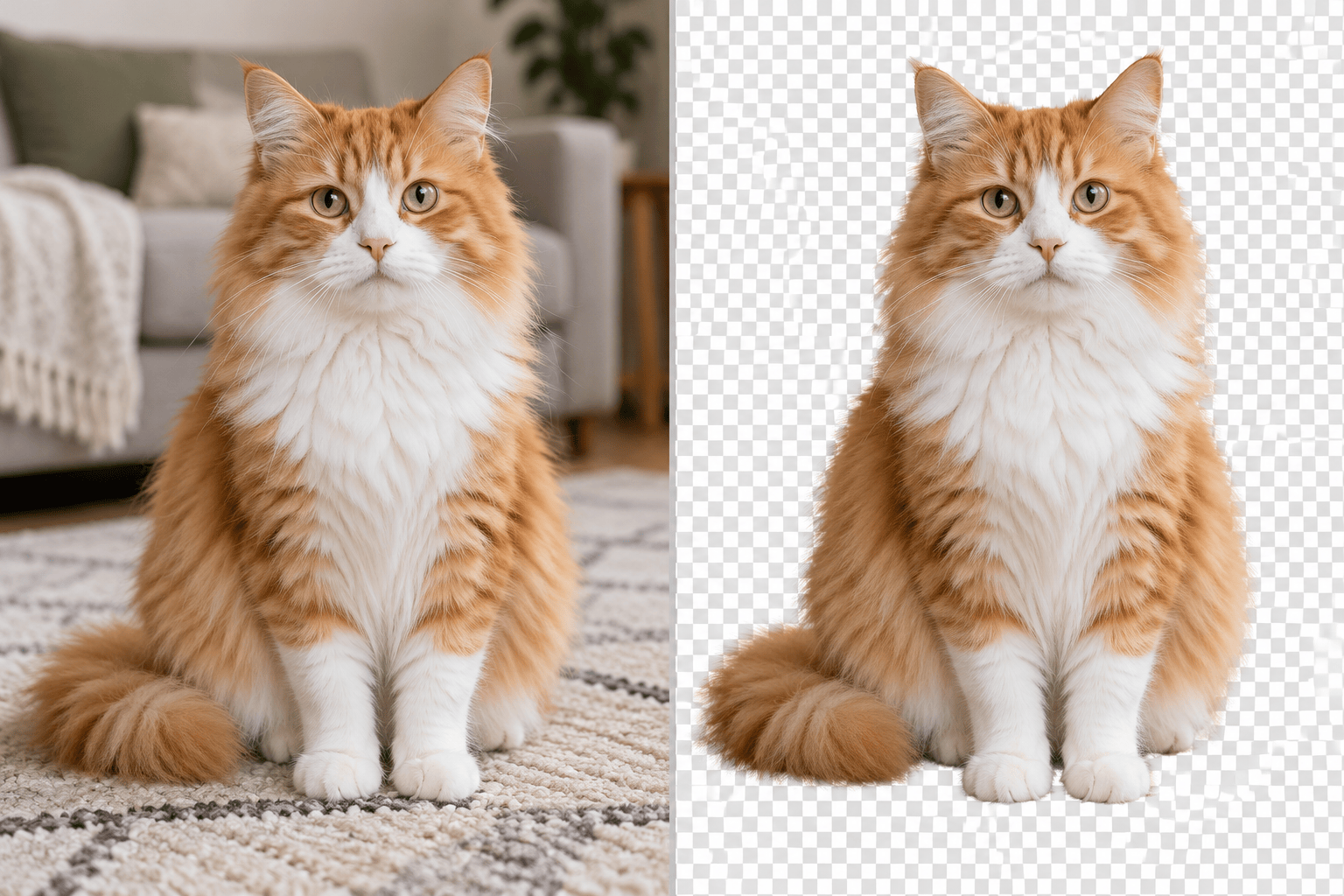
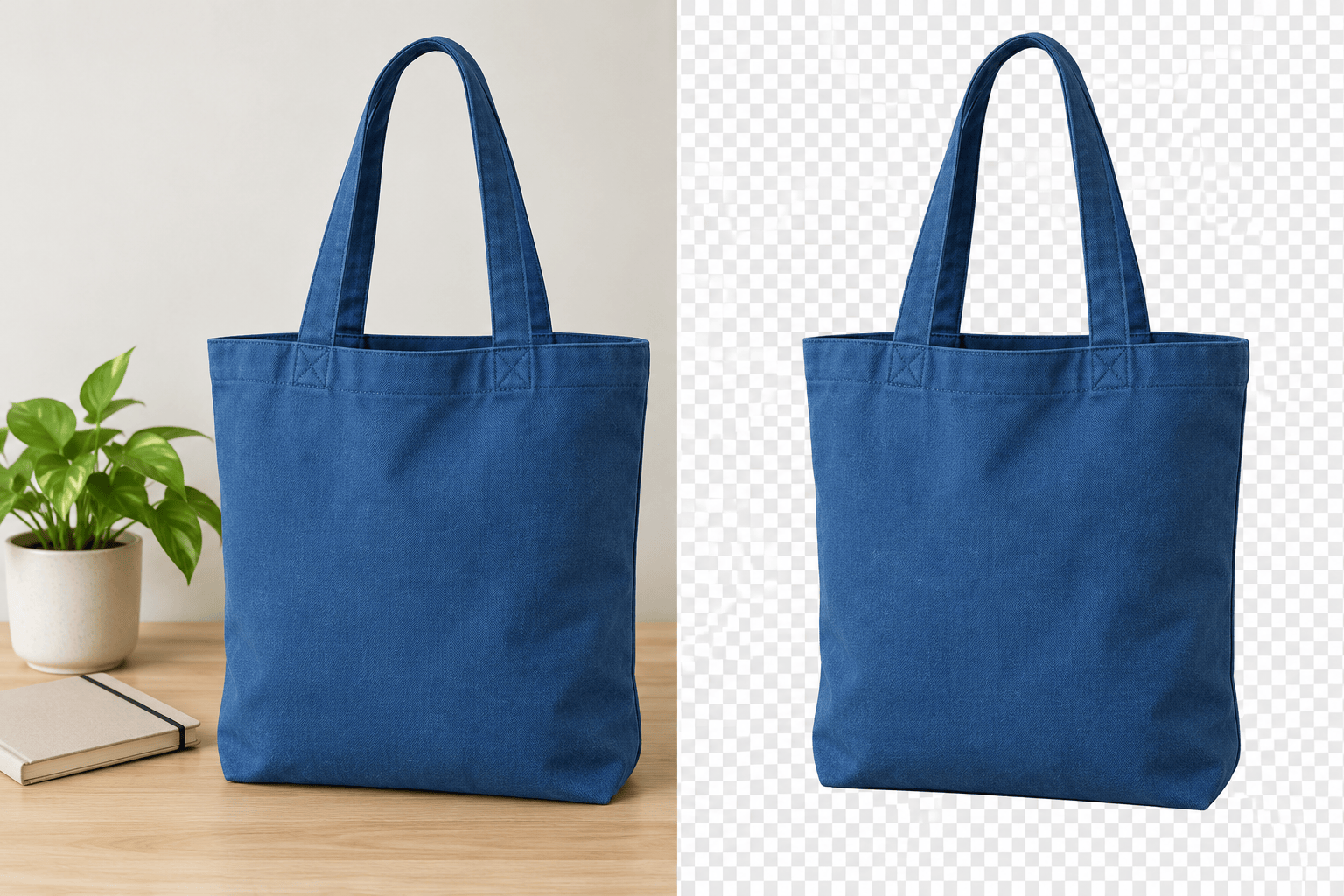
How to Create an Image Cutout with AI
Upload Your Source Photo
Ask to Remove the Background
Check and Refine the Edges
Download a Transparent PNG

From Photo Cutout to Finished Design
Choose What Stays in the Photo
Use this online AI image cutout tool with your own photo. Name the subject to keep and explain what to remove, without learning a selection tool.
Get a Background-Free Asset
Ask for a transparent PNG cutout you can place over another image or color. Keep an isolated version for future designs.
Correct Details Through Chat
Point out a rough edge or leftover background in Chat Edit. Request a focused change and compare the new version with your source.
Prepare Product Photos for Listings
Remove the background from a product photo, then request white or a brand color. Review labels, shape, and color before using the image in your store.
Turn Cutouts into Creative Assets
Take your isolated subject into custom stickers or poster designs. Add text or a new setting through the same design conversation.
Try Your Own Photo for Free
New users receive free AI credits after signup to test the photo cutout workflow. Exports are watermark-free; further usage depends on available credits.
Get Cleaner Cutouts from Your Photos
- Use the Original Photo:Upload the clearest version you have. Blurry edges and cropped-off parts limit what can be separated reliably.
- Name the Subject:Use its position, color, or clothing to distinguish it. Say whether nearby objects and cast shadows belong in the cutout.
- Inspect Fine Details:Zoom in on hair, fur, straps, and gaps between fingers. Glass and translucent fabric may need extra review because the background shows through them.
- Check Real Transparency:PNG supports transparency, but a PNG can still contain a solid background. Place the exported file over another color to check; a checkerboard printed into the image is not transparency.
Fix Common Photo Cutout Problems
Use my uploaded original to refine the portrait cutout. Remove the background caught between curls, keep the visible loose hair, and avoid adding a hard outline. Leave the background transparent.
Remove the pale halo around this cutout. Keep the subject shape and natural edge detail, and leave a transparent background so I can place it on a dark design.
Cut out only the blue bag at the front of my uploaded photo. Remove the other objects and the background, including the gaps inside the handles. Keep the straps intact.
Remove the background from my pet photo. Keep the visible ear tips, whiskers, and fur outline. Do not add a sticker border or change the animal’s markings.
Prepare my product photo for a white-background listing. Remove the surrounding scene, keep the product shape, label, and color, and place it on plain white without props.
Use my uploaded source photo to restore the missing hand in this person cutout. Keep the original pose and clothing, remove only the background, and do not invent parts outside the photo.





