Free OnlineAI Contact Lens Try On
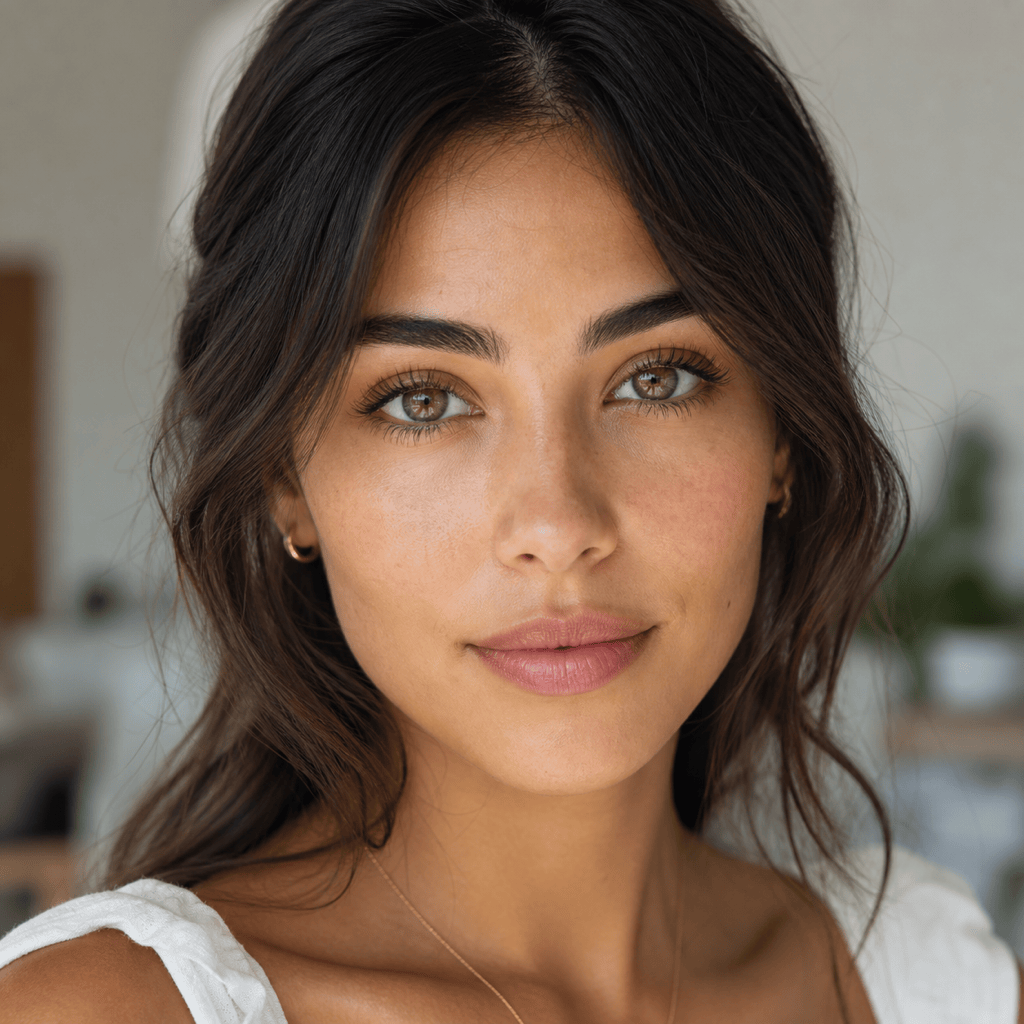
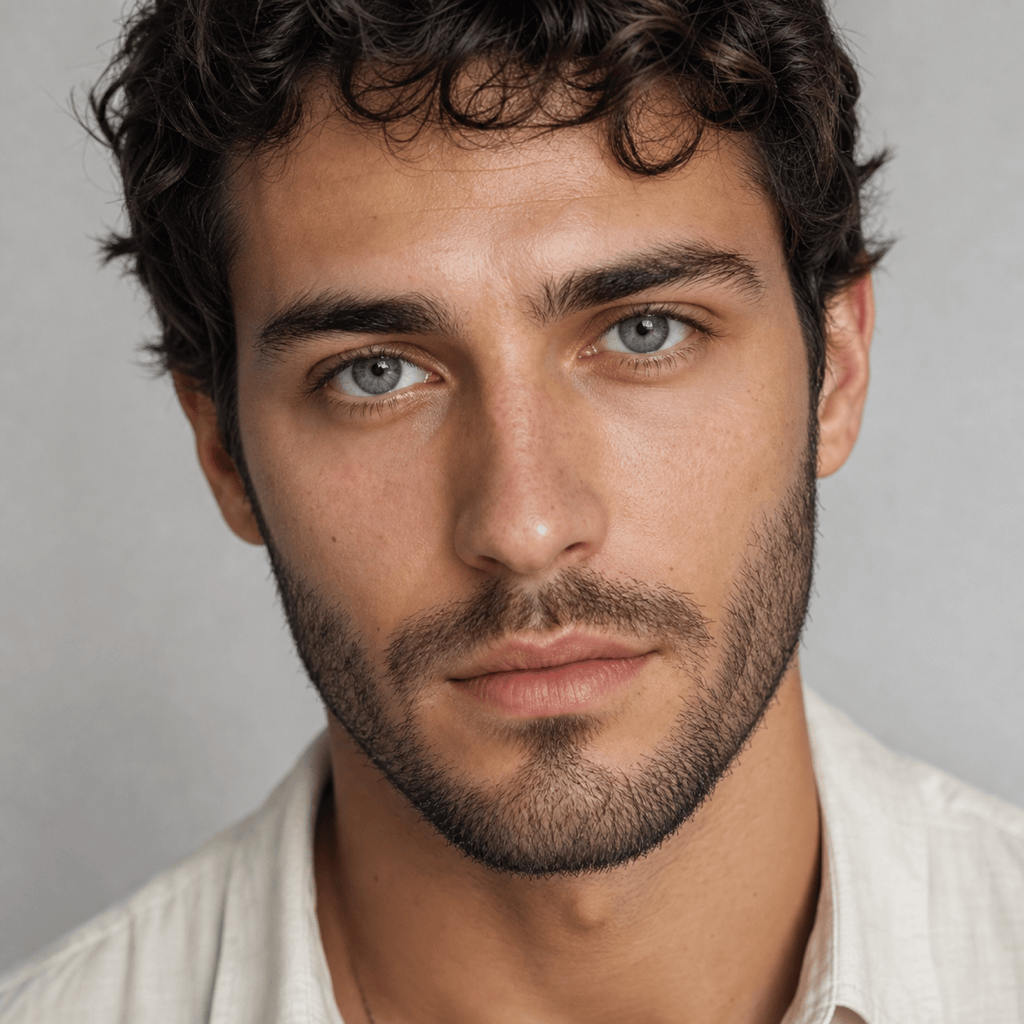
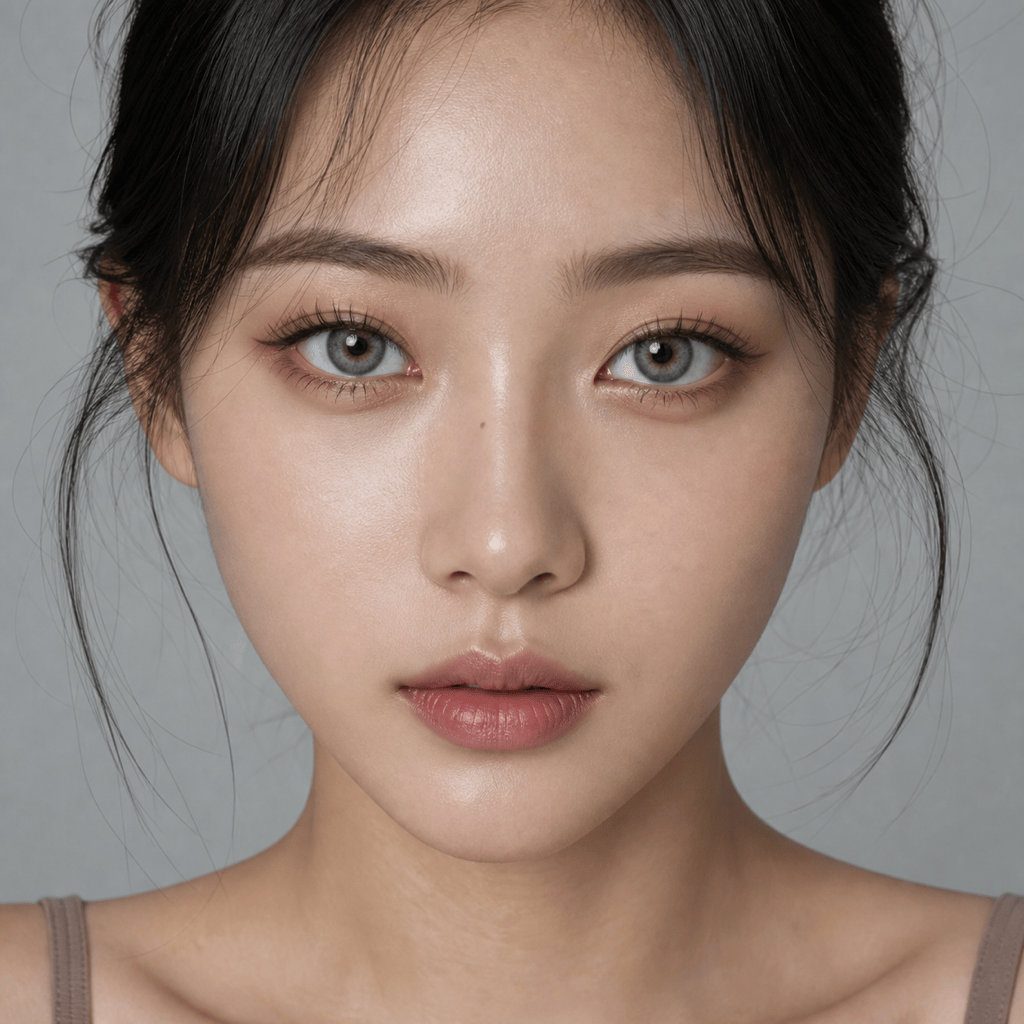
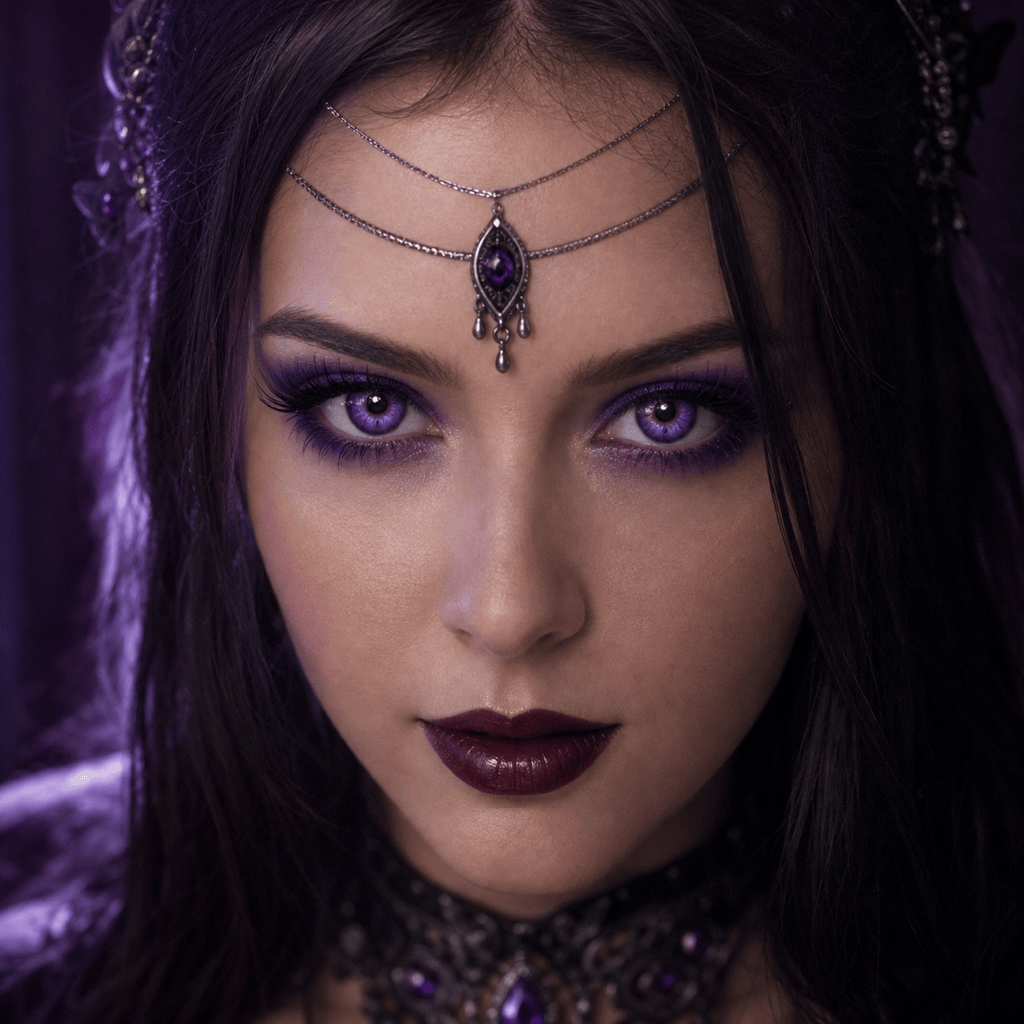
How to Try Colored Contacts on a Photo with AI
Choose a Photo With Visible Eyes
Describe the Lens Look
Generate Your Eye Color Preview
Compare, Refine, and Download

A Contact Lens Preview That Respects Real Eye Detail
Keep Iris Texture and Catchlights
Powered by advanced image models such as GPT Image 2.5, the AI can recolor the iris while preserving fibers, pupils, reflections, and natural depth instead of painting a flat circle over the eye.
Preserve Your Face and Makeup
Tell Mew Design to change only the eyes and keep facial features, skin tone, brows, lashes, makeup, hair, pose, and background unchanged for a focused try-on result.
Control Shade, Opacity, and Edge Definition
Our AI contact lens simulator understands directions such as muted hazel, opaque blue-gray, soft gradient, subtle limbal ring, or high-contrast cosplay violet.
Use a Lens Pattern as Reference
Upload a product photo or pattern reference when color alone is not enough. The online contact lens visualizer can use it as visual guidance while adapting the look to your eyes and lighting.
Compare Natural and Creative Variations
Generate several virtual colored contact looks from one portrait, from honey brown and gray-green to icy blue or fantasy effects, so you can review the overall appearance side by side.
Refine by Chat and Export Clean Images
If a preview feels too bright or artificial, use Chat Edit to request a smaller iris effect, softer saturation, or better symmetry. Start with free AI credits and export finished images without a watermark.
How to Prompt AI for a Realistic Contact Lens Try On
- Start With Eye Visibility: Use a sharp, front-facing image with both irises visible. Avoid strong glare, colored lighting, heavy motion blur, hair across the eyes, or very small faces.
- Define the Lens Design: Name the color family, brightness, opacity, limbal ring strength, pupil opening, gradient, and iris pattern. Mention whether you want a subtle enhancement or full dark-eye coverage.
- Lock the Portrait: Ask the AI to change only the irises and preserve identity, skin tone, eye shape, pupils, catchlights, lashes, makeup, expression, lighting, and background.
- Refine One Detail at a Time: After the first preview, request a specific adjustment such as 20% less saturation, a softer edge, warmer undertones, matching color in both eyes, or a more visible natural iris texture.
Contact Lens Try-On Prompts for Natural and Creative Looks
Natural Hazel Enhancement: Change only my irises to translucent hazel contacts with warm amber flecks and a very soft brown limbal ring. Let some of my natural dark-brown iris texture show through. Keep pupils, catchlights, face, skin tone, makeup, and lighting unchanged.
Blue-Gray Contacts on Dark Eyes: Apply opaque blue-gray colored contacts that cover dark-brown irises naturally. Add fine radial texture and a medium charcoal limbal ring without enlarging the eyes. Preserve round pupils, highlights, eyelids, lashes, and the rest of the portrait.
Soft Gray-Green Beauty Look: Give both eyes muted gray-green contacts with a gentle olive center gradient. Match the cool neutral makeup and preserve the original light reflections, skin texture, facial identity, and background.
Honey-Brown Everyday Preview: Try realistic honey-brown circle lenses with medium transparency and only a slight enlarging effect. Keep the result suitable for everyday makeup, with symmetric placement and no changes outside the irises.
Violet Cosplay Lens Preview: Create vivid violet cosplay contacts with a dark defined ring and luminous radial details. Keep the eyes anatomically plausible, pupils unobstructed, and all facial features, costume makeup, hair, and lighting unchanged.
Subtle Heterochromia Edit: Change the left iris to cool gray-blue and the right iris to warm amber. Keep equal brightness, natural iris fibers, matching catchlights, normal pupil size, and every other part of the photo unchanged.





