Make anAI Christmas Polaroid Photo
How to Make a Christmas Polaroid Photo with AI
Add Your Photo or Describe a Scene
Choose the Holiday Film Look
Check Faces, Frame, and Caption
Save and Share the Keepsake

A Holiday Snapshot That Still Feels Like Yours
Start with Your Own Memory
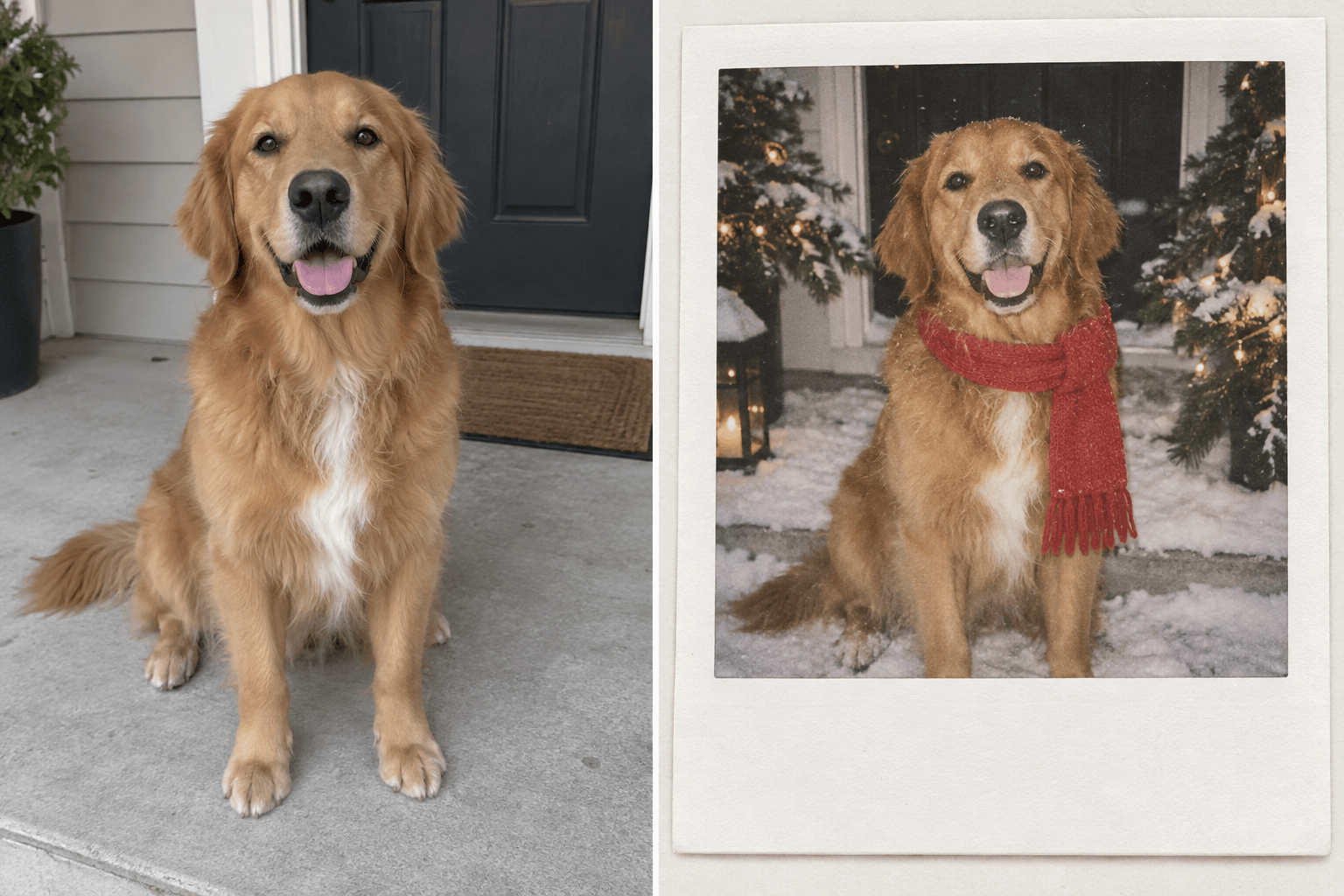
Upload an existing photo and ask Mew Design to change the setting and film treatment while keeping the people, pet, and moment as the visual reference.
Build a Believable Instant-Film Look
Our Christmas Polaroid photo maker can combine a clean white frame with softly faded color, direct flash, and restrained grain, instead of simply placing stickers over the image.
Refine the Parts That Matter
Use Chat Edit to adjust a face, remove an extra decoration, open up the bottom caption area, or warm the lights without rewriting the whole scene.
Make Matching Holiday Prints
Create variations for siblings, couples, or pets with a shared border and color direction, then choose the moments that work best together.
Create Without a Source Photo
If you want a fictional winter memory or an original Christmas still life, describe it and generate a Polaroid-style photo directly from text.
Try the Look Before Exporting
Sign up to try the online AI Christmas Polaroid maker with free AI credits. Review the result before saving a watermark-free export.
What Makes a Christmas Polaroid Look Real?
- Protect the subjects: State the number of people or pets and which facial features, pose, clothing, and relationships should remain recognizable. Check the result; AI edits can still change details.
- Describe the film: Choose soft direct flash, mild grain, faded color, and a little imperfection. Heavy blur or excessive snow can hide the memory you wanted to keep.
- Reserve the frame: Request a white border with more room below the image. Keep faces and important props away from edges so they survive the instant-photo crop.
- Add lettering last: Leave the lower border blank first. Add a short greeting or year in a later edit, then inspect every letter before sharing or printing.
Christmas Polaroid Ideas for Your Photo
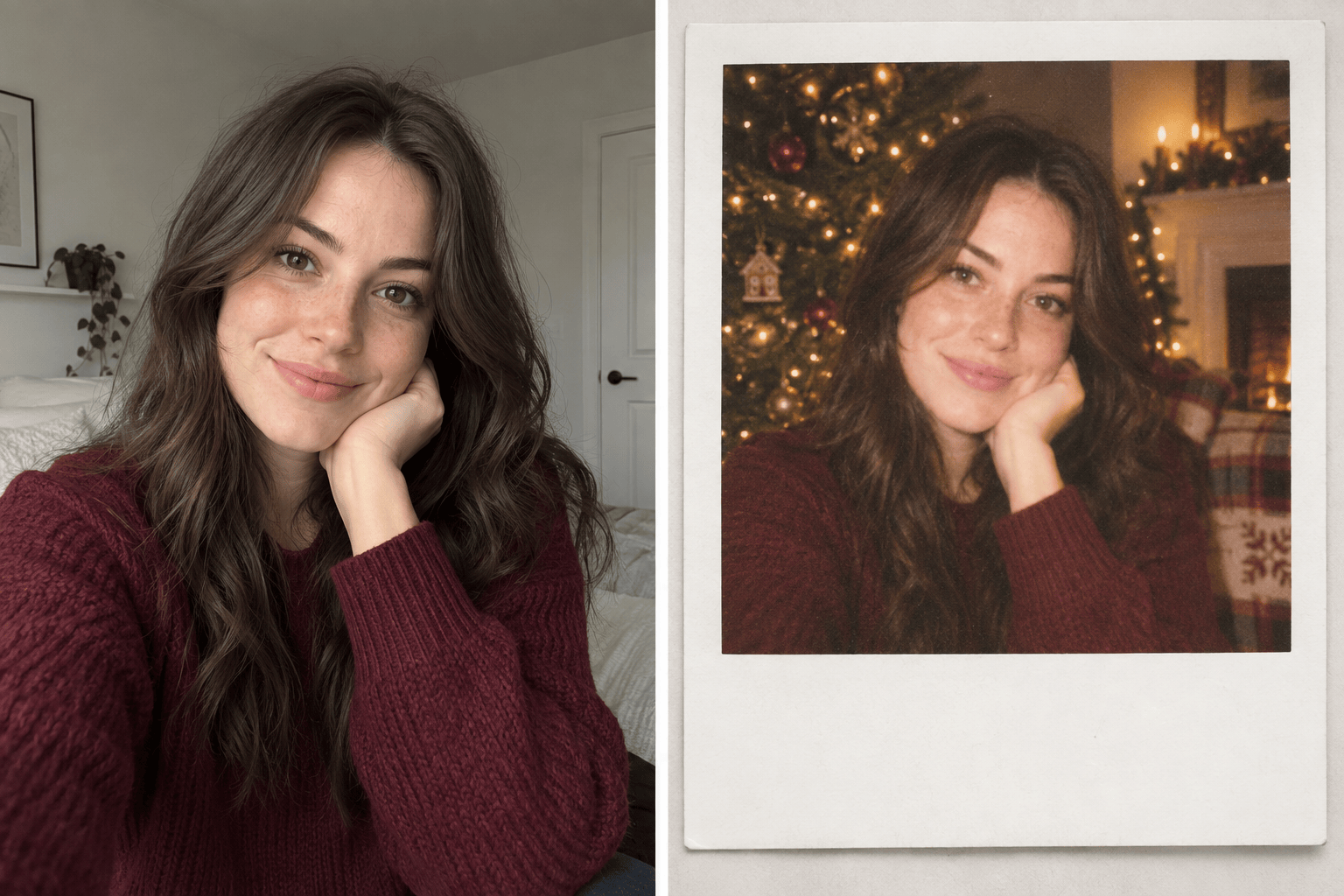
Use my uploaded selfie as the face reference. Make a cozy Christmas Polaroid portrait by a tree with warm direct flash, subtle grain, muted reds, and a white frame with a blank lower border. Keep my expression and facial features recognizable.
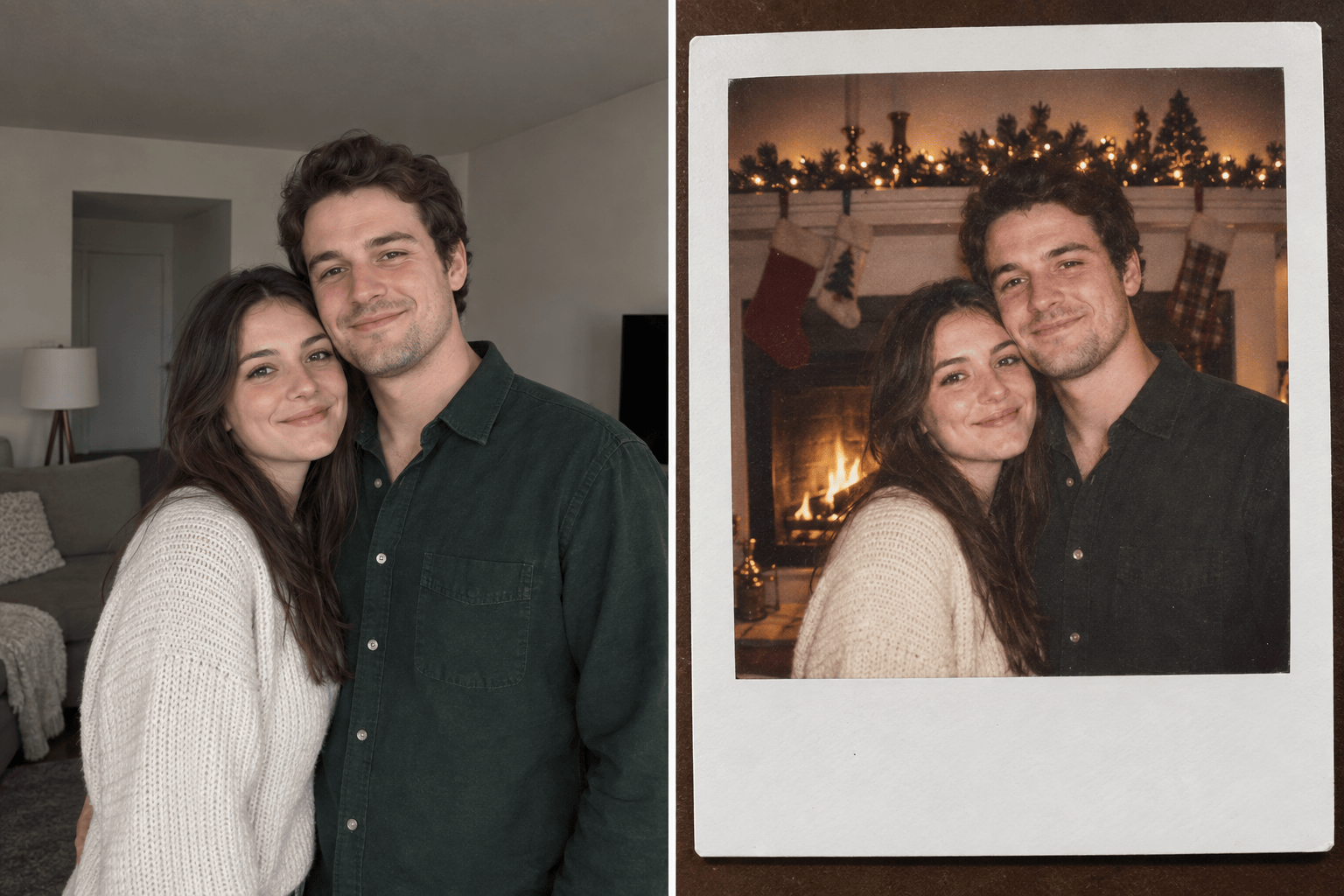
Turn our uploaded couple photo into a candid Christmas Polaroid by a fireplace. Keep both people and their positions, add soft amber lights, realistic flash shadows, gentle film fade, and an uncropped white instant-film frame.
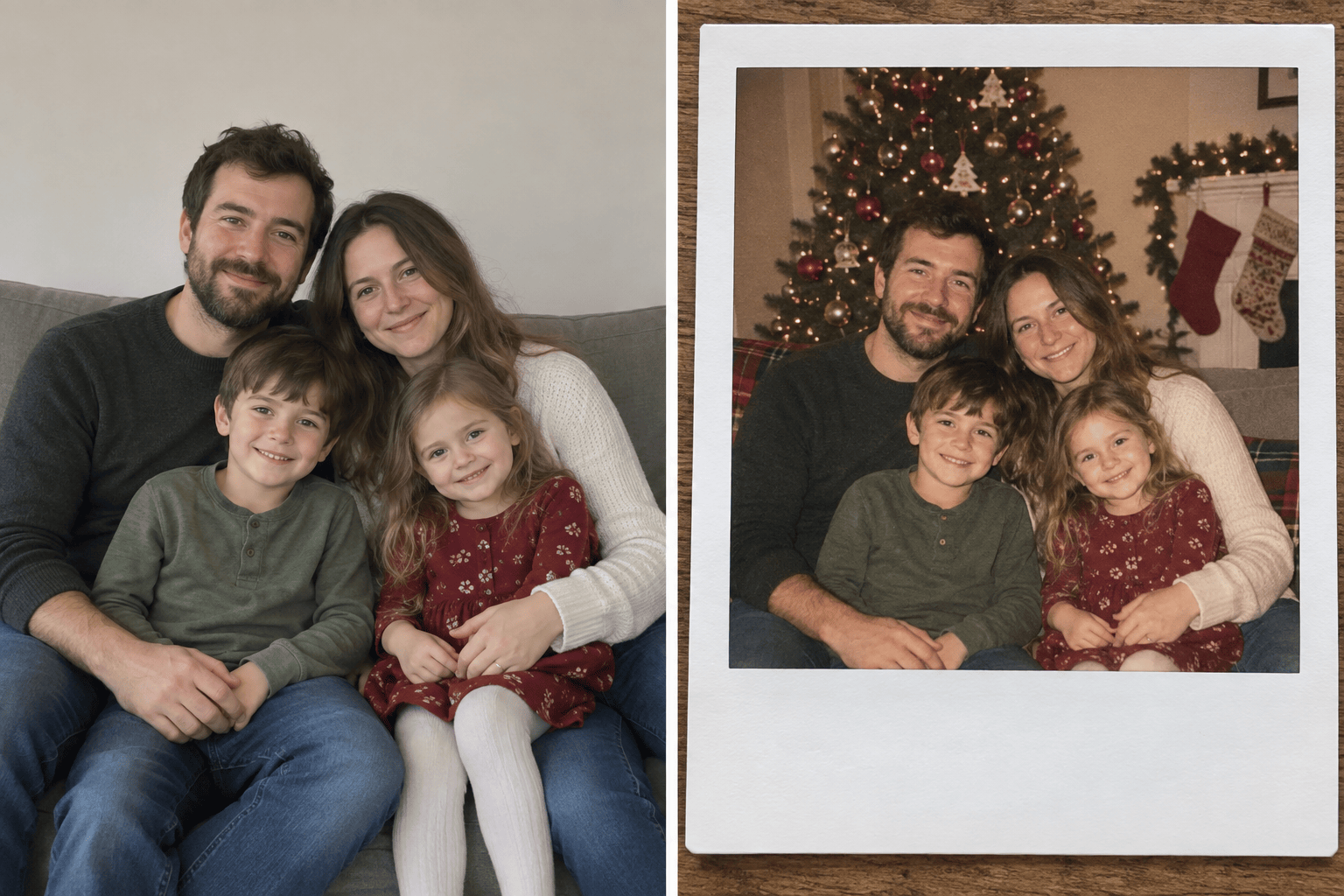
Style our uploaded family photo as a vintage Christmas Polaroid card. Keep every person visible and recognizable, set us in a warmly decorated living room, use restrained grain, and leave the lower white border clear for a greeting.
Transform my uploaded pet photo into a playful Christmas Polaroid. Keep the pet’s markings and expression, add a simple scarf and nearby tree lights, and finish with a white instant-photo border and soft film color.
Create an original Christmas Polaroid photo from text: a small stack of wrapped gifts on a snowy doorstep at dusk, warm light spilling from the house, direct-flash snapshot realism, gentle grain, faded color, and a thick white border.
Edit my generated Christmas Polaroid: keep the people and holiday scene unchanged, restore the face to match my uploaded photo more closely, reduce the snow over their eyes, and leave the bottom white border blank.