Free OnlineAI Chat Image Generator
How to Create Images by Chatting with AI
Start with the Visual Goal
Generate the First Image in Chat
Refine One Change at a Time
Export and Share the Result

Why Use Mew Design for Conversational Image Generation
Keep the Creative Context in View
A conversational AI image generator lets you build on the direction already in the thread. Refer to “the same subject,” “the previous background,” or “that second version” while you shape the next visual.
Generate and Edit in One Conversation
Create a first image, then ask for focused changes without opening a separate editor. Chat Edit makes iterative editing practical for color, lighting, layout, objects, expressions, and style.
Use Reference Images as Direction
Upload a photo, sketch, moodboard, logo, or product reference and explain what to preserve or reinterpret. Mew Design can use image-to-image direction while you keep the creative decisions in chat.
Create Chat Scenes and UI-Inspired Visuals
This AI chat image generator can create fictional message scenes, expressive chat bubbles, device mockups, avatars, or illustrated conversations for storytelling and social content. Keep fictional dialogue clearly labeled when it could be mistaken for a real exchange.
Explore Variations Without Losing the Idea
Ask for a calmer palette, a cinematic crop, a different art medium, or several directions before choosing one. The online AI image generator with chat helps you compare routes while keeping the original goal visible.
Start Free and Export Clean Images
New users can try the free AI chat image generator with signup credits, iterate on a concept, and export approved images without a watermark. Review rights, accuracy, and platform requirements before commercial use.
How to Write a Prompt for an AI Chat Image Generator
- Set the subject and scene: Name the main subject, setting, camera distance, point of view, and the elements that must remain recognizable across edits.
- Give the image a visual direction: Add style, lighting, color palette, material, mood, texture, and contrast. Say whether the result should feel photographic, illustrated, cinematic, minimal, or playful.
- State format and content rules: Mention the aspect ratio, crop, text that must be exact, safe space for a headline, and anything to exclude. For a chat screenshot or UI-inspired visual, specify the device, bubble hierarchy, and fictional status.
- Use the next turn as an edit: Once you have a useful draft, make one or two controlled requests at a time. Say what to keep and what to change so iterative editing does not erase the parts that already work.
AI Chat Image Generator Prompts to Try
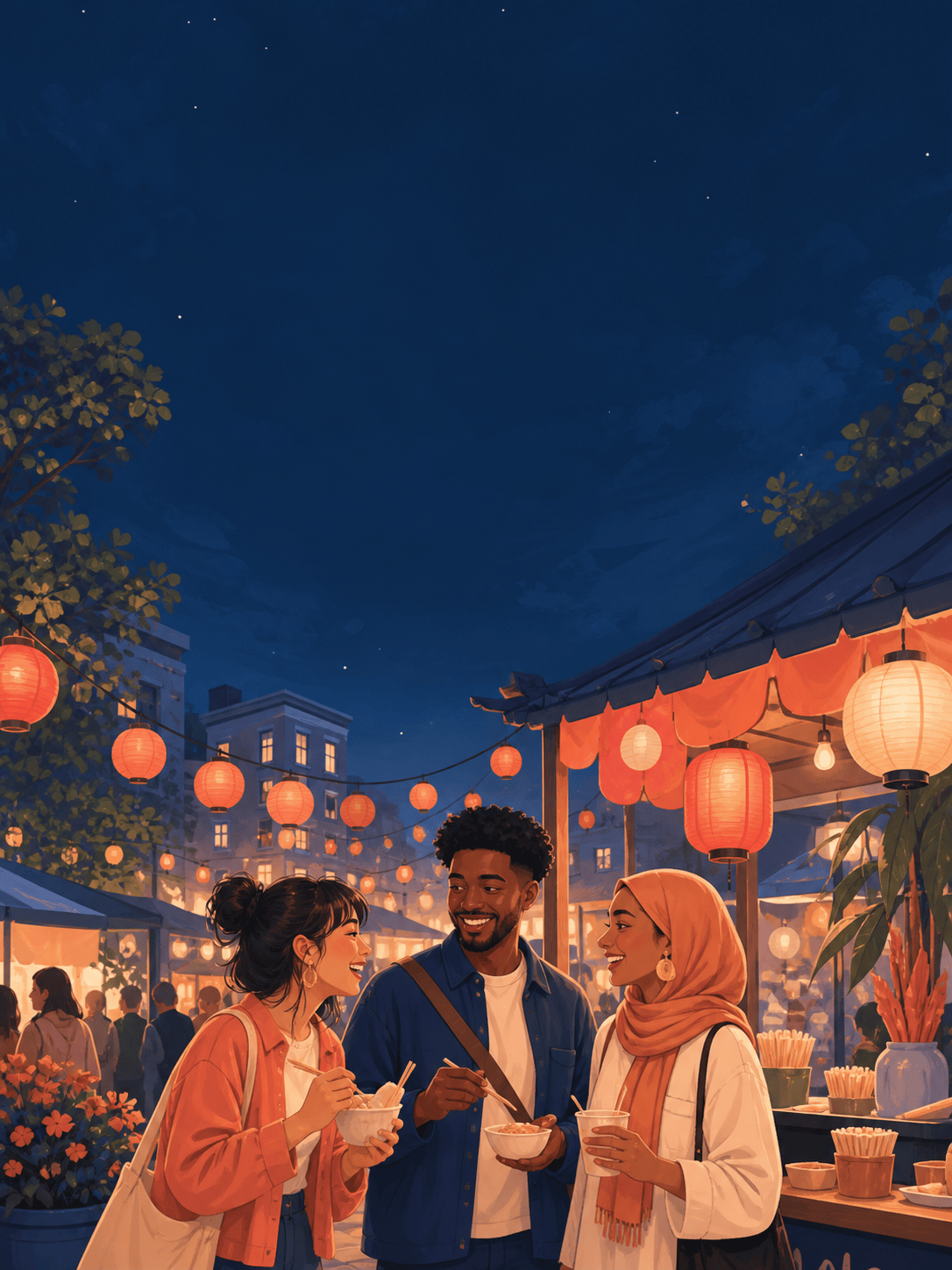
Create a 4:5 social post for a neighborhood night market. Show a warm illustrated street scene with paper lanterns, a small food stall, three diverse friends, and a clear empty area at the top for event details. Friendly editorial illustration, coral and midnight blue palette, no real brand logos. Then make the lanterns brighter and leave more room for the headline.
Create a fictional chat screenshot for a short story: two roommates texting about a lost cat, shown on a modern phone mockup with believable but clearly fictional message bubbles. Warm evening light, gentle humor, readable hierarchy, no real names, no platform logos, no private information. Then change the last message to a hopeful update while keeping the layout.
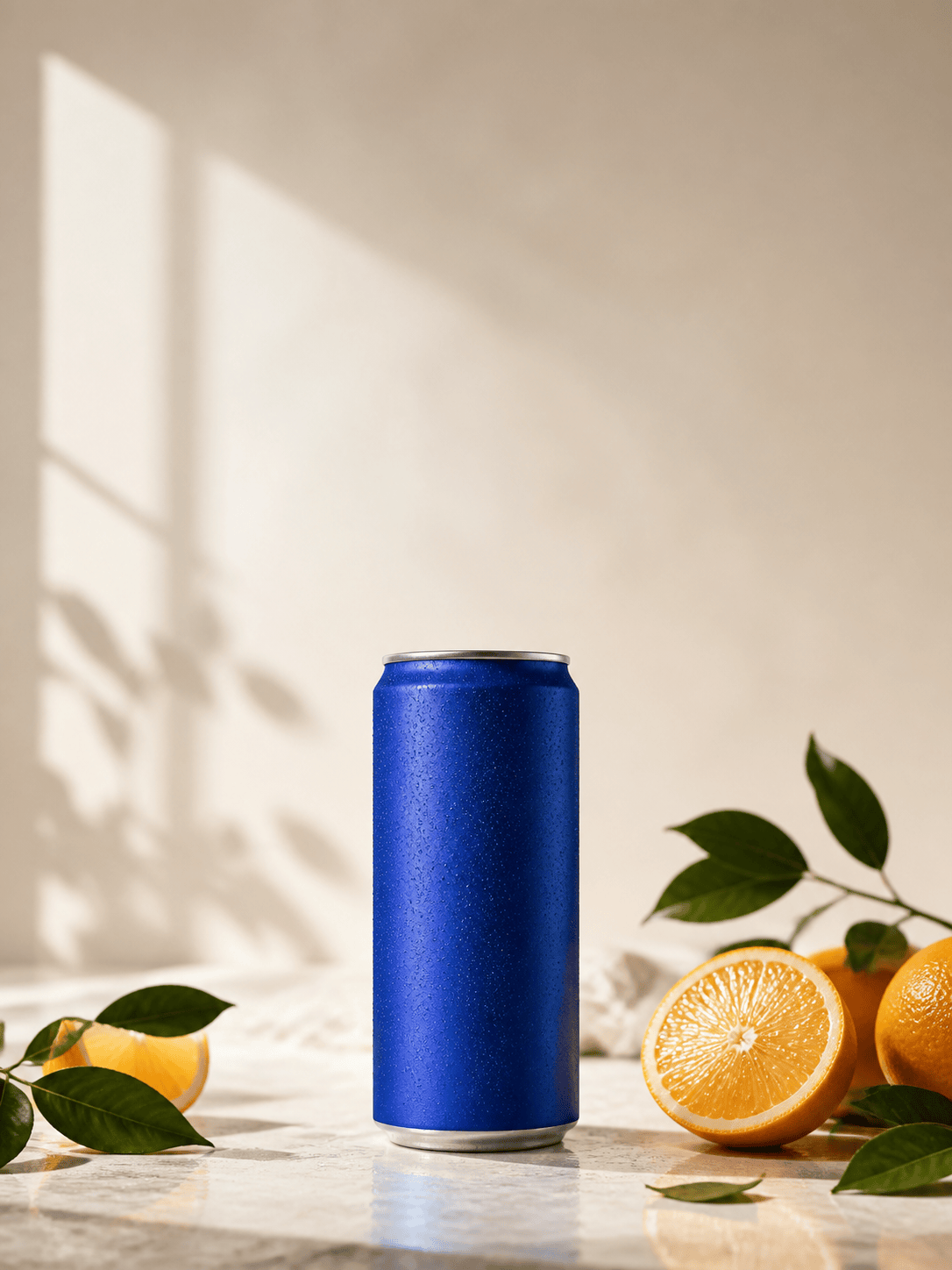
Create a clean product mockup of a reusable blue water bottle on a pale studio surface, with a small botanical shadow and a 16:9 crop for a landing page hero. Minimal commercial photography, accurate blank label area, crisp edges, no extra text. After the first version, keep the bottle shape and make the shadow softer.
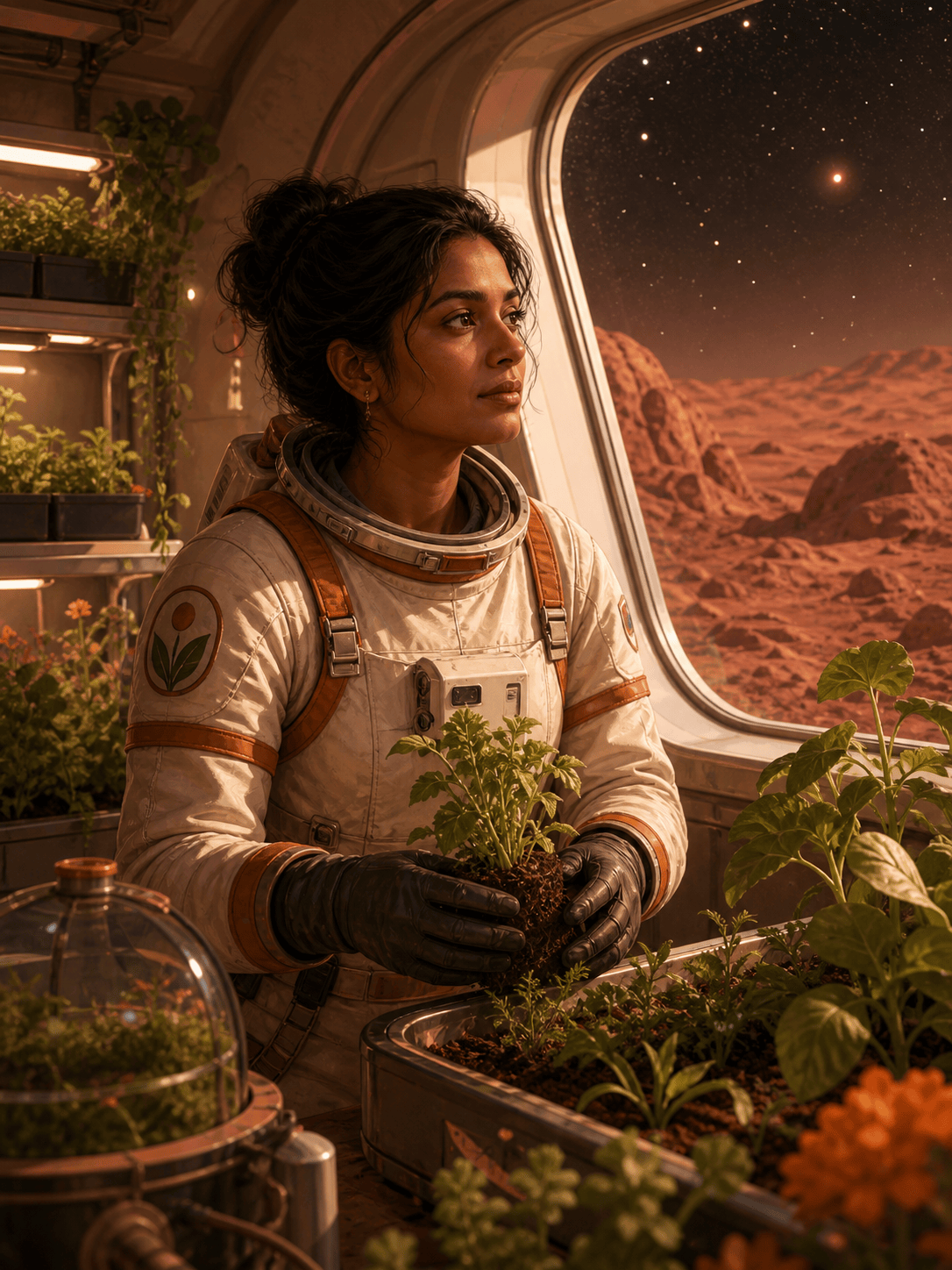
Create a consistent character portrait for a cozy science-fiction newsletter: a thoughtful South Asian astronaut botanist in a compact greenhouse on Mars, square crop, warm terracotta and sage palette, soft rim light, painterly digital illustration. Keep the face, suit details, and greenhouse layout consistent in later edits; first change only the outside window to a starry night.
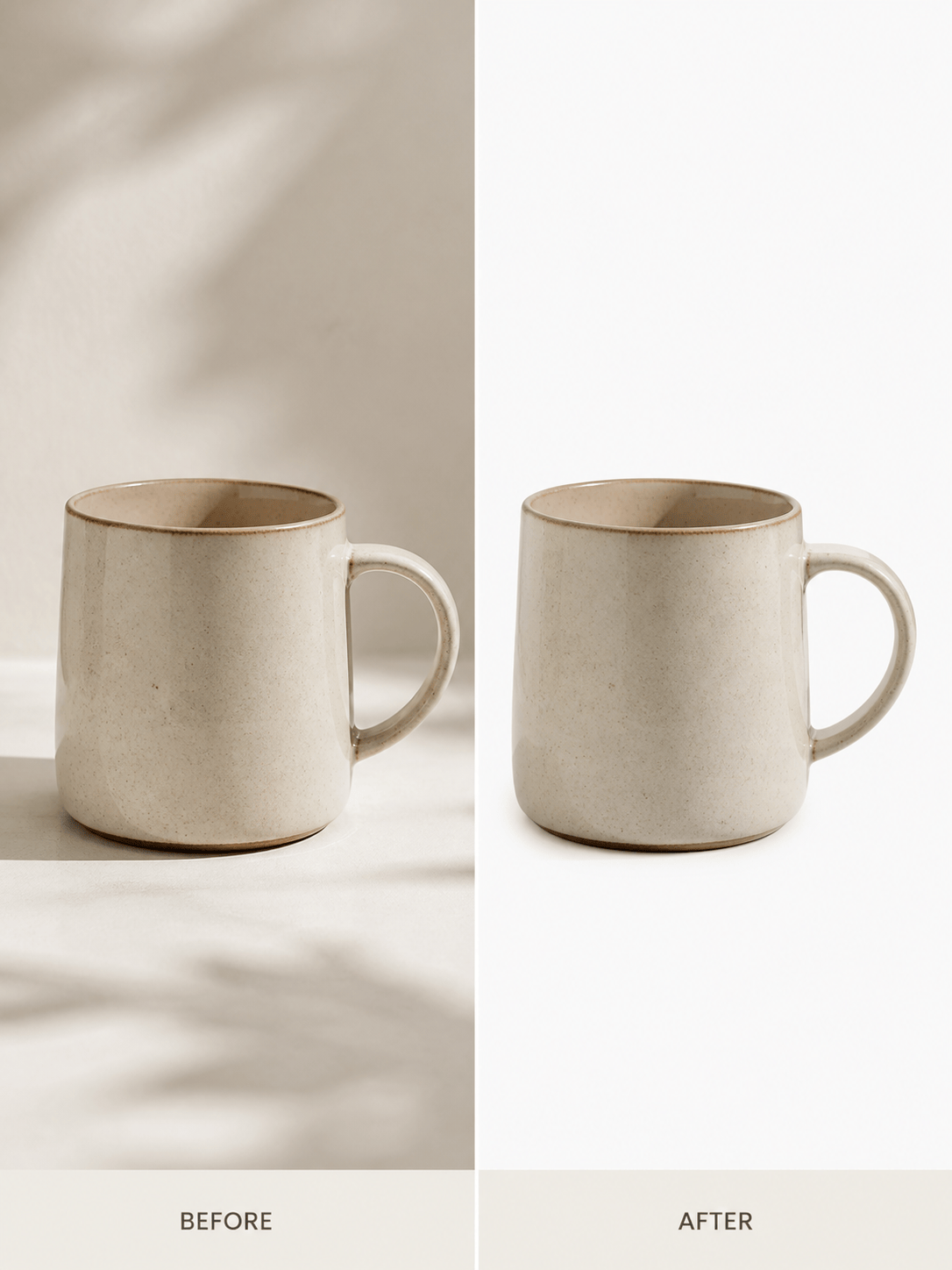
Edit my uploaded product photo into a clean marketplace image. Remove the background, place the ceramic mug on a warm off-white surface, keep its glaze color and handle shape accurate, add a soft natural shadow, and export a centered square composition. Do not invent a logo or change the product proportions.
Create a six-panel visual storyboard for a two-minute explainer about recycling a broken phone. Use a simple flat illustration style, one consistent phone character, clear left-to-right action, limited teal, yellow, and charcoal palette, no embedded copy except short fictional labels. Then keep panels 1–3 and revise panels 4–6 to show repair, reuse, and responsible recycling.