Try OnlineAI Carpet Visualizer
How to Create a Carpet Preview with AI
Upload Your Room Photo
Describe the Carpet You Want
Refine the Floor and Fit
Download Your Room Preview

Explore Carpet Choices in Your Own Room
Start with the Room You Have
Upload your own space to visualize carpet beside your sofa, wall colors, and wood finishes. The room photo gives your preview useful context.
Compare Carpet Colors
Use our online carpet visualizer to explore beige, gray, or bolder shades. Request separate versions from the same source photo for a clearer comparison.
Try Rugs or Full-Floor Coverage
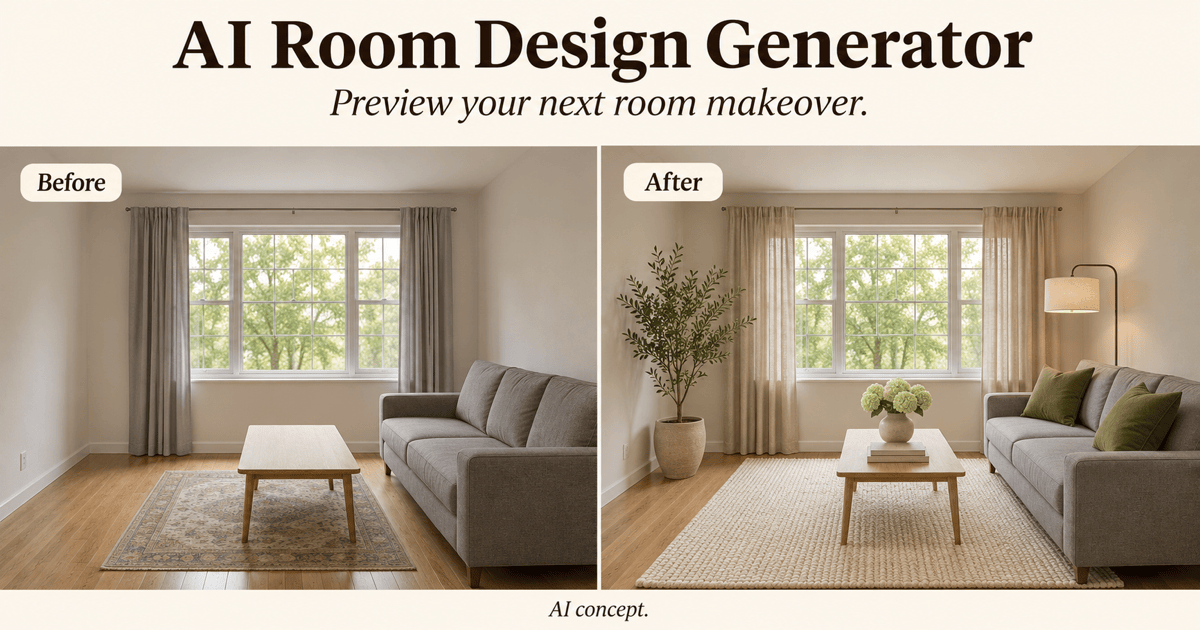
Preview an area rug under a seating group or wall-to-wall carpet in a bedroom. Describe the edges and placement so the requested change is clear.
Generate Original Carpet Patterns
Use the AI carpet generator to explore geometric, floral, or abstract rug concepts from text. Specify the palette, border, and texture for a visual design brief.
Guide the Look with a Reference
Upload a carpet or rug image to guide the pattern and color. Refine the result in conversation; reference-based previews may differ from the actual product.
Choose a Model for Your Preview
Select an available image model or let Mew Auto choose for your photo edit or pattern concept. Mew Design brings the latest leading image models into one workflow and adds new releases promptly.
Get a More Useful Carpet Room Preview
- Show the Floor: Use an evenly lit photo with visible floor edges. Avoid heavy filters and remove loose clutter that hides the area you want to change.
- Name the Coverage: Say wall-to-wall carpet, an area rug, or a hallway runner. For rugs, describe their position relative to the sofa, bed, or table.
- Separate Color from Texture: Specify both, such as warm gray with a short loop-pile appearance. Compare one change at a time to see what improves the room.
- Check Before Buying: AI previews approximate color, texture, and scale. Confirm the physical sample, dimensions, material, and installation requirements with your supplier.
Carpet and Rug Ideas to Try in Your Room
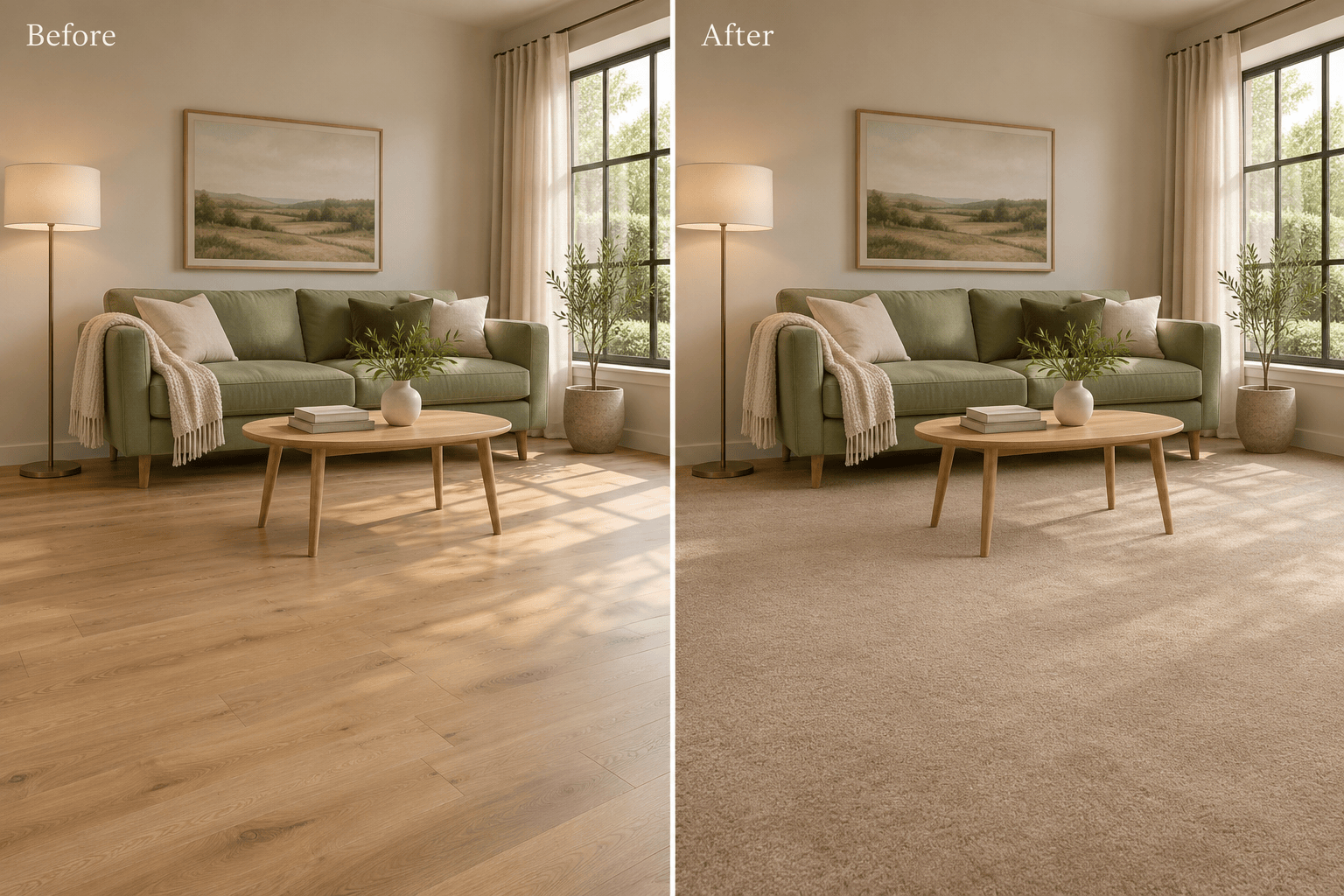
In my living room photo, replace the floor covering with warm beige wall-to-wall carpet. Keep the sofa, walls, windows, and lighting unchanged.
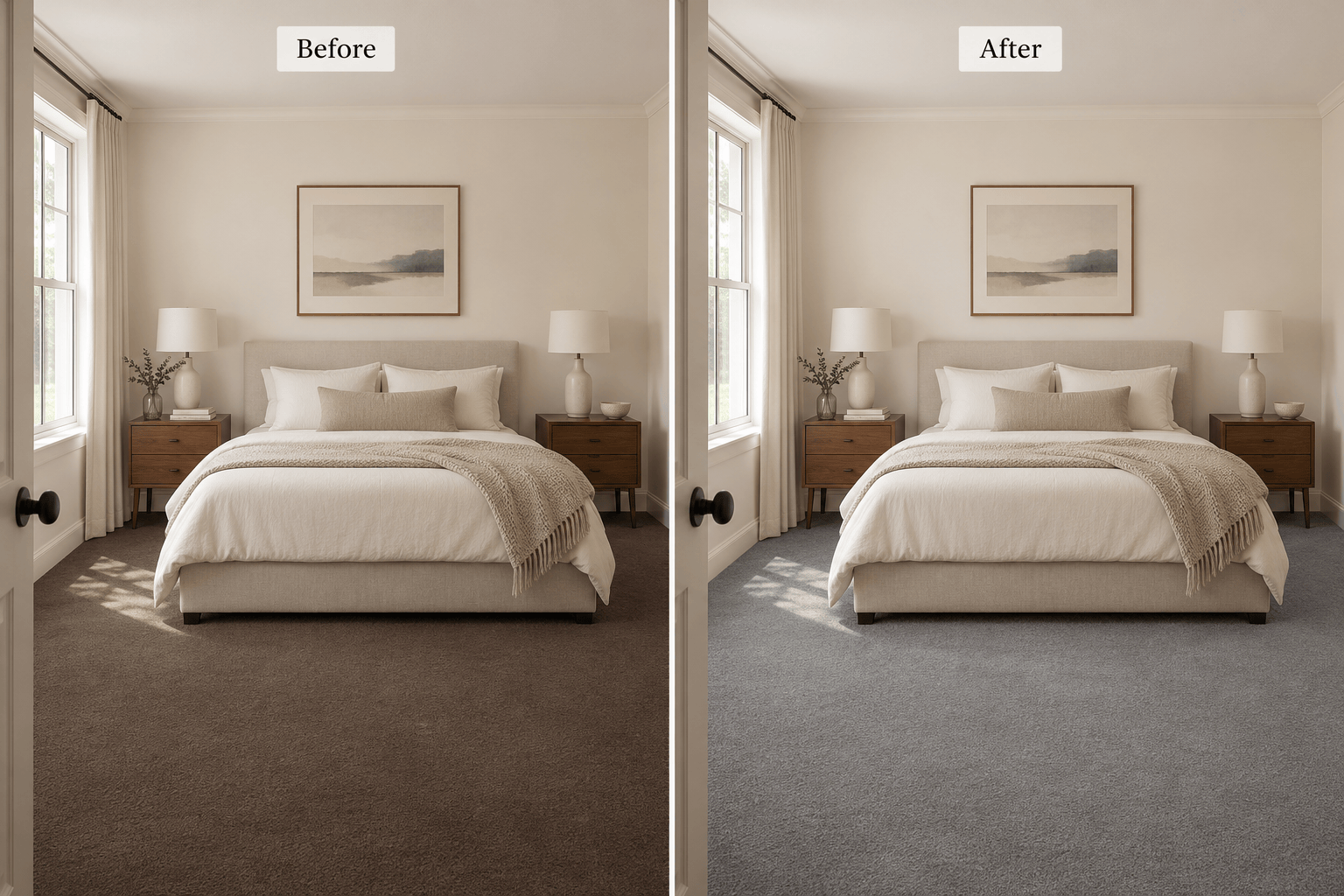
Change only the existing bedroom carpet to a soft medium gray. Keep its texture and the bed placement unchanged so I can compare carpet colors.
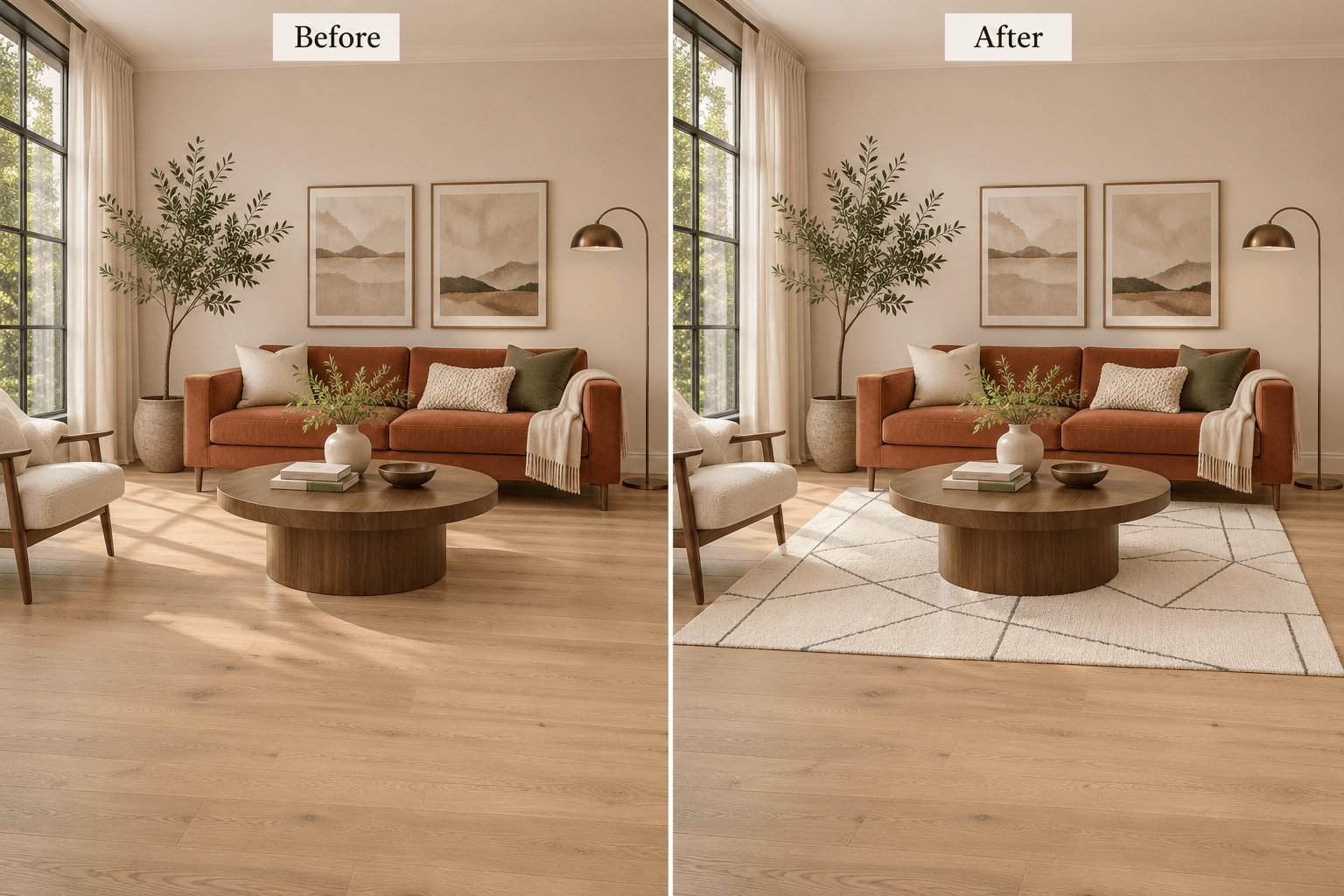
Add an ivory rug with a charcoal geometric pattern under the coffee table in my room photo. Place the sofa’s front legs on the rug and preserve the visible wood floor around it.
Preview a muted terracotta hallway runner in my photo. Leave a visible strip of floor along both sides, follow the hallway perspective, and keep the doors unchanged.
Use my uploaded carpet sample as a visual reference for the floor in my room photo. Follow its muted colors and small-scale pattern while preserving the furniture and daylight.
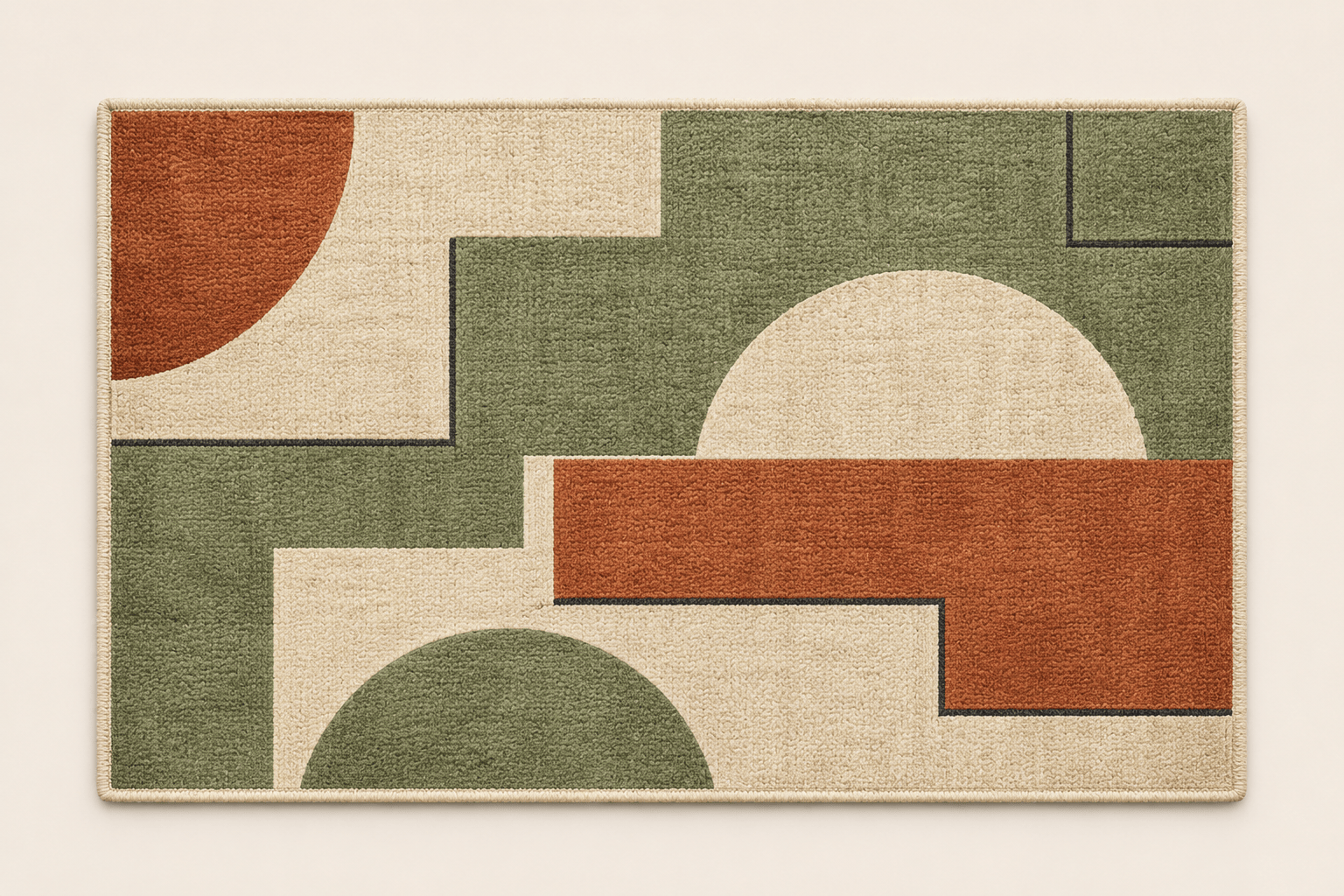
Generate an original rectangular carpet design with sage, cream, and rust geometric shapes, a narrow border, and a low-pile wool appearance. Show the full rug from above on a plain background.