Try OnlineAI Add Snow to Photo
How to Create a Snowy Photo with AI
Upload a Clear Photo
Choose Where the Snow Goes
Check the Details and Refine
Download Your Winter Photo

Make the Snow Fit Your Photo
Edit a Photo You Already Have
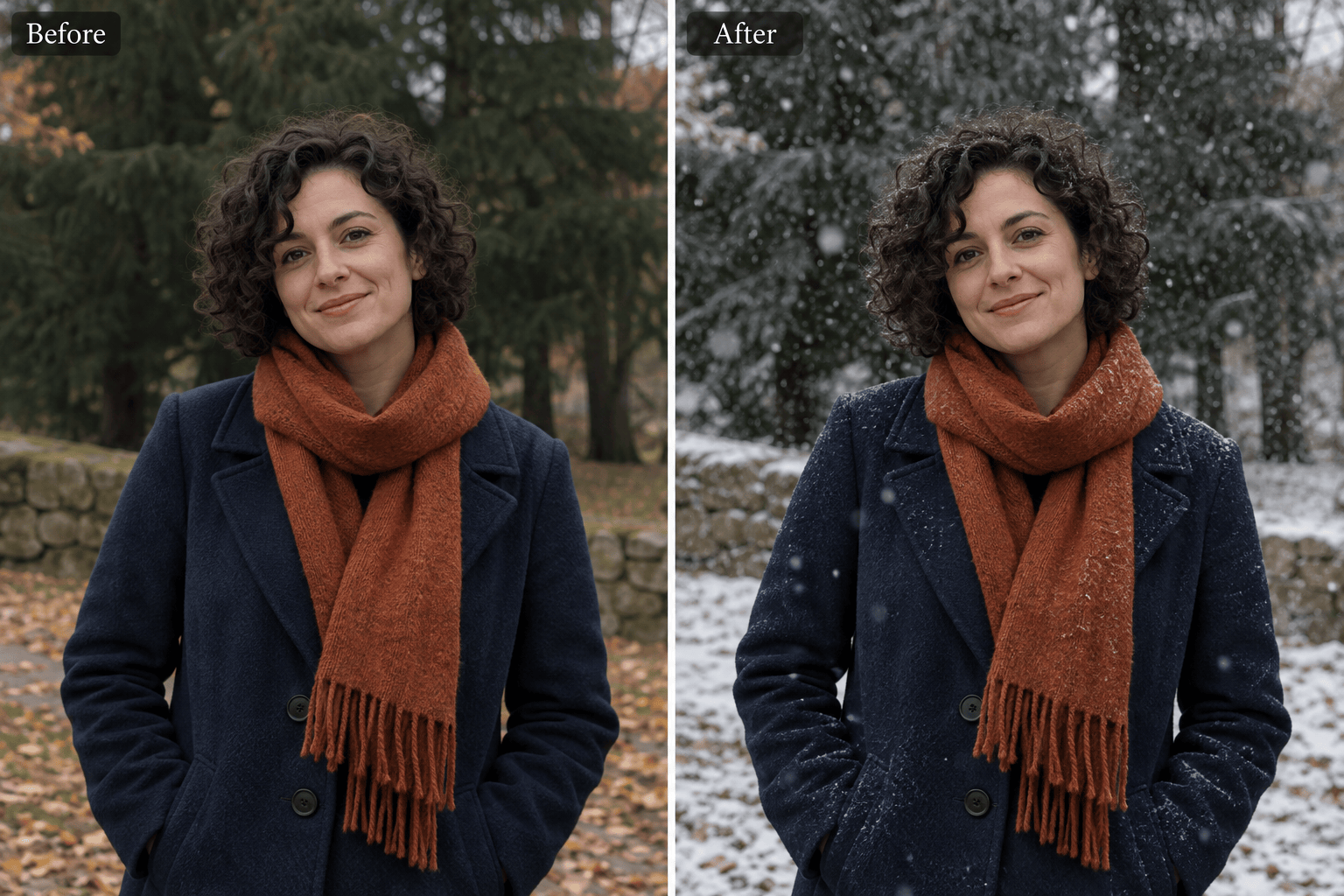
Upload your image and use our AI snow filter to request a winter edit around the existing scene. Specify which people, objects, and framing to retain.
Separate Snowfall From Snow Cover
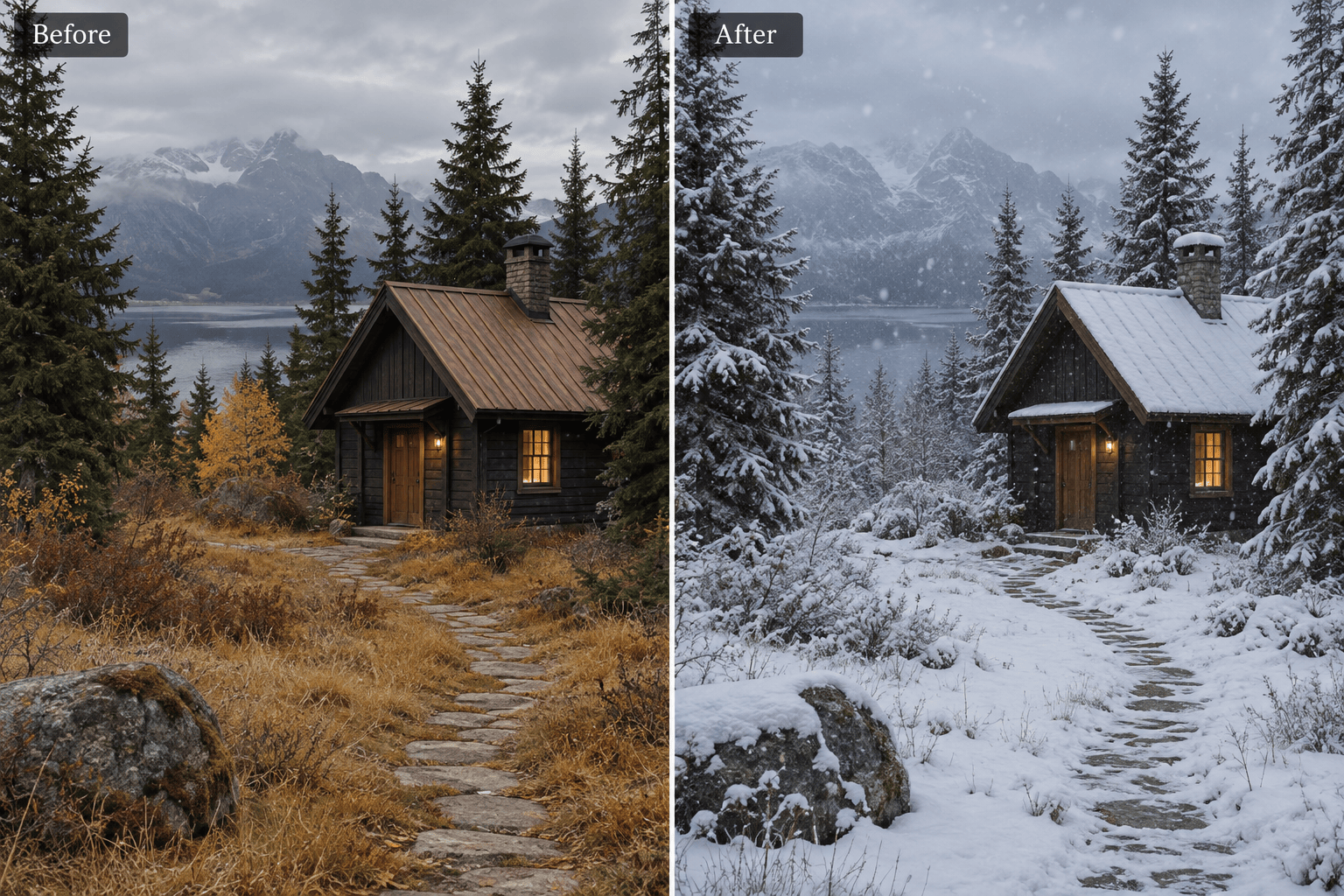
Ask for falling flakes, settled snow, or both. You can add snow to the ground in a photo without requesting a blizzard in front of the camera.
Adjust the Weather in Chat
Use Chat Edit to ask for lighter snowfall, smaller distant flakes, or warmer skin tones. Refine one issue at a time as you review the result.
Guide the Winter Look With a Reference
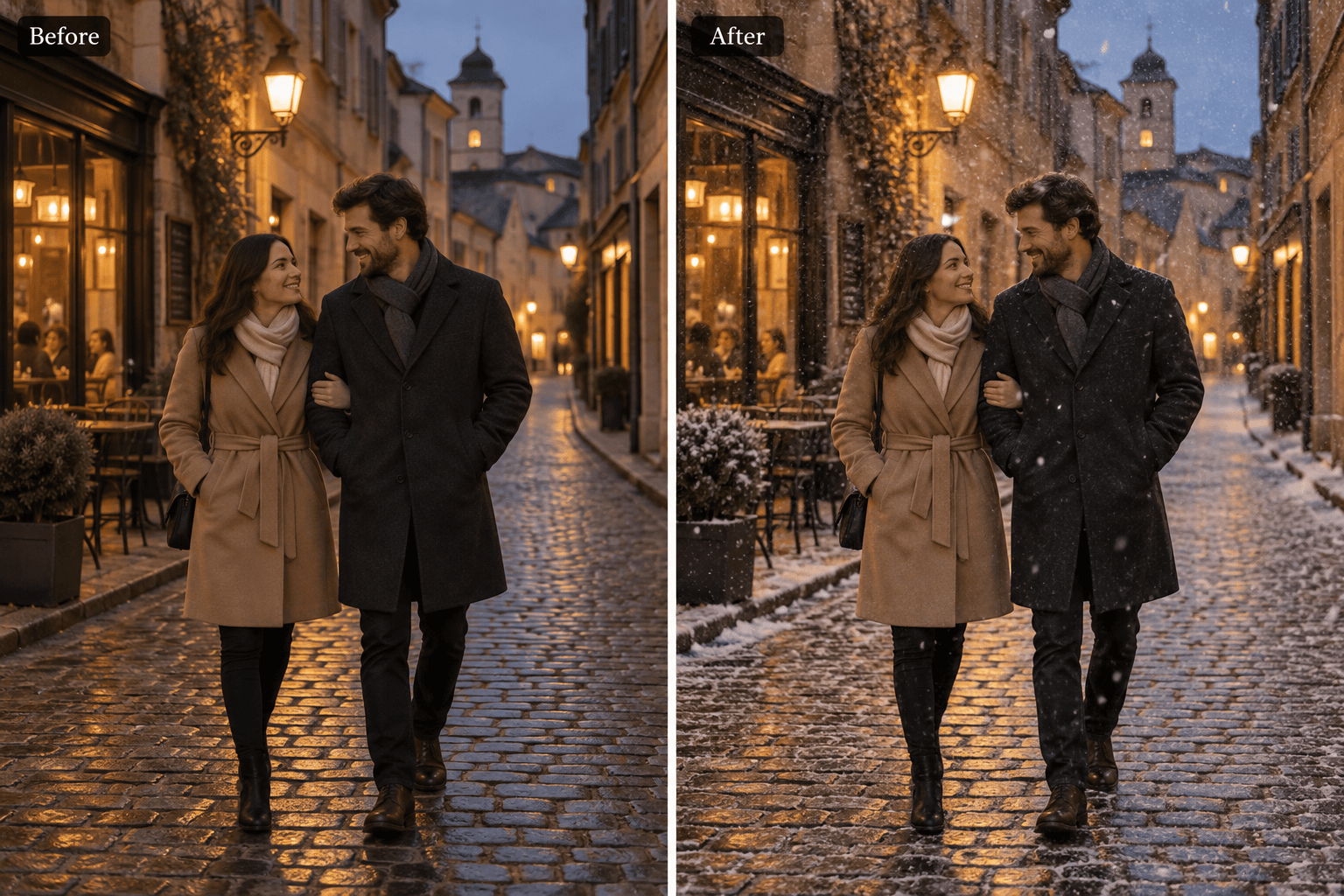
Upload a reference for soft flurries, an overcast forest, or a warmly lit evening. Explain which lighting and snow details to borrow.
Compare Different Snow Levels
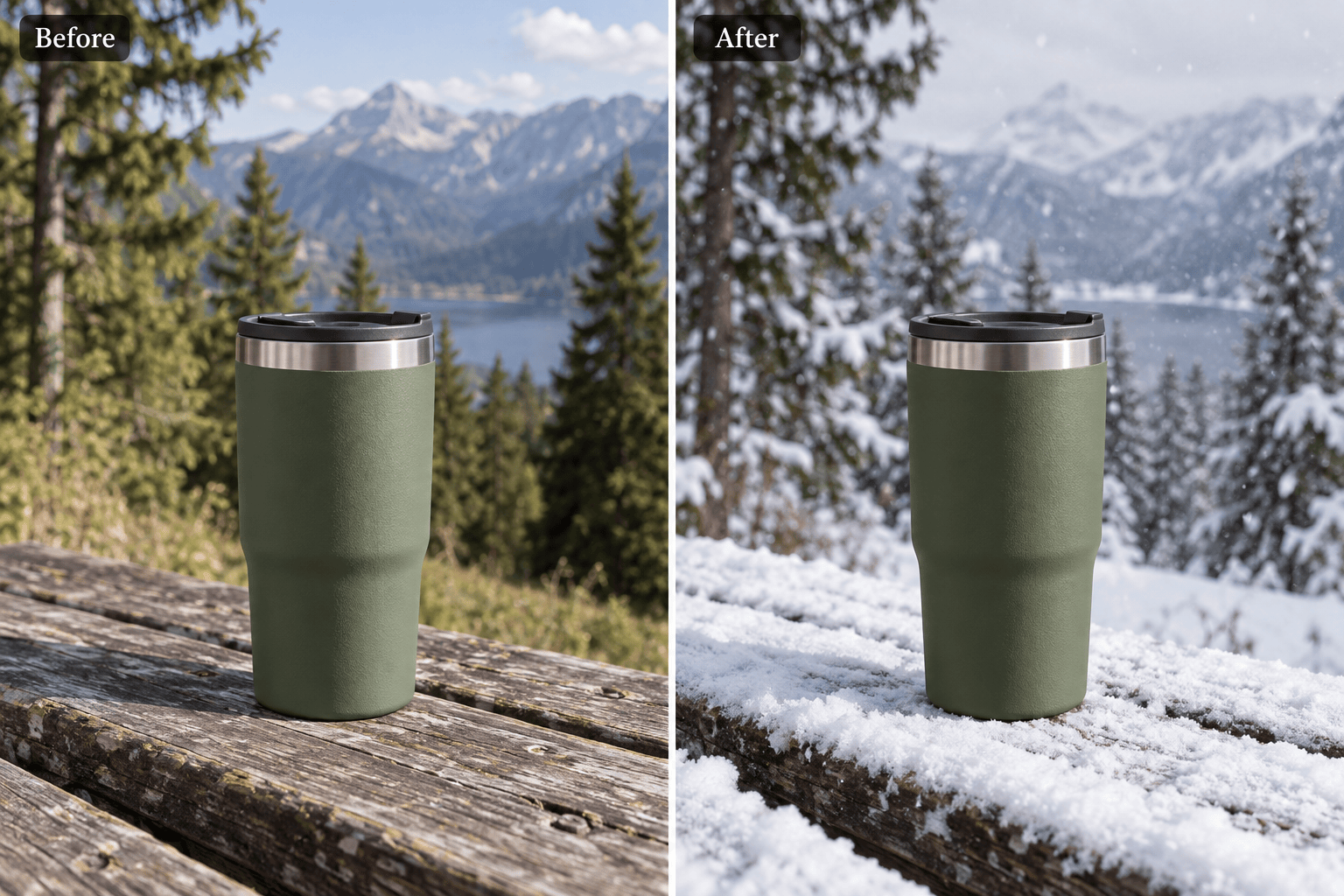
Request subtle and stronger versions of the same scene. Compare how well the subject reads before choosing a look for your seasonal content.
Take Your Edit Into a Seasonal Design
Download a watermark-free PNG or JPG, or use the snowy image in a holiday design. New users can test the workflow with free AI credits after signup.
What Makes Added Snow Look Real?
- Start With a Suitable Photo: A sharp outdoor image with visible surroundings gives the edit more context. Strong summer sun and tropical plants may need broader changes than a few flakes.
- Name the Surfaces: For snow cover, identify ground, roof edges, and upward-facing branches. Ask to retain texture and contact shadows instead of turning everything flat white.
- Give Snow Some Depth: Use small distant flakes and a few softer foreground flakes. Keep the density low enough to see the main subject.
- Match the Existing Light: Snow should fit the direction and warmth of the light. Compare faces, hands, product edges, and window frames with the original before downloading.
Fix Common Snow Photo Problems
Edit my uploaded snowy portrait: remove the flakes covering the eyes and mouth. Keep light snowfall around the person, preserving the face, expression, and hairstyle.
Make the snow in my uploaded photo look less like a flat overlay. Add smaller distant flakes and a few soft foreground flakes while keeping the subject sharp.
Add settled snow to the bare ground, roof edges, and upward-facing branches in my uploaded photo. Keep surface texture and contact shadows; do not add more falling flakes.
Reduce the heavy snowfall in my uploaded image to light flurries. Restore visibility of the background and keep the original composition.
Correct the blue tint on the skin in my uploaded snow photo. Keep natural skin tones and warm lamps while leaving the snowy surroundings cool.
Add falling snow only outside the window in my uploaded indoor photo. Keep the glass, window frame, people, and room unchanged; no snow inside.





