Remove Facial Hairwith AI
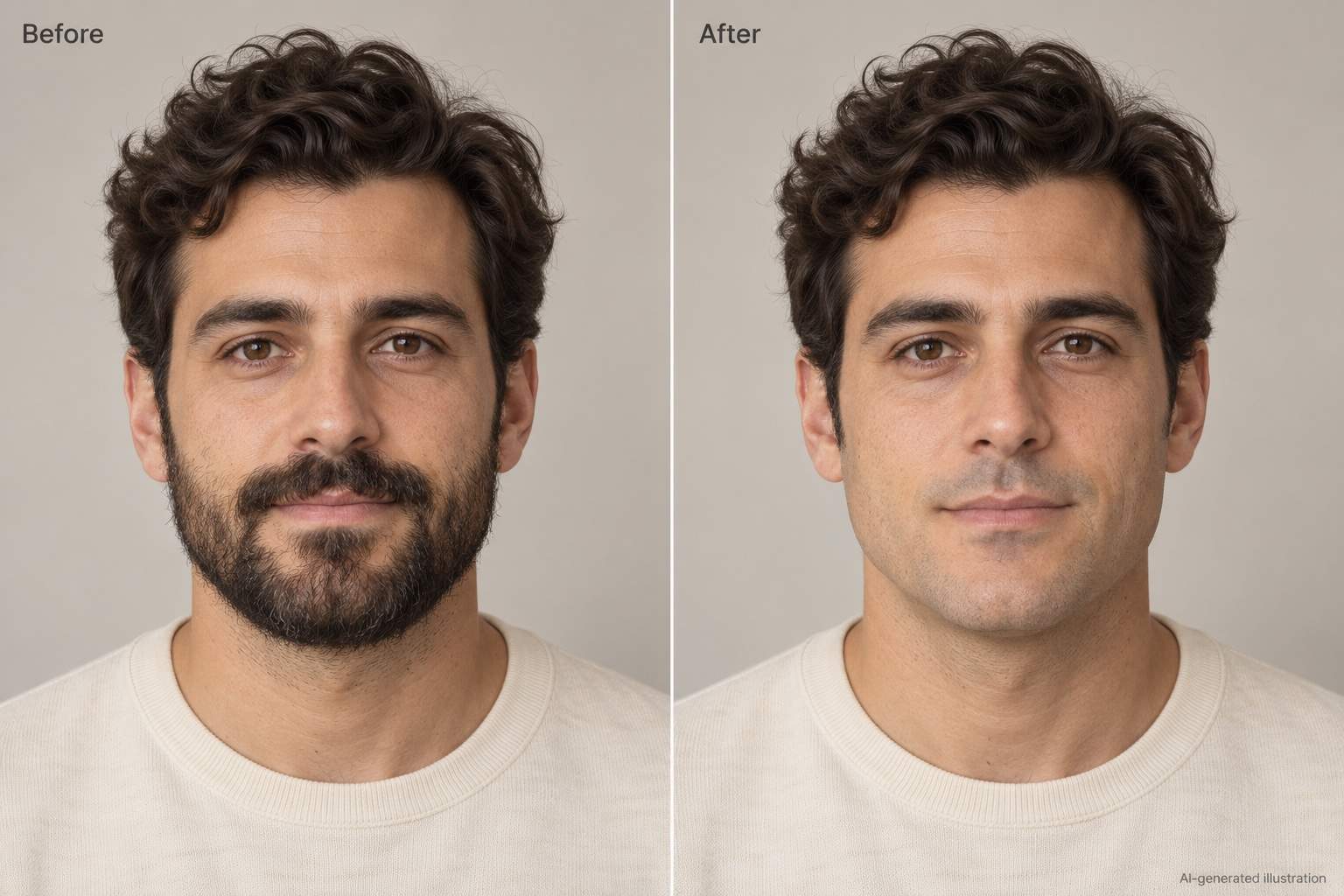
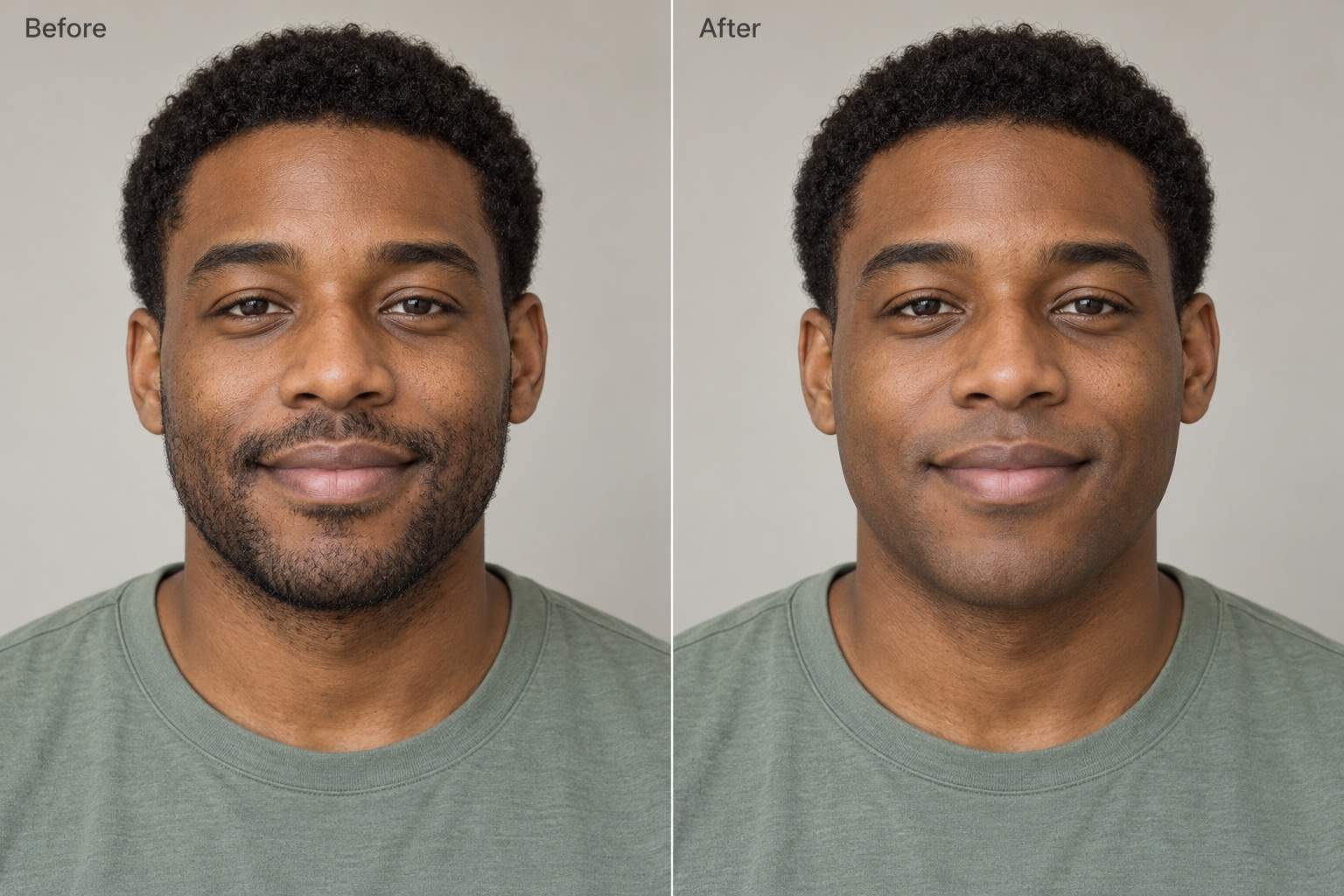
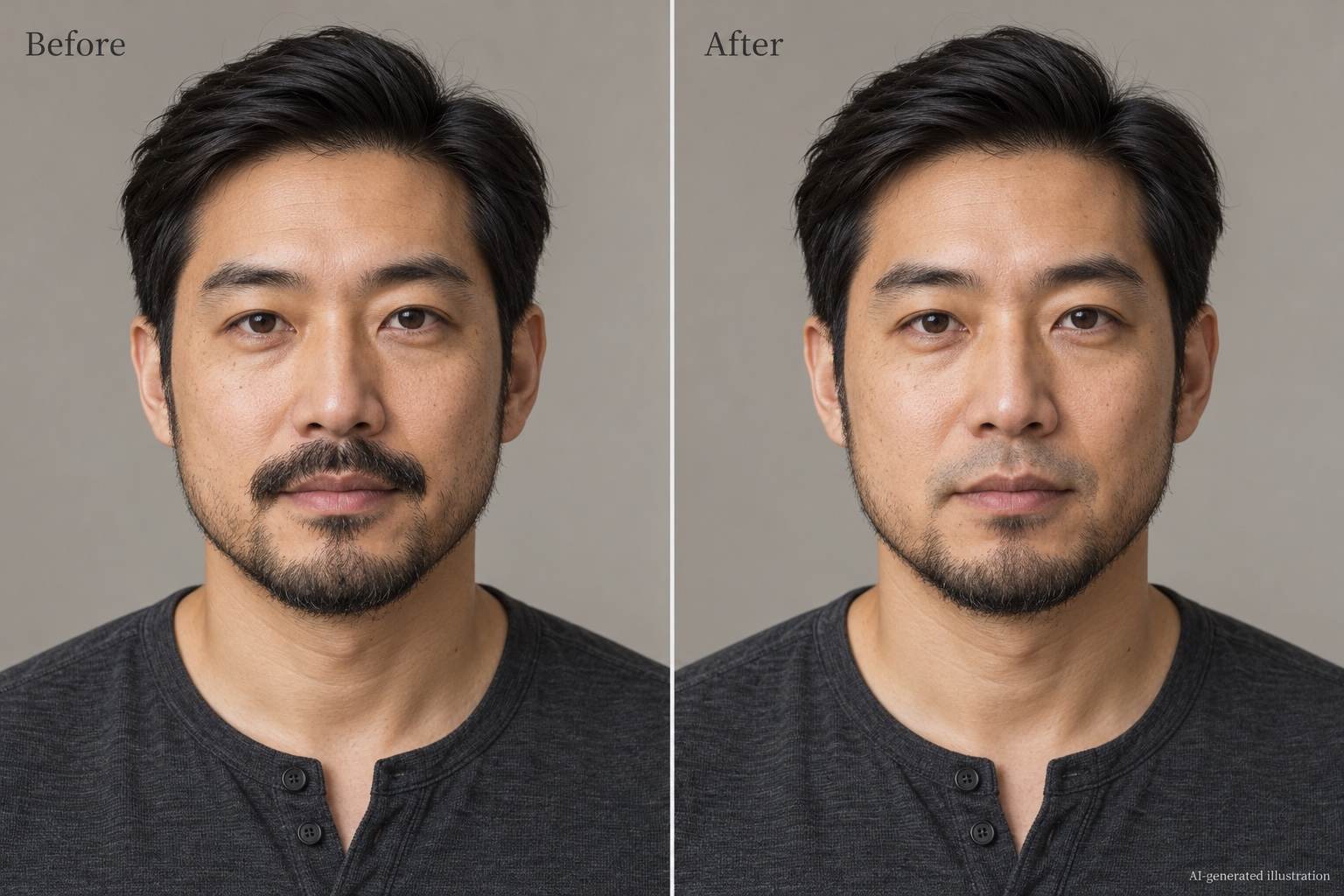
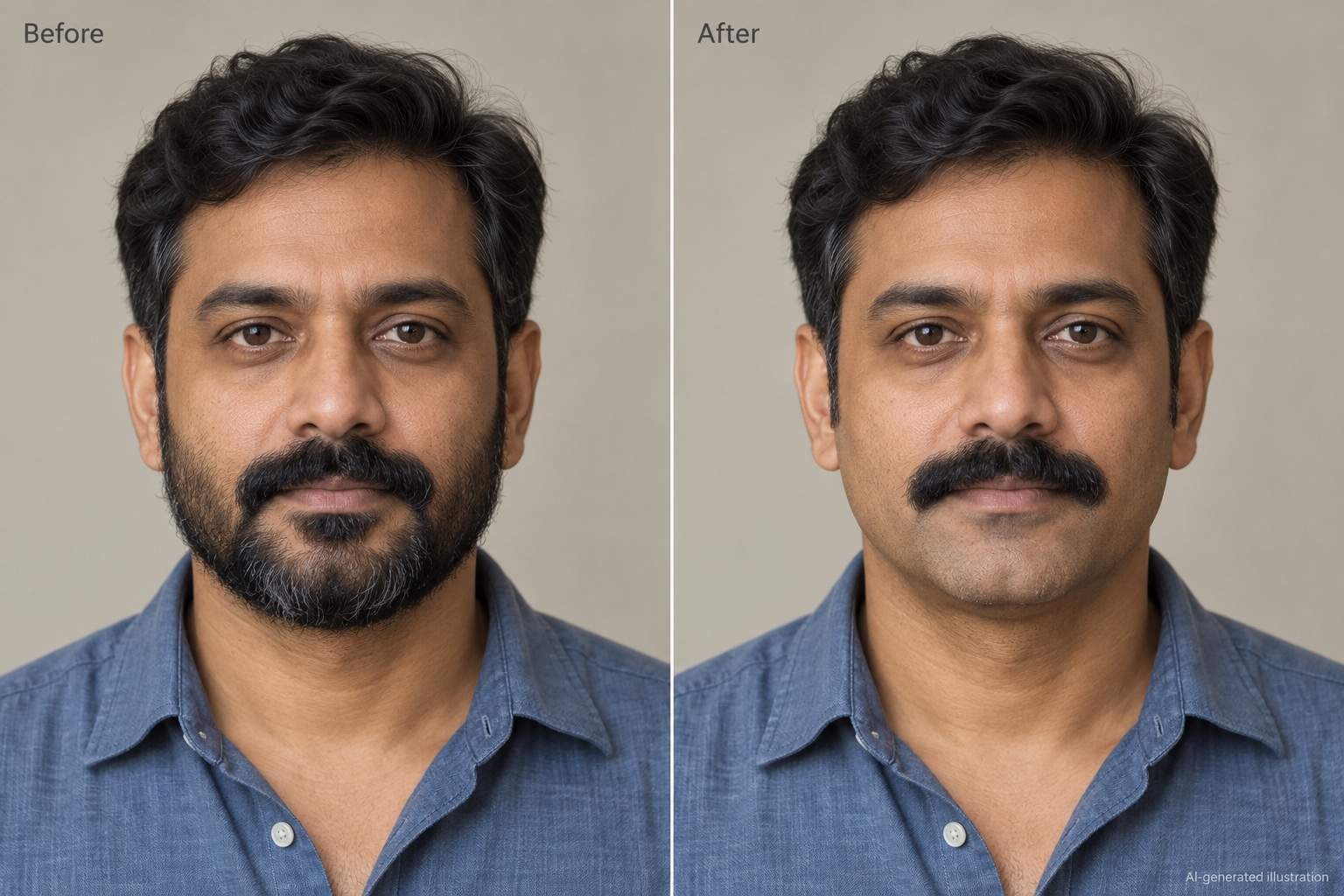
How to Remove a Beard from a Photo with AI
Upload a Clear Portrait
Preview Your Clean Shave
Check the Lips and Jawline
Download Your Chosen Version

More Control over Your No-Beard Preview
Start with Your Own Face
Use an uploaded selfie or portrait as the starting point. This online beard remover works with your photo so you can explore a look that relates to you.
Choose What Stays
Ask the AI beard eraser to remove cheek and chin hair while keeping your mustache, or remove only the mustache. Name the area instead of requesting a full makeover.
Guide Skin Texture and Tone
Request natural pores, matching skin tone, and the original lighting. Use your photo as the reference when the edited area looks too smooth or too bright.
Correct the Details in Chat
Point out a missed patch beneath the lower lip or an unnatural chin edge. Chat Edit lets you describe the correction without painting a manual mask.
Compare Grooming Options
Ask for a clean-shaven version and a light-stubble variation from the same photo. Compare them before deciding whether to change your facial hair.
Try It with Signup Credits
Start with free AI credits after creating an account. Generation and edits use credits; export your chosen image without a watermark. Check current download options in the editor.
Keep the Person, Change the Facial Hair
- Use Even Lighting: Avoid heavy shadows, blurred selfies, and hands covering the chin. A front-facing or slight three-quarter view gives the AI more visible detail.
- Set the Removal Boundary: Specify beard, mustache, goatee, or stubble. Say whether sideburns should stay so the edit does not extend into the hairstyle.
- Inspect More Than Smoothness: Check lip shape, skin tone, moles, and the chin outline. Remove remaining hair without asking to erase normal pores or facial shadows.
- Treat Hidden Details as an Estimate: A thick beard hides skin and parts of the jaw. AI generates plausible details; it cannot reveal exactly what is underneath.
Targeted Fixes for Beard, Mustache, and Stubble
Remove the remaining stubble and beard shadow around my chin and upper lip in this photo. Match the surrounding skin tone and preserve natural pores and lighting shadows.
Remove only the mustache from my uploaded photo. Keep the beard, sideburns, lips, and expression as close to the original as possible.
Remove the beard from my cheeks and chin, but keep my mustache. Blend the newly visible skin with my neck and cheeks without sharpening the jaw.
Remove the goatee and the small patch beneath my lower lip. Keep the mustache and sideburns, and preserve the shape of my mouth.
Refine this beard-removal edit: the chin looks too smooth and pale. Match the original skin tone and texture without adding facial hair or changing the lighting.
Redo the facial-hair removal using my original portrait as the reference. Keep the original lips, face proportions, and expression; change only the beard and mustache area.





