Free OnlinePhoto to Sketch AI
How to Turn a Photo into a Sketch with AI
Upload a Clear Photo
Describe the Sketch Style
Generate and Compare
Refine and Download

Why Use Mew Design for Photo-to-Sketch Conversion
Your Photo Stays the Visual Reference
Upload the image you want to transform instead of rebuilding the subject from a text prompt. The image-to-image workflow gives the AI a clear reference for the person, pet, object, crop, and composition.
More Than One Pencil Effect
Use this image to sketch converter for soft graphite, rough sketchbook marks, crisp line art, pen-and-ink, charcoal, or cross-hatched directions. Match the medium to a portrait gift, coloring page, tattoo concept, or design draft.
Plain-Language Preservation Controls
Tell Mew Design what must remain recognizable and what may change. For example, preserve facial features and pose while simplifying the background, or keep a building's perspective while converting surfaces to ink lines.
Targeted Fixes Through Chat Edit
If the first sketch is too dark or busy, ask for one focused correction. Reduce background strokes, clean the eyes, strengthen the main contour, or soften shading while preserving the parts that already work.
Compare Distinct Sketch Directions
Create several versions from the same source photo to compare line weight, texture, contrast, and detail. This online AI sketch maker helps you choose a style before committing to a print, post, or larger design.
Free to Try, Ready to Export
Start with free AI credits after signup, refine the result in chat, and export an approved sketch without a watermark as PNG or JPG. Credit use varies by model and request.
How to Get a Cleaner Sketch from Your Photo
- Choose a Focused Source: Use a sharp, well-lit image with a clearly visible subject. Crop closer when small faces, heavy shadows, or a busy background make important edges hard to read.
- Name the Medium: Specify realistic graphite, soft pencil, ink, charcoal, clean line art, contour drawing, or cross-hatching so the result does not default to a generic gray filter.
- Protect Key Details: List what must remain unchanged: identity, expression, fur pattern, product shape, building geometry, camera angle, crop, or composition.
- Control the Background: Ask to simplify, fade, or remove distracting background marks when the subject should carry the sketch. Keep environmental lines only when they explain the scene.
Photo-to-Sketch Styles to Try
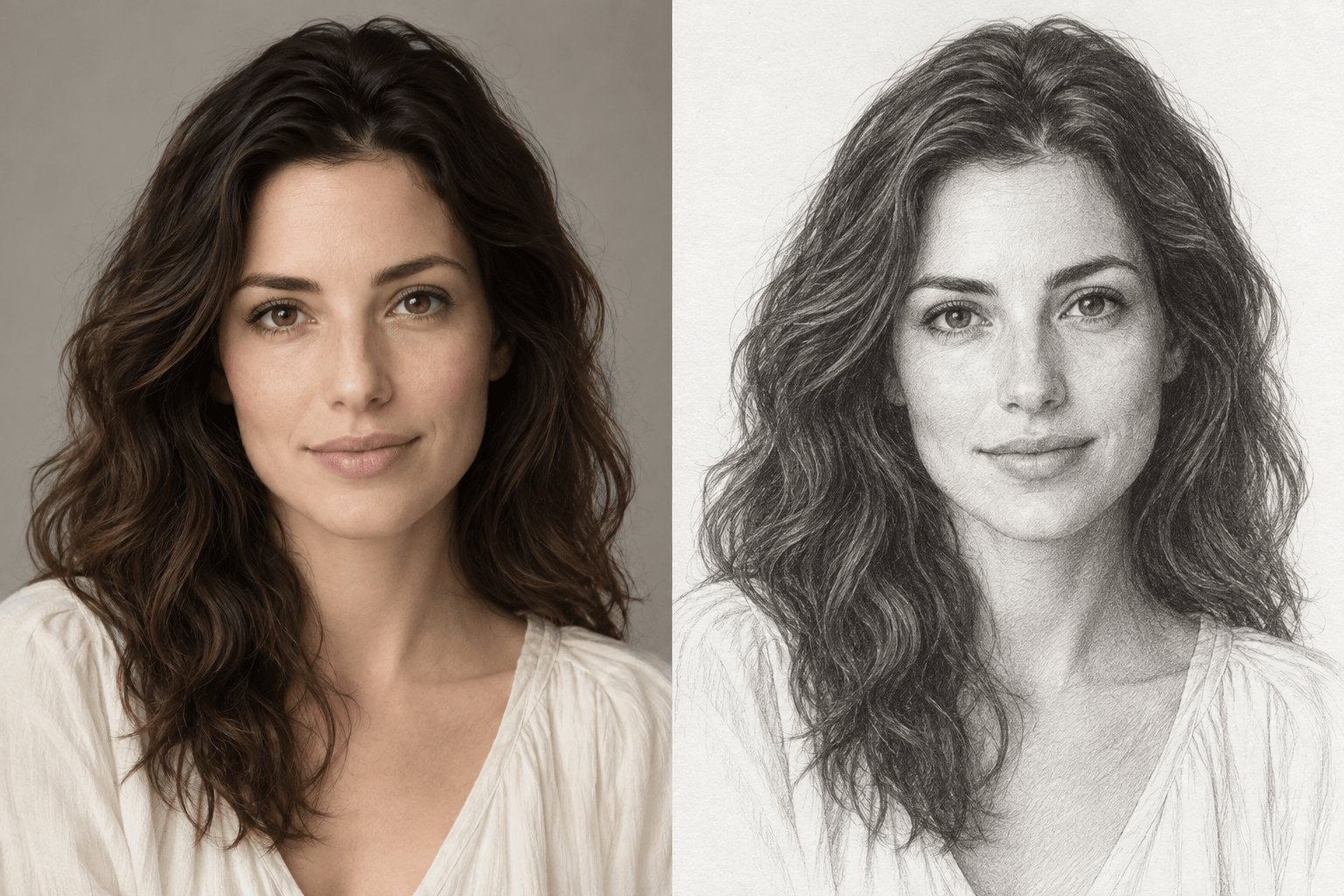
Portrait Graphite: Convert my uploaded portrait into a realistic graphite pencil drawing on clean white paper. Preserve identity, expression, hairstyle, pose, and crop. Use delicate facial lines, soft blended shadows, and subtle paper texture; simplify the background.
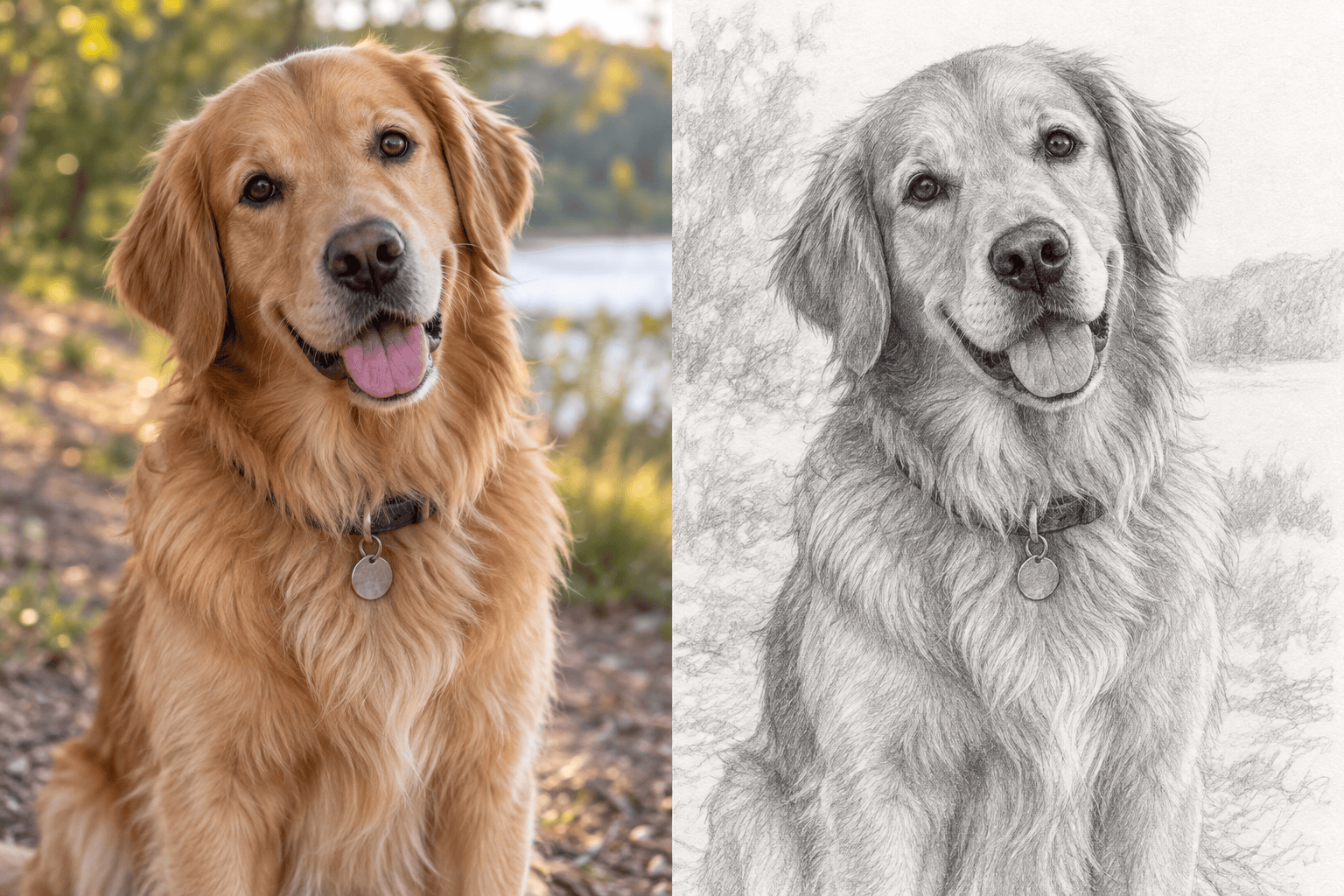
Pet Pencil Sketch: Turn my pet photo into a detailed pencil sketch. Keep the animal's breed traits, eye direction, ear shape, markings, and expression recognizable. Render the fur with varied pencil strokes and keep the background light and uncluttered.
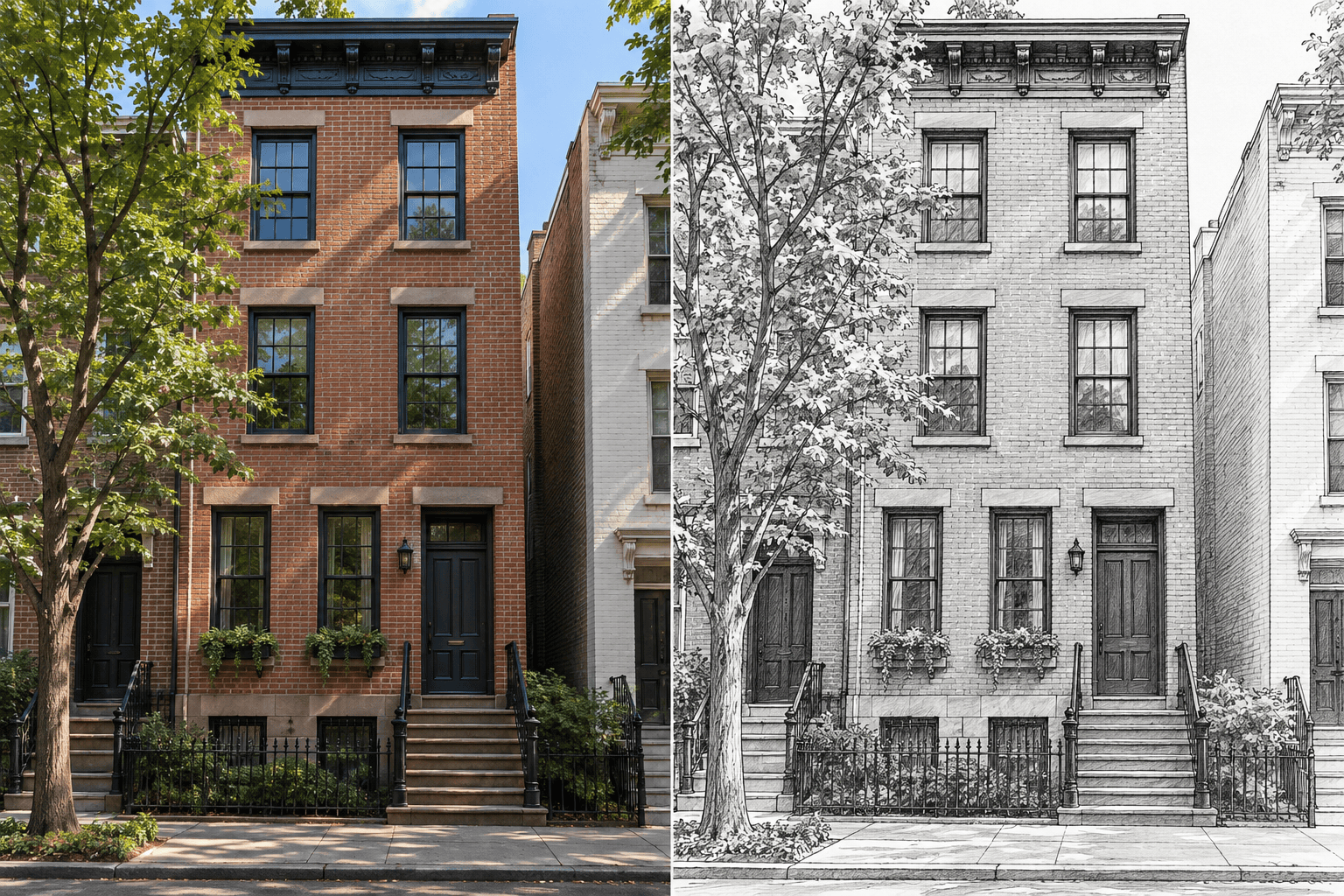
Architectural Ink: Convert this building photo into a crisp pen-and-ink architectural sketch. Preserve the perspective, roofline, windows, doors, and major landscaping. Use confident contour lines, selective cross-hatching, and a restrained ink-wash shadow.
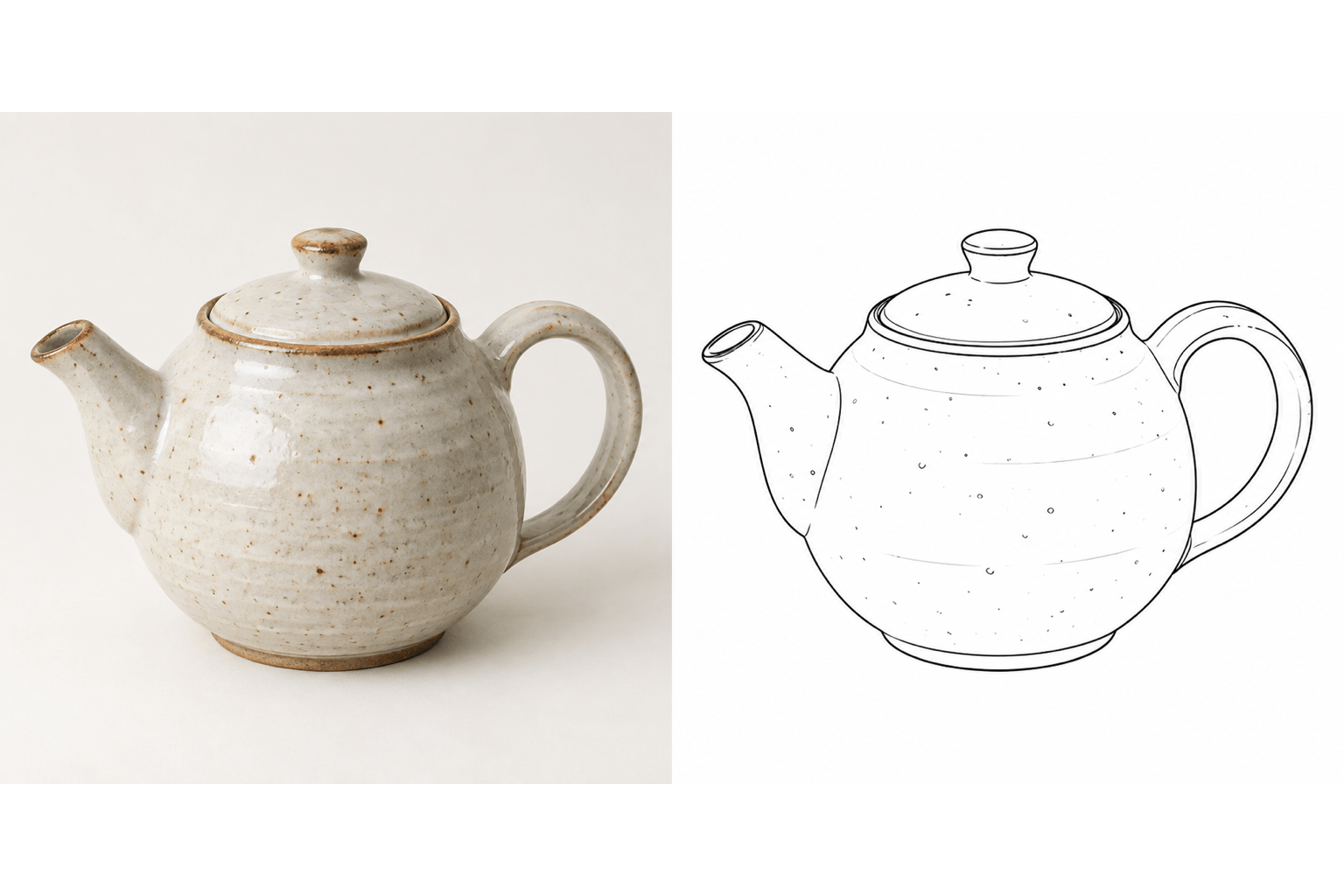
Clean Product Line Art: Turn this product photo into a clean black line drawing on white. Preserve its proportions, silhouette, handles, seams, and distinctive details. Remove photographic reflections and background clutter; use minimal shading.
Coloring-Page Outline: Convert this photo into printable black-and-white line art. Keep the main subject recognizable, use closed contours and medium-weight lines, remove gray shading and tiny background details, and leave open areas that are easy to color.
Tattoo Reference Study: Reinterpret my authorized photo as a high-contrast needle-pen and woodcut sketch. Preserve the main silhouette and meaningful features, simplify small details, and create clear negative space. Treat this as a concept for a tattoo artist to refine, not a final stencil.





