Free OnlinePhoto to Pop Art AI
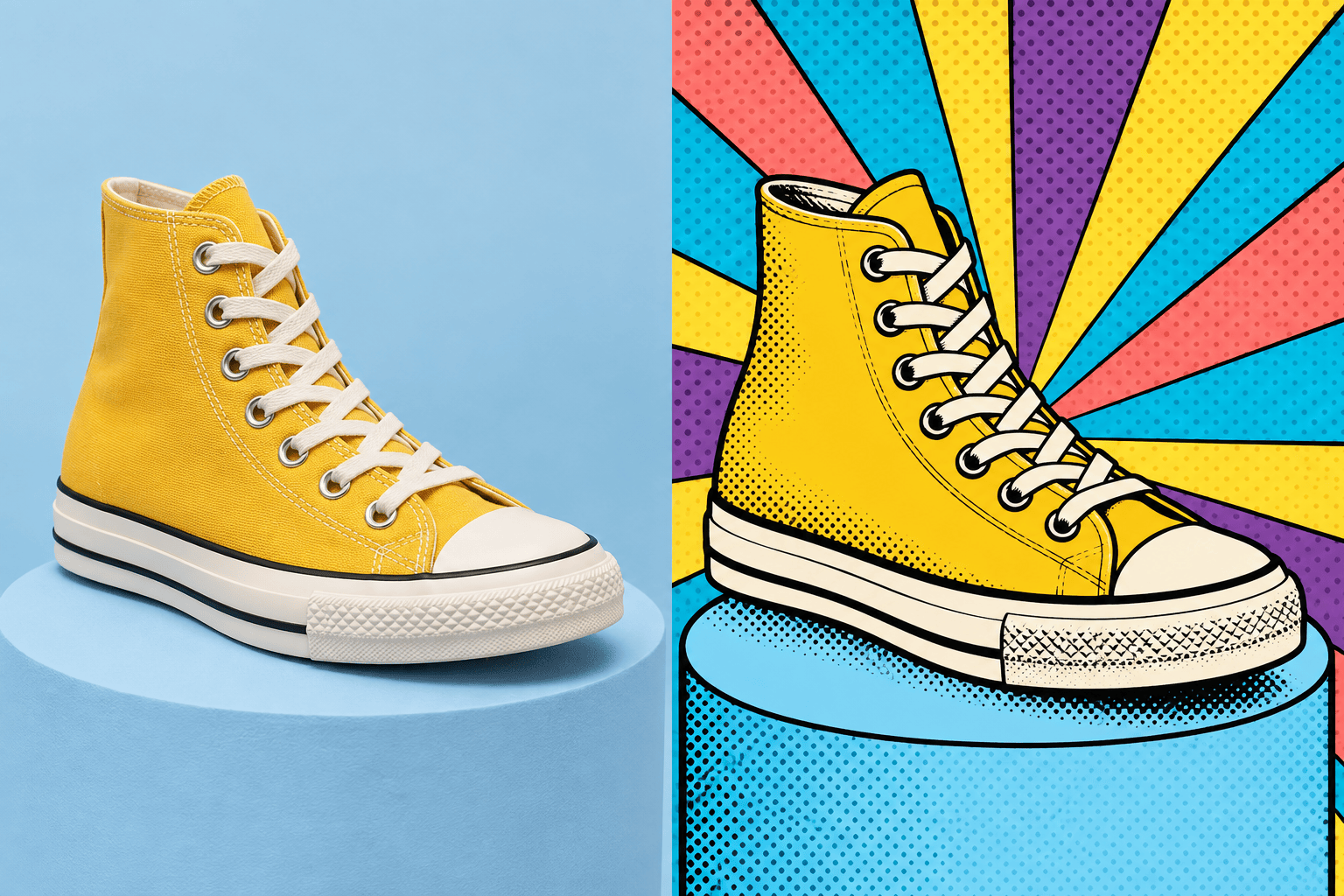
How to Turn a Photo into Pop Art with AI
Upload a Clear Photo
Describe the Pop Art Treatment
Generate and Compare
Refine, Download, and Share

Why Use Mew Design as Your AI Pop Art Generator
Restyle the Photo, Keep the Subject
Upload the image you want to change and state what must remain recognizable. This image-to-image workflow gives the AI a real face, pose, product shape, or scene to follow.
Direct Every Graphic Detail
Go beyond a generic pop art filter. Ask for a limited palette, thick contour lines, flat shadows, halftone dots, screen-print texture, or a repeated color-panel composition.
Fix One Detail Through Chat
If the likeness, background, or color balance needs work, use Chat Edit and name the exact change. Mew Design can refine that part while preserving the direction you already like.
Explore Color and Layout Variations
This online AI pop art maker can create multiple directions from the same source, helping you compare comic halftone, color-block, poster, and four-panel treatments.
Use References for a Cohesive Series
Upload visual references or brand assets when a campaign, creator feed, or product set needs a related palette and graphic language across several images.
Try It Free and Export Cleanly
Sign up for free AI credits, test a photo-to-pop-art direction, and export finished images without a watermark in PNG or JPG format.
Choose a Photo That Converts Cleanly
- Start with one clear subject: Use a sharp, well-lit portrait, pet, product, or object with enough contrast between the subject and background.
- Name what must stay: Protect the face, expression, pose, product silhouette, camera angle, or important accessories so the result remains recognizable.
- Define the visual treatment: Choose a palette and specify comic outlines, halftone dots, flat shadows, screen-print texture, or a repeated-panel layout.
- Match the final destination: Request a square crop for a profile, vertical space for a poster, or a clean landscape composition for a social or campaign graphic.
Pop Art Styles to Try with Your Photo
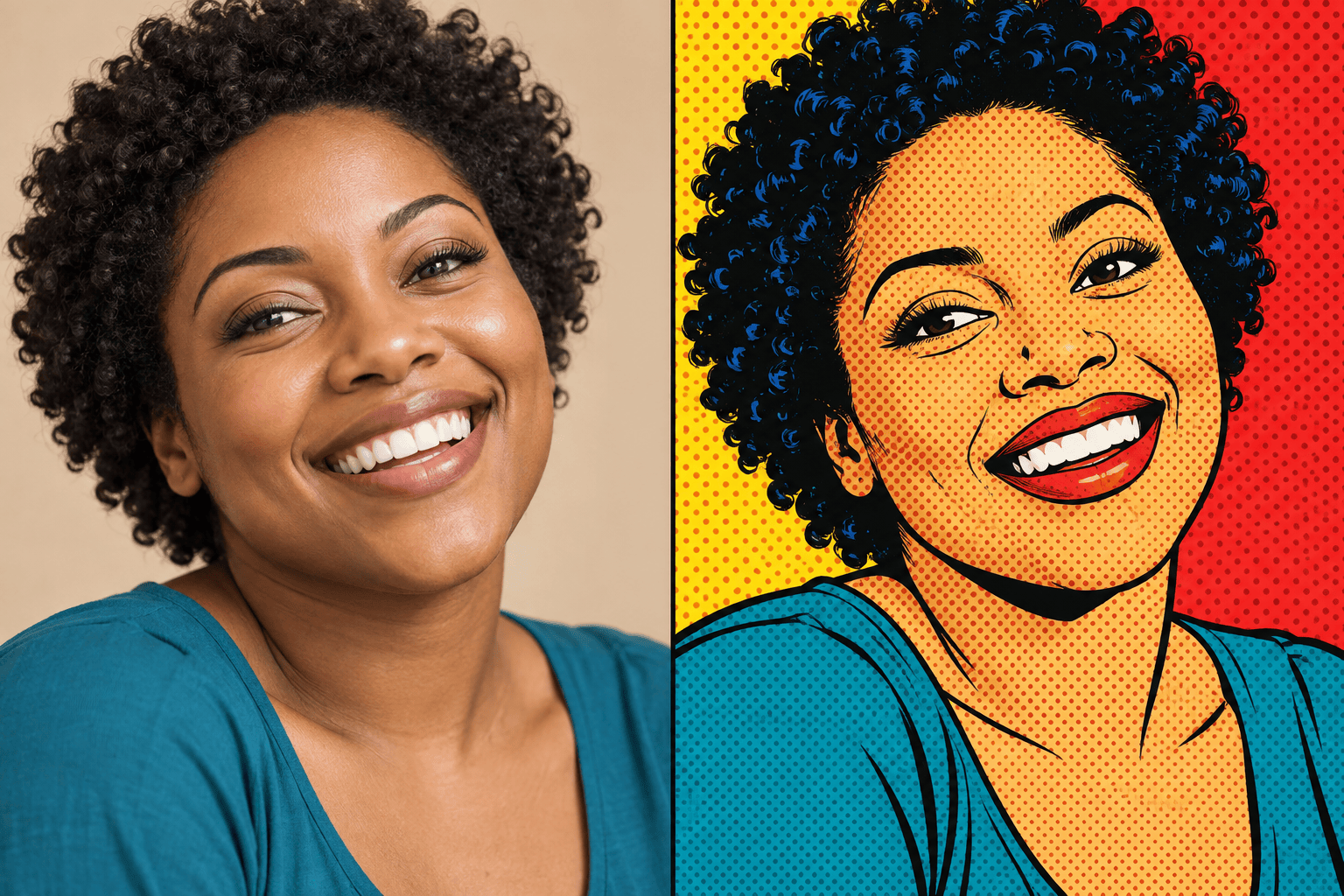
Use @[uploaded portrait] as the source. Create a mid-century comic pop art portrait with bold black contours, red-blue-yellow color blocks, and fine halftone dots. Preserve the face, expression, hairstyle, pose, and crop. Add no text.
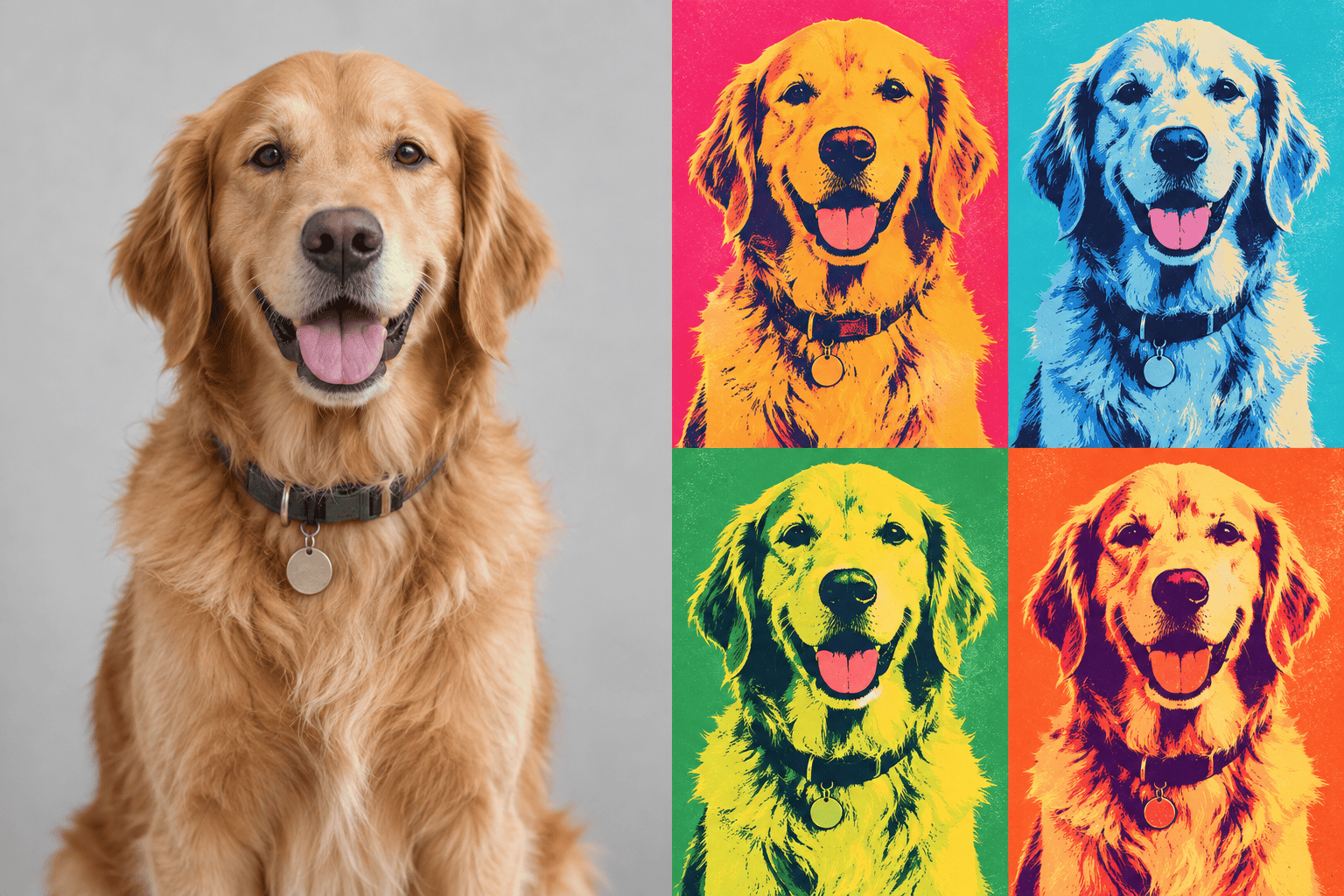
Transform @[uploaded portrait] into a four-panel silkscreen-inspired color study. Repeat the same face and pose in four equal squares, use a different saturated palette in each panel, keep the features recognizable, and add subtle screen-print texture.
Turn @[uploaded pet photo] into playful pop art. Keep the animal's breed, markings, eyes, and pose accurate; simplify the background; use thick graphic outlines, flat turquoise and orange shapes, and a dotted comic texture.
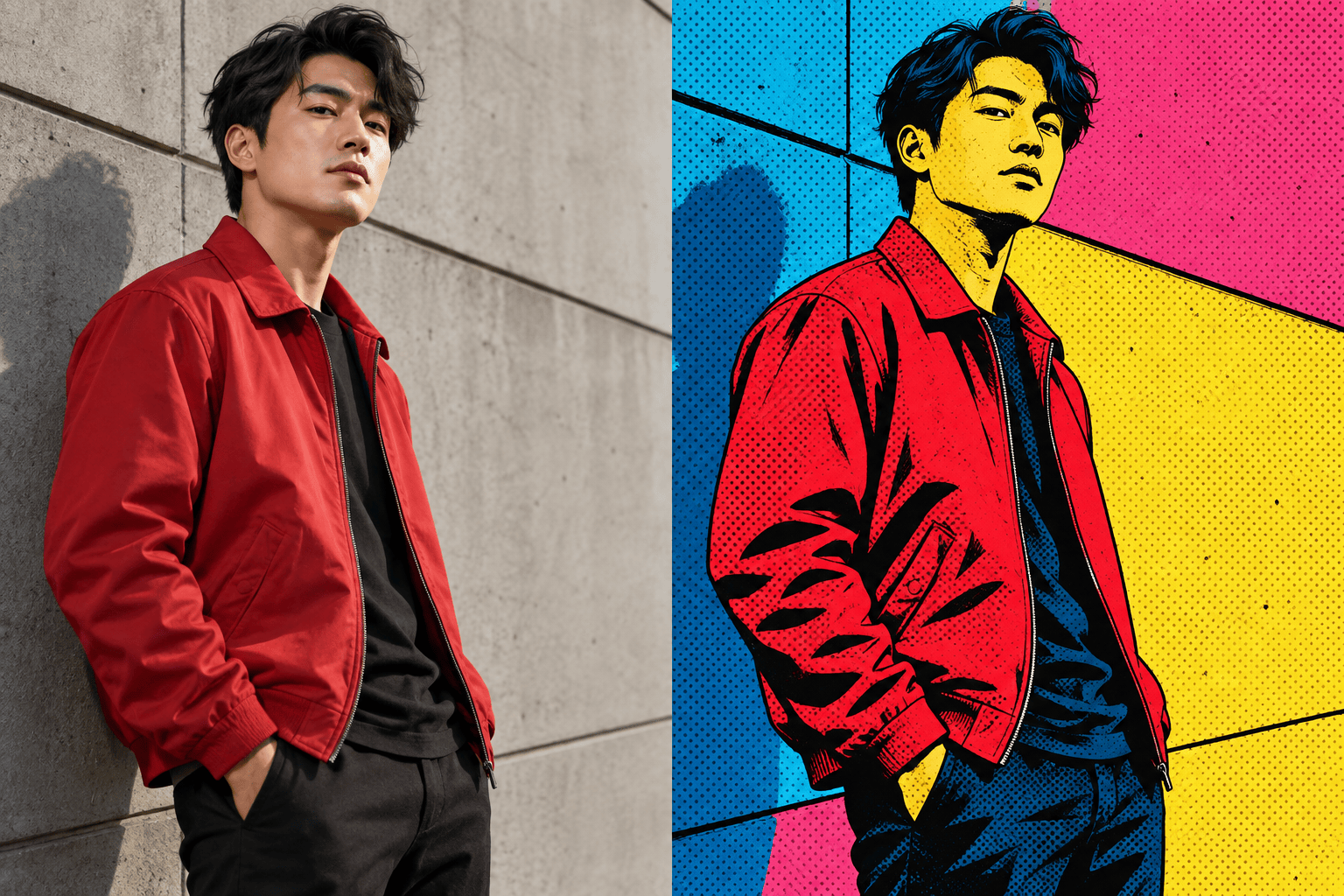
Convert @[uploaded fashion photo] into a poster-ready pop art graphic. Preserve the model's identity, clothing silhouette, and stance; use magenta, cyan, yellow, and black; add crisp contour lines and open space for optional poster copy. Add no text.
Restyle @[uploaded product photo] as commercial pop art for a social campaign. Keep the product shape, label placement, and camera angle unchanged; add high-contrast flat colors, a radial comic background, and controlled halftone shadows. Add no extra logos or text.
Apply a bold comic pop art treatment to @[uploaded scene]. Preserve the people, composition, and main background landmarks; replace natural colors with a coordinated saturated palette; add clean black linework and light halftone texture without adding speech bubbles or text.