Free OnlinePhoto to Pixel Art AI
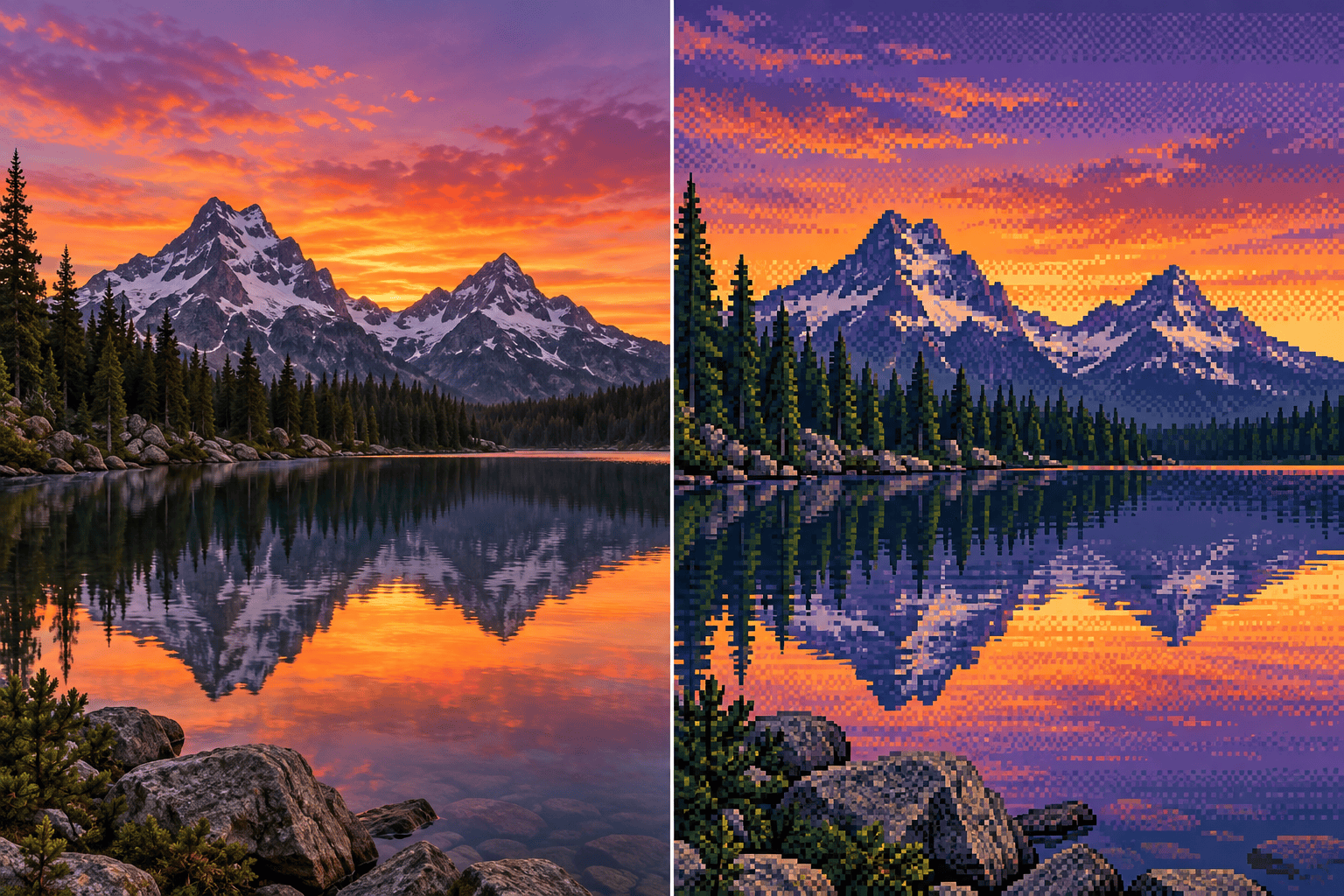
How to Turn a Photo Into Pixel Art With AI
Upload a Clear Source Photo
Describe the Pixel Style
Generate and Compare
Refine and Download

Why Use Mew Design for Photo-to-Pixel-Art Conversion
Reimagine Your Actual Photo
Upload the image you want to transform instead of starting from a generic text prompt. Mew Design uses the source composition, subject, colors, and visual cues to guide the new pixel art.
Direct the Retro Look in Plain Language
Tell the online AI pixel art maker whether you want a coarse 8-bit feel, a richer 16-bit portrait, a limited palette, or a modern high-detail pixel illustration.
Protect the Details That Matter
State what must remain recognizable, such as a face, hairstyle, pet markings, outfit, pose, or product silhouette. The clearer the constraint, the easier the result is to review.
Edit Through Conversation
If the first result feels too smooth or loses an important feature, use Chat Edit to request one focused change while keeping the successful composition and subject intact.
Use Visual References for Style
Add a pixel art reference alongside your source photo to communicate palette, outline treatment, and detail level. Use references you own or have permission to use.
Create Avatars, Sprites, and Shareable Art
Use the free AI photo to pixel art workflow for profile pictures, pet portraits, game concepts, stickers, and retro social posts. Ask to remove the background when you need a clean sprite-like asset.
How to Prepare a Photo for Better Pixel Art
- Use a clear crop: Choose a close portrait for an avatar, a full-body shot for a character sprite, or a wide crop for a landscape. Avoid making a small subject compete with unused background space.
- Simplify the background: Plain or low-detail backgrounds help the subject remain readable. Ask Mew Design to simplify or remove a cluttered background before finalizing the pixel version.
- Choose the detail level: Request chunky 8-bit blocks for icons and sprites, a richer 16-bit look for recognizable portraits, or finer pixel clusters for scenery and posters.
- Name what must stay: Call out the face, pose, clothing, pet markings, product shape, or color accents that should remain consistent during the style transformation.
Photo-to-Pixel-Art Styles to Try
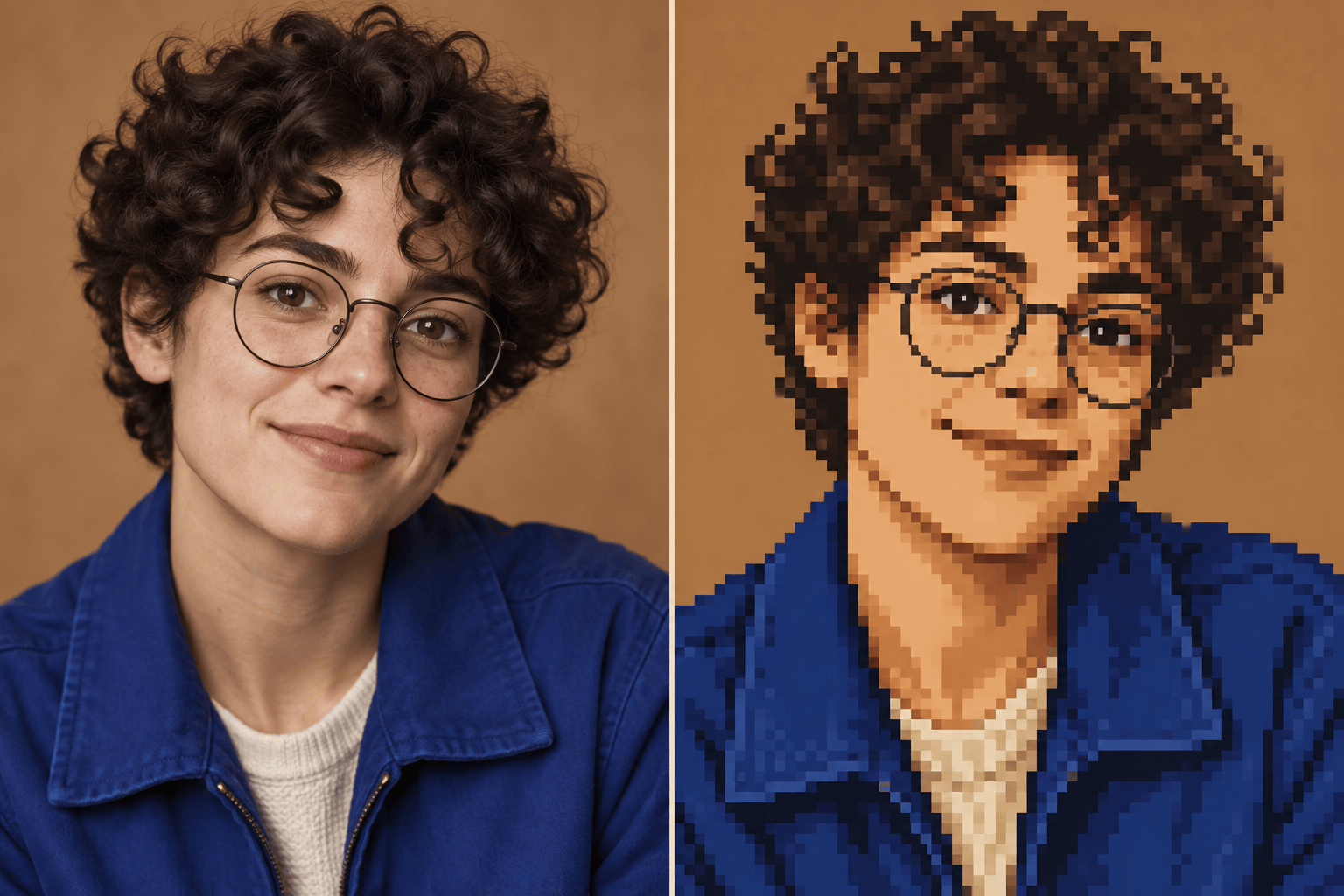
Turn my uploaded headshot into a square 16-bit pixel art avatar. Preserve my face shape, hairstyle, glasses, and jacket colors. Use crisp pixel clusters, a limited palette, and a simple background for a Discord or Twitch profile image.
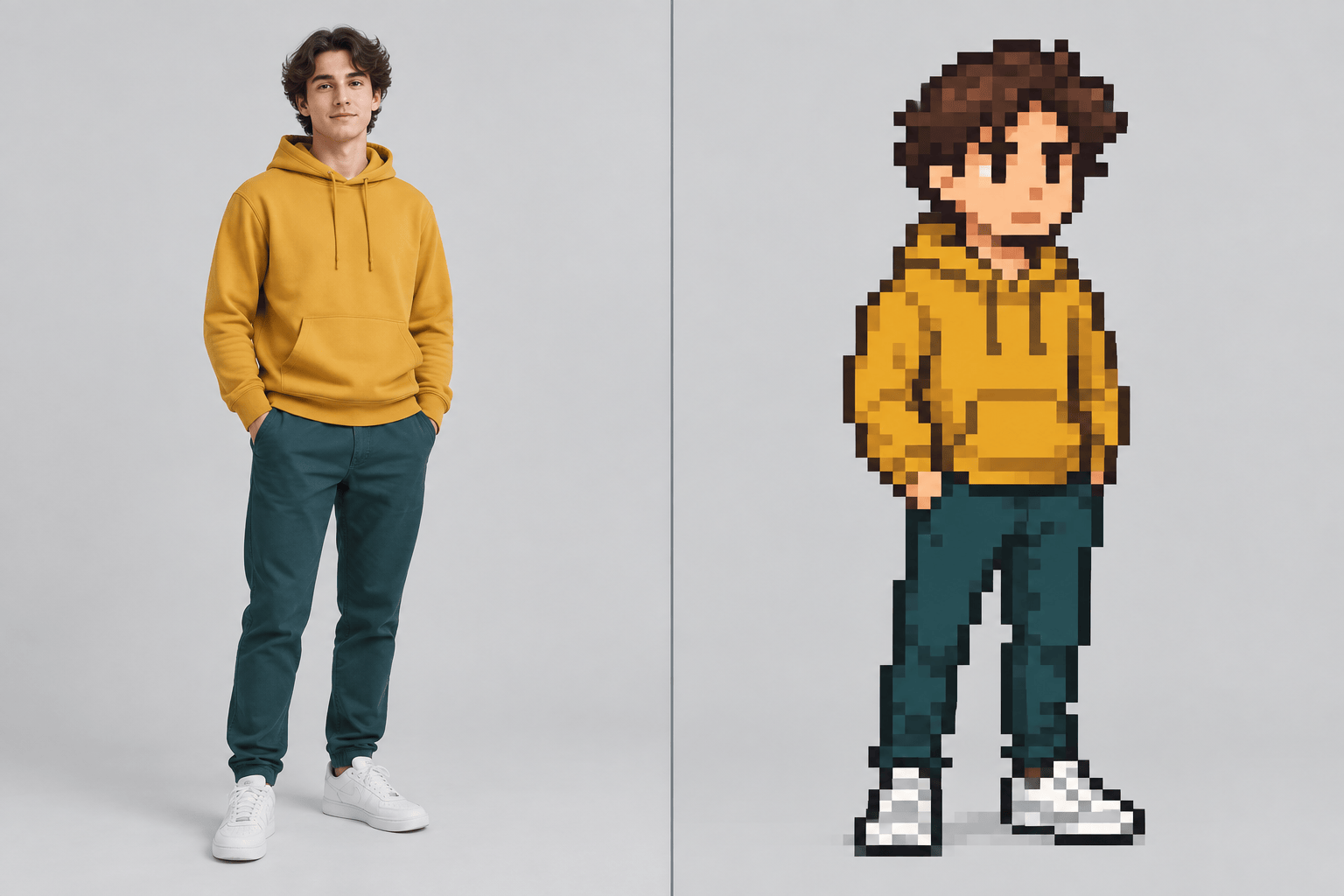
Convert this full-body photo into an 8-bit game character sprite. Keep the outfit colors and standing pose recognizable, simplify the silhouette, use a compact retro palette, and remove the background for a clean PNG-style asset.
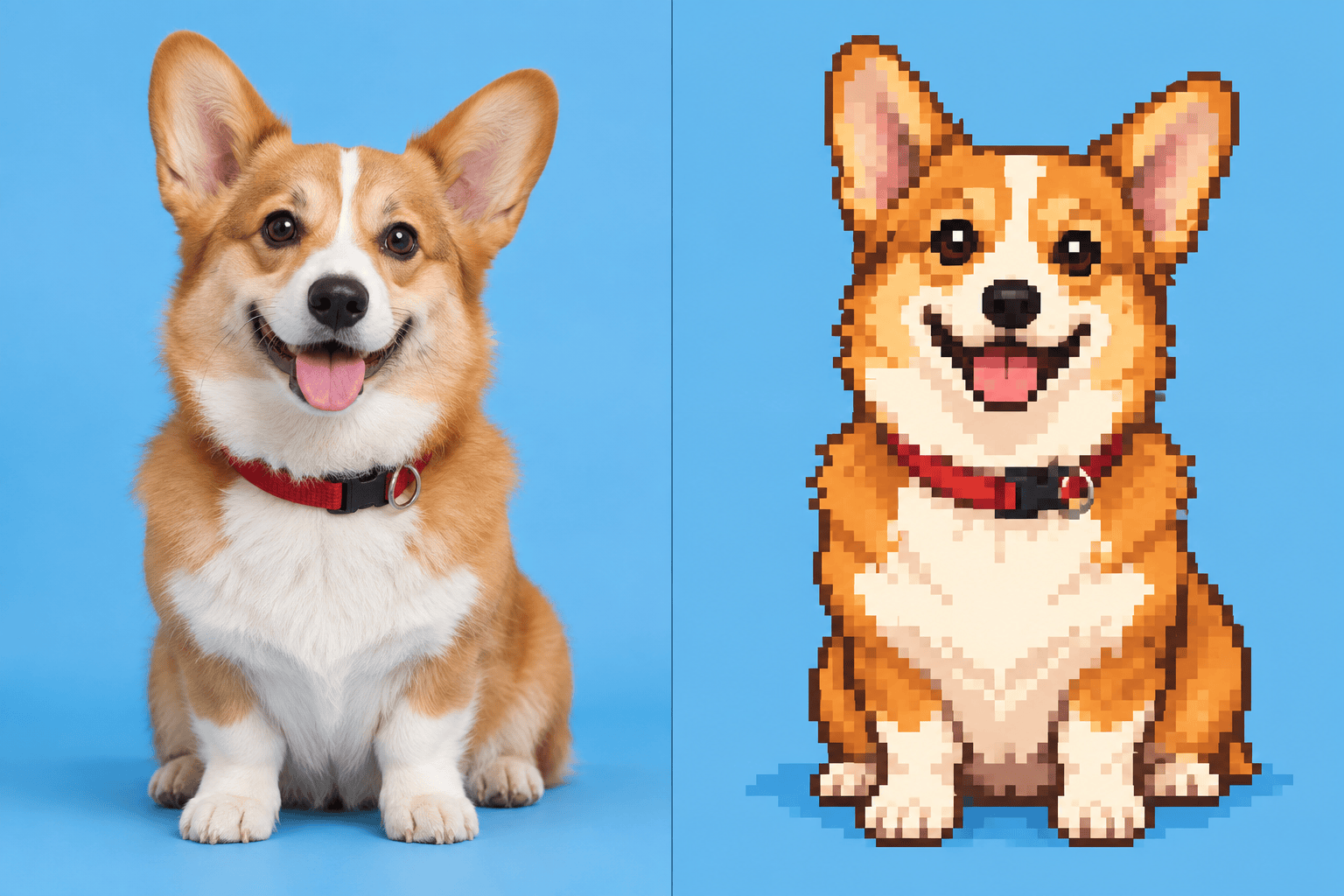
Transform my pet photo into cheerful pixel art. Keep the dog's floppy ears, white chest patch, and red collar recognizable. Use a bright 16-bit palette, clear outlines, and a plain sky-blue background.
Reimagine this mountain lake photo as a 16-bit adventure game background. Preserve the main peaks, shoreline, reflections, and sunset colors while simplifying textures into deliberate pixel clusters with subtle dithering.
Turn this product photo into a clean pixel art icon. Preserve the object's silhouette and two main brand colors, remove the background, reduce tiny reflections, and use bold readable edges that work at small size.
Convert this street photo into a cinematic retro game scene. Keep the storefront, bicycle, and evening lighting recognizable, use a moody limited palette, crisp blocky details, and no text or interface elements.