Free OnlinePhoto to Oil Painting AI
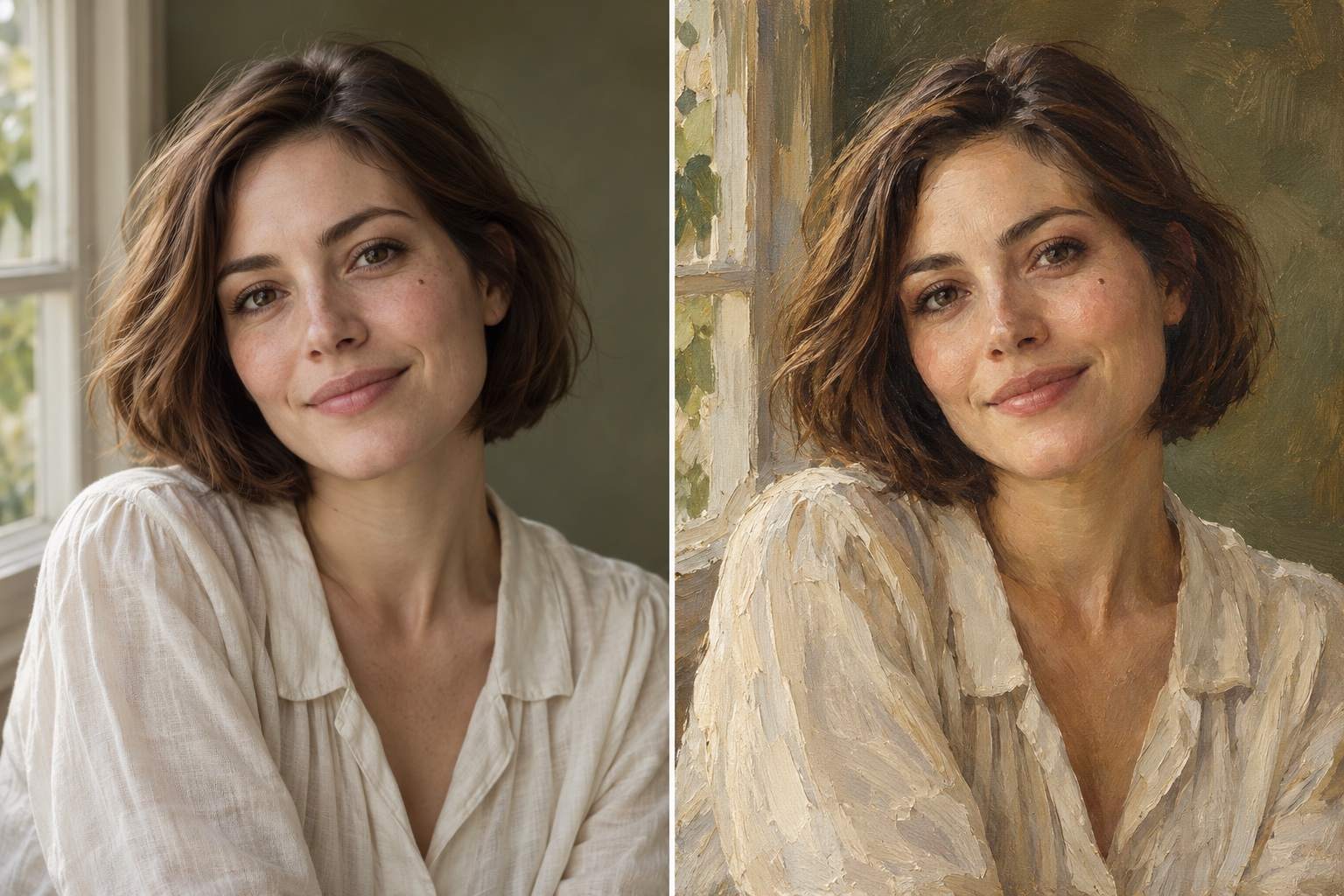
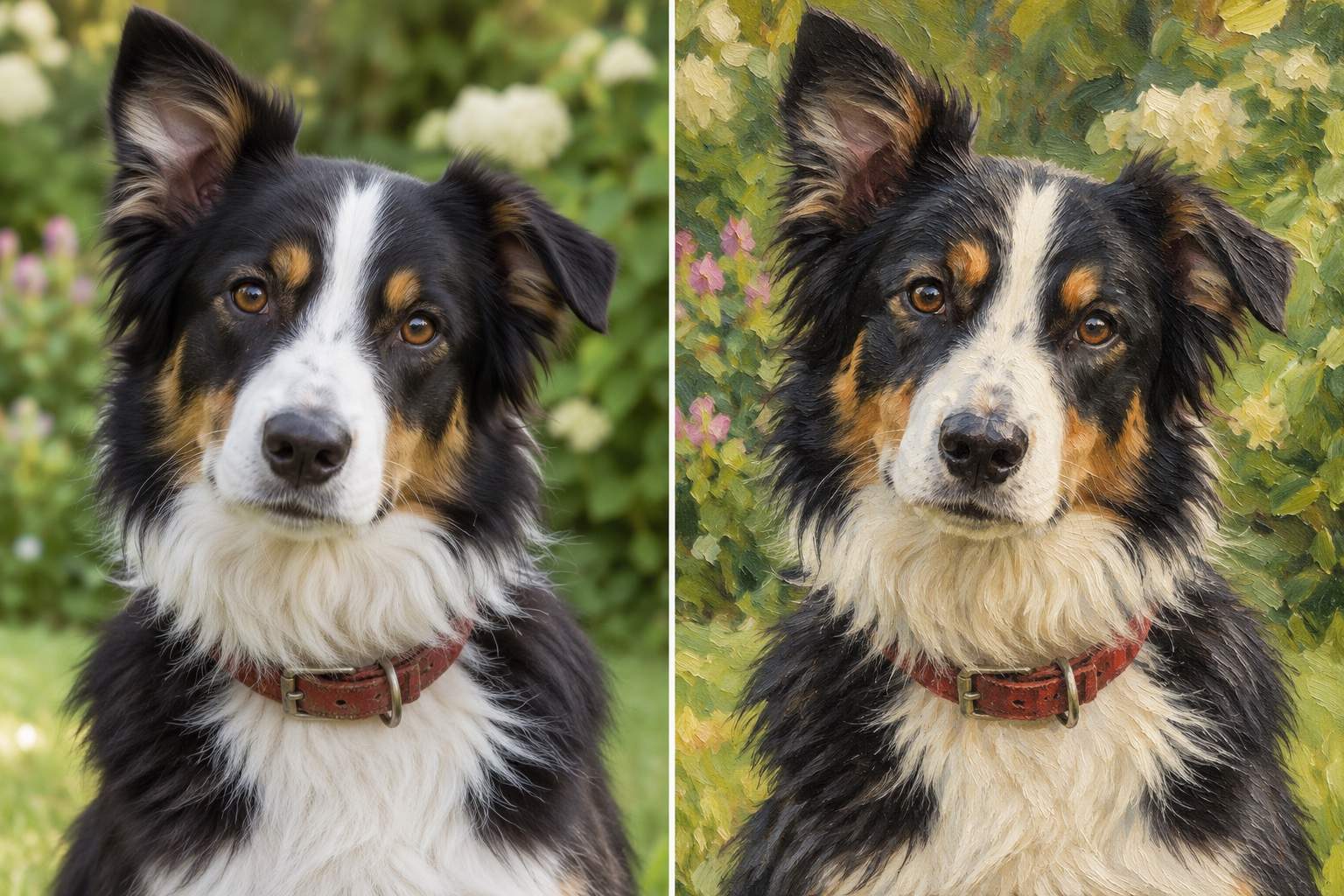
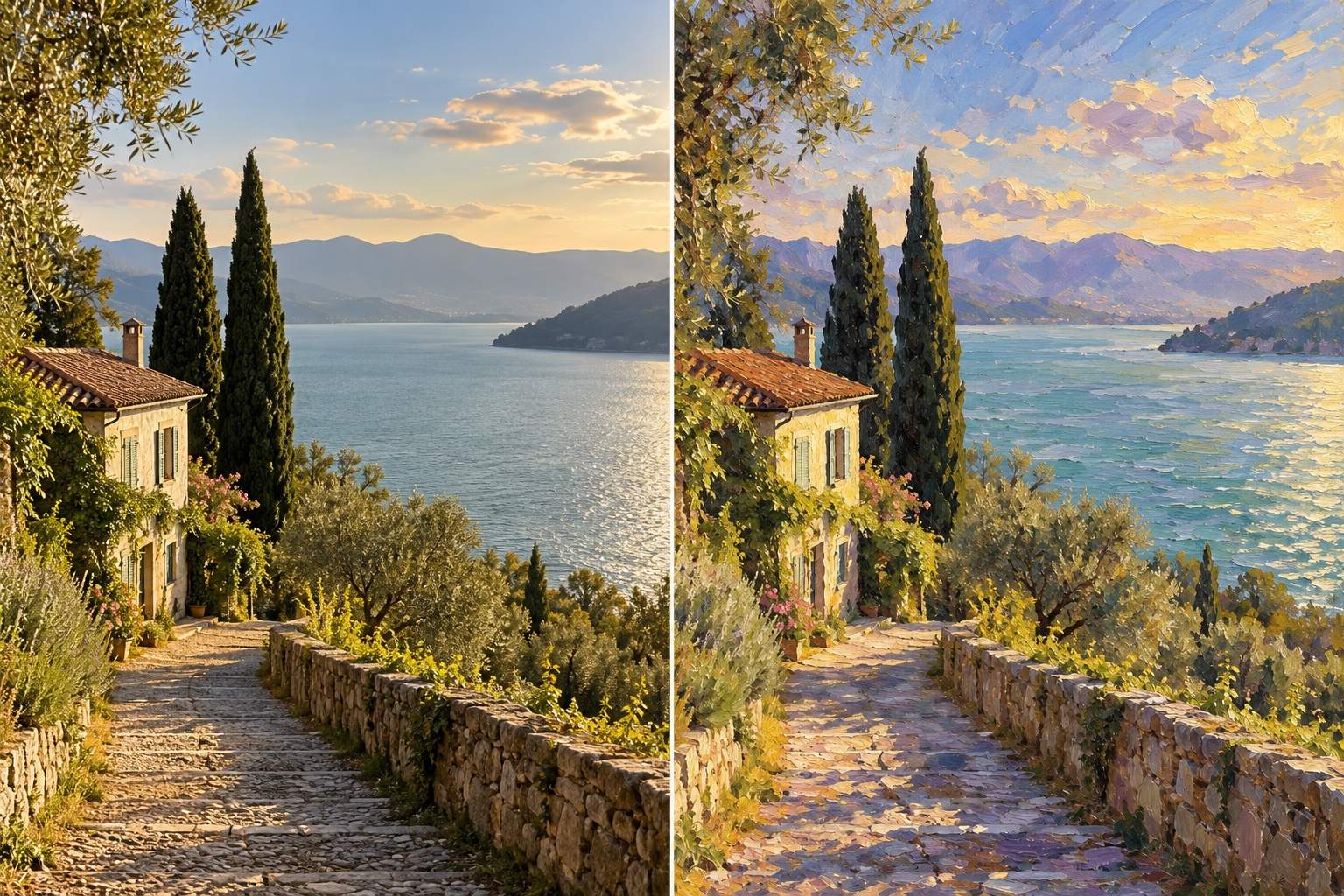
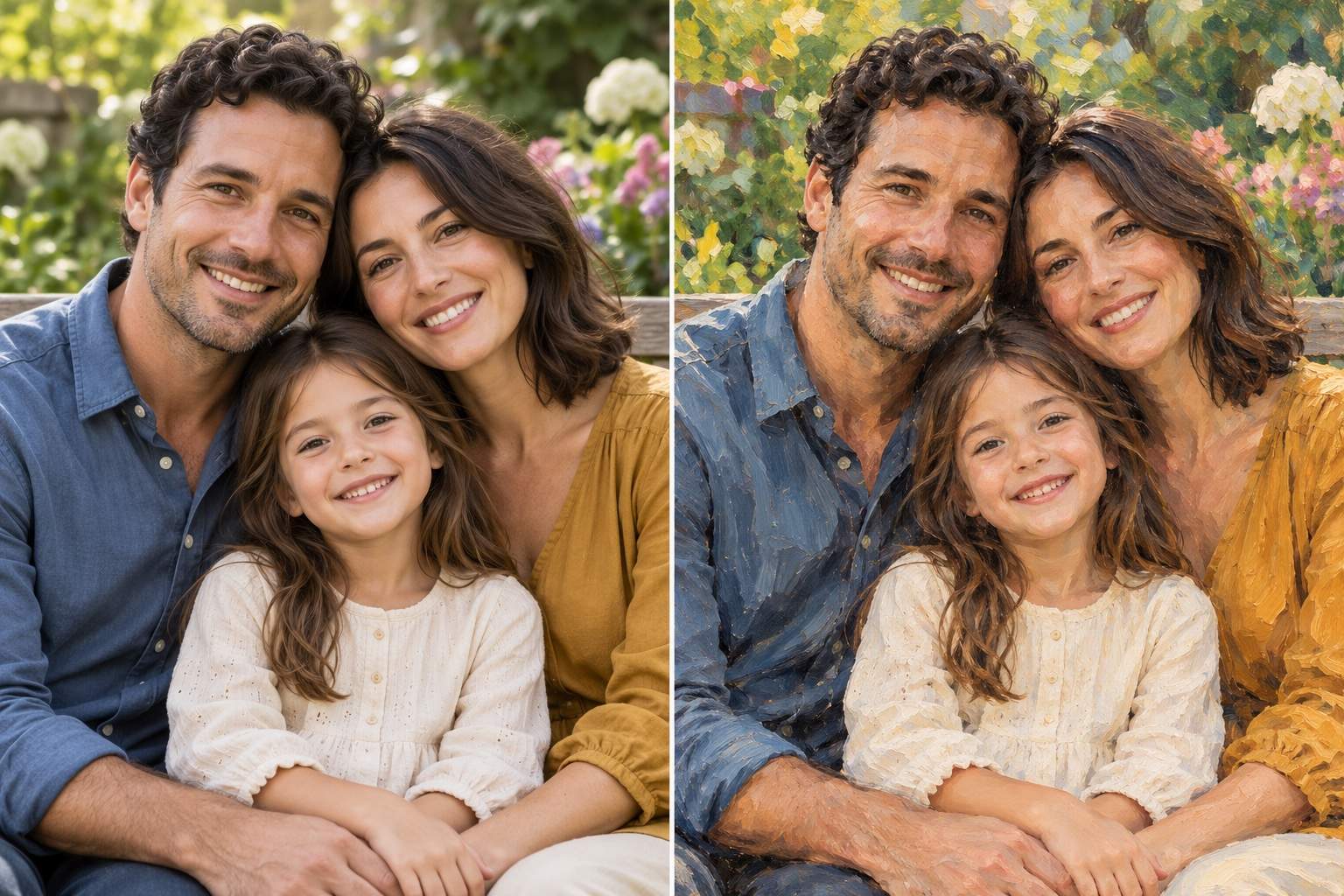
How to Turn a Photo into an Oil Painting with AI
Start with a Clear Photo
Choose the Brushwork
Compare and Refine
Download Your Artwork

Oil Painting Style, with Room to Make It Yours
Build on Your Own Photo
Our image-to-oil-painting AI uses your upload as the starting point. Turn a personal portrait or travel memory into artwork, with clear instructions about what to preserve.
Describe the Paint, Not the Settings
Ask for delicate facial brushwork, sweeping landscape strokes, or thicker paint in the background. You can guide the oil effect in everyday language.
Bring a Painting Reference
Upload a reference to guide the palette, lighting, or brushwork. Explain which image supplies the subject and which supplies the style.
Adjust Details Through Chat
Use Chat Edit to request warmer skin tones, a quieter background, or less texture around the eyes. Refine the image without learning painting software.
Create a Related Series
Develop matching pet portraits or travel paintings. Save your preferred palette, brushwork, and review steps as a reusable Mew Skill to reduce repeated setup.
Try It Before You Commit
Explore photo-to-oil-painting styles online with free AI credits after signup. Export your chosen result without a watermark; generation depends on your available credits.
Keep the Likeness, Choose the Texture
- Use a Clear Source: Choose the original photo rather than a compressed screenshot. Faces should be large enough to see; avoid heavy blur and deep shadows over key features.
- Name the Details to Keep: For a portrait, mention expression and facial proportions. For a pet, name distinctive markings. For a landscape, identify the horizon and main landmarks.
- Match Strokes to the Subject: Try softer strokes on faces and more visible paint on clothing, foliage, or sky. Describe texture and color separately so each can be refined.
- Review Before Printing: Zoom in on faces, hands, and edges. AI can reinterpret details; request corrections before choosing a final version.
Refine Your Photo-to-Oil-Painting Result
Restore the likeness: Bring the face closer to my original photo, especially the eye shape, smile, and jawline. Keep the current oil painting palette and background.
Keep my pet recognizable: Match the fur markings, eye color, and ear shape to the uploaded pet photo. Use fine painted strokes around the muzzle and eyes.
Reduce heavy texture: Soften the thick paint across the face. Keep visible oil brushwork on the clothing and background without changing the pose or composition.
Quiet the background: Simplify distracting objects behind the subject into soft painted shapes. Preserve the subject, light direction, and main colors from my photo.
Restore natural colors: Bring the skin tones or landscape colors closer to the source photo. Reduce excessive saturation while keeping the oil painting texture.
Adjust the crop: Reframe this oil painting for my chosen print proportions. Keep faces, ears, and other important details away from the edges; ask which size I need.





