Free OnlineHalloween Avatar Maker
How to Create a Halloween Avatar with AI
Choose Yourself or a Character
Give the Avatar Its Personality
Adjust the Face and Silhouette
Try the Profile Crop and Download

A Halloween Look That Works as Your Profile Picture
A Familiar Face in a New Costume
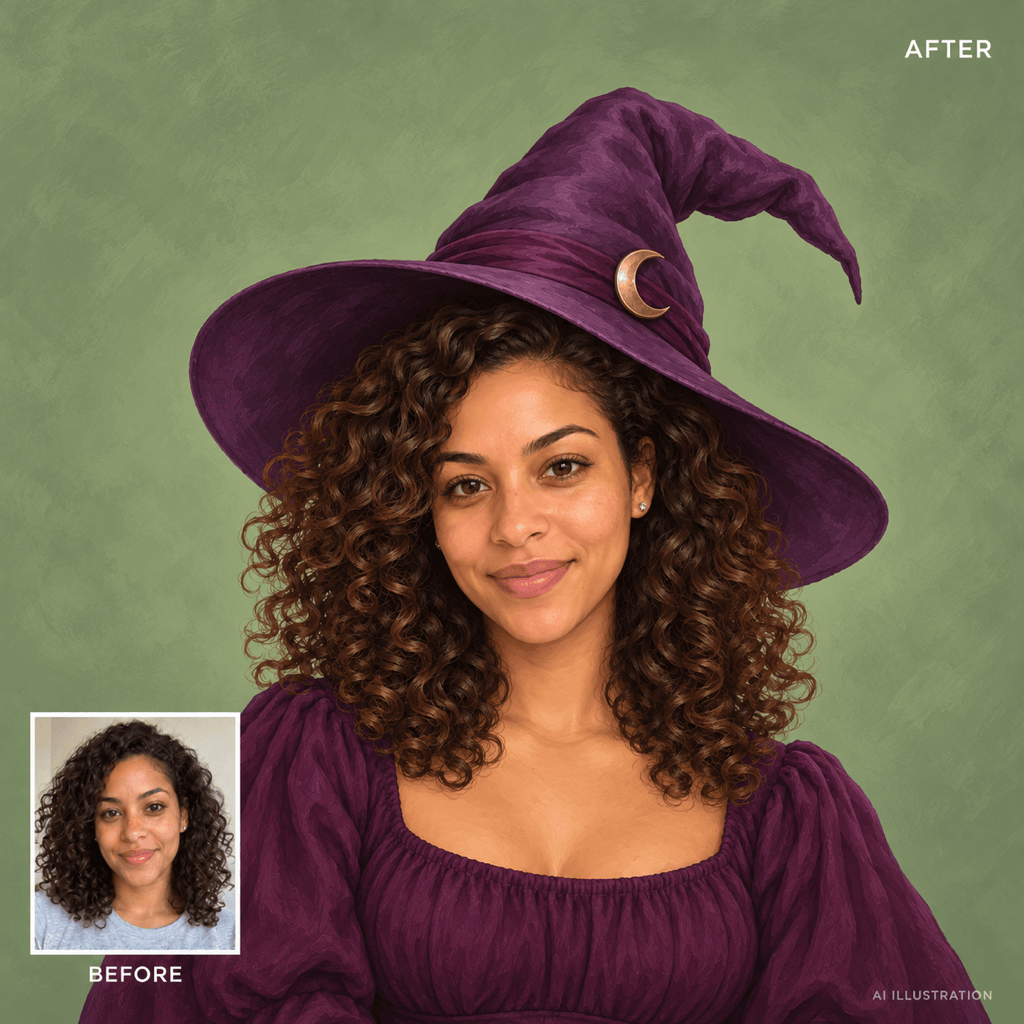
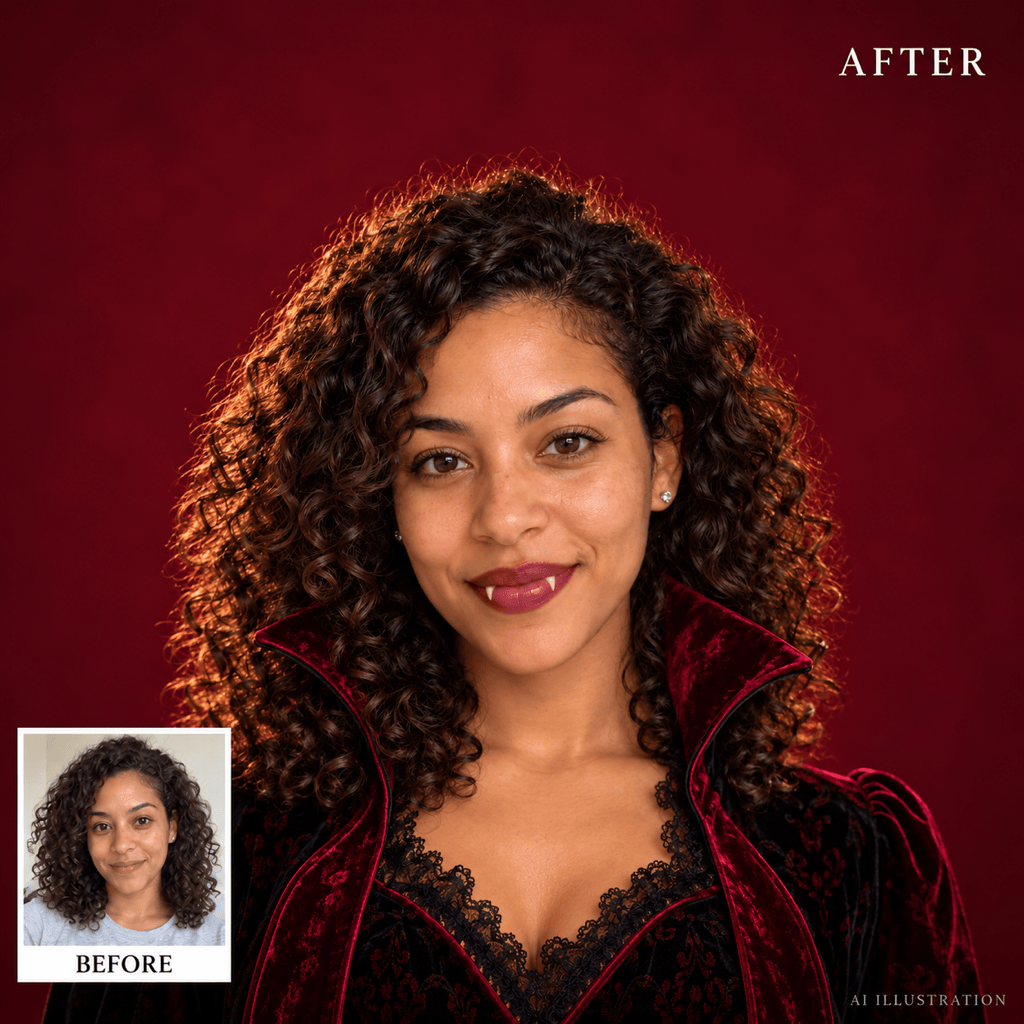
Use a selfie to guide a witch or vampire portrait. Ask to keep your face shape, skin tone, and hairstyle while changing the costume. A photo helps with likeness; check the result before using it as your avatar.
Cute, Eerie, or Somewhere Between
This spooky avatar maker can follow a playful or darker direction. Try rounded shapes and a gentle smile for a cute ghost, or dramatic lighting and a serious expression for a vampire.
One Detail People Can Recognize
Give an original character a bold silhouette and a memorable accessory. A large pair of headphones or a striped witch hat reads more clearly in a tiny icon than a scene full of decorations.
Colors That Separate Face from Background
Request a plain backdrop that contrasts with the character. Try a pale ghost on deep plum or an orange pumpkin on violet. Keep the eyes visible instead of letting them disappear into dark shading.
Refine Without Starting Over
Describe a focused change in Chat Edit: lower the hat, brighten the eyes, or remove small background objects. Tell Mew which parts to keep, then compare the new version with your favorite.
Free Credits to Explore Your Look
New users receive free AI credits after signup. Generation and edits use credits, and more use may require a paid plan. Download your finished Halloween profile picture without a watermark.
Make Your Avatar Read Clearly at a Small Size
- Keep the Face Prominent: Ask for a close-up or head-and-shoulders view. A full-body character may look good at large size but lose its expression when used as a profile icon.
- Leave Room for the Circle: Keep hats, ears, and horns away from the corners. Download a square image and check the circular crop in the app where you will use it.
- Test Contrast, Not Just Detail: Shrink the preview. If the eyes or outline disappear, ask for a lighter face, a simpler background, or a stronger difference between the two.
- Use Your Photo Deliberately: For a Halloween avatar from a photo, choose one clear face without sunglasses or heavy filters. Specify the features to retain and compare the result with the original.
Halloween Avatar Ideas to Try and Refine
Witch from a Selfie: Turn my uploaded photo into a square 1:1 illustrated witch avatar. Keep my face shape, skin tone, and hairstyle recognizable. Add a purple hat with a crescent pin and a friendly smile. Use a plain sage-green background. Leave space above the hat for a circular crop; no text.
Vampire Profile Portrait: Use my uploaded photo as the face reference for a square 1:1 vampire avatar. Add a dark velvet collar, subtle fangs, and warm side lighting. Keep my eyes visible and my skin tone close to the reference. Use a simple burgundy background with room around my head. No blood or text.
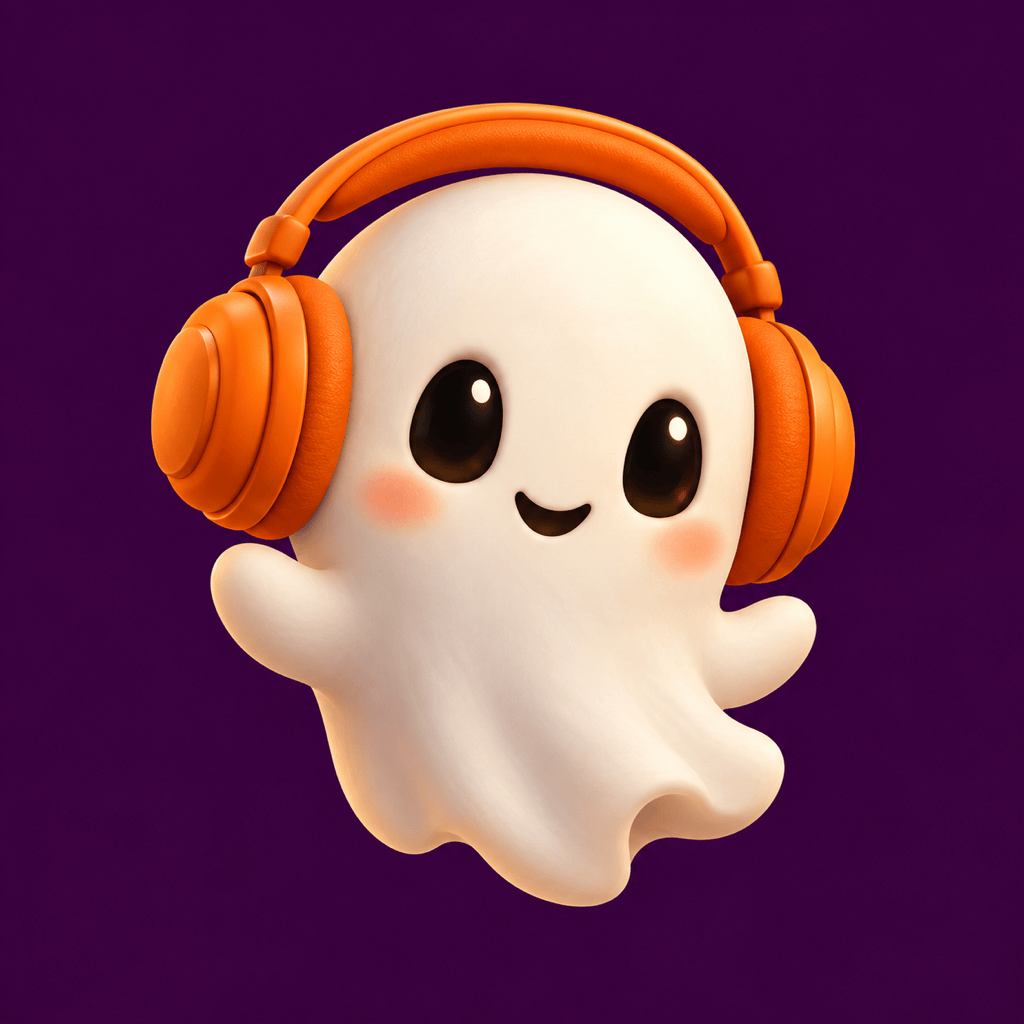
Cute Ghost Avatar: Create a square 1:1 cartoon ghost avatar with oversized orange headphones, rounded cheeks, and happy dark eyes. Use a deep-plum background, bold clean shapes, and no text. Center the face and keep all defining details inside a circular profile crop.
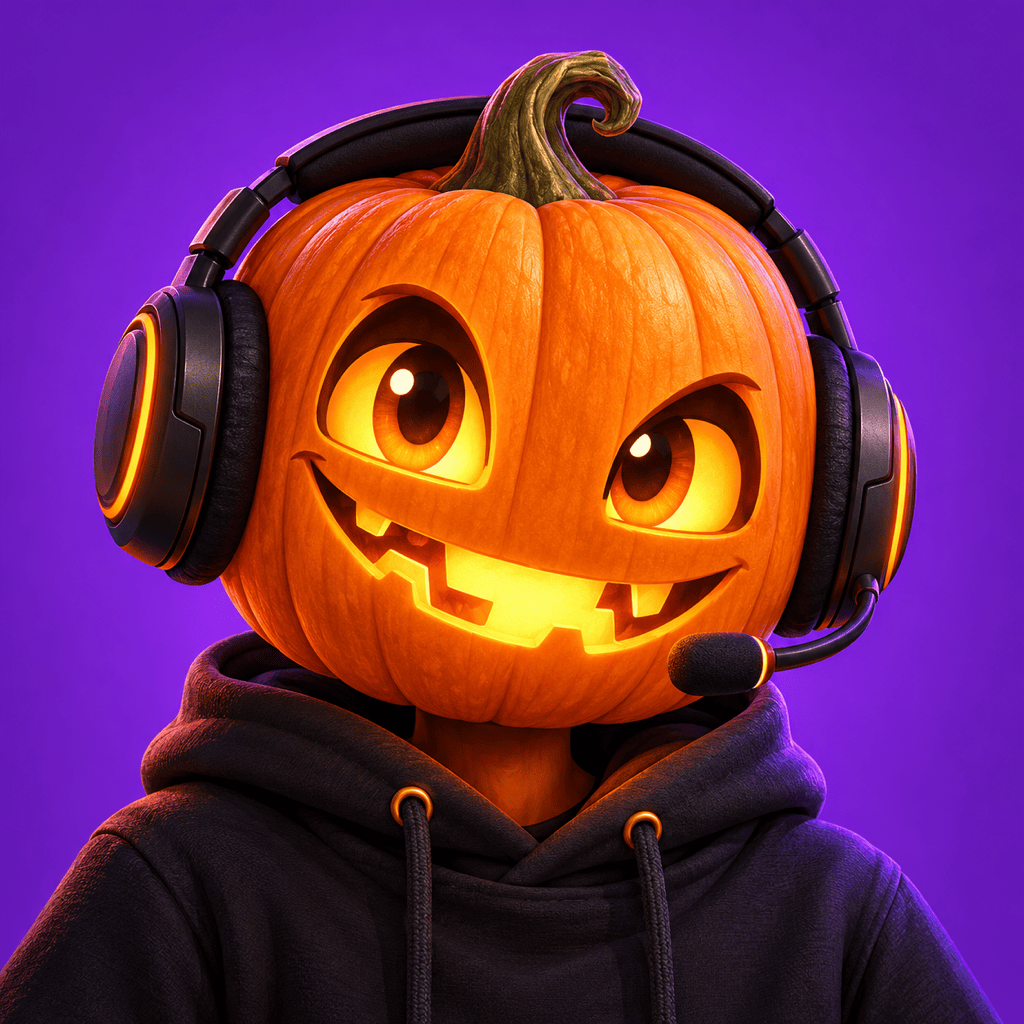
Pumpkin Gamer for Discord: Create a square 1:1 Halloween profile picture of an original pumpkin character wearing a black gaming headset. Use a friendly crooked grin, large glowing eyes, and a plain violet background. Make the face readable at icon size. No lettering, logos, or tiny props.
A Softer Spooky Look: Revise this avatar to feel cute rather than frightening. Relax the eyebrows, soften the mouth, and brighten the face. Keep the existing character, main accessory, and color palette. Remove blood or harsh horror details and preserve the square 1:1 format.
Repair a Cropped Hat: Reframe this avatar within a square 1:1 image. Make the character slightly smaller and extend the plain background so the full hat and ears fit comfortably inside a circular crop. Keep the face, expression, and colors as close to the current version as possible. No text.





