Free to Try OnlineAI Wrinkle Remover
How to Remove Wrinkles from Photos with AI
Upload a Clear Original
Create a Subtle First Edit
Compare and Refine
Export Your Finished Photo

Wrinkle Retouching You Can Guide in Chat
Start with Your Own Face
Upload the portrait you want to edit. This photo wrinkle remover works from your image, so you can request a targeted touch-up without asking for a new portrait.
Name the Area to Soften
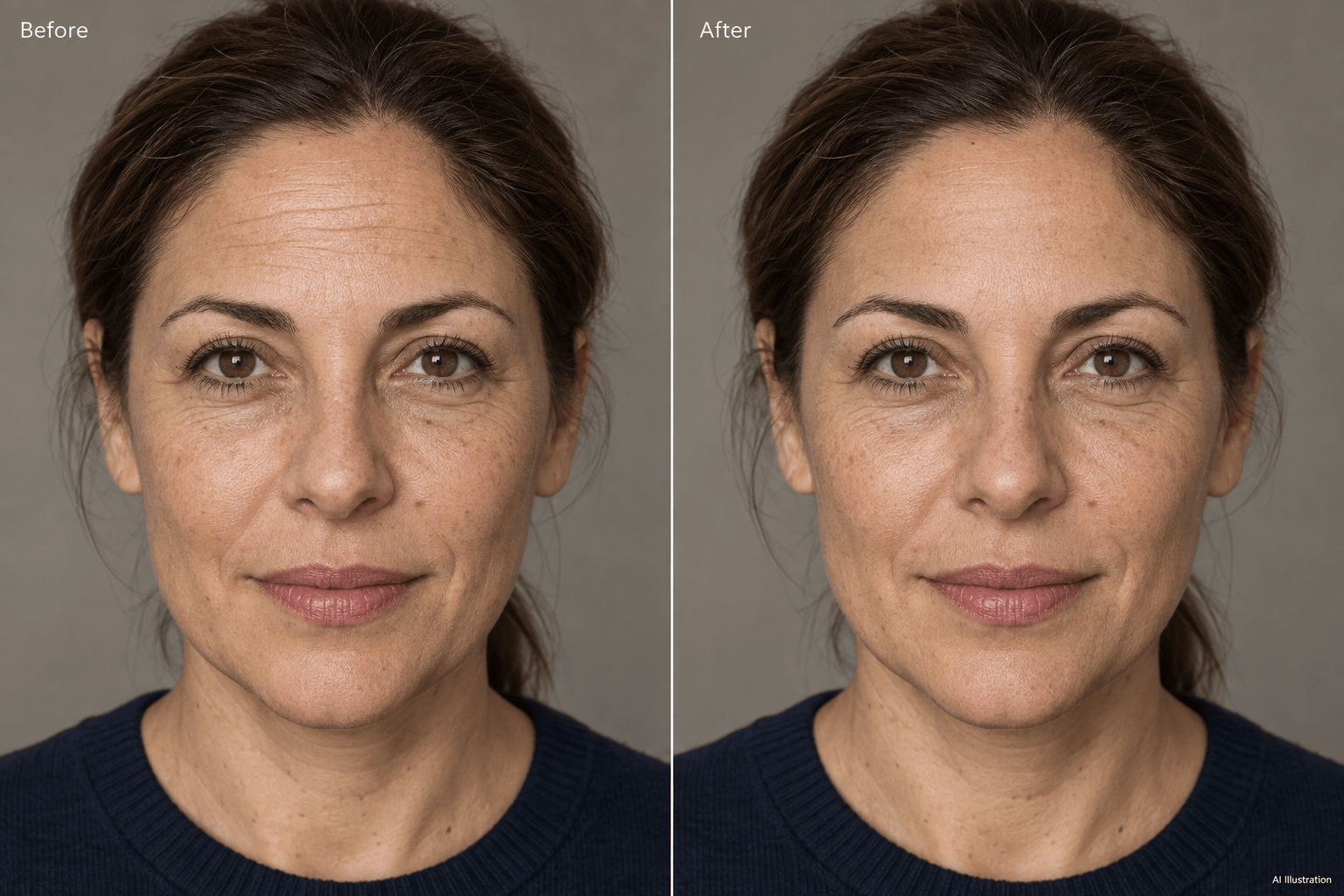
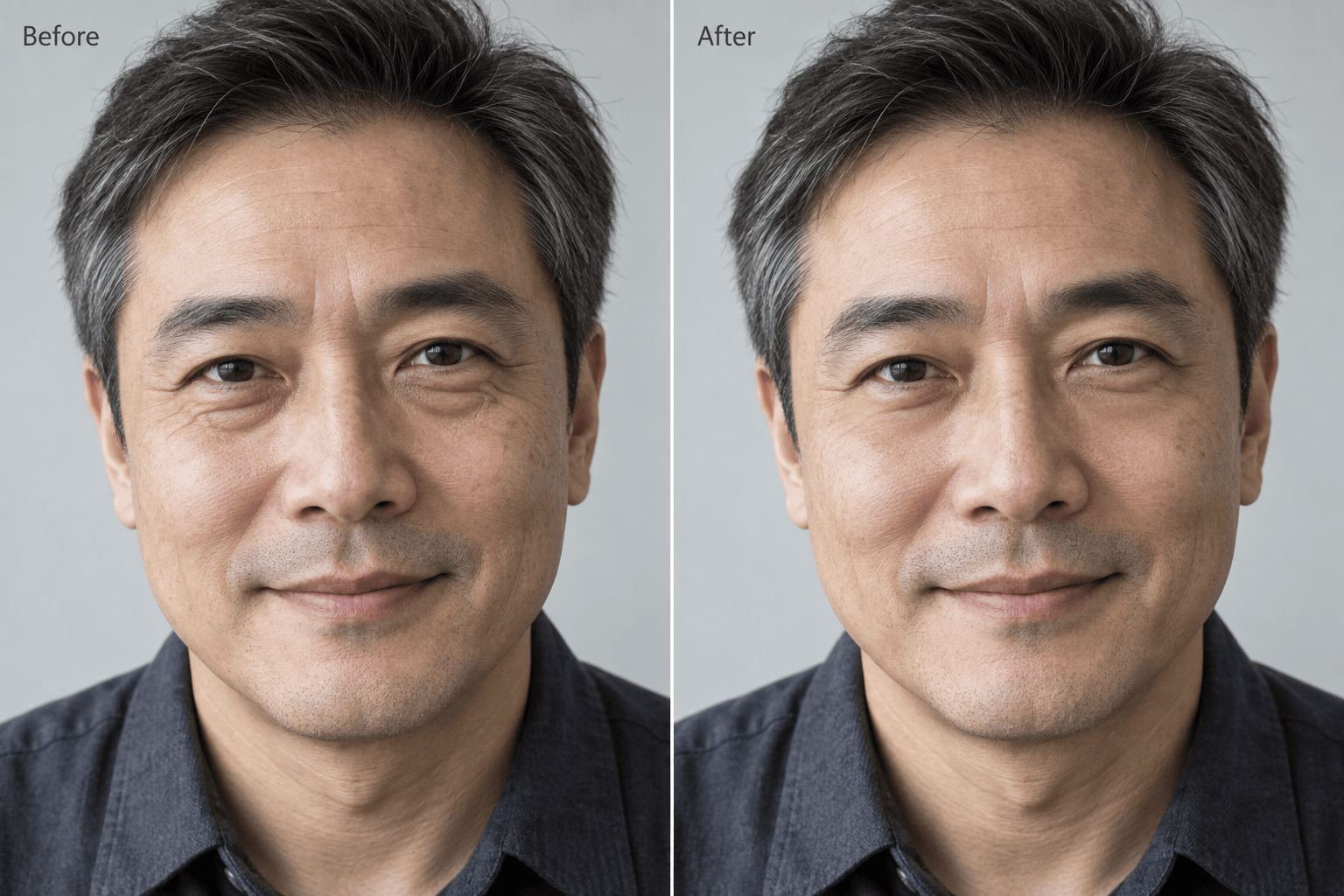
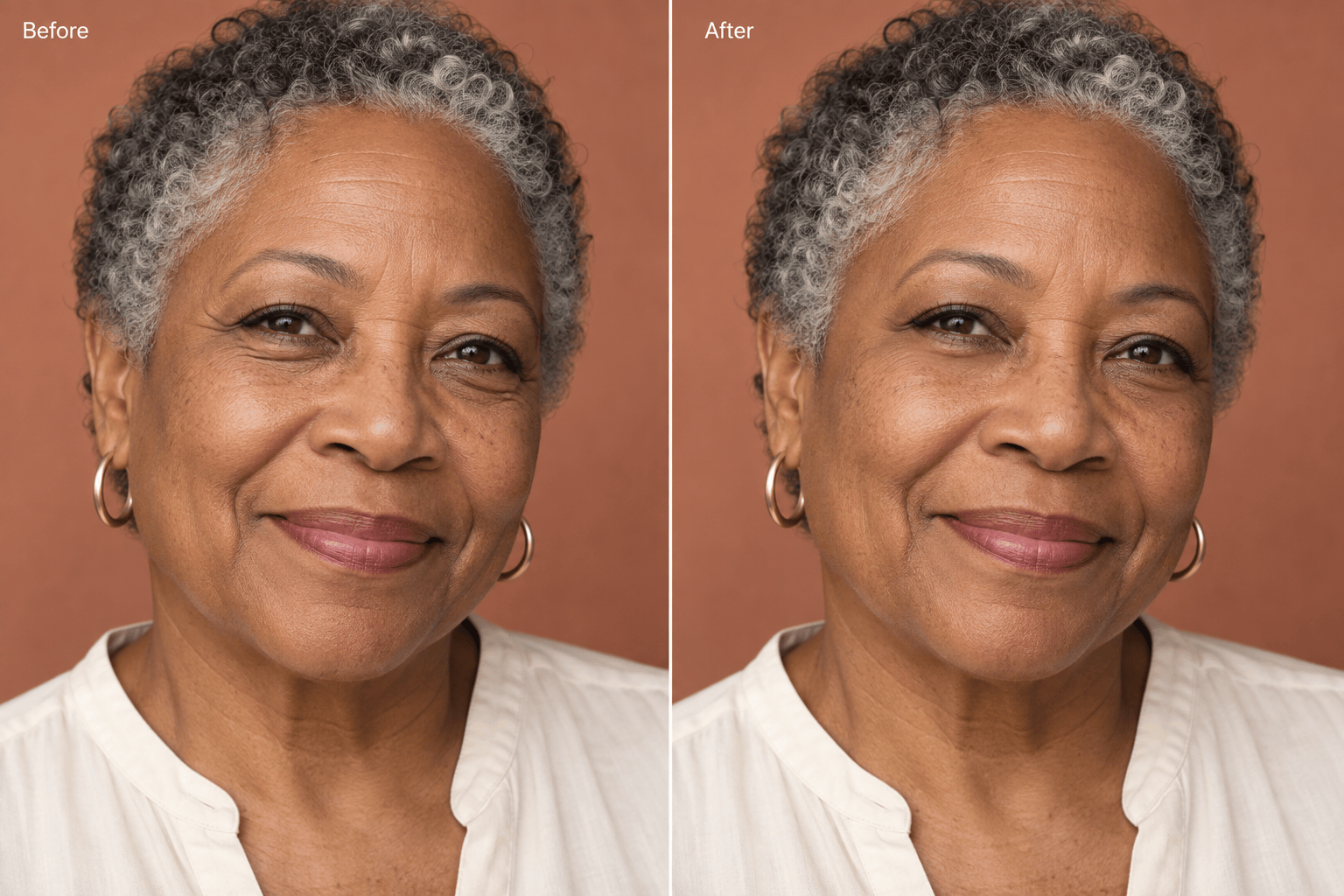
Ask to reduce forehead wrinkles, under-eye fine lines, or crow’s feet in plain language. Include the expression lines, freckles, and other details you want to keep.
Dial Back an Overdone Edit
Use Chat Edit to ask for less smoothing and more texture. You can refine AI wrinkle removal through conversation as you compare versions.
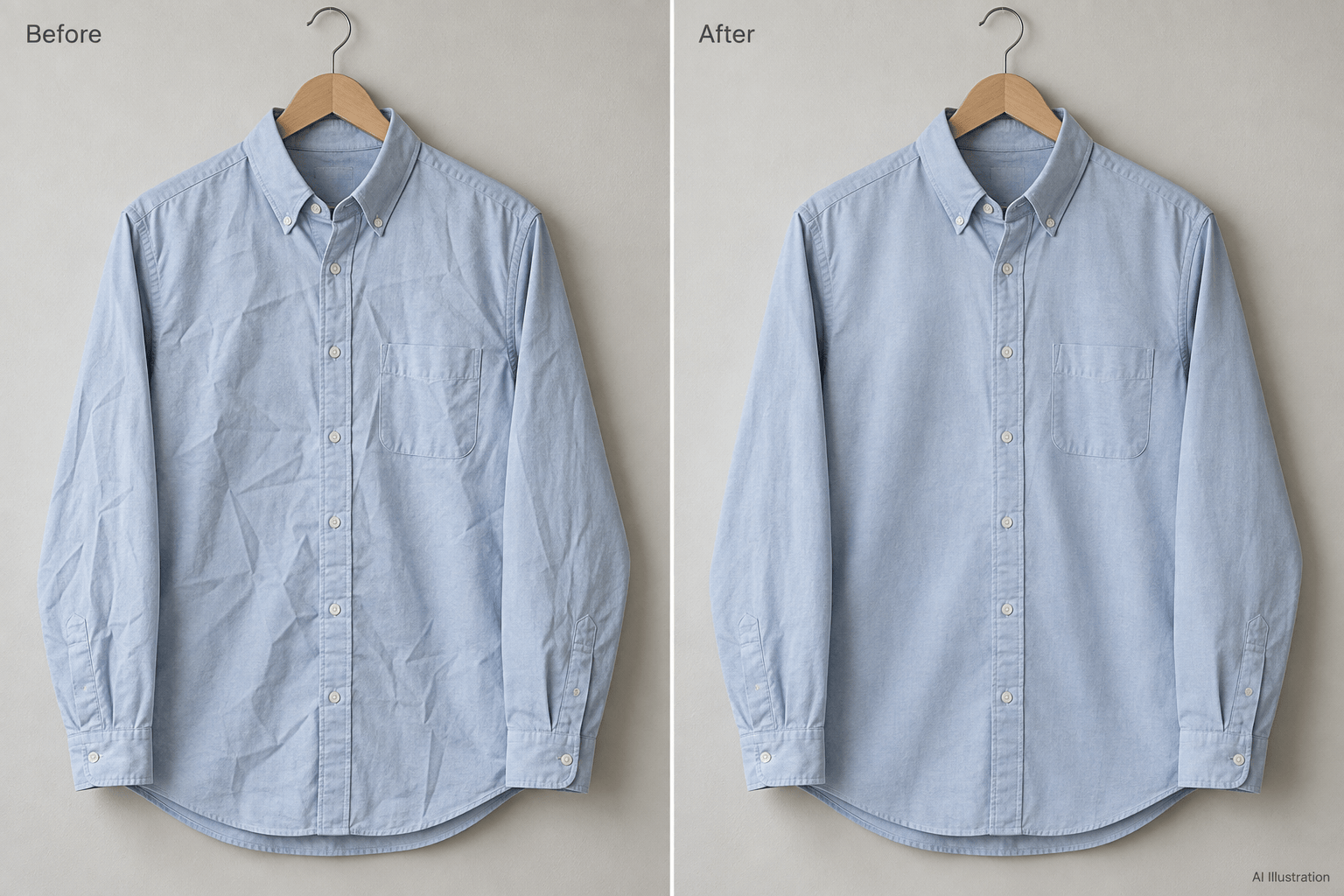
Smooth a Shirt in the Same Workflow
Remove wrinkles from clothes in photos by describing the creases to reduce. Ask to preserve the fabric weave, seams, buttons, and natural folds.
Reuse a Retouching Approach
For recurring headshots or product photos, save your preferred editing method as a Mew Skill. Reuse its preservation and export guidelines, then review each new result.
Try It Before Doing More
Test an edit online with free AI credits after signup. Export PNG or JPG images without a watermark; further use depends on your available credits.
Keep Skin Texture When Removing Wrinkles
- Choose a Detailed Source: Use the original photo when possible. Heavy filters, blur, and compression make it harder to distinguish fine lines from skin texture.
- Separate Lines from Shadows: Under-eye shadows and deep facial folds are not the same as fine wrinkles. Name the issue instead of asking to smooth the entire face.
- Protect Recognizable Details: Ask to keep freckles, moles, expression, face shape, and skin tone. For clothing, protect seams, prints, and intentional pleats.
- Check at Full Size: Look for waxy skin, changed eyelashes, uneven texture, or distorted fabric. If those appear, return to the original and request a gentler edit.
Targeted Fixes for Common Wrinkle Edits
In my uploaded headshot, soften only the horizontal forehead lines. Keep the eyebrows, hairline, skin pores, face shape, and lighting unchanged. Use light retouching.
Reduce the fine lines beneath the eyes in my uploaded portrait. Keep the lower eyelid edges, eyelashes, and natural eye shape. Do not flatten the under-eye contours.
Gently soften the crow’s feet in my smiling portrait. Keep the smile lines visible enough to preserve my expression. Leave my teeth, lips, and cheek shape unchanged.
Retouch my uploaded mature portrait lightly. Reduce only the deepest distracting creases, keeping natural age, freckles, skin texture, and facial proportions recognizable.
The last edit looks too smooth. Use my original photo as the reference and reduce the wrinkle correction. Bring back natural pores and fine texture without sharpening the whole image.
Smooth the accidental creases in the shirt in my uploaded photo. Keep the fabric weave, stitching, buttons, color, and intended folds. Leave the person and background unchanged.





