Free OnlineAI Wink Filter
How to Make a Winking Photo with AI
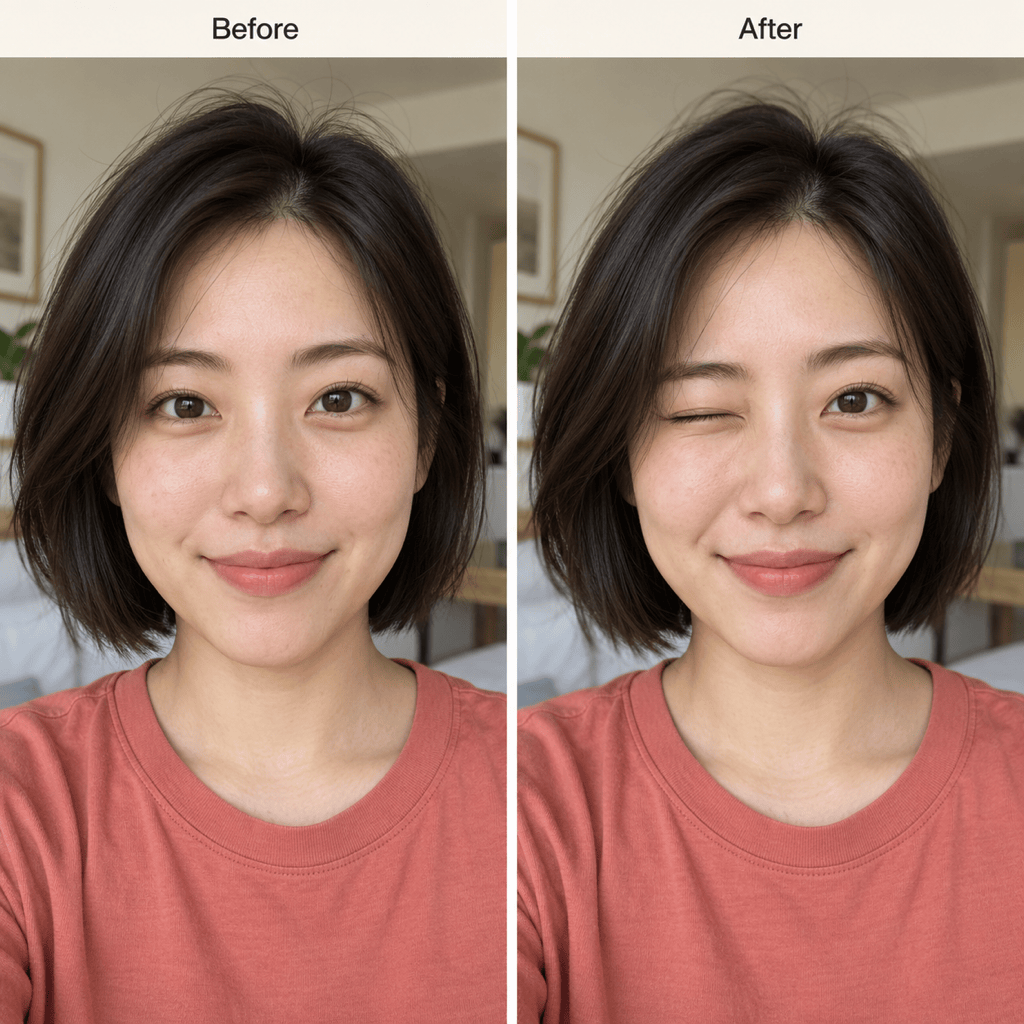
Upload a Clear Portrait
Generate the Wink
Check the Expression Up Close
Download Your Winking Photo

A Wink That Fits Your Photo
Start with Your Own Face
Our AI wink photo editor accepts an existing selfie or portrait as the starting point. Request a small expression change without asking for a whole new person or scene.
Direct the Eye and the Mood
A subtle wink and a cheeky reaction need different expressions. Tell this wink face filter which eye to close and whether to keep your original smile or add a slight one.
Refine More Than the Eyelid
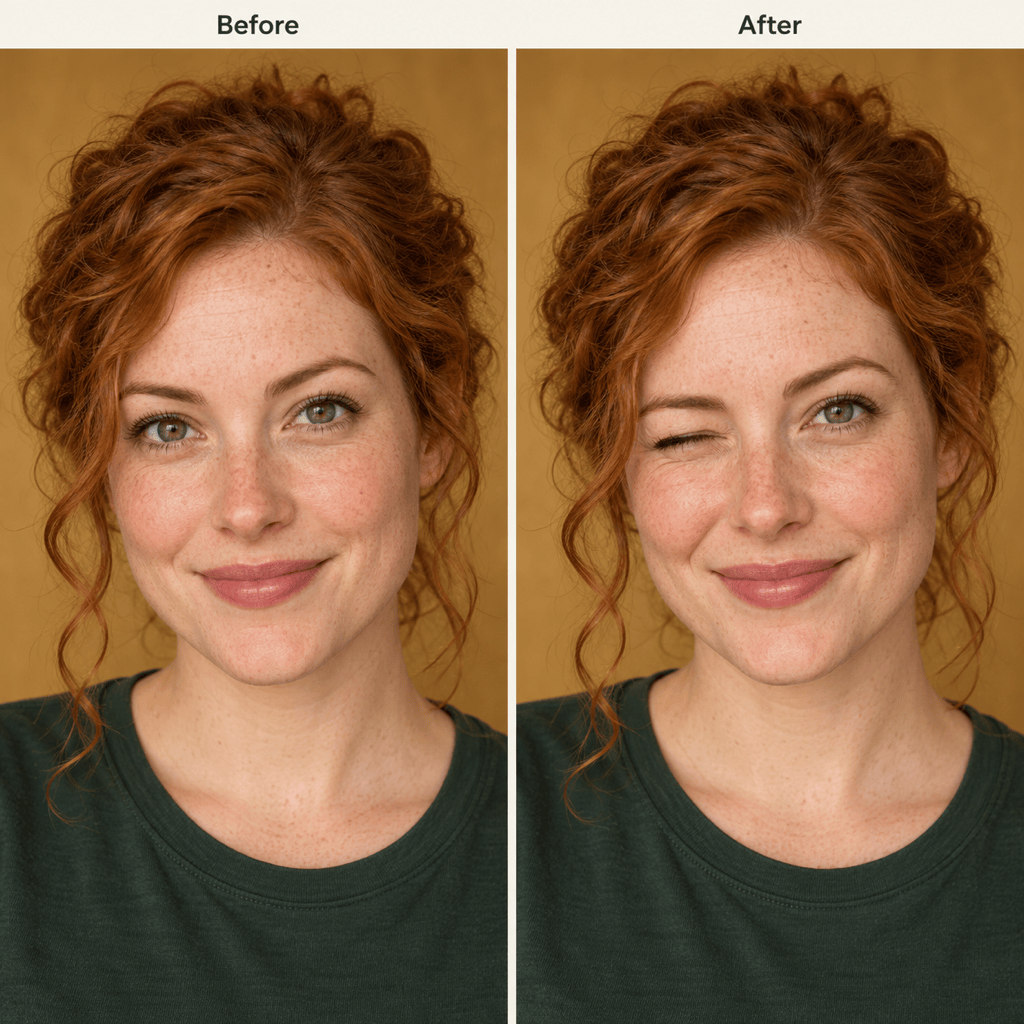
A believable wink also involves the cheek and brow. Use Chat Edit to soften a tense eyebrow, ease a pinched cheek, or restore the open eye’s original shape.
Compare Subtle and Playful Versions
Explore a restrained wink for a profile picture and a more expressive version for a reaction post. Compare both with the original before choosing the one that feels like you.
Work with Illustrated Avatars
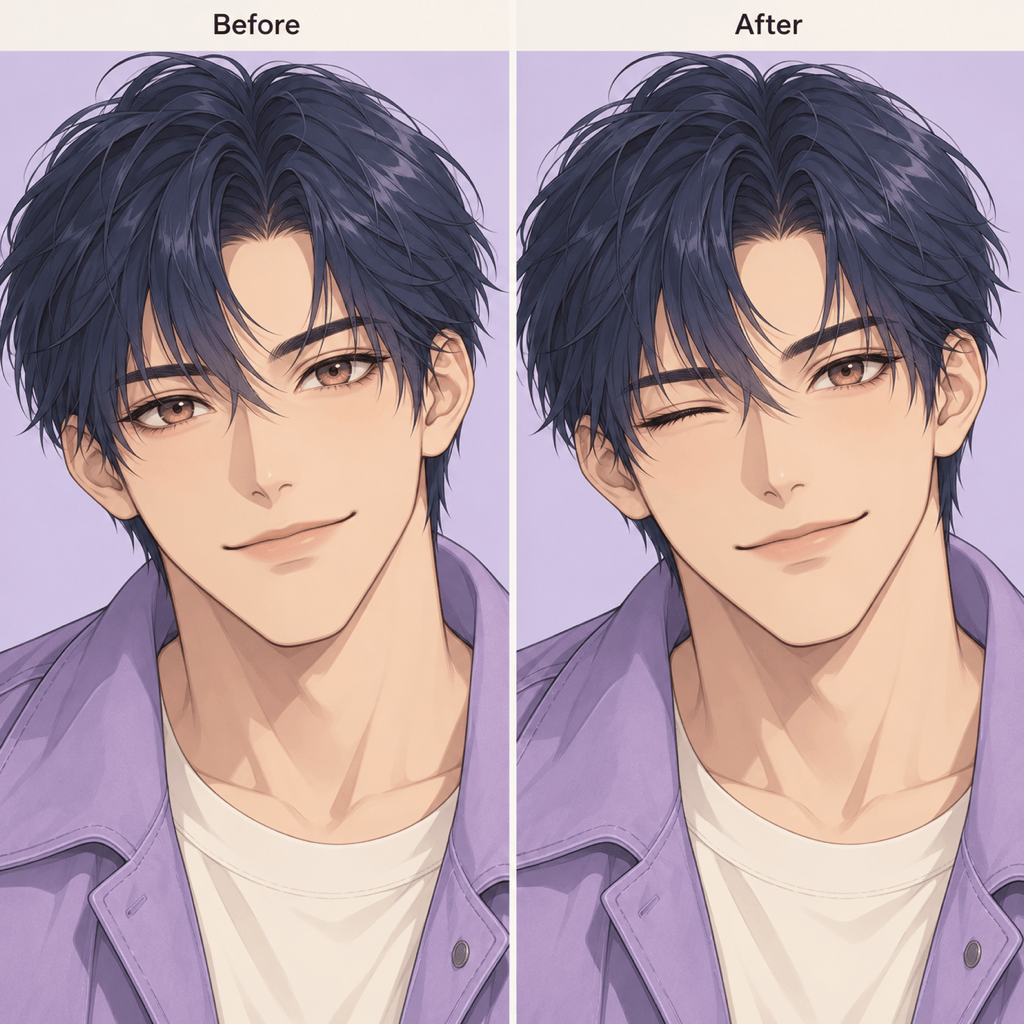
Upload your own character art and ask for a wink in the same drawing style. Specify the linework, colors, hairstyle, and costume details that should stay consistent.
Take the Result to Your Feed
Create a winking profile picture online, then export a PNG or JPG without a watermark. Free signup credits let you try the workflow before deciding whether you need more.
What Makes a Wink Look Natural?
- Show Both Eyes: Use a sharp, well-lit image with the face looking toward the camera. Heavy glare, sunglasses, hair across the eye, and strong side angles make the edit harder to judge.
- Name the Side: Say “left of the image” or “right of the image” and specify the viewer’s perspective. A mirrored selfie can make “my left eye” ambiguous.
- Watch the Open Eye: Check that its shape, gaze, and catchlight still match the source. The wink should read as one eye closing, rather than both eyes squinting.
- Keep the Face Relaxed: Look for a gentle eyelid crease and a small cheek lift. If the nose, mouth, or brow becomes distorted, request a softer expression and compare again.
Fix Common Wink Photo Edits
Switch the wink to the eye on the right of the image, from the viewer’s perspective. Reopen the other eye to match my original photo. Keep my head angle, smile, and background unchanged.
Soften this wink so it looks relaxed rather than squeezed shut. Reduce the raised cheek and tense eyebrow, keep one eye fully open, and preserve the original mouth shape.
Use my original uploaded portrait as the reference again. Restore its face shape, nose, skin texture, and hairstyle. Change only the wink and the small cheek movement needed to support it.
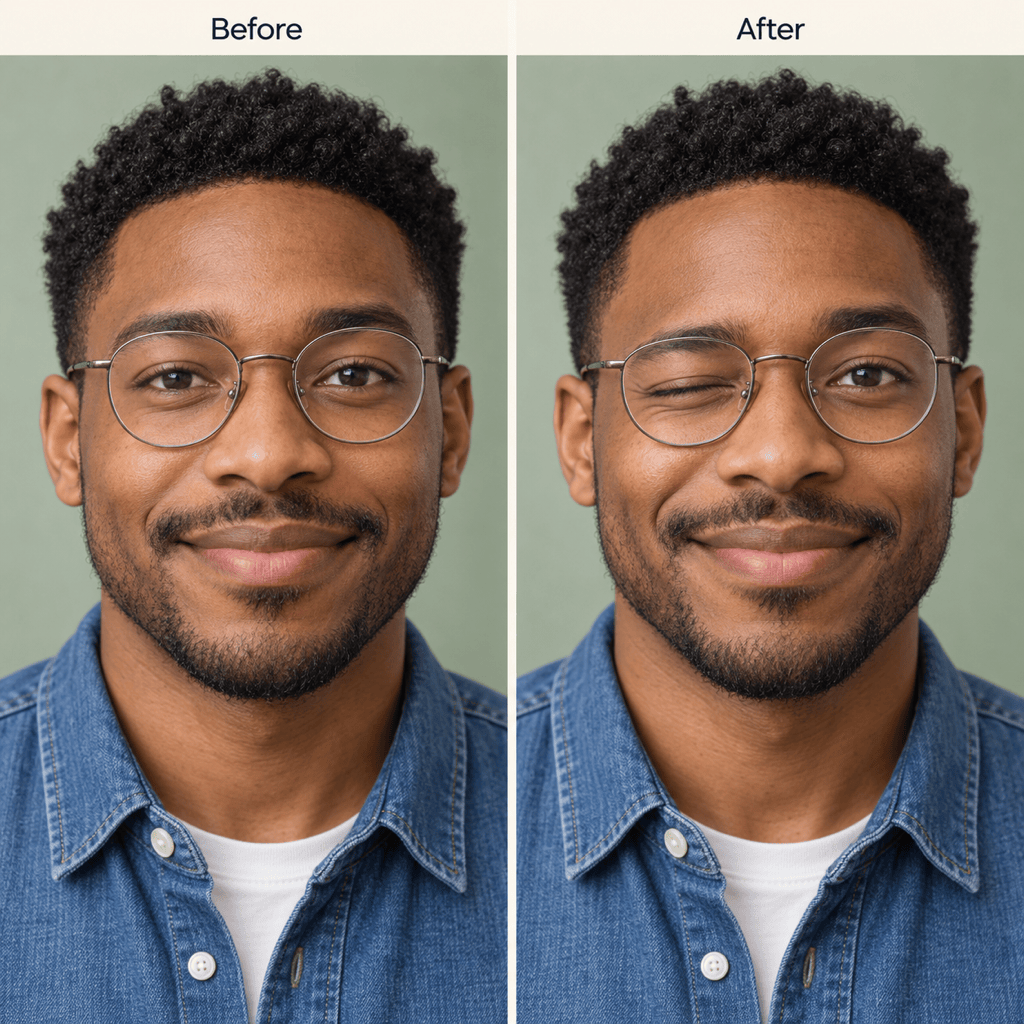
Keep the glasses from my original photo, including their frame shape and position. Add a gentle wink behind the lens without bending the frame or changing the other eye.
In my uploaded group photo, add a subtle wink only to the person closest to the left edge. Keep everyone else’s expression unchanged and preserve the original framing and background.
Add a wink to my uploaded anime avatar. Close the eye on the left of the image and keep the other eye’s iris design. Match the original linework, colors, hairstyle, and costume; do not turn it into a photo.





